How to Connect Salesforce Pro with Aircall (With or Without an AI Agent)
Log every Aircall conversation in Salesforce and capture unknown callers as leads, optionally as an AI agent that reads each call and pauses for the rep before Convert Lead to Contact restructures the CRM around a judgment call.
How do you connect Salesforce Pro to Aircall?
You connect Salesforce Pro to Aircall by having a scheduled workflow poll Aircall with List Calls, pull each completed call with Get Call, and land it in the CRM: Find Records by Query matches the caller’s number against your leads and contacts with SOQL, Create Enhanced Note logs the conversation on the matched record, and Create Lead captures unknown callers so no inbound interest evaporates. On the phone side, Comment on Call, Add Tags to Call, and Add Link to Call write the CRM context back onto the call record. FlowRunner is a visual AI-agent orchestration platform where automations run autonomously and pause for human judgment on the steps that carry real consequence. The same connection can run as an AI agent that reads each conversation, decides when a lead has earned conversion, and pauses for the owning rep before Convert Lead to Contact rewrites the CRM, because Salesforce offers no clean undo for that stroke.
The problem it solves
Call activity is the least reliable data in most Salesforce orgs. Reps take calls in Aircall all day, and what reaches the CRM is whatever survives until the end-of-day memory dump: a few hurried activity logs, some “called, LM” notes, and silence for the rest. Sales managers build forecasts on records that show three touches when there were eleven. And the inbound side is worse: a prospect calls the main line, gets an answer and a promise, and never becomes a lead at all because creating one by hand mid-shift is friction nobody pays.
Then there is the conversion mess, which cuts in both directions. Fast-moving teams convert leads on gut feel after one decent call, and the org fills with hollow accounts and dead opportunities that pollute pipeline reviews. Careful teams do the opposite: qualified leads sit unconverted for weeks because conversion is a chore, and marketing keeps nurturing people who are already in an active sales conversation. Both failure modes come from the same gap: the system that heard the conversation and the system that structures the pipeline never talk.
How it works: the connection
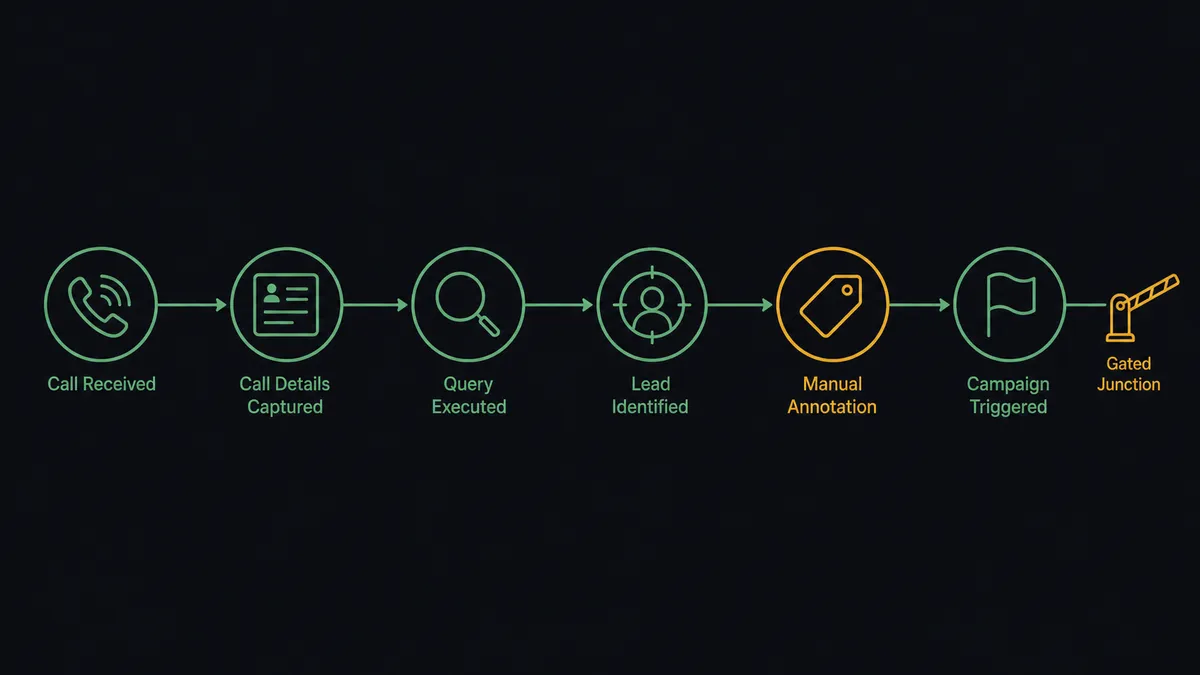
The connection polls Aircall and writes to Salesforce. Here is the plain version, grounded in the real connector actions.
- Trigger: On a schedule, the workflow calls List Calls with a date-range filter and picks up calls completed since the last run.
- Read: It calls Get Call for each one: direction, duration, timestamps, recording link, and the matched contact when Aircall recognized the number.
- Match the caller: It runs Find Records by Query with a SOQL query against leads and contacts by phone number, using Find Record for the full record once matched.
- Log or capture: Matched callers get the call logged via Create Enhanced Note on their record; unknown callers become new leads via Create Lead with the number, timestamp, and receiving line.
- Annotate the call: It calls Comment on Call with the CRM summary, Add Tags to Call for the call category, and Add Link to Call pointing at the Salesforce record.
- Keep campaigns honest: Callers responding to a campaign line get attached with Add Lead to Campaign or Add Contact to Campaign, so attribution survives.
That is the “just connect them” answer. Every conversation becomes CRM history, every unknown caller becomes a lead, and the phone system carries the CRM’s memory into the next call.
Can an AI agent run it? (and why a human stays in the loop)
Yes, and the difference is that the agent listens to what the call meant, not just that it happened. It holds List Calls, Get Call, Find Records by Query, Find Record, Create Lead, Update Lead, Create Enhanced Note, Convert Lead to Contact, Send Email, Comment on Call, Add Tags to Call, and Add Link to Call as tools. A voicemail drop gets a lightweight log. A fourth substantive conversation with the same lead gets a richer note via Create Enhanced Note, an Update Lead to reflect the new status, and a nudge to the owner. A wrong-number call gets archived context instead of a junk lead. The agent chooses, per call, from real actions.
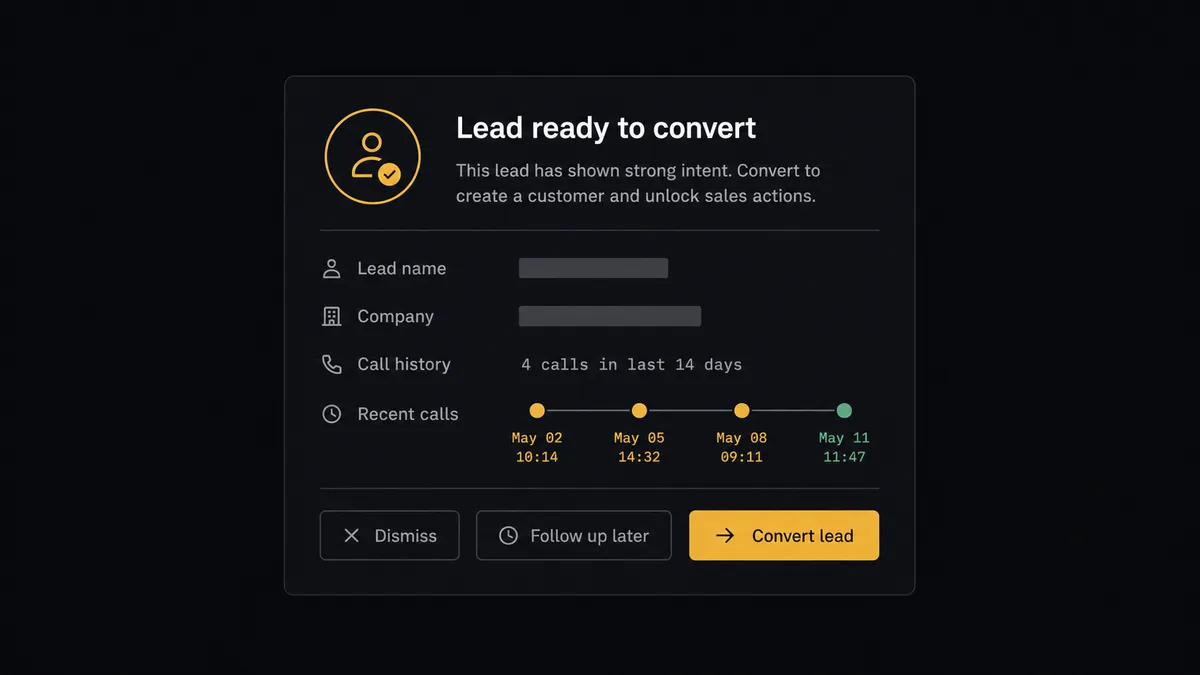
The consequential step is Convert Lead to Contact. Conversion is not a log entry; it creates an account, a contact, and optionally an opportunity in a single stroke, reshaping pipeline reports and ownership, and Salesforce has no clean way to unwind it. So the agent never converts on its own read. When a call sequence says this lead is real, it assembles the case: the lead’s detail from Find Record, the call history it has logged, and the moment in the last conversation that signaled intent. Then it invokes a human-in-loop flow it holds as a callable tool and the workflow pauses. The owning rep sees: “Lead [name] at [company] has had [call history] and asked about contract terms on the last call. Convert to contact with an opportunity, hold as a lead, or disqualify?” Only after the rep approves does Convert Lead to Contact run, and the decision, the decider, and the timestamp land in the audit trail.
That is the digital andon cord for pipeline hygiene: like Toyota’s line, the workflow stops the line at the step that reshapes the org and cannot be cleanly reversed, and the person who owns the relationship pulls it forward.
FlowRunner vs Zapier
Zapier is a fair default instinct for this pair. Its connector catalog is the industry’s largest, its template gallery covers Aircall and Salesforce combinations out of the box, and a straightforward “call ended, create an activity” Zap is live within an hour. For teams that only need presence, not interpretation, that is genuinely useful.
The divergence starts when the workflow has to read conversations and touch conversion, the step with no undo.
| What matters for this pair | FlowRunner | Zapier |
|---|---|---|
| Human-in-the-loop on Convert Lead to Contact | Native. The agent invokes an approval flow as a callable tool before conversion reshapes the org | Available via added approval steps you insert into a Zap, not an agent’s own decision |
| Who runs the flow | An AI agent reads each call, reasons about the lead, picks actions as tools | Predefined step sequence you configure per Zap |
| Users included | Unlimited users on every tier | Priced by task volume; seats vary by plan |
| Bring your own AI keys | Yes, BYOK | AI features tied to Zapier’s own AI offering |
| Self-hosted option | Yes, cloud-hosted or self-hosted | Cloud only |
| Pricing model | Transparent workflow-based tiers; high call volume does not change the math | Per-task pricing, and a busy phone team’s every call consumes tasks |
If your need ends at logging calls as activities, Zapier will carry it. If you want conversations interpreted, leads captured and matured automatically, and a rep’s recorded approval in front of every conversion, this pairing is the better fit.
Before and after
| Category | Before | After |
|---|---|---|
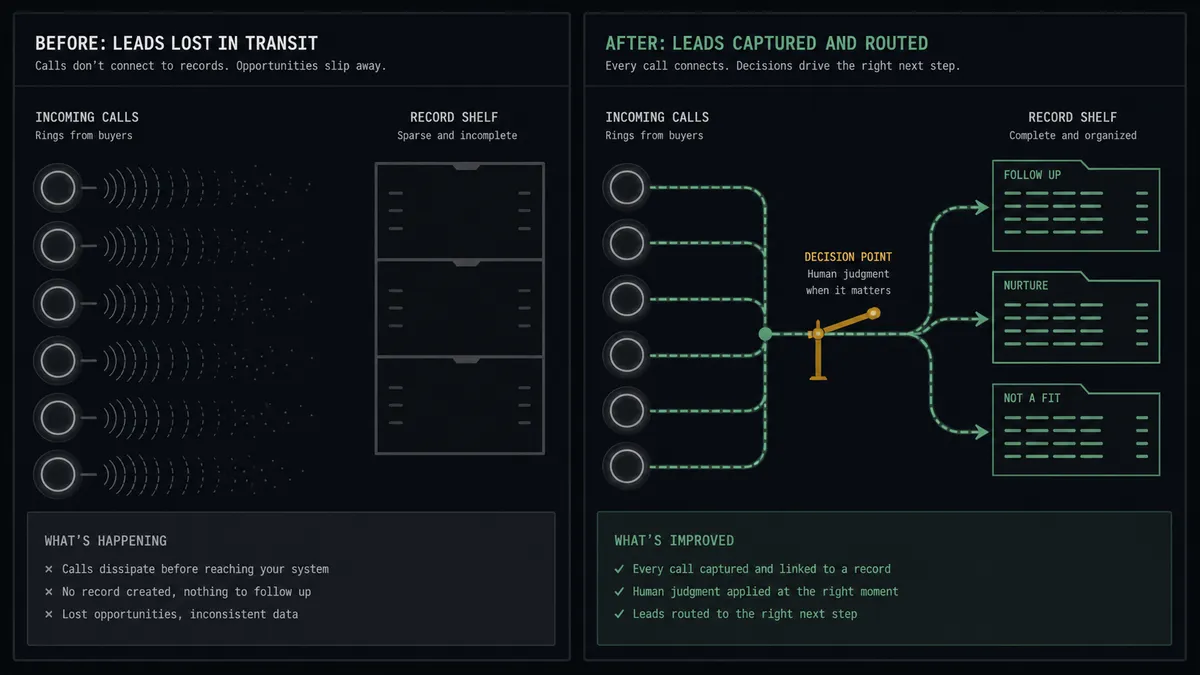
| Call history | The CRM shows the calls reps remembered to log | Every completed call is logged on the right record with duration and summary |
| Inbound capture | Callers to the main line vanish unless someone creates a lead by hand | Unknown callers become leads via Create Lead the same hour they call |
| Lead matching | Numbers get eyeballed against records, and history lands on the wrong lead | Find Records by Query matches by phone with SOQL, and ambiguity goes to a person |
| Conversion discipline | Gut-feel conversions and stale qualified leads coexist in the same org | Conversion proposals come with call evidence and run only after the rep approves |
| Rep context | Reps redial with no memory of the last conversation | Comment on Call and Add Link to Call put the CRM story inside the phone system |
What you can build
Call to logged record, hands off. List Calls picks up the call, the agent reads it with Get Call, matches via Find Records by Query, and logs it with Create Enhanced Note, annotating the phone side through Comment on Call and Add Link to Call.
Inbound caller to lead. Unknown numbers become structured leads via Create Lead, tagged by receiving line and attached to the right campaign with Add Lead to Campaign when the number maps to one.
Evidence-gated conversion. When the call record says a lead is real, the agent packages the history and pauses; Convert Lead to Contact runs only after the owning rep approves, and every conversion is attributable.
Approved follow-up drafts. After a substantive call, the agent drafts a recap and next-step message from the note it just wrote, and holds it for the rep’s approval before Send Email delivers anything to the prospect.
Stale-lead resurface. On a weekly schedule the agent queries leads with real call history but no recent touch via Find Records by Query, cross-checks List Calls for missed inbound attempts, and hands each owner a short list of conversations going cold.
Common questions
Is it free to connect Salesforce Pro and Aircall on FlowRunner? You can build and run the connection on FlowRunner’s free plan, which includes 100 executions a month and every integration with no credit card required, and new accounts also get 14 days of Professional. Both connectors are available on every FlowRunner tier, and every tier includes unlimited users and unlimited workflows.
Can I self-host the Salesforce Pro to Aircall workflow? Yes. FlowRunner offers a cloud-hosted option and a self-hosted option, so the connection can run inside your own environment.
Does the AI agent need my own OpenAI or Claude key? FlowRunner uses a bring-your-own-keys model, so you connect the AI provider key you already have. You are not locked to one model.
What happens when the agent is unsure whether a caller matches an existing lead? It logs conservatively and asks. The agent posts the call detail and the candidate records it found through Find Records by Query, and a person decides which record owns the activity. It never stacks call history onto the wrong lead or spawns a duplicate silently.
Which events start the Salesforce Pro to Aircall workflow? Neither connector publishes a catalog trigger, so the workflow runs on a schedule. It polls Aircall with List Calls using date-range filters, pulls each completed call’s detail with Get Call, and processes every call exactly once.
Why does lead conversion need human approval? Because Convert Lead to Contact creates an account, a contact, and optionally an opportunity in one stroke, and Salesforce has no clean way to unwind it. The agent assembles the case from the call, but the owning rep decides. The approval is captured in the audit trail.
Getting started
Start on the free plan: 100 executions a month, every integration included, no credit card required, plus 14 days of Professional for new accounts. Both connectors are available on every tier, and every tier includes unlimited users and unlimited workflows.
Explore the integration details:
- Salesforce Pro integration (26 actions covering leads, contacts, records, SOQL queries, and email)
- Aircall integration (33 actions covering calls, contacts, tags, teams, and webhooks)
Start building free at flowrunner.ai or book a demo to see a live Salesforce Pro to Aircall workflow, conversion approval and all.
Frequently asked questions
Is it free to connect Salesforce Pro and Aircall on FlowRunner?
You can build and run the connection on FlowRunner's free plan, which includes 100 executions a month and every integration with no credit card required, and new accounts also get 14 days of Professional. Both connectors are available on every FlowRunner tier, and every tier includes unlimited users and unlimited workflows.
Can I self-host the Salesforce Pro to Aircall workflow?
Yes. FlowRunner offers a cloud-hosted option and a self-hosted option, so the connection can run inside your own environment.
Does the AI agent need my own OpenAI or Claude key?
FlowRunner uses a bring-your-own-keys model, so you connect the AI provider key you already have. You are not locked to one model.
What happens when the agent is unsure whether a caller matches an existing lead?
It logs conservatively and asks. The agent posts the call detail and the candidate records it found through Find Records by Query, and a person decides which record owns the activity. It never stacks call history onto the wrong lead or spawns a duplicate silently.
Which events start the Salesforce Pro to Aircall workflow?
Neither connector publishes a catalog trigger, so the workflow runs on a schedule. It polls Aircall with List Calls using date-range filters, pulls each completed call's detail with Get Call, and processes every call exactly once.
Why does lead conversion need human approval?
Because Convert Lead to Contact creates an account, a contact, and optionally an opportunity in one stroke, and Salesforce has no clean way to unwind it. The agent assembles the case from the call, but the owning rep decides. The approval is captured in the audit trail.