How to Connect ShipBob with Files.com (With or Without an AI Agent)
Connect ShipBob shipment events to Files.com so every order, exception, and return lands as an archived record, with an AI agent that files documents automatically and pauses for a human before anything is deleted or shared outside the company.
How do you connect ShipBob to Files.com?
You connect ShipBob to Files.com by having ShipBob’s On Order Shipped trigger drive Files.com actions: the workflow pulls the full shipment with Get Order and Get Shipment, builds the destination path with Create Folder, and writes the record into your archive with Upload File, so every shipped order becomes a filed document the moment it leaves the warehouse. FlowRunner is a visual AI-agent orchestration platform where automations run autonomously and pause for human judgment on the steps that carry real consequence. The same connection can run as an AI agent that files records on its own and pauses for a named human before Delete File or Folder removes anything permanently or Create Share Bundle exposes a folder outside the company.
The problem it solves
Right now your fulfillment paper trail lives in two places that never meet. ShipBob knows what shipped, when, on which carrier, and what came back. Your document store knows what someone remembered to save. When a wholesale customer disputes a delivery, or an auditor asks for return records, someone exports data from the ShipBob dashboard, renames files by hand, and drags them into folders one client at a time. The archive is only as complete as the busiest person’s memory.
The edges are where it hurts. A shipment throws an exception and the evidence of what happened never gets captured, so the carrier claim dies for lack of documentation. A returns folder for a churned client sits in storage for years because nobody is sure whether it is safe to delete. Someone shares a folder link with a partner and forgets it exists, so an open link keeps serving delivery data long after the engagement ended. This is a governance problem, and it compounds quietly.
How it works: the connection
The connection listens to ShipBob and writes to Files.com. Here is the plain version, grounded in the real connector actions.
- Trigger: ShipBob fires On Order Shipped when the warehouse ships an order.
- Read: The workflow calls Get Order and Get Shipment to pull the recipient, carrier, tracking number, ship date, and line items.
- Check the path: It calls Get Metadata on the target folder path to see whether the client and month folder already exists.
- Build the folder: If not, it calls Create Folder with Create Parents enabled, so the full client and month path appears in one step.
- File the record: It calls Upload File to write the shipment record into the folder, named by order ID and ship date.
- Capture the exceptions: On Shipment Exception and On Return Completed run the same path into their own folders, so problem shipments and returns carry their own paper trail.
- Verify: It calls List Folder to confirm the file landed where it should.
That is the “just connect them” answer. Every shipment, exception, and return becomes a filed record with a consistent path and name, and nobody drags documents into folders by hand again.
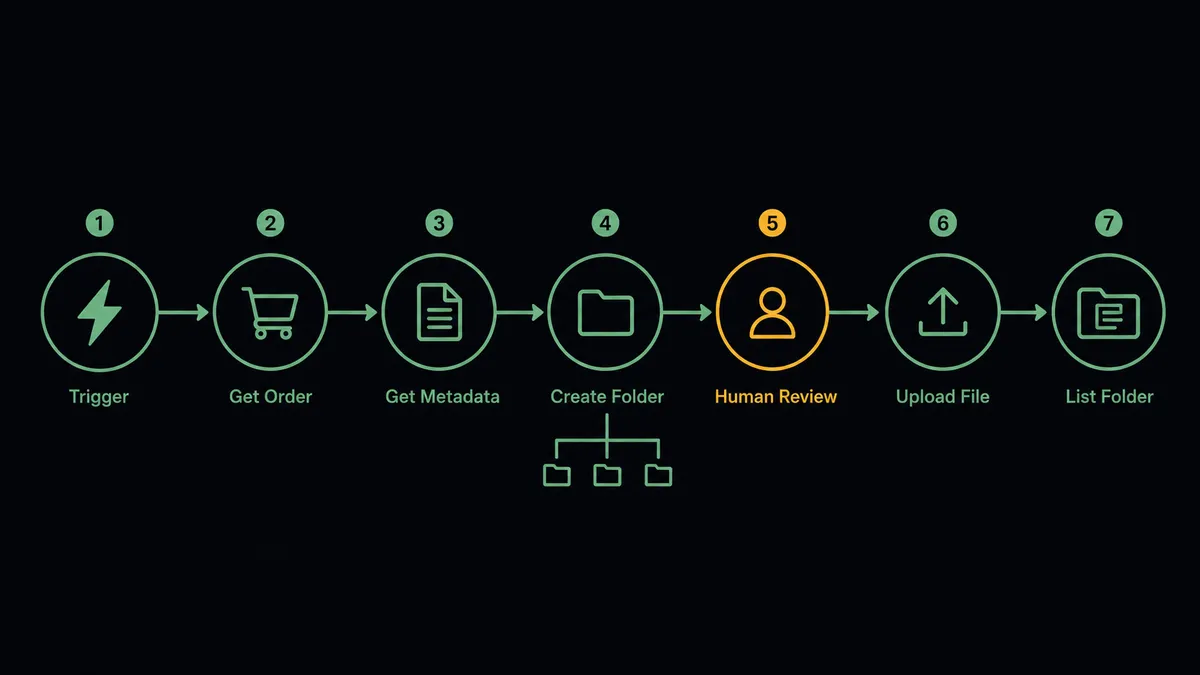
Can an AI agent run it? (and why a human stays in the loop)
Yes, and this is where the connection stops being a filing script and starts being an archivist. An AI agent holds the Files.com actions as tools: Upload File, Create Folder, Move File or Folder, Delete File or Folder, Create Share Bundle. It reads each ShipBob event, decides where the record belongs, and picks the action that fits. A routine delivery gets filed. An exception gets filed and flagged. A record uploaded to the wrong client path gets corrected with Move File or Folder instead of duplicated.
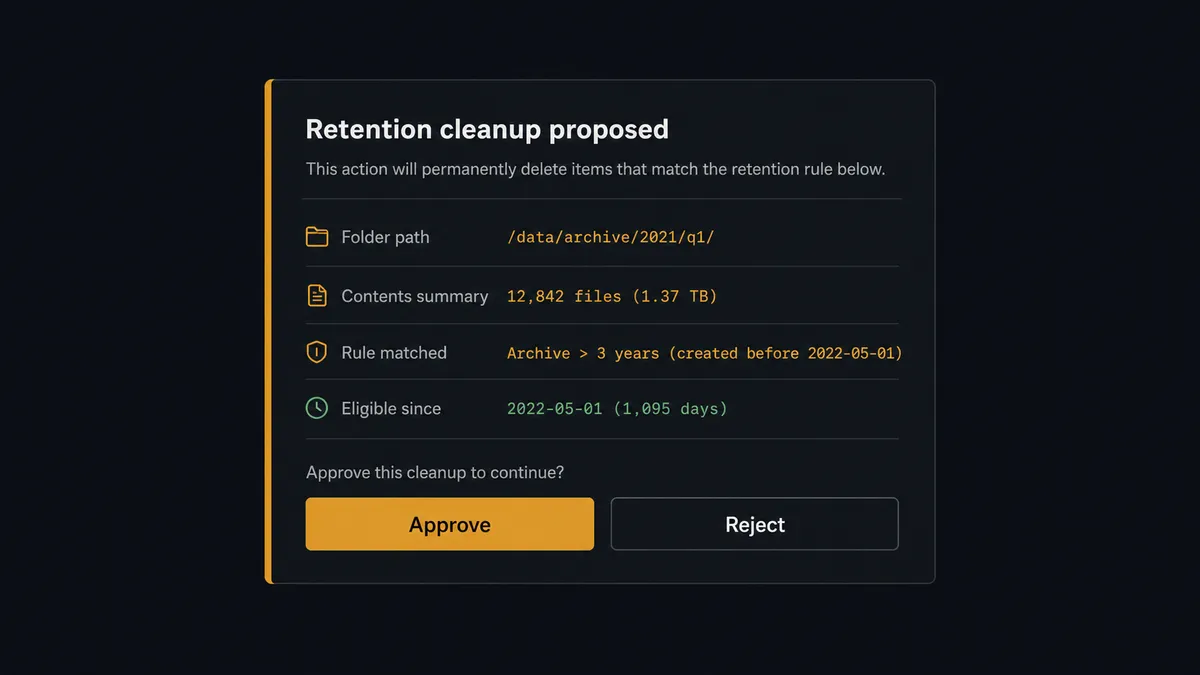
Two of those tools carry real consequence. Delete File or Folder is permanent; the catalog is blunt that it cannot be undone. Create Share Bundle creates a public link, which means company data crossing the boundary. So when the retention schedule says a churned client’s folder is past its hold period, the agent does not just fire the delete. It gathers what a human would want to see: the folder path, what the folder contains, the retention rule it matched, and the client’s status. Then it invokes a human-in-loop flow it holds as a callable tool. The workflow pauses and posts to the ops channel: “Retention cleanup proposed for folder [path]. Contents: shipment and return records for [client]. Rule matched: [rule]. Approve to delete permanently?” Only after a named person approves does Delete File or Folder run, and the approval lands in the audit trail with the approver and timestamp.
The same discipline applies to sharing. Before Create Share Bundle generates a link for a partner or auditor, the agent proposes the bundle contents, a password, and an expiration date, and waits for sign-off. Prospects call this pattern a digital andon cord: like Toyota’s quality control pull cord, the workflow stops the line the moment it hits a step it should not take alone, and your team pulls it back into motion with one click.
FlowRunner vs Fivetran
If your goal is getting ShipBob data into a warehouse for analytics, Fivetran is the standard for a reason. Its managed ELT pipelines, wide connector catalog, and automated handling of schema changes make replication into Snowflake or BigQuery genuinely hands-off. For feeding dashboards, it is excellent at exactly what it promises.
But replication is not this job. This job is operational: files created, moved, governed, shared, and deleted, with judgment applied at each step. Here is the honest side-by-side for this pair.
| What matters for this pair | FlowRunner | Fivetran |
|---|---|---|
| Human-in-the-loop on deletes and external shares | Native. The agent pauses before Delete File or Folder and Create Share Bundle until a named approver signs off | Not applicable; Fivetran replicates data, it does not take operational actions |
| Who runs the flow | An AI agent reads each event, reasons, and picks actions as tools | Scheduled sync jobs that copy rows into a destination warehouse |
| Users included | Unlimited users on every tier | Consumption-based pricing tied to monthly active rows, not seats |
| Bring your own AI keys | Yes, BYOK. Connect the AI provider key you already have | No agent layer to bring keys to |
| Self-hosted option | Yes, cloud-hosted or self-hosted | Cloud-first managed service |
| Pricing model | Transparent workflow-based tiers with clear execution limits | Consumption pricing that scales with data volume |
If you need ShipBob rows in a warehouse next to your analytics sources, use Fivetran. If you need shipment records filed, governed, shared under control, and deleted only with a named approval, that is orchestration, and it is what FlowRunner is built for. Plenty of teams run both.
Before and after
| Category | Before | After |
|---|---|---|
| Filing shipment records | Someone exports from the ShipBob dashboard and drags files into client folders when they remember | Every shipped order is filed by Upload File the moment On Order Shipped fires |
| Exception evidence | Problem shipments leave no paper trail, and carrier claims die for lack of documentation | On Shipment Exception files the evidence into its own folder automatically |
| Folder hygiene | Paths drift, names vary by who filed them, duplicates pile up | Create Folder builds one consistent client and month structure, and Move File or Folder corrects misfiles |
| Deleting old records | Folders for churned clients sit untouched for years because nobody is sure what is safe to remove | The agent proposes retention cleanups and a named approver signs off before Delete File or Folder runs |
| External sharing | Links get created ad hoc and forgotten, serving data long after the engagement ends | Create Share Bundle runs only after approval, with a password and expiration date on every link |
What you can build
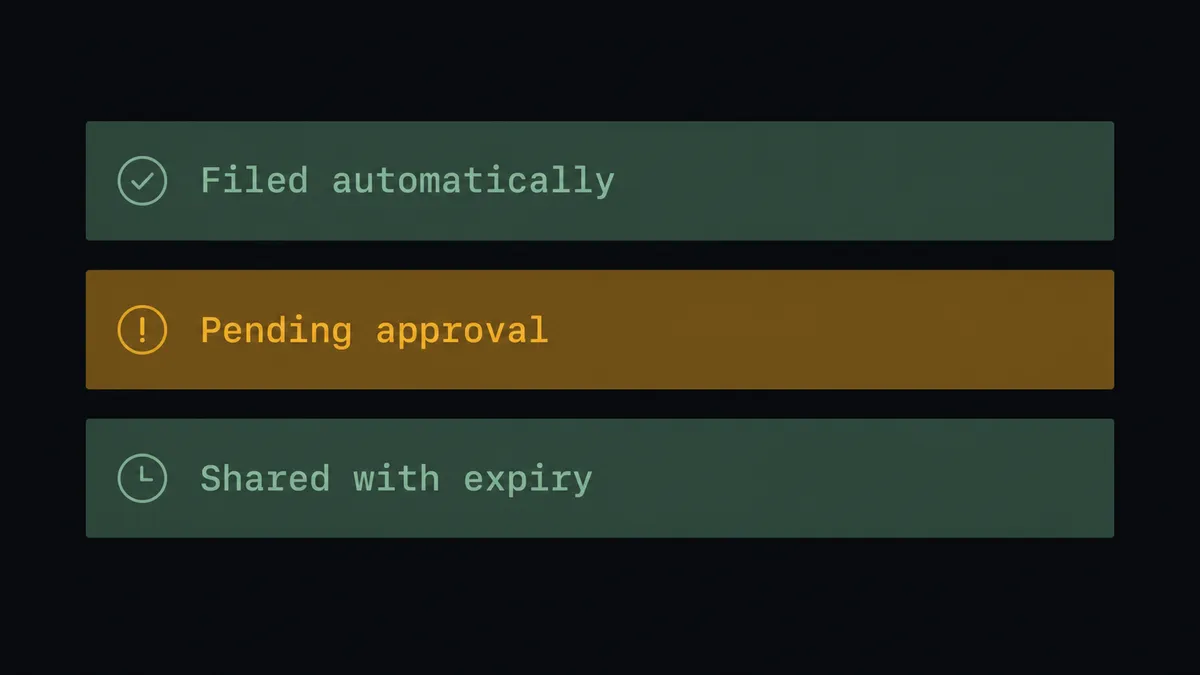
Shipment archive, hands off. On Order Shipped fires. The agent calls Get Order and Get Shipment, builds the path with Create Folder, and files the record with Upload File. The archive stays complete without anyone touching a folder.
Exception evidence capture. On Shipment Exception fires. The agent pulls the shipment with Get Shipment, files the exception record, and flags the folder so the ops lead has the documentation ready when the carrier claim window opens.
Return paper trail. On Return Completed fires. The agent files the return record next to the original shipment, so a dispute about what came back is settled by opening one folder instead of reconciling two systems.
Governed partner sharing. A wholesale customer asks for delivery documentation. The agent assembles the relevant folder, proposes a Create Share Bundle with a password and expiration date, and generates the link only after a named human approves what is inside.
Retention cleanup with sign-off. On a schedule, the agent walks the archive with List Folder and Get Metadata, matches folders against your retention rules, and queues Delete File or Folder proposals for approval. Nothing permanent happens without a name attached.
Getting started
Start on the free plan: 100 executions a month, every integration included, no credit card required, plus 14 days of Professional for new accounts. Both connectors are available on every tier, and every tier includes unlimited users and unlimited workflows, so the ops lead, the warehouse manager, and the compliance owner all work in the same workspace from day one.
Explore the integration details:
- ShipBob integration (5 triggers and 20 actions covering orders, shipments, returns, inventory, and warehouse receiving)
- Files.com integration (11 actions covering uploads, folders, share bundles, and governed file operations)
Start building free at flowrunner.ai or book a demo to see a live ShipBob to Files.com workflow, retention approval and all.
Frequently asked questions
Is it free to connect ShipBob and Files.com on FlowRunner?
You can build and run the connection on FlowRunner's free plan, which includes 100 executions a month and every integration with no credit card required, and new accounts also get 14 days of Professional. Both connectors are available on every FlowRunner tier, and every tier includes unlimited users and unlimited workflows.
Can I self-host the ShipBob to Files.com workflow?
Yes. FlowRunner offers a cloud-hosted option and a self-hosted option, so the connection can run inside your own environment. Self-hosting suits teams whose file governance policies require workflows to run on their own infrastructure.
Does the AI agent need my own OpenAI or Claude key?
FlowRunner uses a bring-your-own-keys model, so you connect the AI provider key you already have. You are not locked to one model, and you control which provider runs the agent.
What happens when the agent is not sure a file is safe to delete?
It stops. Delete File or Folder in Files.com cannot be undone, so the agent treats any uncertainty as a reason to pause. It posts the folder path, the retention rule it matched, and what the folder contains to your team's channel, then waits for an approve or reject decision before anything is removed.
Which ShipBob events can trigger a Files.com action?
ShipBob offers five triggers: On Order Shipped, On Shipment Delivered, On Shipment Exception, On Shipment On Hold, and On Return Completed. Most teams start with On Order Shipped for archiving and add On Shipment Exception to capture the paper trail on problem shipments.
Can the workflow share delivery documents with people outside the company?
Yes, through Create Share Bundle, which generates a public share link with an optional password and expiration date. Because a bundle exposes files externally, the agent treats it as a consequential step and asks a named human to approve the contents, password, and expiry before the link exists.