How to Connect Salesforce Pro with Basecamp (With or Without an AI Agent)
Connect Salesforce opportunities to Basecamp so every closed-won opportunity becomes a scaffolded delivery project, with a human approving the client-facing kickoff email before Send Email reaches the customer.
How do you connect Salesforce Pro to Basecamp?
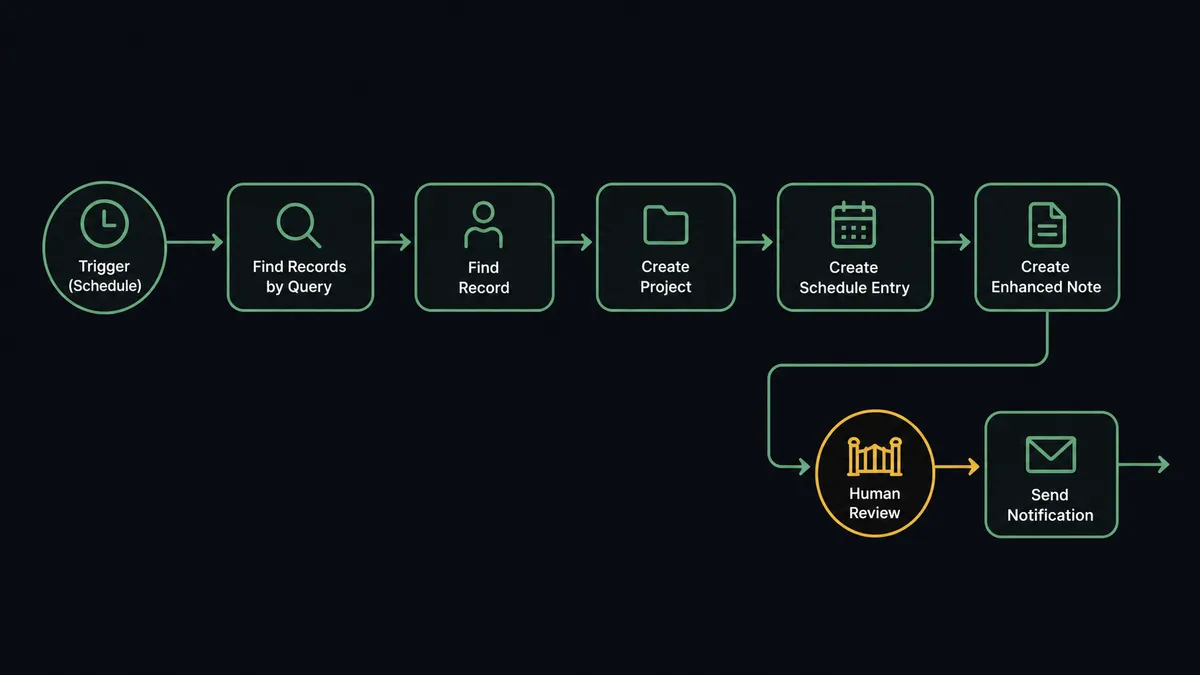
You connect Salesforce to Basecamp with a scheduled workflow: each run calls Find Records by Query to pull opportunities that reached Closed Won, gathers the account and contacts with Find Record, and builds the delivery workspace with Create Project, Create To-do List, Create To-do, Create Schedule Entry, and Create Document. FlowRunner is a visual AI-agent orchestration platform where automations run autonomously and pause for human judgment on the steps that carry real consequence. The same connection can run as an AI agent that scaffolds the project from the opportunity’s real scope, drafts the client kickoff email, and pauses for a named human before Send Email puts a single word in the customer’s inbox.
The problem it solves
The gap between “closed won” and “work started” is where new clients form their first real opinion of you. Today that gap is bridged by hand: an account manager reads the opportunity, creates a Basecamp project, rebuilds the delivery checklist from the last engagement, works out milestone dates from the close date, writes a welcome email, and hopes the details survived the trip. Every step is copy work between two systems that do not talk, done by someone whose calendar was already full.
The edges are the expensive part. The kickoff email goes to the procurement contact instead of the sponsor. The milestone dates in Basecamp drift from the dates the contract actually says, because they were typed twice. Sales amends the opportunity and delivery never hears about it, so the project plan quietly describes a deal that no longer exists. And the CRM shows nothing about any of it: from Salesforce’s point of view, the engagement went dark the moment it was won.
How it works: the connection
The connection reads from Salesforce and builds in Basecamp. Here is the plain version, grounded in the real connector actions.
- Trigger: On a schedule, the workflow calls Find Records by Query in Salesforce to pull opportunities that reached Closed Won since the last run.
- Read: Find Record pulls the account, and Find Child Records walks to the contacts and line items tied to the opportunity.
- Create the workspace: Create Project spins up the Basecamp project named for the account and engagement.
- Lay out the work: Create To-do List builds the delivery checklist and Create To-do adds each task with assignees from List Project People.
- Book the milestones: Create Schedule Entry places the kickoff call and delivery milestones on the project schedule, dated from the opportunity’s close date.
- Publish the scope: Create Document drops the engagement summary into Docs & Files so delivery starts from the same facts sales closed on.
- Close the loop: Create Enhanced Note writes the project link and kickoff status back onto the Salesforce opportunity.
That is the “just connect them” answer. A won opportunity becomes a live project with milestones on the calendar and a paper trail in both systems. Since neither connector exposes an event trigger, the schedule is the heartbeat, and the handoff happens on the next run instead of next week.
Can an AI agent run it? (and why a human stays in the loop)
Yes, and the agent turns a record-copying sync into an actual handoff. It holds the real actions as tools: Find Records by Query, Find Record, Find Child Records, Send Email, Create Enhanced Note, Add File to Record on the Salesforce side; Create Project, Create To-do List, Create To-do, Create Schedule Entry, Create Message, Create Document on the Basecamp side. For each win it reasons about the engagement: what was sold, who signed, when delivery starts, and what the project therefore needs. A small fixed-scope package gets a lean checklist and one milestone; a phased rollout gets phased lists and a schedule that matches the paper.
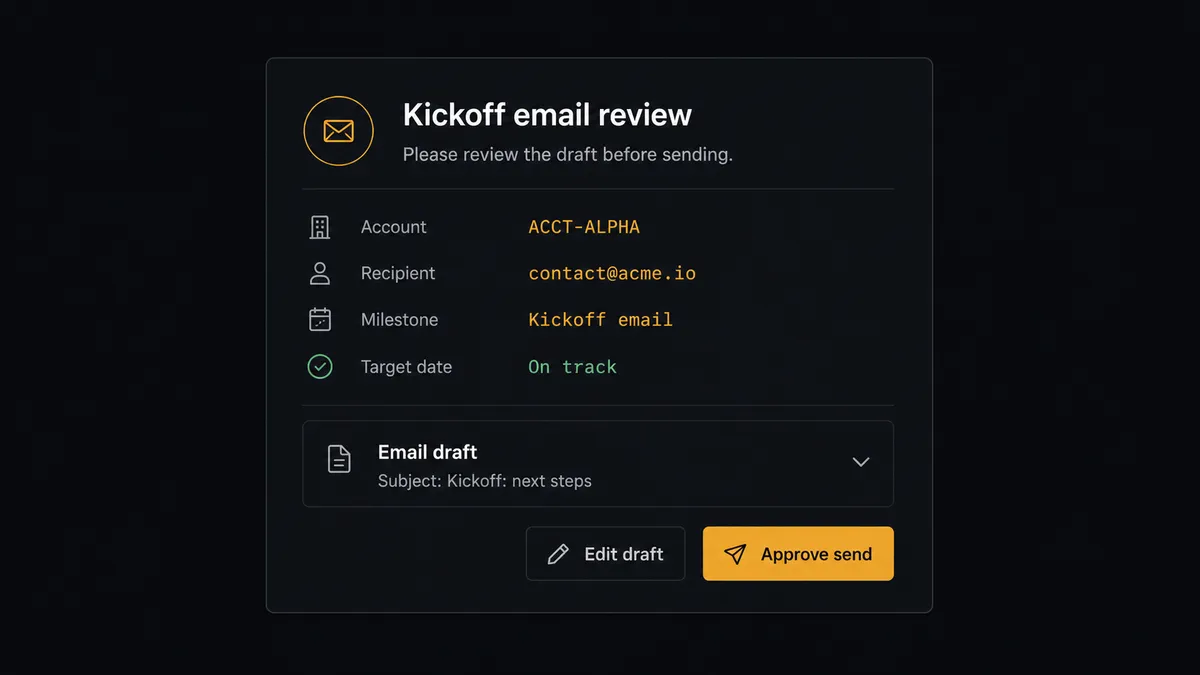
The consequential step is Send Email. Everything else the workflow does is internal scaffolding your team can adjust; the kickoff email is your company speaking directly to a brand-new client, and there is no unsend. So the agent drafts, and a person approves. It composes the welcome from the opportunity’s contacts, scope, and dates, then invokes a human-in-loop flow it holds as a callable tool: “Kickoff draft for [account]. Recipient [contact], scope summary and milestone dates attached, pulled from the opportunity. Approve send?” The account owner reads it in Slack or email, edits or approves, and only then does Send Email run. Create Enhanced Note logs the approved message, the approver, and the timestamp on the opportunity, so the CRM tells the whole story.
Prospects describe this as a digital andon cord, and that is exactly the design: like Toyota’s line-stop cord, the workflow stops the line at the one step where an error reaches a customer, and a person pulls it back into motion. Scaffolding at machine speed, client contact at the speed of judgment.
FlowRunner vs n8n
Engineering-minded teams will weigh n8n here, and it deserves the look. Its community edition self-hosts at no license cost, its nodes and HTTP tooling can drive both the Salesforce and Basecamp APIs, and its community has published plenty of CRM-to-project recipes a developer can adapt. If your ops automation is owned by engineers who want the whole graph in their hands, n8n can do this job.
The difference is who can safely own the workflow, and what stands between an automated draft and a client’s inbox. In n8n, the email guard is whatever approval step a developer wires and maintains. In FlowRunner, the agent holds human review as a native tool it must call before the send. Here is the honest side-by-side.
| What matters for this pair | FlowRunner | n8n |
|---|---|---|
| Human-in-the-loop on client-facing email | Native. The agent invokes an approval flow as a callable tool and pauses before Send Email | Wait and approval mechanisms exist, but the builder wires them per workflow; not an agent decision |
| Who runs the flow | An AI agent reads the opportunity, reasons, composes the handoff from context | A node graph a developer wires and maintains; AI agent nodes exist but the graph stays fixed |
| Users included | Unlimited users on every tier | Cloud plans meter workflows and executions; self-host capacity is yours to manage |
| Bring your own AI keys | Yes, BYOK | Yes, n8n also supports your own model keys |
| Self-hosted option | Yes, cloud-hosted or self-hosted | Yes, self-hosting is a core n8n strength |
| Pricing model | Transparent workflow-based tiers | Execution-based cloud pricing; full cloud compliance features sit on custom-priced Enterprise |
If your team is developers who want a free self-hosted graph they control end to end, n8n is a fair choice. If the sales-to-delivery handoff is owned by ops and account teams who need it running without engineering tickets, with a person approving everything a client sees, this pairing on FlowRunner is the better fit.
Before and after
| Category | Before | After |
|---|---|---|
| Handoff speed | The project appears when an account manager finds an hour | The workspace, milestones, and scope doc exist on the next scheduled run after the win |
| Milestone accuracy | Dates typed twice, drifting between contract and project | Create Schedule Entry books milestones straight from the opportunity’s dates |
| Kickoff email | Written from memory, sent unreviewed, sometimes to the wrong contact | Drafted from the record, approved by a named person before Send Email runs |
| CRM visibility | Salesforce goes dark after Closed Won | Create Enhanced Note logs the project link, kickoff status, and approvals on the opportunity |
| Scope drift | Amendments in Salesforce never reach the project plan | The agent updates to-dos and documents when the opportunity changes, flagging conflicts for a person |
What you can build
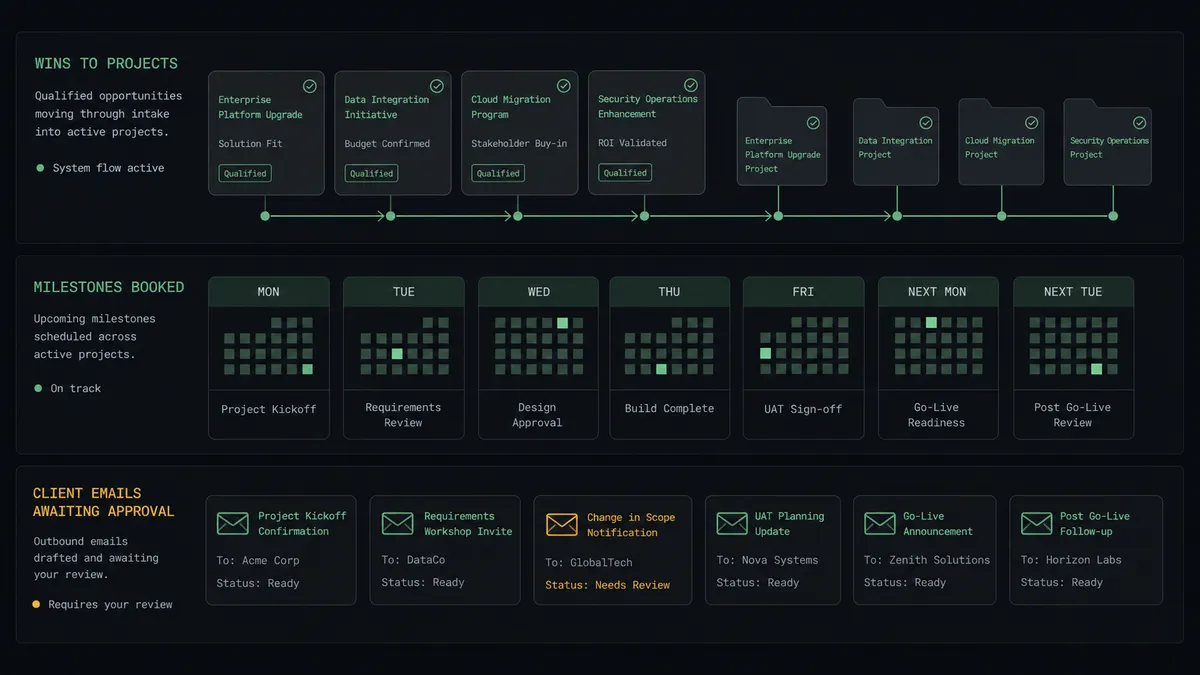
Closed-won to live workspace. Find Records by Query catches the win, Find Record pulls the account, and Create Project, Create To-do List, and Create To-do scaffold delivery with assignees already set. The handoff meeting starts with a plan instead of a blank page.
Approved kickoff email. The agent drafts the welcome from the opportunity’s contacts and scope, a named approver signs off, Send Email delivers it, and Create Enhanced Note records exactly what the client was told and who approved it.
Milestones that match the contract. Create Schedule Entry books the kickoff and delivery dates straight from the opportunity, and when sales amends the close date, the agent proposes the schedule change instead of letting the two systems drift.
Delivery status back into Salesforce. On a schedule, the agent reads project progress with List To-dos and Get Project, then writes a delivery summary to the opportunity with Create Enhanced Note, so account owners see status without asking.
Signed docs on both records. When the engagement produces signed paperwork, Add File to Record attaches it to the Salesforce opportunity while Create Document publishes the working copy into Basecamp’s Docs & Files, one upload, both systems current.
Common questions
Is it free to connect Salesforce Pro and Basecamp on FlowRunner? You can build and run the connection on FlowRunner’s free plan, which includes 100 executions a month and every integration with no credit card required, and new accounts also get 14 days of Professional. Both connectors are available on every FlowRunner tier, and every tier includes unlimited users and unlimited workflows.
Can I self-host the Salesforce Pro to Basecamp workflow? Yes. FlowRunner offers a cloud-hosted option and a self-hosted option, so the connection can run inside your own environment.
Does the AI agent need my own OpenAI or Claude key? FlowRunner uses a bring-your-own-keys model, so you connect the AI provider key you already have. You are not locked to one model.
What happens when the opportunity record is incomplete or contradictory? The agent does not guess at scope or dates. It invokes a human-in-loop step, posts what it found and what is missing, and waits for a person to fill the gap before it creates the project or drafts the client email. Bad handoffs are exactly what the pause exists to prevent.
Which triggers does this connection use? Neither connector exposes an event trigger, so the workflow runs on a schedule. Each run calls Find Records by Query in Salesforce to pull opportunities that reached Closed Won since the last run, then builds in Basecamp with Create Project, Create To-do List, Create To-do, Create Schedule Entry, and Create Document.
Does every client kickoff email require human approval? Yes, by design. The agent drafts the email from the opportunity’s scope, contacts, and dates, but Send Email only runs after a named approver signs off on the draft. Internal scaffolding runs unattended; anything that lands in a customer’s inbox goes through a person.
Getting started
Start on the free plan: 100 executions a month, every integration included, no credit card required, plus 14 days of Professional for new accounts. Both connectors are available on every tier, and every tier includes unlimited users and unlimited workflows, so account owners, delivery leads, and the whole project team share one workspace from day one.
Explore the integration details:
- Salesforce Pro integration (26 actions covering records, leads, files, notes, and email)
- Basecamp integration (37 actions covering projects, to-dos, messages, schedules, and documents)
Start building free at flowrunner.ai or book a demo to see a live Salesforce to Basecamp workflow, kickoff email approval and all.
Frequently asked questions
Is it free to connect Salesforce Pro and Basecamp on FlowRunner?
You can build and run the connection on FlowRunner's free plan, which includes 100 executions a month and every integration with no credit card required, and new accounts also get 14 days of Professional. Both connectors are available on every FlowRunner tier, and every tier includes unlimited users and unlimited workflows.
Can I self-host the Salesforce Pro to Basecamp workflow?
Yes. FlowRunner offers a cloud-hosted option and a self-hosted option, so the connection can run inside your own environment.
Does the AI agent need my own OpenAI or Claude key?
FlowRunner uses a bring-your-own-keys model, so you connect the AI provider key you already have. You are not locked to one model.
What happens when the opportunity record is incomplete or contradictory?
The agent does not guess at scope or dates. It invokes a human-in-loop step, posts what it found and what is missing, and waits for a person to fill the gap before it creates the project or drafts the client email. Bad handoffs are exactly what the pause exists to prevent.
Which triggers does this connection use?
Neither connector exposes an event trigger, so the workflow runs on a schedule. Each run calls Find Records by Query in Salesforce to pull opportunities that reached Closed Won since the last run, then builds in Basecamp with Create Project, Create To-do List, Create To-do, Create Schedule Entry, and Create Document.
Does every client kickoff email require human approval?
Yes, by design. The agent drafts the email from the opportunity's scope, contacts, and dates, but Send Email only runs after a named approver signs off on the draft. Internal scaffolding runs unattended; anything that lands in a customer's inbox goes through a person.