How to Connect QuickBooks Online with Cin7 Omni (With or Without an AI Agent)
Turn Cin7 Omni sales orders into QuickBooks Online invoices and purchase orders into vendor bills, optionally as an AI agent that pauses for a human before a bill that does not reconcile commits the company to pay.
How do you connect QuickBooks Online to Cin7 Omni?
You connect QuickBooks Online to Cin7 Omni on a schedule, because neither connector exposes an event trigger: each run calls List Sales Orders in Cin7 Omni with a where clause on created date, pulls full detail with Get Sales Order, matches the buyer in QuickBooks Online with List Customers or Create Customer, and records the sale with Create Invoice. FlowRunner is a visual AI-agent orchestration platform where automations run autonomously and pause for human judgment on the steps that carry real consequence. The same connection can run as an AI agent that also works the purchasing side, drafting vendor bills from List Purchase Orders and stopping for a named human before Create Bill posts any total that does not reconcile against its purchase order.
The problem it solves
Right now the warehouse and the books meet in a spreadsheet. Orders pile up in Cin7 Omni all day; at some point a bookkeeper exports them, matches customers by eye, and keys invoices into QuickBooks Online one at a time. Purchasing is the same story in reverse: purchase orders live in Cin7 Omni, supplier bills arrive by email, and AP retypes them into the ledger hoping the amounts still match what was ordered. Revenue recognition trails the actual sale by however long the batch takes.
The exceptions do the real damage. A supplier bills more than the purchase order said, and the difference sails into AP because nobody compared the two documents. A customer exists twice in QuickBooks Online because their name was spelled two ways, and their statements split across both records. An order gets invoiced twice from two different export runs. Each one is small; together they are why month-end close takes days and why the numbers in the warehouse system and the ledger never quite agree.
How it works: the connection
The connection reads from Cin7 Omni and writes to QuickBooks Online. Here is the plain version, grounded in the real connector actions.
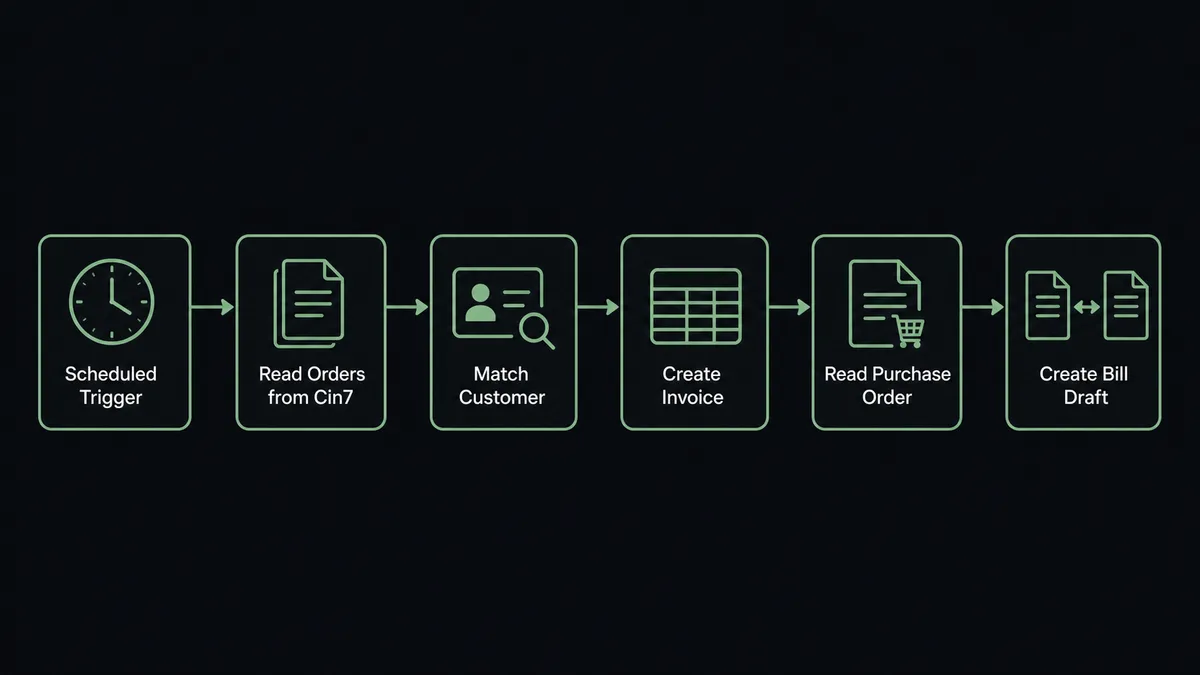
- Trigger: On a schedule, the workflow checks Cin7 Omni for new activity.
- Read: It calls List Sales Orders with a where clause on created date, then Get Sales Order for each new order’s full header and line items.
- Match the customer: It calls List Customers in QuickBooks Online filtered by name and email. If the buyer is new, Create Customer adds them.
- Record the sale: It calls Create Invoice with the order’s items, quantities, and prices, carrying the Cin7 Omni order reference on the invoice.
- Read purchasing: It calls List Purchase Orders for new POs raised to suppliers, with supplier details and totals.
- Draft the bill: It matches the supplier with List Vendors or Create Vendor and stages a vendor bill for Create Bill, reconciled line by line against the purchase order before anything posts.
That is the “just connect them” answer. Sales orders become invoices the day they happen, purchase orders become drafted bills, and the export spreadsheet retires.
Can an AI agent run it? (and why a human stays in the loop)
Yes, and the purchasing side is where the agent earns its place. It holds the real actions as tools: List Sales Orders, Get Sales Order, List Purchase Orders, List Contacts on the Cin7 Omni side; List Customers, Create Customer, Create Invoice, List Vendors, Create Vendor, Create Bill, Void Invoice on the QuickBooks Online side. On the revenue path it reads each order, resolves the customer without creating duplicates, and records the sale. On the payables path it does what a good AP clerk does: compares the bill it is about to post against the purchase order that justified it.
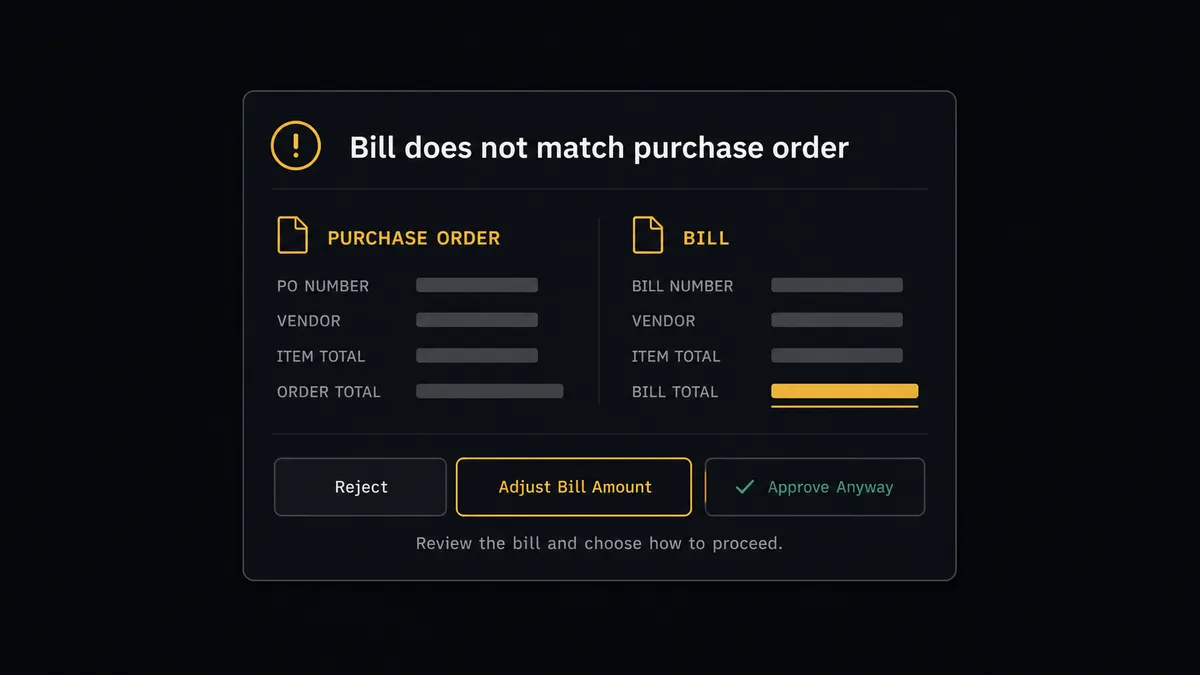
The consequential step is Create Bill, because a posted bill is a commitment to pay. When the drafted bill and the purchase order agree, the agent posts it and moves on. When they do not, a higher unit price, an extra line, a supplier with no vendor record, it invokes a human-in-loop flow it holds as a callable tool. The workflow pauses and posts: “Purchase order [reference] from [supplier]: drafted bill total differs from the PO total. Differing lines attached. Approve as billed, adjust to PO, or reject?” A named approver decides, and only then does Create Bill run. The same gate guards Void Invoice and Delete Bill, because reversing the ledger deserves the same scrutiny as adding to it.
The escalation is contextual, not a blanket rule. A rounding-level difference on a long-standing supplier posts with a note; the same difference from a brand-new vendor stops the line. Prospects call this the digital andon cord: like Toyota’s production line pull cord, the workflow stops the moment it hits uncertainty, and a person pulls it back into motion.
FlowRunner vs Celigo
Celigo has real standing in this category. Its integrator.io platform runs high-volume order-to-cash and procure-to-pay flows for large ERP estates, its prebuilt integration apps encode years of accounting-sync edge cases, and its error management is built for teams that measure transactions in the hundreds of thousands. For an IT department standardizing on a managed iPaaS, it is a credible pick.
The gap is between managed pipes and judgment. Here is the honest side-by-side.
| What matters for this pair | FlowRunner | Celigo |
|---|---|---|
| Human-in-the-loop on posting bills | Native. The agent reconciles PO against bill and pauses before Create Bill posts a mismatch | Exception queues surface technical errors; approvals are not a native flow step |
| Who runs the flow | An AI agent reads orders and POs, reasons, picks actions as tools | Prebuilt flows configured and maintained by an integration team |
| Users included | Unlimited users on every tier | Enterprise licensing; seats and endpoints priced accordingly |
| Bring your own AI keys | Yes, BYOK | AI capabilities are part of Celigo’s own platform stack |
| Self-hosted option | Yes, cloud-hosted or self-hosted | Cloud iPaaS |
| Pricing model | Transparent workflow-based tiers starting at $45/mo | Custom enterprise quotes, typically scoped by endpoints and volume |
If your organization already runs an iPaaS program with dedicated integration engineers, Celigo will serve it. If you want the operations team to own this connection directly, with reconciliation judgment built into the flow and a named human on every bill that does not add up, this pairing is where FlowRunner is the better fit.
Before and after
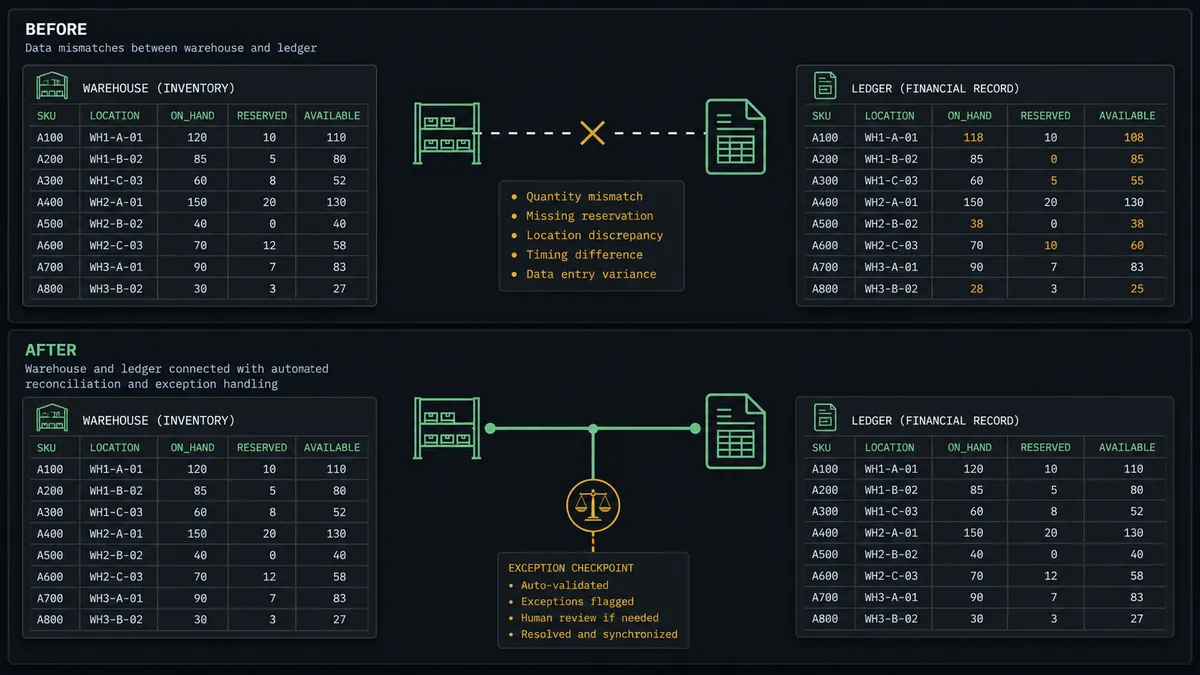
| Category | Before | After |
|---|---|---|
| Invoice entry | Orders exported from Cin7 Omni and keyed into QuickBooks Online in batches | List Sales Orders feeds Create Invoice on every scheduled run, reference carried across |
| Customer records | Duplicate customers from spelled-two-ways matching by eye | The agent resolves buyers through List Customers before ever calling Create Customer |
| Vendor bills | Supplier bills retyped into AP with no check against the purchase order | Every bill is reconciled line by line against List Purchase Orders before Create Bill runs |
| Mismatch handling | Overbilled amounts discovered at month end, if at all | Mismatches stop the line the day they appear, with the differing lines quoted |
| Close cycle | Days of cross-checking warehouse records against the ledger | Records match from the moment they are created, and exceptions carry an approval history |
What you can build
Order-to-invoice on a heartbeat. Every run, List Sales Orders pulls what is new, Get Sales Order fills in the lines, and Create Invoice records the sale against the right customer. Revenue in the ledger tracks the warehouse by hours, not weeks.
Three-way sanity on payables. The agent drafts bills from List Purchase Orders, reconciles them against what was actually ordered, posts the clean ones with Create Bill, and routes the rest through approval with the differing lines quoted.
One customer, one record. New buyers in Cin7 Omni are checked against List Customers before Create Customer runs, so statements, balances, and history stay on a single record instead of splitting across duplicates.
Stock-aware estimates. For orders still in an early stage, the agent stages Create Estimate in QuickBooks Online instead of an invoice, checking List Stock first so finance quotes against inventory that exists.
Monday operations digest. The agent pairs Get Profit and Loss Report with List Stock and List Purchase Orders and posts one summary: what sold, what it earned, what is on the shelf, and what is inbound, in the channel where operations already works.
Getting started
Start on the free plan: 100 executions a month, every integration included, no credit card required, plus 14 days of Professional for new accounts. Both connectors are available on every tier, and every tier includes unlimited users and unlimited workflows.
Explore the integration details:
- QuickBooks Online integration (56 actions covering customers, invoices, vendors, bills, payments, and P&L reports)
- Cin7 Omni integration (10 actions covering products, stock, orders, and contacts)
Start building free at flowrunner.ai or book a demo to see a live QuickBooks Online to Cin7 Omni workflow, bill reconciliation approval and all.
Frequently asked questions
Is it free to connect QuickBooks Online and Cin7 Omni on FlowRunner?
You can build and run the connection on FlowRunner's free plan, which includes 100 executions a month and every integration with no credit card required, and new accounts also get 14 days of Professional. Both connectors are available on every FlowRunner tier, and every tier includes unlimited users and unlimited workflows.
Can I self-host the QuickBooks Online to Cin7 Omni workflow?
Yes. FlowRunner offers a cloud-hosted option and a self-hosted option, so the connection can run inside your own environment. Self-hosting is available for teams that need the workflow to run on their own infrastructure.
Does the AI agent need my own OpenAI or Claude key?
FlowRunner uses a bring-your-own-keys model, so you connect the AI provider key you already have. You are not locked to one model, and you control which provider runs the agent.
What happens when a purchase order and its bill do not match?
The agent stops before Create Bill runs. It posts the supplier, the purchase order reference, and the drafted bill side by side with the differing lines called out, then waits for AP to approve, adjust, or reject. The bill posts to QuickBooks Online only after a named person signs off.
Which triggers does this connection use if neither service has one?
Neither QuickBooks Online nor Cin7 Omni exposes an event trigger in the FlowRunner catalog, so the workflow runs on a schedule. Each run filters Cin7 Omni server-side, calling List Sales Orders and List Purchase Orders with a where clause on created date so only new records move.
Does every vendor bill require human approval?
No. The agent reconciles each purchase order against the bill it drafts and posts the ones that match cleanly. Approval is reserved for the exceptions: totals that disagree, suppliers with no vendor record, and anything that would void or delete an existing entry.