How to Connect QuickBooks Online with Canva (With or Without an AI Agent)
Turn QuickBooks Online financials into branded Canva reports automatically, with an AI agent that autofills the template from live figures and pauses for finance sign-off before the polished PDF is exported.
How do you connect QuickBooks Online to Canva?
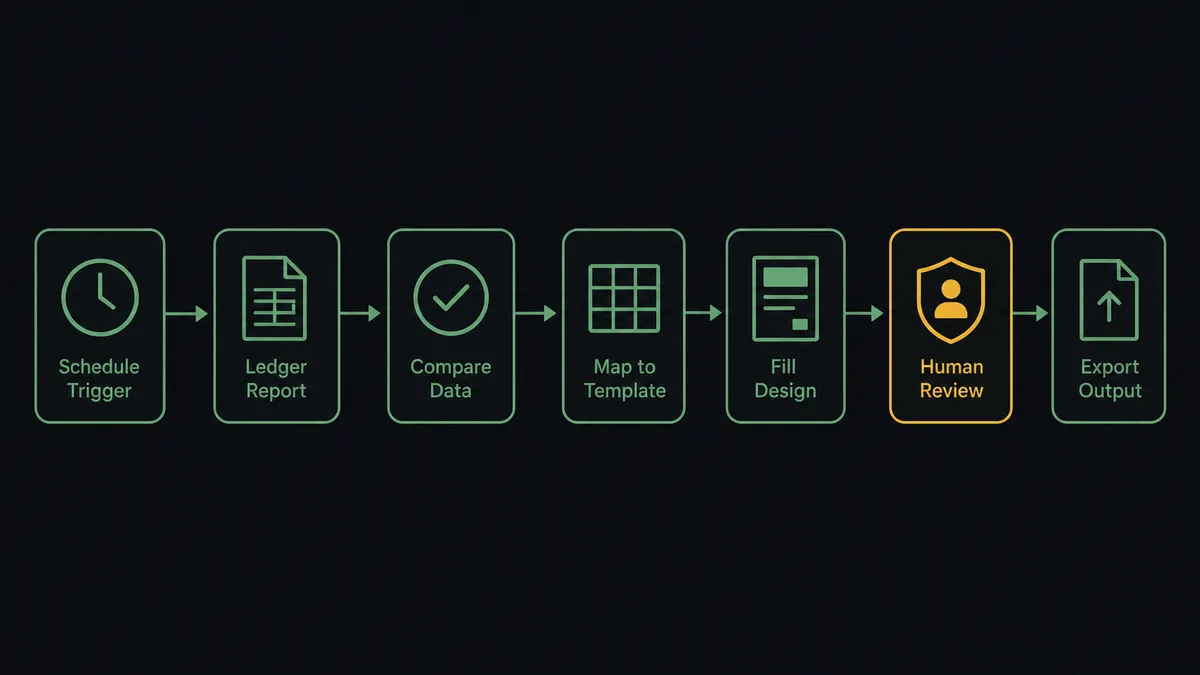
You connect QuickBooks Online to Canva by running a scheduled workflow that pulls the period’s figures with Get Profit and Loss Report, discovers your report template’s named fields with Get Brand Template Dataset, fills them with Autofill Design and Wait, and produces the finished file with Export Design and Wait. FlowRunner is a visual AI-agent orchestration platform where automations run autonomously and pause for human judgment on the steps that carry real consequence. The same connection can run as an AI agent that assembles the report on its own, compares the figures against the prior period, and pauses for a named finance approver before the polished PDF is exported and distributed.
The problem it solves
Right now the monthly reporting deck is a copy-paste exercise. Finance closes the books in QuickBooks Online, exports the P&L, and then someone in operations or marketing rebuilds the numbers inside Canva: retyping totals, updating chart values, swapping the period label, checking the brand colors held. It takes an afternoon nobody has, it happens under deadline pressure, and it repeats every single month for the board pack, the leadership review, and the client-facing summary.
The failure mode is not the afternoon lost, it is the number that gets retyped wrong. A transposed digit in a revenue figure looks exactly as polished as the correct one once it is sitting in a branded template. Nobody catches it until a board member cross-checks the appendix, and now every report you have ever sent carries a question mark. Manual re-entry also means the report reflects whenever someone last copied the data, not what the books actually say, so late adjustments quietly miss the deck.
How it works: the connection
The connection reads QuickBooks Online on a schedule and writes to Canva. Here is the plain version, grounded in the real connector actions.
- Trigger: On a monthly schedule, the workflow calls Get Profit and Loss Report for the closed period, and again for the prior period to support comparison.
- Read: It calls Get Profit and Loss Detail Report to pull the line-level backup, so category breakdowns in the report trace to real ledger detail.
- Discover the template: It calls Get Brand Template Dataset in Canva to read the report template’s named text and chart fields.
- Fill the design: It calls Autofill Design and Wait, mapping totals to text fields and category breakdowns to chart fields, and receives the newly created design.
- Export the file: It calls Export Design and Wait to produce a PDF or PPTX and saves it to durable file storage, since Canva’s own download links expire after 24 hours.
- File it: Create Folder and Move Folder Item keep each period’s report organized in a predictable place in Canva.
That is the “just connect them” answer. The books close, and a branded, on-template report exists without anyone retyping a number. The same pattern covers invoice one-pagers from List Invoices data and quarterly client summaries from the same P&L actions with a different template.
Can an AI agent run it? (and why a human stays in the loop)
Yes, and this is where the workflow earns more trust than a merge-field script. An AI agent holds the QuickBooks Online and Canva actions as tools: Get Profit and Loss Report, Get Profit and Loss Detail Report, Get Brand Template Dataset, Autofill Design and Wait, Export Design and Wait. It reads the figures before it presents them. When this period’s numbers move sharply against the prior period, when a category that always carries a value comes back empty, or when the detail report does not reconcile to the summary, the agent treats that as a signal, not as data to typeset.
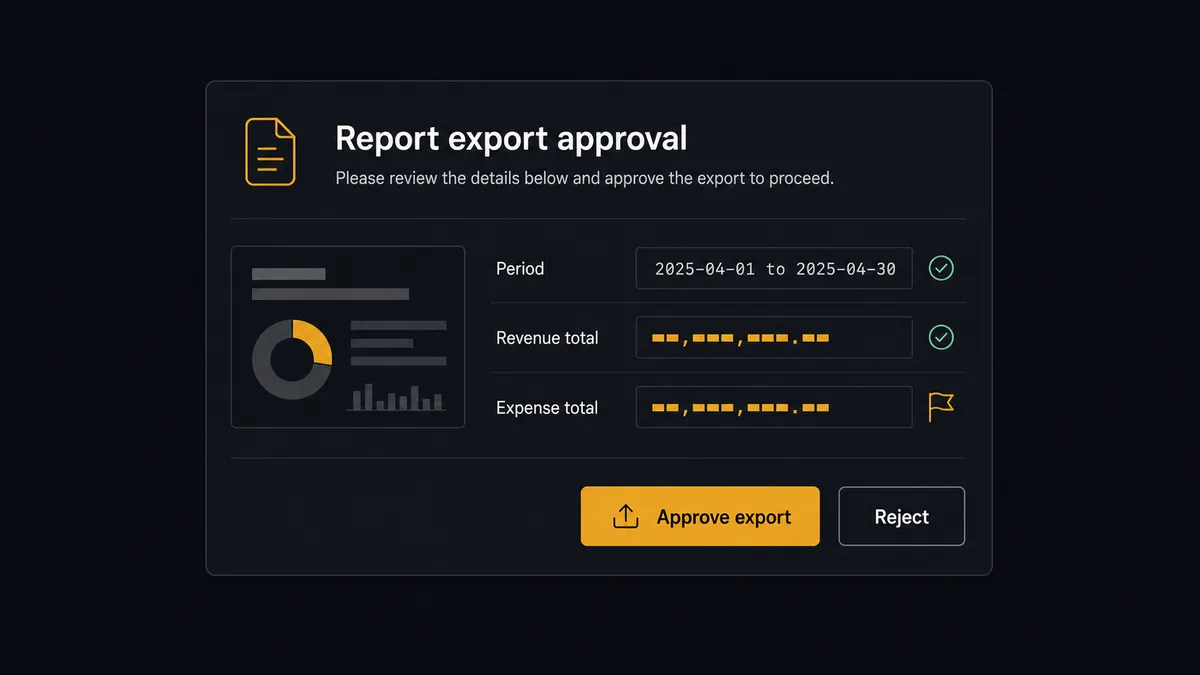
The consequential step is the export. A draft design inside Canva is harmless; a polished PDF with your logo on it is a statement of record the moment it leaves the building. So before Export Design and Wait runs, the agent invokes a human-in-loop flow it holds as a callable tool. It posts to the finance channel: “Monthly P&L report is filled and in draft. Revenue and expense totals attached alongside the prior period for comparison. One category moved sharply against last period, flagged in the preview. Approve export?” The approver reviews the preview, clicks once, and only then does the agent produce the file. The figures, the flag, the approver, and the timestamp all land in the audit trail.
This is the digital andon cord in practice: like Toyota’s production line pull cord, the workflow stops the line the moment it hits uncertainty. The routine months flow through untouched. The month where something looks wrong is exactly the month a human sees it before the board does.
FlowRunner vs n8n
Developers evaluating this pairing look at n8n for good reason. n8n’s node library and code steps give a technical team full control over reshaping report JSON before it touches a template, its self-hosted fair-code model is genuinely popular, and its community has published thousands of workflow examples. If you have an engineer who wants to own the pipeline as code, n8n gives them the room.
The difference is who can build and run this, and what happens at the consequential step. FlowRunner treats the export gate as a native platform feature the agent invokes as a tool, not as a pattern you assemble yourself.
| What matters for this pair | FlowRunner | n8n |
|---|---|---|
| Human-in-the-loop before Export Design and Wait | Native. The agent invokes an approval flow as a callable tool and waits | Buildable with wait nodes and custom logic; you assemble and maintain the pattern |
| Who runs the flow | An AI agent reads the figures, reasons, and picks actions as tools | Node sequence you wire and maintain; agent nodes available but bolt-on |
| Users included | Unlimited users on every tier | Cloud plans priced with limits by tier; self-hosting shifts cost to your infrastructure |
| Bring your own AI keys | Yes, BYOK | Yes, BYOK supported |
| Self-hosted option | Yes, cloud-hosted or self-hosted | Yes, fair-code self-hosted |
| Pricing model | Transparent workflow-based tiers | Execution-based cloud pricing that takes effort to predict |
If your team wants to write and maintain this pipeline as code, n8n is a legitimate choice. If you want operations or finance to own the report flow themselves, with the export gate built in rather than built by hand, this pairing is the better fit.
Before and after
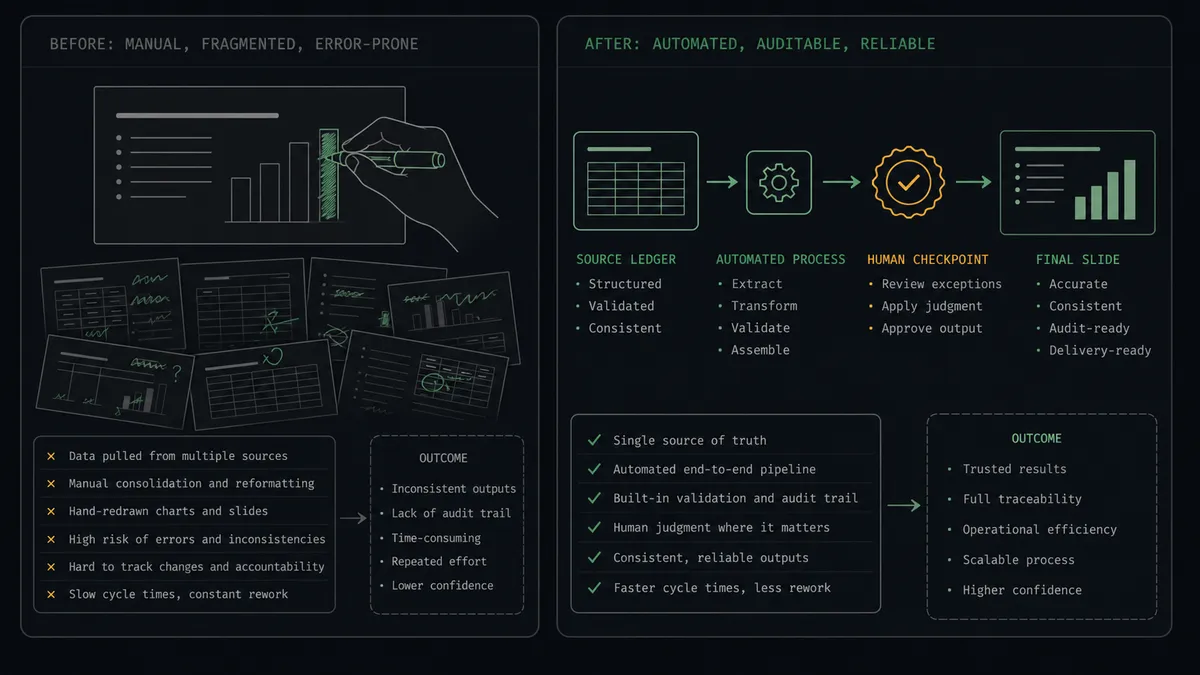
| Category | Before | After |
|---|---|---|
| Report assembly | Someone rebuilds the deck in Canva by hand after every close | Autofill Design and Wait fills the brand template straight from the report figures |
| Number accuracy | Retyped totals carry transposition risk into a polished document | Figures flow from Get Profit and Loss Report with no manual re-entry |
| Anomaly review | Odd numbers surface only if a reader happens to notice | The agent flags sharp period-over-period moves before the export |
| Sign-off | Approval happens informally, if at all, over chat | A named approver clears every export, captured in the audit trail |
| Filing | Finished reports scatter across downloads folders and threads | Each export saves to durable file storage and a predictable Canva folder |
What you can build
Monthly board pack page. The scheduled run pulls Get Profit and Loss Report for the period and its predecessor, fills the board template through Autofill Design and Wait, and holds at the approval gate until finance clears the export.
Client-facing revenue summary. For agencies and services firms, the agent maps the client’s slice of the figures into a client-branded template, and the account lead approves before Export Design and Wait produces the PDF that goes into the client update.
Invoice one-pager. When a large invoice goes out, the workflow reads it with Get Invoice, fills a branded summary template with the engagement details, and attaches the exported PDF alongside the standard invoice for a more polished handoff.
Chart asset library. The agent generates period charts, uploads them with Upload Asset and Wait, and organizes them with Create Folder and Move Folder Item, so anyone building a deck in Canva pulls current figures instead of last quarter’s screenshot.
Non-Enterprise fallback flow. On Canva plans without brand templates, the agent uses Create Design to seed a new presentation and Upload Asset and Wait to place generated chart images, leaving a person one finishing pass instead of a full rebuild.
Getting started
Start on the free plan: 100 executions a month, every integration included, no credit card required, plus 14 days of Professional for new accounts. Both connectors are available on every tier, and every tier includes unlimited users and unlimited workflows.
Explore the integration details:
- QuickBooks Online integration (56 actions covering customers, invoices, bills, payments, and P&L reports)
- Canva integration (26 actions covering designs, exports, assets, folders, and brand template autofill)
Start building free at flowrunner.ai or book a demo to see a live QuickBooks Online to Canva workflow, export approval and all.
Frequently asked questions
Is it free to connect QuickBooks Online and Canva on FlowRunner?
You can build and run the connection on FlowRunner's free plan, which includes 100 executions a month and every integration with no credit card required, and new accounts also get 14 days of Professional. Both connectors are available on every FlowRunner tier, and every tier includes unlimited users and unlimited workflows.
Can I self-host the QuickBooks Online to Canva workflow?
Yes. FlowRunner offers a cloud-hosted option and a self-hosted option, so the connection can run inside your own environment.
Does the AI agent need my own OpenAI or Claude key?
FlowRunner uses a bring-your-own-keys model, so you connect the AI provider key you already have. You are not locked to one model.
What happens when the agent spots an anomaly in the report figures?
It stops before the design leaves draft. The agent packages the filled design's preview, the source figures from Get Profit and Loss Report, and the comparison against the prior period, then invokes a human-in-loop step and waits for finance to approve or reject before Export Design and Wait runs.
Which QuickBooks Online and Canva actions does this workflow use?
On the QuickBooks Online side, Get Profit and Loss Report and Get Profit and Loss Detail Report pull the figures. On the Canva side, Get Brand Template Dataset discovers the template's data fields, Autofill Design and Wait fills them, and Export Design and Wait produces the finished PDF or PPTX.
Do I need a specific Canva plan for the autofill step?
Brand templates and Autofill Design are Canva Enterprise features, so the autofill path requires that plan. On other Canva plans, the workflow uses Create Design and Upload Asset instead, seeding a new design with generated chart images for a person to finish in Canva.