How to Connect Parseur with Clipdrop (With or Without an AI Agent)
Connect Parseur document extraction to Clipdrop image processing, optionally as an AI agent that cleans product imagery automatically and pauses for a human before a generated image replaces a real one.
How do you connect Parseur to Clipdrop?
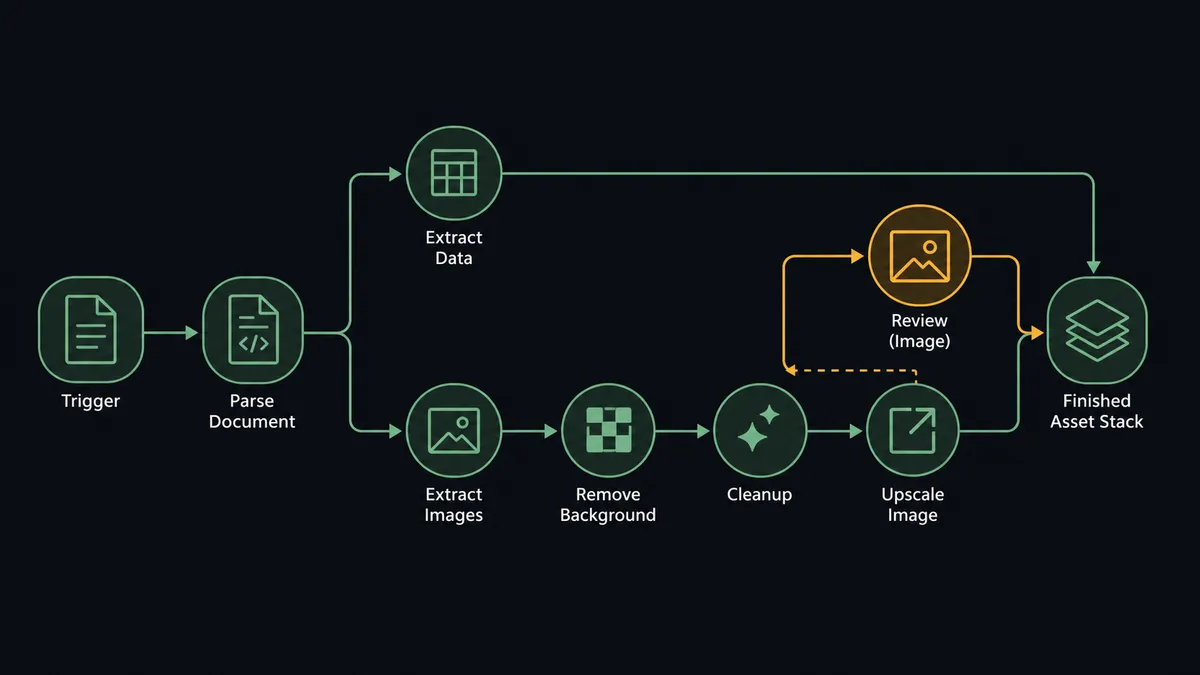
You connect Parseur to Clipdrop by having Parseur’s On Document Processed (Realtime) trigger drive Clipdrop’s image actions: the workflow calls Get Parsed Data to pull the fields and image attachments out of an incoming document, then runs each image through Remove Background, Cleanup, and Upscale Image so raw supplier photos come out the other side as clean, catalog-ready assets. FlowRunner is a visual AI-agent orchestration platform where automations run autonomously and pause for human judgment on the steps that carry real consequence. Run as an agent, the same connection stops treating every image identically: it looks at each shot, picks the right Clipdrop tool for it, and pauses for a named human before a generated image from Reimagine or Replace Background is accepted as the real thing.
The problem it solves
Today this pipeline is a person with two browser tabs. Supplier onboarding sheets, spec PDFs, and product submission emails land in an inbox. Someone opens each one, copies the product data into a spreadsheet, downloads the attached photos, and starts the image slog: cut the background, patch out the price sticker left in frame, export, rename to match the SKU, repeat. Parseur already solved the first half by turning documents into structured data. The imagery still gets done by hand because every image needs a slightly different fix.
The edges are where it breaks. A supplier sends a phone photo at a resolution too low for the catalog. Another shoots the right product against a cluttered warehouse background. A third sends no usable hero shot at all, which tempts someone to grab a lookalike image and ship it. Those judgment calls pile up in a folder named “fix later,” the launch slips, and nobody can say afterward who decided which image was good enough. What you want is the routine fixes done automatically and the judgment calls surfaced, not skipped.
How it works: the connection
The connection listens to Parseur and writes through Clipdrop. Here is the plain version, grounded in the real connector actions.
- Trigger: Parseur fires On Document Processed (Realtime) the moment a supplier document finishes parsing in the mailbox.
- Read: The workflow calls Get Parsed Data to pull the structured fields: product name, SKU, and every image attachment or image URL the parser captured.
- Isolate: For each image, it calls Remove Background in Clipdrop so the product sits on a clean field.
- Repair: It calls Cleanup to erase stickers, glare, and stray marks the supplier left in frame.
- Sharpen: It calls Upscale Image on anything below catalog resolution.
- Stage: For hero placements, it calls Product Photography to set the isolated product into a presentable staged shot.
- Name and hand off: The processed files are named from the parsed SKU and handed to whatever stores your catalog assets, with the Parseur document ID kept as the link back to the source.
That is the “just connect them” answer. Documents come in, product data and finished imagery come out, and nobody touches an image editor for the routine cases. If a document parses badly, Reprocess Document runs it through Parseur again before the image chain starts.
Can an AI agent run it? (and why a human stays in the loop)
Yes, and this is where the pair stops being a pipe and starts being a system. A fixed pipeline runs the same three Clipdrop calls on every image whether it needs them or not. An agent holds the whole toolbox as tools: Remove Background, Cleanup, Upscale Image, Product Photography, Reimagine, Replace Background, plus Parseur’s Get Parsed Data and Reprocess Document. It looks at each extracted image and reasons about what this one needs. A crisp studio shot skips straight to background removal. A low-light phone photo gets Cleanup and Upscale Image. A document that parsed with garbled fields gets sent back through Reprocess Document before anything else runs.
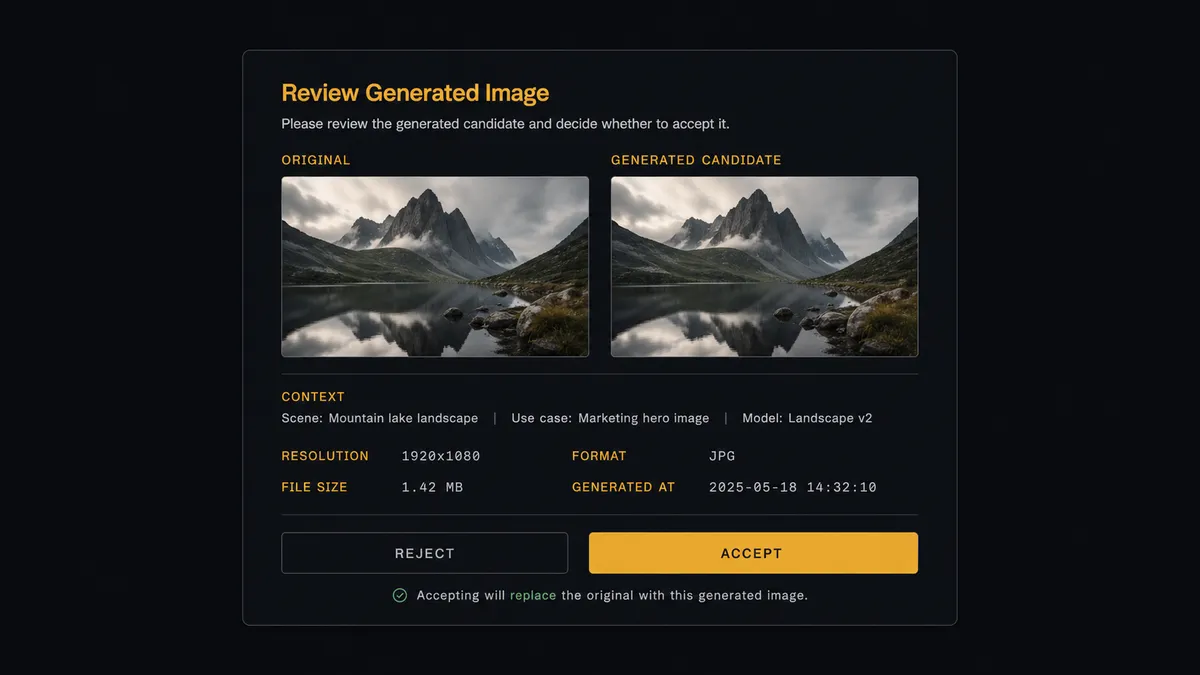
The consequential step is generative. When no usable shot exists, the honest options are Reimagine or Replace Background, and both produce an image of something that was never photographed. Publishing that without review is how a catalog ends up showing a product with the wrong finish or a background that implies a feature the product does not have. So before any generated output is accepted, the agent invokes a human-in-loop flow it holds as a callable tool. The workflow pauses and posts to your review channel: “No usable hero shot for SKU [sku], [product name]. Generated candidate attached beside the original supplier image. Accept for catalog, or reject and request a reshoot?” A reviewer decides with one click. Only an approved candidate moves downstream, and the reviewer’s name and timestamp land in the audit trail next to the Parseur document ID.
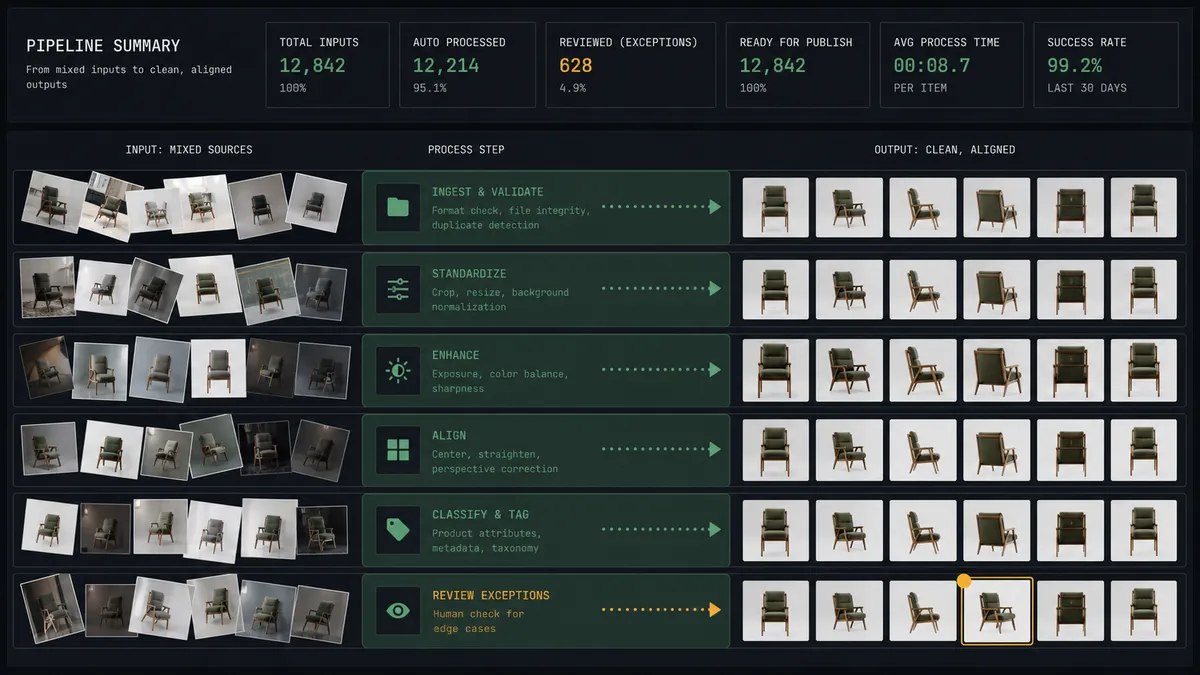
This is the digital andon cord, FlowRunner’s core thesis: like Toyota’s andon cord, the workflow stops the line the moment it hits uncertainty. The routine ninety percent of images flow through untouched by human hands, and the line halts precisely at the frames where a wrong image reaches a customer.
FlowRunner vs LangChain
If you are a builder, LangChain is the honest alternative here, and its strengths are real. It is open source, it has an enormous ecosystem of integrations and examples, and it gives you full code-level control over every step of an agent’s reasoning. If you want to own the orchestration logic line by line, LangChain will let you, and nothing about that is wrong.
The difference is what you have to build and maintain around it. With LangChain, the webhook handler, the tool wrappers, the retry logic, the review queue, the approval UI, the audit log, and the hosting are all your code. With FlowRunner, they are the platform.
| What matters for this pair | FlowRunner | LangChain |
|---|---|---|
| Human-in-the-loop on accepting generated imagery | Native. The agent invokes an approval flow as a callable tool and pauses before Reimagine or Replace Background output is accepted | A pattern you design and code yourself, including the queue and the approval surface |
| Who runs the flow | An AI agent reads, reasons, picks Clipdrop and Parseur actions as tools, on a managed runtime | Your agent code, on infrastructure you provision and operate |
| Users included | Unlimited users on every tier, reviewers included | Not applicable; anyone touching it needs your codebase or your custom UI |
| Bring your own AI keys | Yes, BYOK | Yes, keys live in your own code |
| Self-hosted option | Yes, cloud-hosted or self-hosted | Yes, it is your deployment by definition |
| Pricing model | Transparent workflow-based tiers | Free framework; you pay in engineering time, hosting, and observability tooling |
If this pipeline is the product you are building and you want every abstraction under your control, LangChain is genuinely the better fit. If the pipeline is supposed to serve the business while you build the actual product, and non-engineers need to review images without touching code, this pairing on FlowRunner is.
Before and after
| Category | Before | After |
|---|---|---|
| Document intake | Someone reads each supplier email and downloads attachments by hand | On Document Processed (Realtime) fires and Get Parsed Data extracts fields and imagery the moment parsing completes |
| Image cleanup | Every image opened in an editor, background cut, blemishes patched, exported, renamed | Remove Background, Cleanup, and Upscale Image run per image, named from the parsed SKU |
| Missing shots | Placeholder images ship, or a lookalike photo gets grabbed from the wrong source | The agent generates a candidate and a named reviewer accepts or rejects it before it moves |
| Consistency | Output quality depends on who did the editing that day | Every image passes through the same toolchain with the same standards |
| Accountability | Nobody can say later who approved a given catalog image | Every accepted generated asset carries a reviewer, a timestamp, and a source document ID |
What you can build
Supplier sheet to catalog-ready assets. On Document Processed (Realtime) fires, Get Parsed Data pulls the SKU, product fields, and photos, and the agent runs Remove Background, Cleanup, and Upscale Image on each shot. Finished assets arrive named and linked to the source document.
Hero shot generator with a review gate. When a submission has no usable hero image, the agent stages the best available shot with Product Photography or drafts a candidate with Replace Background, then holds it at the human-in-loop step until a reviewer accepts it for the catalog.
Mailbox sweeper for the backlog. A scheduled flow calls List Documents on the Parseur mailbox, finds documents whose imagery was never processed, pulls each with Get Parsed Data, and feeds the image chain until the backlog is clear.
Bad-parse repair loop. When parsed fields come back inconsistent with the attached imagery, the agent calls Reprocess Document, compares the new output, and escalates to a human only if the document still will not parse cleanly.
Sketch to concept pipeline. Product teams email rough sketches into a dedicated Parseur mailbox; the agent runs Sketch to Image on each one and posts the rendered concepts for review, keeping every render tied to the originating document.
Getting started
Start on the free plan: 100 executions a month, every integration included, no credit card required, plus 14 days of Professional for new accounts. Both connectors are available on every tier, and every tier includes unlimited users and unlimited workflows.
Explore the integration details:
- Parseur integration (2 triggers and 6 actions covering mailboxes, parsing, and document management)
- Clipdrop integration (11 actions covering background removal, cleanup, upscaling, and generation)
Start building free at flowrunner.ai or book a demo to see a live Parseur to Clipdrop workflow, generated-image review gate and all.
Frequently asked questions
Is it free to connect Parseur and Clipdrop on FlowRunner?
You can build and run the connection on FlowRunner's free plan, which includes 100 executions a month and every integration with no credit card required, and new accounts also get 14 days of Professional. Both connectors are available on every FlowRunner tier, and every tier includes unlimited users and unlimited workflows.
Can I self-host the Parseur to Clipdrop workflow?
Yes. FlowRunner offers a cloud-hosted option and a self-hosted option, so the connection can run inside your own environment.
Does the AI agent need my own OpenAI or Claude key?
FlowRunner uses a bring-your-own-keys model, so you connect the AI provider key you already have. You are not locked to one model.
What happens when the agent is not sure an extracted image is usable?
The agent stops and invokes a human-in-loop step. It posts the original extracted image, the Clipdrop output it proposes, and the product fields Parseur parsed alongside it, then waits for an accept or reject decision before the asset moves downstream.
Which Parseur triggers start the Clipdrop workflow?
Parseur offers two triggers: On Document Processed (Realtime) and On Document Processed (Polling). Realtime fires the moment a document finishes parsing, which is the one most teams use so imagery is processed while the product data is still fresh.
Can the workflow start from Clipdrop instead?
No. Clipdrop has no triggers in the catalog, it is a processing toolbox of eleven actions. The flow always starts from Parseur's document trigger or from a schedule that calls List Documents to sweep a mailbox.