How to Connect Outlook with BigMarker (With or Without an AI Agent)
Turn webinar requests sitting in an Outlook inbox into BigMarker registrations automatically, with an AI agent that drafts every confirmation and pauses for a human before an email leaves the building.
How do you connect Outlook to BigMarker?
You connect Outlook to BigMarker with a scheduled workflow: Get Emails reads new messages from your registration mailbox, the workflow extracts the sender’s name and email, Register Person creates the registration on the right BigMarker conference, and Create Draft Email plus Create Calendar Event produce the confirmation and the calendar hold. FlowRunner is a visual AI-agent orchestration platform where automations run autonomously and pause for human judgment on the steps that carry real consequence. Run the same connection as an AI agent and the mailbox stops being a queue: the agent reads each request the way a coordinator would, matches vague asks to the right event, registers the person, and pauses for a named human before any email it is unsure about actually sends.
The problem it solves
Plenty of webinar registrations never touch a landing page. Partners email to ask for seats. A sales rep forwards a thread that ends with “can you sign these three up?” A customer replies to a newsletter asking to join Thursday’s session. All of it lands in a shared Outlook mailbox, and a coordinator spends the morning reading each message, figuring out which event it means, opening BigMarker, typing the registration, and writing a confirmation by hand. It is careful work at 9 AM and sloppy work by the end of the day.
The failure modes are predictable. A request mentioning “the compliance webinar” gets registered for the wrong one of two compliance webinars. A forwarded thread has three attendees and only one gets registered. A confirmation goes out with last month’s join link. Worst of all, requests sit unanswered for days, and by the time someone replies, the event has passed. The inbox does not lose the emails. It loses the follow-through.
How it works: the connection
The connection reads from Outlook and writes to BigMarker, then confirms back through Outlook. Here is the plain version, grounded in the real connector actions.
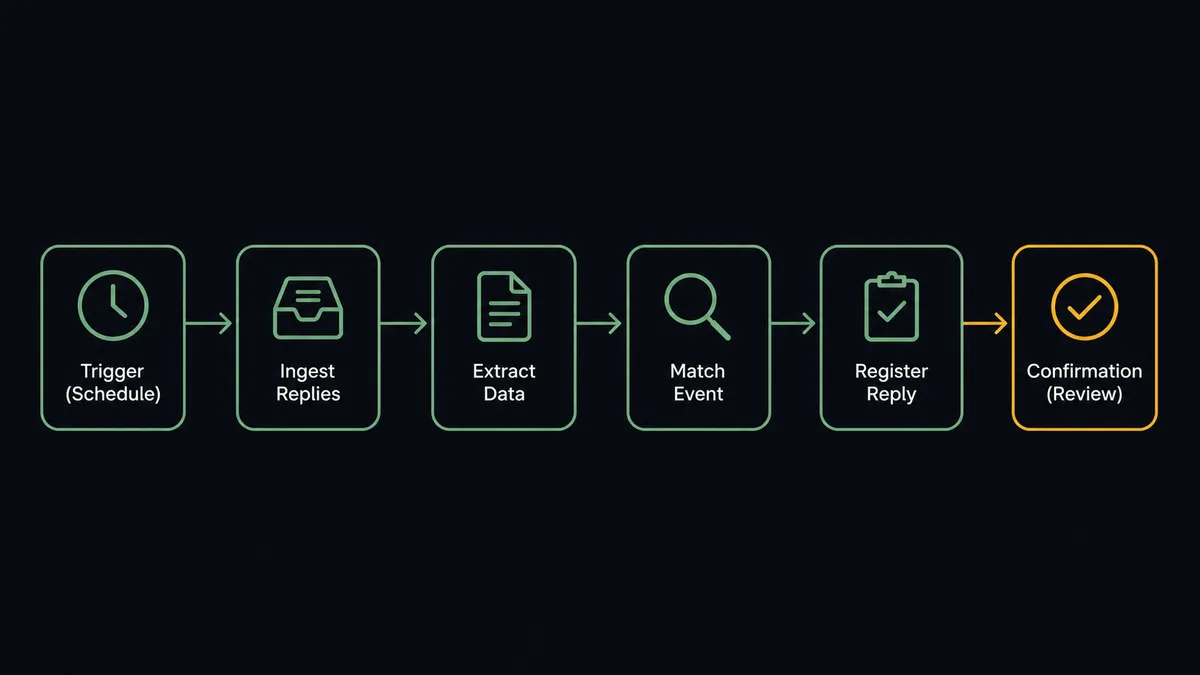
- Trigger: On a schedule, every few minutes during business hours, the workflow starts a run.
- Read: It calls Get Email Folders to resolve the registration folder, then Get Emails to pull the unprocessed messages and Get Email for each full body.
- Extract: It parses sender name, email address, and the requested session from the message text.
- Match: It calls List Conferences and Get Conference in BigMarker to find the event the request refers to.
- Register: It calls Register Person with the attendee’s details on the matched conference, or Update Registration when the person is changing an existing signup.
- Confirm: It calls Create Draft Email with the confirmation and join details, then Send Draft Email to release it, and Reply to Email when the answer belongs on the original thread.
- Book: It calls Create Calendar Event to put the session on the events calendar so the team sees demand building.
That is the “just connect them” answer. Emailed requests become registrations within minutes, confirmations go back on the same thread, and the mailbox stops being a backlog.
Can an AI agent run it? (and why a human stays in the loop)
Yes, and this pair is a showcase for it, because the input is unstructured human writing. The agent holds the connector actions as tools: Get Emails, Get Email, List Conferences, Register Person, Update Registration, Create Draft Email, Send Draft Email, Reply to Email, Create Calendar Event, Forward Email. A form gives you clean fields. An inbox gives you “hi, can you add me and my colleague to the session next week?” The agent resolves that: it identifies both people, picks the session that “next week” points to, checks its confidence, and registers them with Register Person. When the reference is ambiguous, it does not guess.
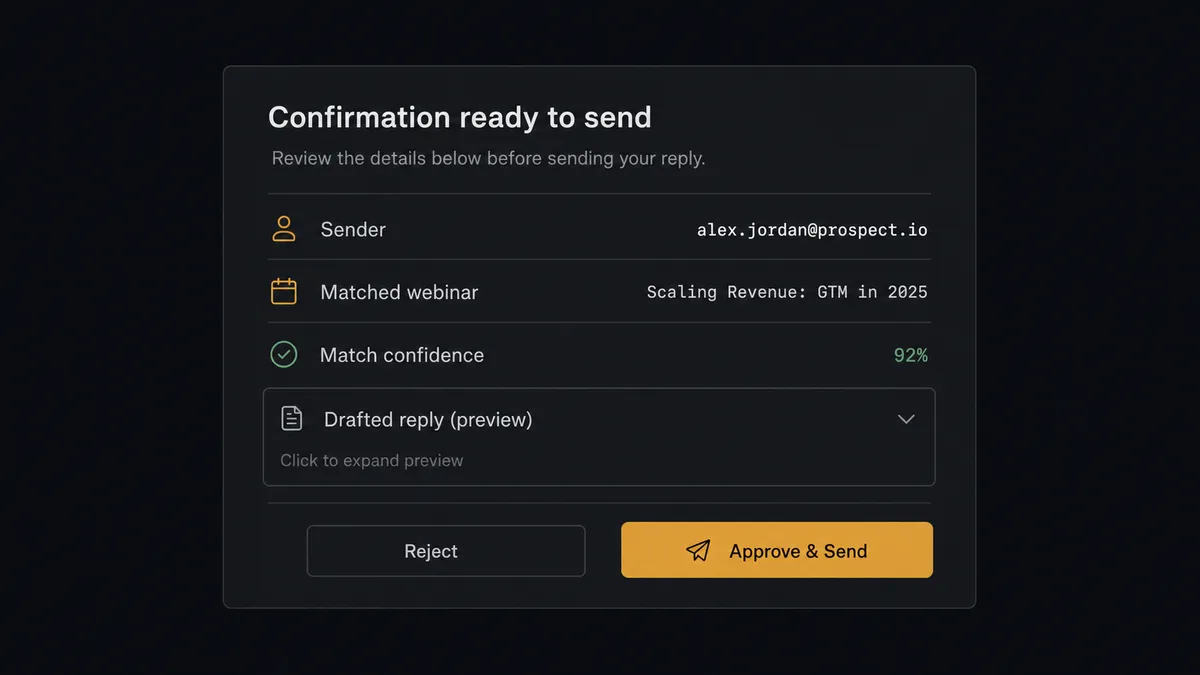
The consequential step is the outbound email. A wrong registration is fixable with Update Registration. A wrong email to a customer or partner is not; you cannot unsend it, and it carries your name. So the agent writes every confirmation as a draft first with Create Draft Email, and for anything outside the routine, a new contact, an unclear request, a reply that declines or redirects someone, it invokes a human-in-loop flow it holds as a callable tool. The workflow pauses and posts to your events channel: “Registration request from [sender]. Matched event: [conference]. Drafted reply attached. Approve to send?” A named approver reads the draft, edits if needed, and releases it. Only then does Send Draft Email or Reply to Email fire, with the approver and timestamp captured in the audit trail.
This is the digital andon cord in practice: like Toyota’s production line pull cord, the workflow stops the line the moment it hits uncertainty, and a person, not a guess, restarts it.
FlowRunner vs Zapier
Zapier is the obvious first stop for connecting a mailbox to a webinar platform, and its strengths are real: a huge connector library, a gentle learning curve, and templates that stand up a simple “new email creates a registrant” Zap fast. If your registration emails were perfectly structured, that Zap would be most of the job.
They are not perfectly structured, and that is the difference. FlowRunner runs this pair as an AI agent that reads free-form email, reasons about intent, and holds outbound sends behind native human-in-the-loop.
| What matters for this pair | FlowRunner | Zapier |
|---|---|---|
| Human-in-the-loop before an external email sends | Native. The agent drafts first and pauses for a named approver as a built-in tool call | Approval steps can be assembled, but they are extra plumbing, not an agent’s own judgment |
| Who runs the flow | An AI agent reads each email, matches the event, picks actions as tools | A predefined step sequence; free-form email parsing needs extra steps or add-ons |
| Users included | Unlimited users on every tier | Priced by task volume; seats vary by plan |
| Bring your own AI keys | Yes, BYOK | AI features tied to Zapier’s own AI offering |
| Self-hosted option | Yes, cloud-hosted or self-hosted | Cloud only |
| Pricing model | Transparent workflow-based tiers with clear execution limits | Per-task pricing that climbs with every email processed |
If your registrations arrive through clean forms and you only need a push into BigMarker, Zapier will serve you fine. If they arrive as human-written email and a reply with your name on it should never go out unreviewed, this pairing is the better fit.
Before and after
| Category | Before | After |
|---|---|---|
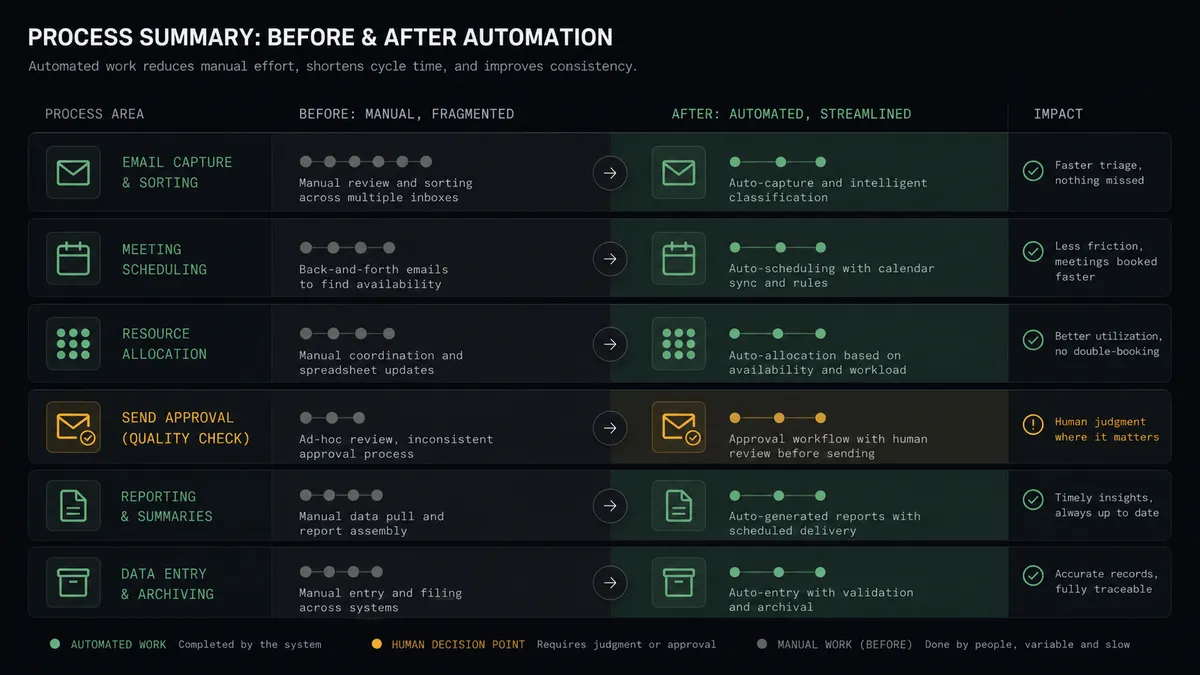
| Request handling | Registration emails wait in a shared mailbox until a coordinator works through them | Get Emails picks up every request within minutes of arrival |
| Event matching | ”The session next week” gets registered against the wrong event on a busy calendar | The agent matches requests against List Conferences and escalates the ambiguous ones |
| Confirmations | Replies are written by hand, sometimes with stale join links | Create Draft Email produces a consistent confirmation with current event details |
| Outbound control | Anyone processing the mailbox sends replies with no review step | External sends the agent is unsure about wait for a named approver |
| Traceability | Nobody can reconstruct who registered whom, or why | Every Register Person and every send carries a source email, an approver, and a timestamp |
What you can build
Inbox to registrant, minutes not days. Get Emails pulls each new request, the agent extracts the attendee, matches the event via List Conferences, and calls Register Person. The confirmation draft is ready before a coordinator would have opened the message.
Multi-attendee thread handling. A forwarded thread names three colleagues; the agent identifies each one, registers all three with Register Person, and drafts a single reply confirming the group, so nobody in the thread falls through.
Change-of-plans desk. “Can you move me to the later session?” The agent finds the existing signup, calls Update Registration against the right conference, and drafts the confirmation, escalating when the request is unclear.
Events calendar autopilot. For each session with fresh registrations, the agent calls Create Calendar Event on the shared events calendar and keeps it current with Update Calendar Event, so the team sees demand without opening BigMarker.
Pre-event reminder pass. The day before a session, the agent pulls List Registrants, cross-checks recent email threads for unanswered questions, and drafts reminder replies with Reply to Email, releasing routine ones and holding sensitive ones for approval.
Getting started
Start on the free plan: 100 executions a month, every integration included, no credit card required, plus 14 days of Professional for new accounts. Both connectors are available on every tier, and every tier includes unlimited users and unlimited workflows, so the coordinator, the events manager, and the reviewer all work in the same workspace.
Explore the integration details:
- Outlook integration (21 actions covering email, calendar, and contacts)
- BigMarker integration (8 actions covering conferences, registrants, and channels)
Start building free at flowrunner.ai or book a demo to see a live Outlook to BigMarker workflow, send approval and all.
Frequently asked questions
Is it free to connect Outlook and BigMarker on FlowRunner?
You can build and run the connection on FlowRunner's free plan, which includes 100 executions a month and every integration with no credit card required, and new accounts also get 14 days of Professional. Both connectors are available on every FlowRunner tier, and every tier includes unlimited users and unlimited workflows.
Can I self-host the Outlook to BigMarker workflow?
Yes. FlowRunner offers a cloud-hosted option and a self-hosted option, so the connection can run inside your own environment.
Does the AI agent need my own OpenAI or Claude key?
FlowRunner uses a bring-your-own-keys model, so you connect the AI provider key you already have. You are not locked to one model.
What happens when the agent cannot tell which webinar an email is asking about?
The agent stops and invokes a human-in-loop step. It posts the sender, the email excerpt, and the candidate conferences from List Conferences to your team channel, then waits for a person to pick the right event or reject the request before Register Person runs.
Which actions does this connection use, since neither service has a trigger?
The workflow runs on a schedule. It reads the mailbox with Get Emails and Get Email, registers attendees with Register Person in BigMarker, drafts confirmations with Create Draft Email, and books the slot with Create Calendar Event in Outlook.
Do confirmation emails go out automatically?
You choose the posture. The agent always writes the confirmation with Create Draft Email first. Routine confirmations can be released automatically with Send Draft Email, while anything the agent is less than certain about waits for a named approver before it sends.