How to Connect Outlook with Base64.ai (With or Without an AI Agent)
Route documents arriving in an Outlook inbox through Base64.ai extraction automatically, with an AI agent that forwards clean results downstream and pauses for a human reviewer on low-confidence fields before anything enters the processing queue.
How do you connect Outlook to Base64.ai?
You connect Outlook to Base64.ai with a scheduled workflow that calls Get Emails on your intake folder, retrieves each message and its attachment with Get Email, and runs the document through Scan Document, which recognizes invoices, receipts, IDs, and forms automatically and returns labeled fields with a confidence score on every value. Outlook has no trigger in FlowRunner, so a schedule sweeps the folder at the cadence you choose. FlowRunner is a visual AI-agent orchestration platform where automations run autonomously and pause for human judgment on the steps that carry real consequence. Run as an AI agent, the same connection reads the confidence scores the way a careful clerk would, forwards clean documents into your processing queue with Forward Email, and stops for a named reviewer when a field it cannot trust is about to become a record someone acts on.
The problem it solves
Every operations team has that mailbox. Invoices, signed agreements, delivery notes, and application forms arrive as attachments, and a person opens each one, reads the PDF, and rekeys the vendor, the dates, and the totals into whatever system comes next. It is slow, it is nobody’s favorite hour, and it scales linearly with volume: more documents means more afternoons lost to transcription, or another hire whose job is reading attachments.
The failure modes are worse than the tedium. A tired reader transposes digits in an invoice total and the error surfaces weeks later in a payment dispute. A contract goes into the folder unsigned and nobody notices until it matters. A document from an address nobody recognizes gets processed with the same trust as one from a ten-year vendor. Manual intake does not just cost hours; it applies the least scrutiny exactly where the risk is highest, because by the fortieth attachment of the day, every PDF looks the same.
How it works: the connection
The connection reads from Outlook on a schedule and sends every attachment through Base64.ai. Here is the plain version, grounded in the real connector actions.
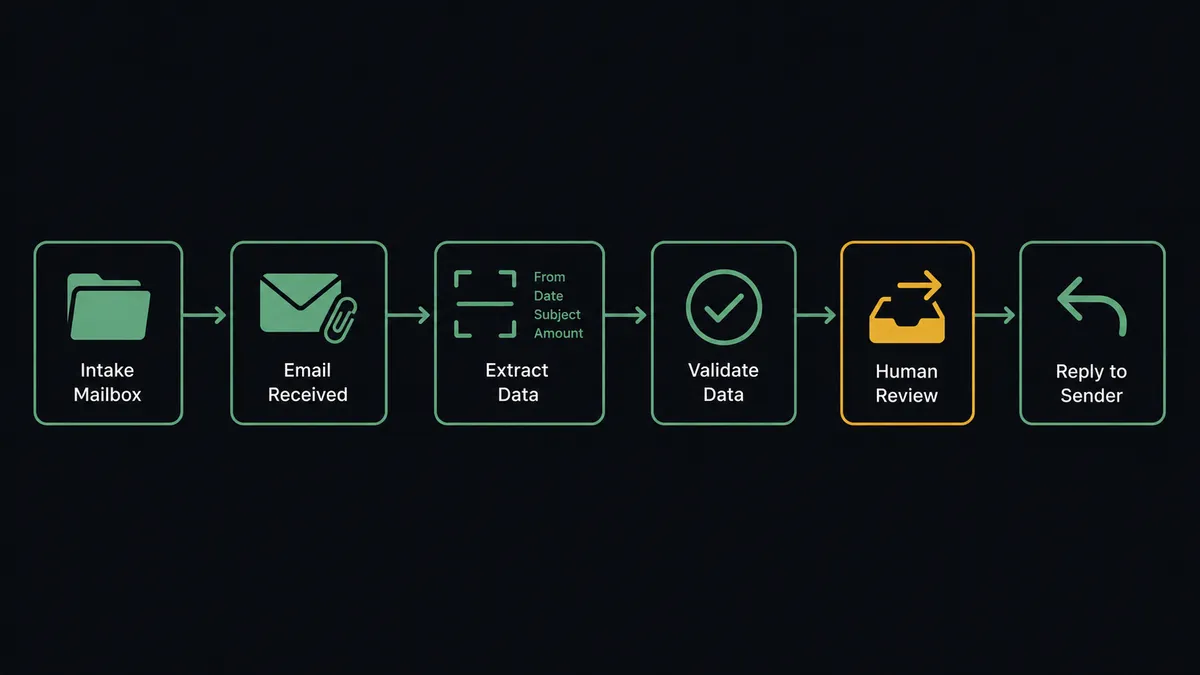
- Trigger: On a schedule, the workflow calls Get Emails on the intake folder to pull messages received since the last run.
- Read: It calls Get Email to retrieve each message with its attachment and sender details.
- Scan: It calls Scan Document, which recognizes the document type automatically and returns labeled fields, text, tables, and per-field confidence scores. For large files it calls Start Async Scan and polls Get Async Scan Result.
- Verify signatures: Where the document type requires one, it calls Detect Signatures to confirm the document is actually signed.
- Route: It calls Forward Email to send the document and its extracted data to the processing queue or the owning team’s mailbox.
- Acknowledge: It calls Reply to Email so the sender knows the document was received and is in process.
- Re-fetch when needed: Get Result by UUID pulls any stored extraction back up without rescanning.
That is the “just connect them” answer. Attachments become structured, labeled data the moment they arrive, and the mailbox stops being a job.
Can an AI agent run it? (and why a human stays in the loop)
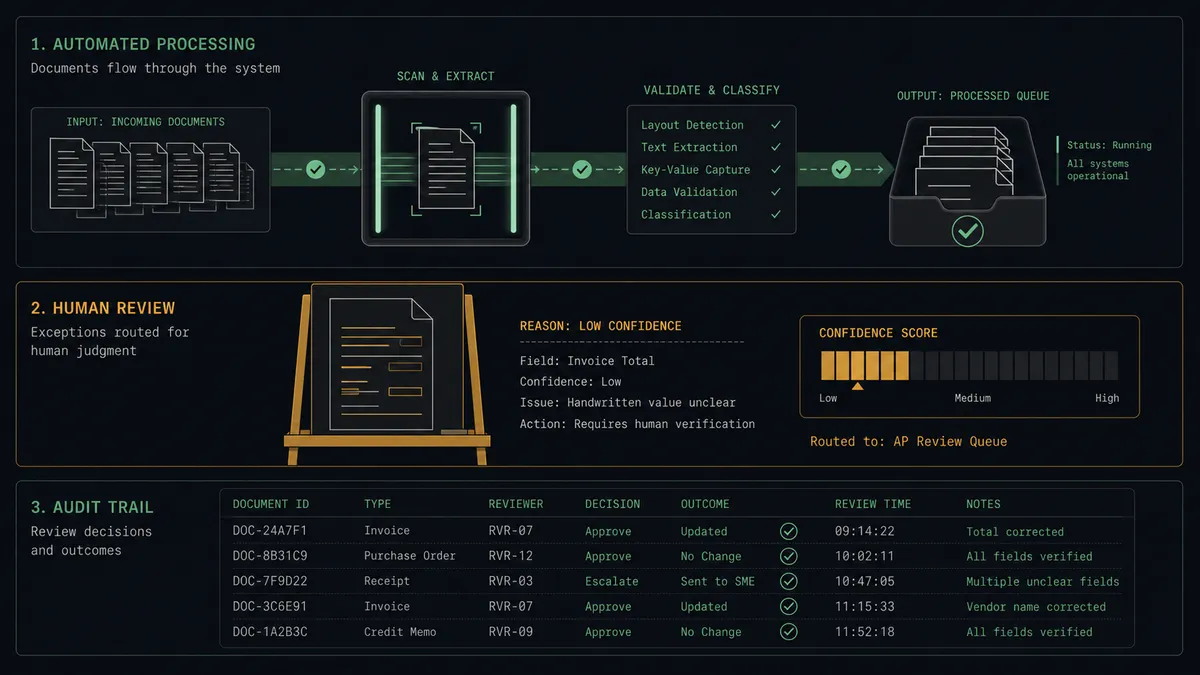
Yes, and the confidence scores are what make the agent more than a conveyor. Base64.ai reports how sure it is about every extracted field, and the agent holds the whole toolbox: Get Emails, Get Email, Scan Document, Start Async Scan, Get Async Scan Result, Detect Signatures, Forward Email, Reply to Email. On each document it reasons about the evidence: are the critical fields high-confidence, is the sender known, is the signature present where policy requires one, do the line items sum to the stated total?
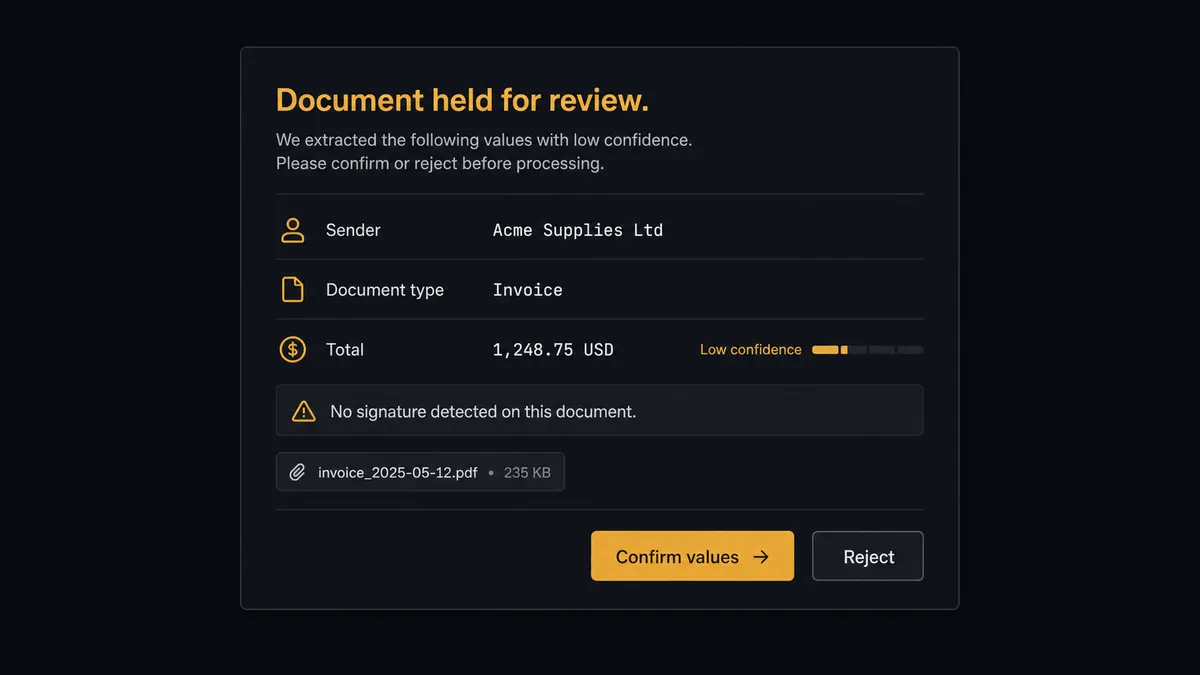
The consequential step is forwarding a document into the queue where people act on it, because a wrong total forwarded to payables becomes a wrong payment, and an unsigned agreement forwarded to fulfillment becomes work done on a contract that does not exist. When the evidence holds up, the agent forwards and acknowledges on its own. When it does not, the agent invokes a human-in-loop flow it holds as a callable tool. The workflow pauses and posts to your team’s channel: “Document from [sender] scanned as an invoice. The total extracted with low confidence, and Detect Signatures found no signature. Original attached. Confirm the values before this enters the queue?” A named reviewer corrects or confirms, and only then does Forward Email run, with the flagged fields, the decision, and the timestamp recorded in the audit trail.
That is the digital andon cord for document intake: like Toyota’s andon cord, the workflow stops the line the moment it hits uncertainty. High-confidence paper flows at machine speed; doubtful paper gets human eyes, every time, with the doubt spelled out.
FlowRunner vs n8n
Developers who already self-host n8n can wire Outlook to a document extraction API today, and honestly, many have: n8n’s node library is broad, its community is large, and its fair-code model makes self-hosting cheap to start. For a technical team that wants to hand-build every branch of the logic, that flexibility is real.
The difference is what you have to build versus what is already there. In n8n, confidence-based routing, the review step, and the audit record are all custom work you assemble and maintain; approval is a step you wire in advance, not a tool an agent chooses to invoke when the evidence is weak. FlowRunner ships the orchestration as the product.
| What matters for this pair | FlowRunner | n8n |
|---|---|---|
| Human-in-the-loop on low-confidence extractions | Native. The agent invokes the review flow as a callable tool before Forward Email | Wait and approval nodes exist, but confidence routing is logic you build yourself |
| Who runs the flow | An AI agent weighs scores, signatures, and senders, and picks actions as tools | Node graph you design and maintain, with AI added as nodes |
| Users included | Unlimited users on every tier | Cloud plans priced with limits; self-host to lift them |
| Bring your own AI keys | Yes, BYOK. Connect the AI provider key you already have | BYOK supported as well |
| Self-hosted option | Yes, cloud-hosted or self-hosted | Yes, fair-code self-hosting is its hallmark |
| Pricing model | Transparent workflow-based tiers, compliance from the $299/mo tier | Execution-based cloud pricing; full compliance features sit at Enterprise |
If you have engineers who enjoy owning the plumbing, n8n gives them full control. If you want an ops team to run document intake with review gates and an audit trail from day one, without building any of it, that is where FlowRunner is the better fit.
Before and after
| Category | Before | After |
|---|---|---|
| Intake | A person opens each attachment and rekeys the fields by hand | Scan Document extracts labeled fields the moment mail arrives |
| Error surface | Transposed digits surface weeks later as payment disputes | Low-confidence fields are flagged and corrected before anything moves |
| Signatures | Unsigned agreements slip through until someone needs the contract | Detect Signatures checks every document a signature policy covers |
| Unknown senders | Every attachment gets equal trust regardless of source | Unfamiliar senders route to a reviewer before their documents enter the queue |
| Accountability | Nobody can reconstruct who accepted a questionable document | Every held document carries the flagged fields, the reviewer, and a timestamp |
What you can build
Invoice intake without rekeying. Get Emails sweeps the payables mailbox, Scan Document extracts vendor, dates, line items, and totals with confidence scores, and clean invoices move to the queue via Forward Email while Reply to Email tells the vendor their invoice is in process.
Signature verification on inbound agreements. Every contract that lands is checked with Detect Signatures, and Verify Signature (Match) compares the signature against a known specimen when the stakes call for it. Unsigned or mismatched documents stop at the human gate instead of entering the file.
Identity document processing. Applications with ID attachments run through Scan Document, which reads passports and driver’s licenses into labeled fields, and Detect Faces pulls the photo. Low-confidence extractions queue for a person rather than becoming a bad customer record.
High-volume async pipeline. For heavy scanned files, the agent submits with Start Async Scan, continues sweeping the mailbox, and collects results through Get Async Scan Result as they finish, so one large document never blocks the day’s intake.
Quota-aware operations. The agent checks Get Account for remaining scan credits and alerts your team by email before the quota runs dry, so intake never silently stops mid-month.
Getting started
Start on the free plan: 100 executions a month, every integration included, no credit card required, plus 14 days of Professional for new accounts. Both connectors are available on every tier, and every tier includes unlimited users and unlimited workflows.
Explore the integration details:
- Outlook integration (21 actions covering email, calendar, and contacts)
- Base64.ai integration (11 actions covering document scanning, faces, and signatures)
Start building free at flowrunner.ai or book a demo to see a live Outlook to Base64.ai workflow, low-confidence review gate and all.
Frequently asked questions
Is it free to connect Outlook and Base64.ai on FlowRunner?
You can build and run the connection on FlowRunner's free plan, which includes 100 executions a month and every integration with no credit card required, and new accounts also get 14 days of Professional. Both connectors are available on every FlowRunner tier, and every tier includes unlimited users and unlimited workflows.
Can I self-host the Outlook to Base64.ai workflow?
Yes. FlowRunner offers a cloud-hosted option and a self-hosted option, so the connection can run inside your own environment.
Does the AI agent need my own OpenAI or Claude key?
FlowRunner uses a bring-your-own-keys model, so you connect the AI provider key you already have. You are not locked to one model.
What happens when the extraction confidence is low on a field like the invoice total?
The document does not move forward. The agent holds it, posts the extracted fields with their confidence scores and the original attachment to your team's channel, and waits for a reviewer to correct or confirm the values. Only after that decision does Forward Email route the document into the processing queue.
Outlook has no trigger in FlowRunner, so what starts the workflow?
A schedule. Each run calls Get Emails on the intake folder to pull messages received since the last check, then Get Email retrieves each message with its attachment for scanning. The cadence is yours, from every few minutes to a few times a day.
Which Base64.ai actions does this pair actually use?
Scan Document does the extraction, returning labeled fields, tables, and per-field confidence scores, with automatic recognition of invoices, receipts, IDs, and forms. Start Async Scan and Get Async Scan Result handle large files, Detect Signatures verifies documents are signed, and Get Result by UUID re-fetches any stored extraction.