How to Connect Outlook with Adobe Workfront (With or Without an AI Agent)
Turn client request emails in Outlook into Adobe Workfront tasks automatically, with an AI agent that routes routine work on its own and pauses for a human before a new project is created.
How do you connect Outlook to Adobe Workfront?
You connect Outlook to Adobe Workfront by polling the shared request inbox with Get Emails on a schedule and turning each new message into Workfront work: the workflow matches the request to a project with Search Projects, resolves the owner with Search Users, writes the work item with Create Task, and confirms back to the sender with Reply to Email. FlowRunner is a visual AI-agent orchestration platform where automations run autonomously and pause for human judgment on the steps that carry real consequence. Run the same connection as an AI agent and it reads each email, files routine requests into the right project on its own, and pauses for a named owner before Create Project commits your team to scope nobody agreed to.
The problem it solves
In most operations teams, the request inbox is a person’s second job. Clients and internal stakeholders email work requests to a shared Outlook address. A coordinator reads each one, figures out which Workfront project it belongs to, retypes the subject and body into a task, guesses the assignee, and writes back to the requester. Every step is copy and paste, and every hour the inbox goes unwatched, the intake queue quietly grows. The coordinator becomes the bottleneck between demand and the team that does the work.
The edges are worse than the volume. An email that looks like a small task is actually new scope, and someone creates a stray task in the wrong project instead of raising a project decision. A deadline stated in the third paragraph never makes it into the task. A requester follows up twice because nobody confirmed receipt, so now there are three emails describing one piece of work. When the quarter closes, half the team’s real workload lives in an inbox instead of in Workfront, and capacity planning is fiction.
How it works: the connection
The connection reads Outlook and writes Workfront. Here is the plain version, grounded in the real connector actions.
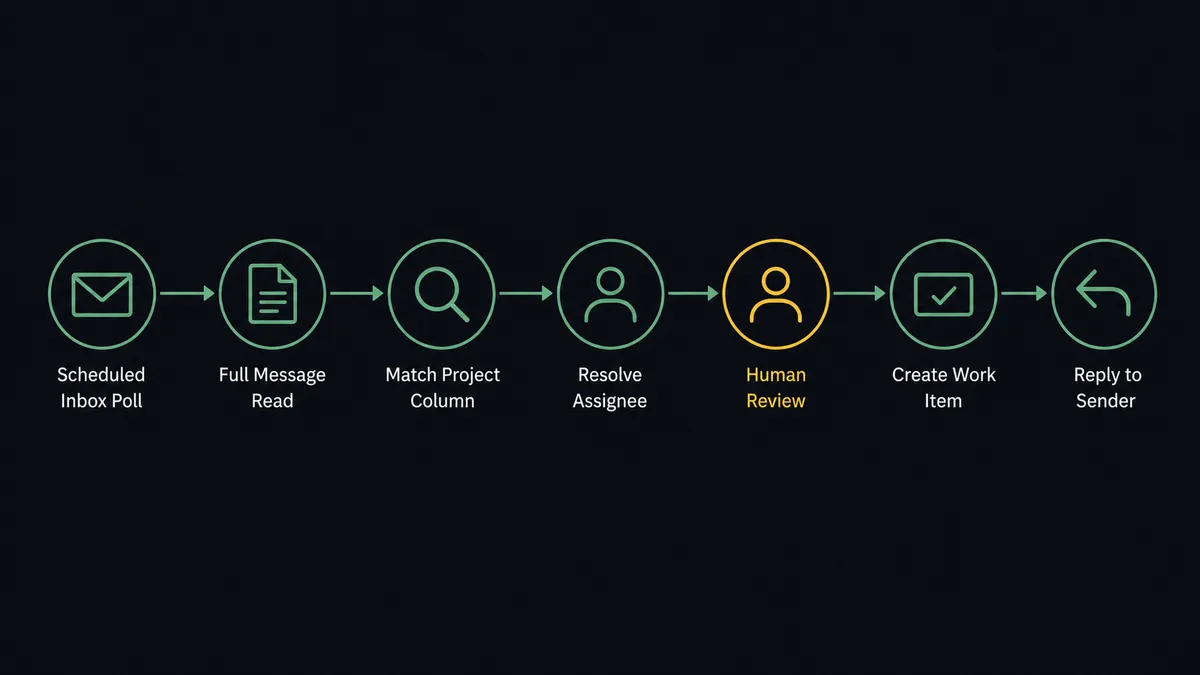
- Trigger: On a schedule, the workflow calls Get Emails on the shared request inbox and picks up anything new.
- Read: Get Email pulls the full message: sender, subject, body, attachments, and any stated dates.
- Match the project: Search Projects finds the destination by client name or program keyword in the message.
- Resolve the assignee: Search Users maps the request to the right owner based on the project team.
- Write the work: Create Task adds the request to the matched project with the subject as the name, the body as the description, and the stated deadline as the due date.
- Close the loop: Reply to Email sends the requester the task reference and owner, in the same thread.
- Keep it current: When a follow-up email arrives on the same thread, Search Tasks finds the existing task and Update Task appends the new detail instead of creating a duplicate.
That is the “just connect them” answer. Requests become tasks, requesters get confirmations, and the coordinator stops being a human clipboard.
Can an AI agent run it? (and why a human stays in the loop)
Yes, and this is where the connection stops being a filing mechanism and starts being triage. Instead of a fixed rule that routes on keywords, an AI agent reads each email the way your coordinator would. It holds the Workfront actions as tools: Search Projects, Search Tasks, Create Task, Update Task, Create Project, Search Users. It reasons about what the sender is actually asking for, then picks the action that fits. A revision request on an active deliverable becomes an Update Task. A new request under an existing engagement becomes a Create Task. A status question gets answered with Reply to Email and never touches the task list at all.
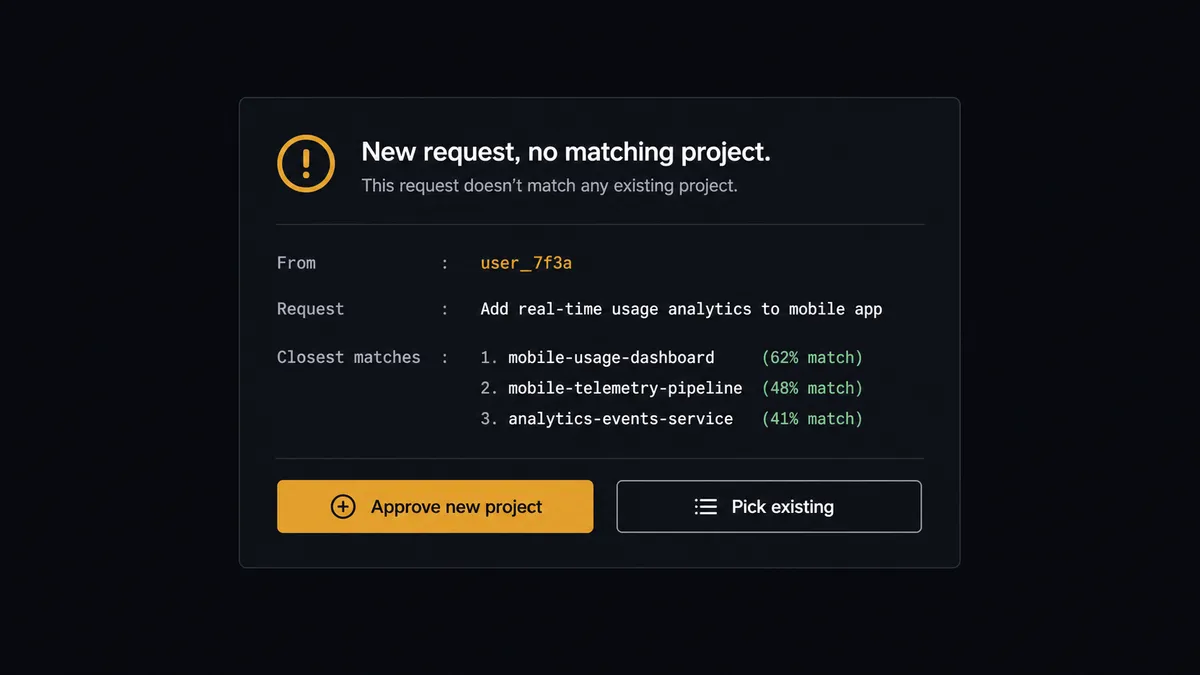
The consequential step is Create Project. A new project in Workfront is not a data row; it is a commitment. It signals to the team that scope was approved, it enters capacity plans, and at agencies it often maps to billing. So when an email asks for work that no current project covers, the agent does not create anything. It gathers what a decision-maker needs: the sender, the request summary, the closest existing projects from Search Projects, and its own read on whether this is new scope. Then it invokes a human-in-loop flow it holds as a callable tool. The workflow pauses and posts to your channel: “New request from [sender]: [summary]. No matching project found. Closest matches: [list]. Approve creating a new project, or pick a destination?” Only after a named owner answers does the agent call Create Project or file the task where the human pointed.
The escalation is contextual, not keyword-driven. An email from a known client about an active engagement flows straight through. An email from that same client describing work outside the statement of work gets pulled to a person, even though both messages contain the same project name. Prospects call this the digital andon cord: like Toyota’s production line pull cord, the workflow stops the line the moment it hits uncertainty, and your team decides how it restarts.
FlowRunner vs n8n
If your team includes developers, n8n is a serious option for this pair. Its node library is deep, its fair-code self-hosting model is genuinely good, and its community has published thousands of workflow templates, including inbox-to-task patterns close to this one. For a technical team that wants to own every branch of the logic in a node graph, n8n does the job.
The difference is who can build and run it, and what happens at the consequential step. FlowRunner is built so an operations lead can stand this up without writing code, and so the pause before Create Project is a native agent decision rather than custom-built plumbing. Here is the honest side-by-side.
| What matters for this pair | FlowRunner | n8n |
|---|---|---|
| Human-in-the-loop on Create Project | Native. The agent invokes an approval flow as a callable tool and pauses before new scope is committed | Buildable with wait nodes and webhooks; you assemble and maintain the approval logic yourself |
| Who runs the flow | An AI agent reads the email, reasons, and picks actions as tools | A node graph you design and debug, with AI available as LangChain nodes |
| Users included | Unlimited users on every tier | Cloud plans meter executions and gate collaboration features by tier |
| Bring your own AI keys | Yes, BYOK | Yes, via your own credentials in AI nodes |
| Self-hosted option | Yes, cloud-hosted or self-hosted | Yes, fair-code self-hosting is a core n8n strength |
| Pricing model | Transparent workflow-based tiers with clear execution limits | Execution-based cloud pricing; self-hosting shifts cost to your own infrastructure and upkeep |
If you have engineers who want full control of a node graph and are happy to build the approval mechanics, n8n is a credible choice. If you want the intake triage running this week, operated by the team that owns the inbox, with the project gate built in, this pairing on FlowRunner is the better fit.
Before and after
| Category | Before | After |
|---|---|---|
| Request intake | A coordinator reads the shared inbox and retypes each request into Workfront by hand | Every new email becomes a matched, assigned Workfront task within minutes of arriving |
| Scope control | New-scope emails become stray tasks in whatever project looks closest | Net-new scope pauses at a named owner before Create Project runs |
| Requester experience | Senders follow up because nobody confirms receipt | Reply to Email returns the task reference and owner in the original thread |
| Duplicates | Follow-up emails spawn duplicate tasks that someone reconciles later | Search Tasks finds the existing task and Update Task appends the new detail |
| Workload visibility | Real demand hides in the inbox while Workfront shows a partial picture | Workfront reflects actual incoming demand, so capacity planning uses real numbers |
What you can build
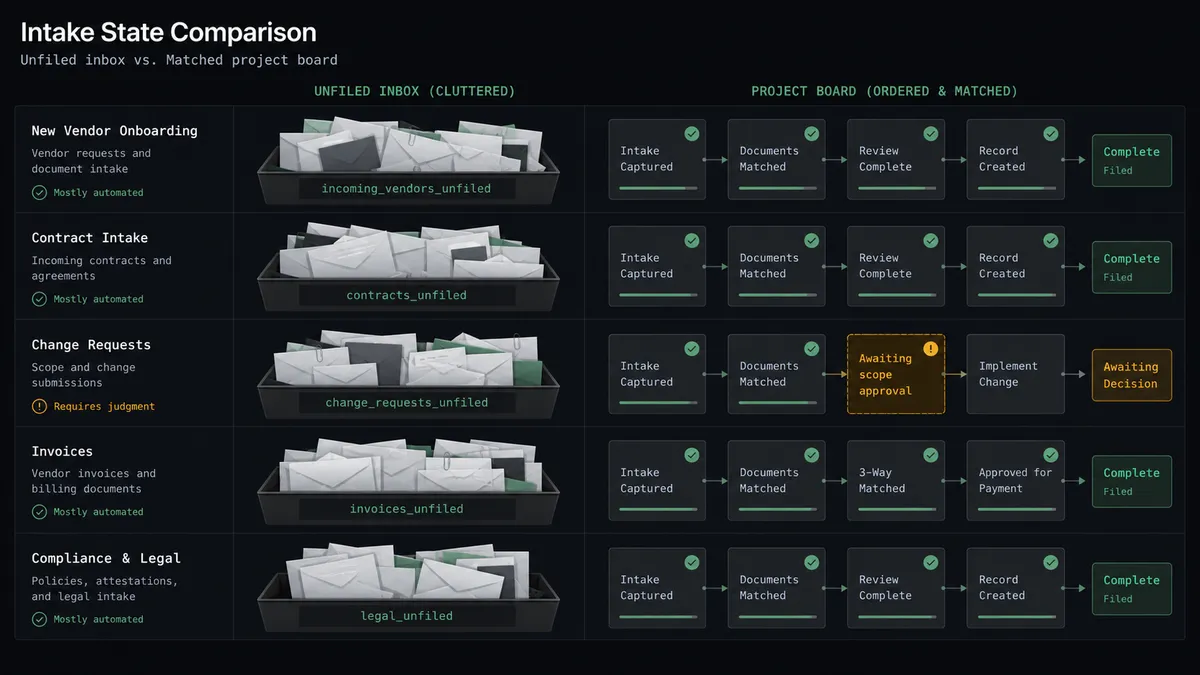
Inbox to assigned task, hands off. The schedule fires Get Emails, the agent classifies the request, Search Projects and Search Users find the destination and owner, and Create Task writes the work with the deadline mapped. The requester gets a Reply to Email confirmation without anyone touching the inbox.
New-scope gate. An email asks for work outside every active engagement. The agent packages sender, summary, and closest project matches, invokes the human-in-loop tool, and only calls Create Project after a named owner approves. The approval and timestamp land in the audit trail.
Follow-up threading. A requester replies to an old thread with changes. The agent uses Search Tasks to find the original task, calls Update Task with the new detail, and confirms with Reply to Email, so one piece of work stays one task.
Blocked-work chaser. On a morning schedule, the agent runs Search Issues and Search Tasks for overdue or blocked items, then uses Send Email to nudge each owner with the item and its age, so stalled work surfaces before the standup instead of after the deadline.
Meeting-to-milestone sync. When a kickoff lands on the calendar, the agent pulls it with Get Calendar Events, finds the matching engagement via Search Projects, and creates prep tasks with Create Task so the team walks in ready.
Getting started
Start on the free plan: 100 executions a month, every integration included, no credit card required, plus 14 days of Professional for new accounts. Both connectors are available on every tier, and every tier includes unlimited users and unlimited workflows.
Explore the integration details:
- Outlook integration (21 actions covering email, calendar events, and contacts)
- Adobe Workfront integration (10 actions covering projects, tasks, issues, users, and documents)
Start building free at flowrunner.ai or book a demo to see a live Outlook to Adobe Workfront workflow, new-scope approval and all.
Frequently asked questions
Is it free to connect Outlook and Adobe Workfront on FlowRunner?
You can build and run the connection on FlowRunner's free plan, which includes 100 executions a month and every integration with no credit card required, and new accounts also get 14 days of Professional. Both connectors are available on every FlowRunner tier, and every tier includes unlimited users and unlimited workflows.
Can I self-host the Outlook to Adobe Workfront workflow?
Yes. FlowRunner offers a cloud-hosted option and a self-hosted option, so the connection can run inside your own environment.
Does the AI agent need my own OpenAI or Claude key?
FlowRunner uses a bring-your-own-keys model, so you connect the AI provider key you already have. You are not locked to one model.
What happens when the agent cannot tell which project an email belongs to?
It stops and asks. The agent posts the sender, the request summary, and the closest matches from Search Projects to your team channel, then waits for a person to pick the destination or approve a new project before it writes anything to Workfront.
Which Outlook events start the Workfront workflow?
Outlook's connector is action-based, so the workflow runs on a schedule. Every few minutes it calls Get Emails on the shared request inbox, and each new message flows through classification into Search Tasks, Create Task, or the project approval path.
Does the requester find out their email became a task?
Yes. After the task is created, the workflow calls Reply to Email with the Workfront task reference and the assigned owner, so the requester gets confirmation in the same thread they started.