How to Connect Salesforce Pro with Adobe Workfront (With or Without an AI Agent)
Connect closed-won Salesforce opportunities to Adobe Workfront projects, optionally as an AI agent that builds the delivery plan automatically and pauses for a human before the client-facing kickoff email leaves through Send Email.
How do you connect Salesforce Pro to Adobe Workfront?
You connect Salesforce Pro to Adobe Workfront by having a scheduled workflow run Find Records by Query with a SOQL filter for closed-won opportunities, then turn each one into delivery work: Create Project builds the client project in Workfront, Create Task lays out the kickoff plan with assignees resolved through Search Users, and Create Enhanced Note writes the project reference back onto the opportunity so the account team can follow delivery from Salesforce. FlowRunner is a visual AI-agent orchestration platform where automations run autonomously and pause for human judgment on the steps that carry real consequence. The same connection can run as an AI agent that also drafts the client kickoff email with the real project dates, then pauses for the account owner before Send Email runs, because a message that reaches the customer deserves a human signature.
The problem it solves
Today the sales-to-delivery handoff at most Salesforce shops is a swivel chair. An opportunity closes. The account executive pings the delivery manager, who opens Workfront, creates the project by hand, retypes the account name, reconstructs the scope from the opportunity description, and builds the kickoff task list from whatever the last similar project looked like. Then someone writes the kickoff email to the client, usually days later, usually with dates that were never checked against the delivery calendar. Each step is small. Together they add days of dead air at exactly the moment the client is most excited and most watching.
The edges are where trust erodes. An opportunity closes with amendments buried in attachments that never make it into the project scope. The kickoff email quotes a start date the team cannot hit. Two closed opportunities for the same account produce duplicate projects, or worse, none, because each manager assumed the other had it. And when the client replies to the kickoff email with a question, the answer lives in Salesforce while the work lives in Workfront, and the two systems have never met.
How it works: the connection
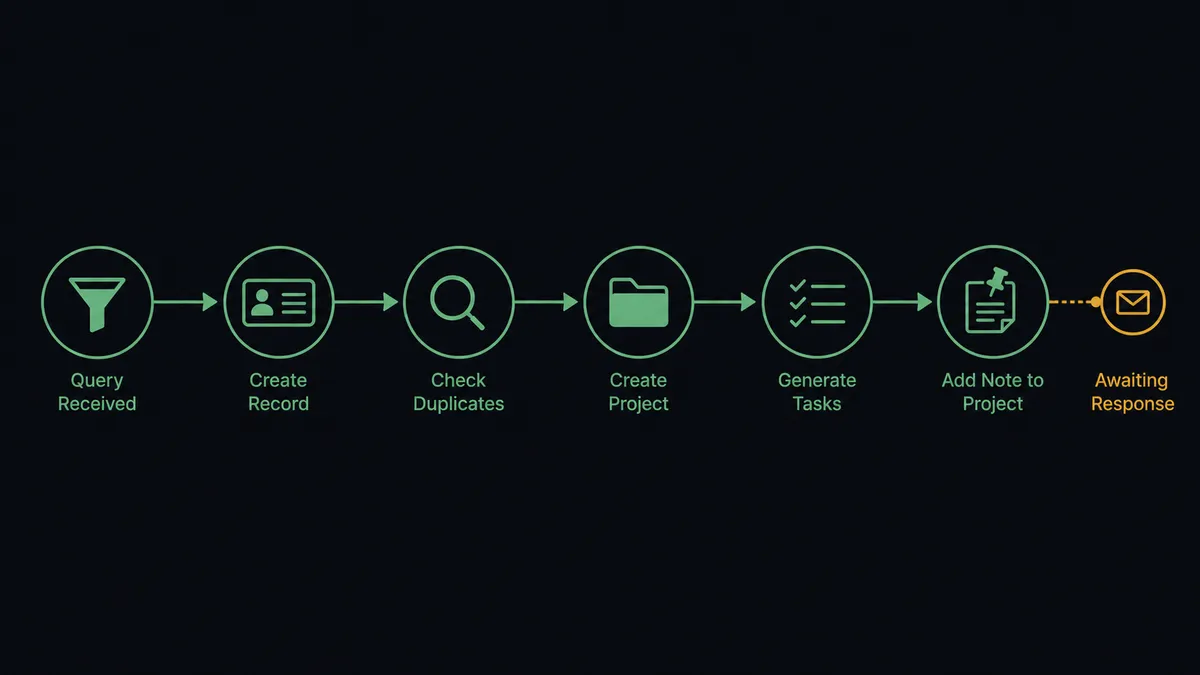
The connection polls Salesforce and writes to Adobe Workfront. Here is the plain version, grounded in the real connector actions.
- Trigger: On a schedule, the workflow runs Find Records by Query with a SOQL query for opportunities that reached closed won since the last run.
- Read: It calls Find Record to retrieve the account and primary contact, and Get Record Attachments when the scope lives in attached documents.
- Check for duplicates: It calls Search Projects in Workfront, filtered by account and opportunity name, to confirm the project does not already exist.
- Create the project: It calls Create Project with the opportunity name, a description assembled from the opportunity’s fields, and planned start and completion dates derived from the close date.
- Build the plan: It calls Search Users to resolve the delivery owner and assignees, then Create Task for each kickoff item, assigned and dated.
- Close the loop: It calls Create Enhanced Note on the opportunity with the Workfront project reference, and Update Record to stamp the delivery stage, so Salesforce reflects reality.
That is the “just connect them” answer. Closed opportunities become structured, assigned projects within minutes, and the CRM knows about it.
Can an AI agent run it? (and why a human stays in the loop)
Yes, and the agent version earns its keep in two places a fixed sync cannot reach. First, the reading. The agent holds Find Records by Query, Find Record, Get Record Attachments, Search Projects, Search Users, Create Project, Create Task, Create Enhanced Note, Update Record, and Send Email as tools, and it reasons about each opportunity before acting. A standard implementation opportunity gets the standard plan. An opportunity whose description mentions a custom integration gets extra discovery tasks. One with contradictory dates gets flagged instead of built wrong.
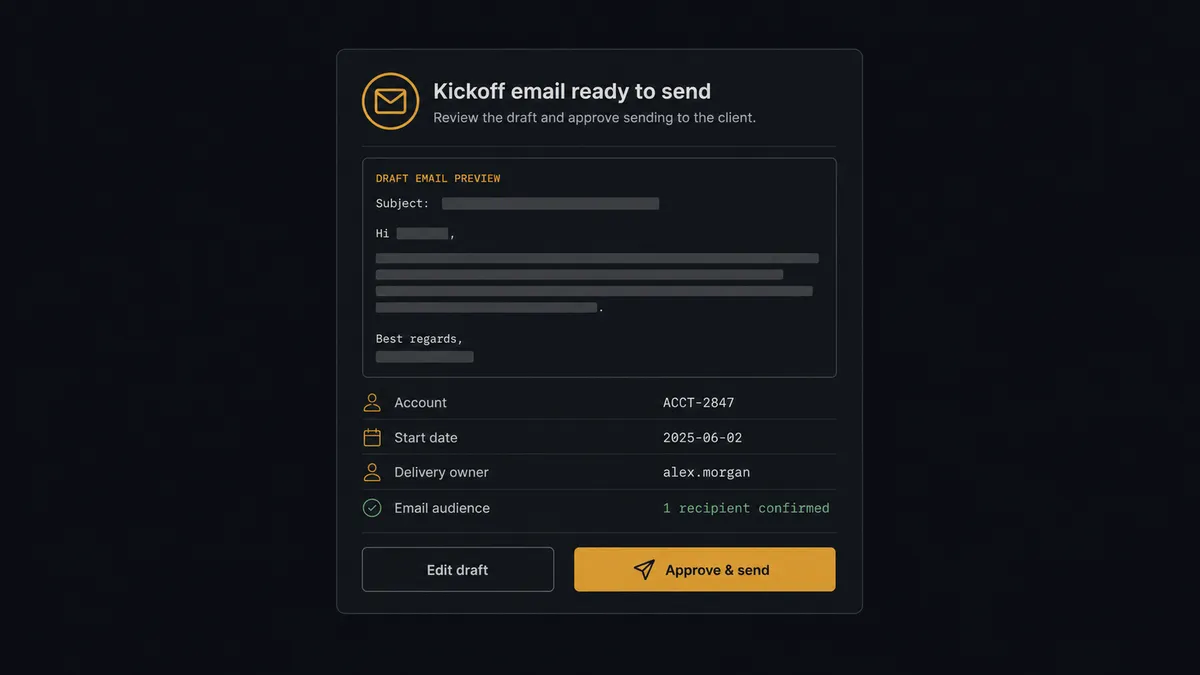
Second, the gate. The consequential step in this pair is not creating the project, it is Send Email, because that message leaves your walls and lands in the client’s inbox with dates and promises in it. The agent drafts the kickoff email from the real record: contact name from Find Record, project dates from the Create Project result, scope summary from the opportunity. Then it stops. It invokes a human-in-loop flow it holds as a callable tool, and the account owner gets the draft with a simple frame: “Kickoff email for [account], start date [date], owner [name]. Approve to send, or edit first.” Only after a named person approves does Send Email run, and the approval, the approver, and the timestamp are written into the audit trail alongside the note on the opportunity.
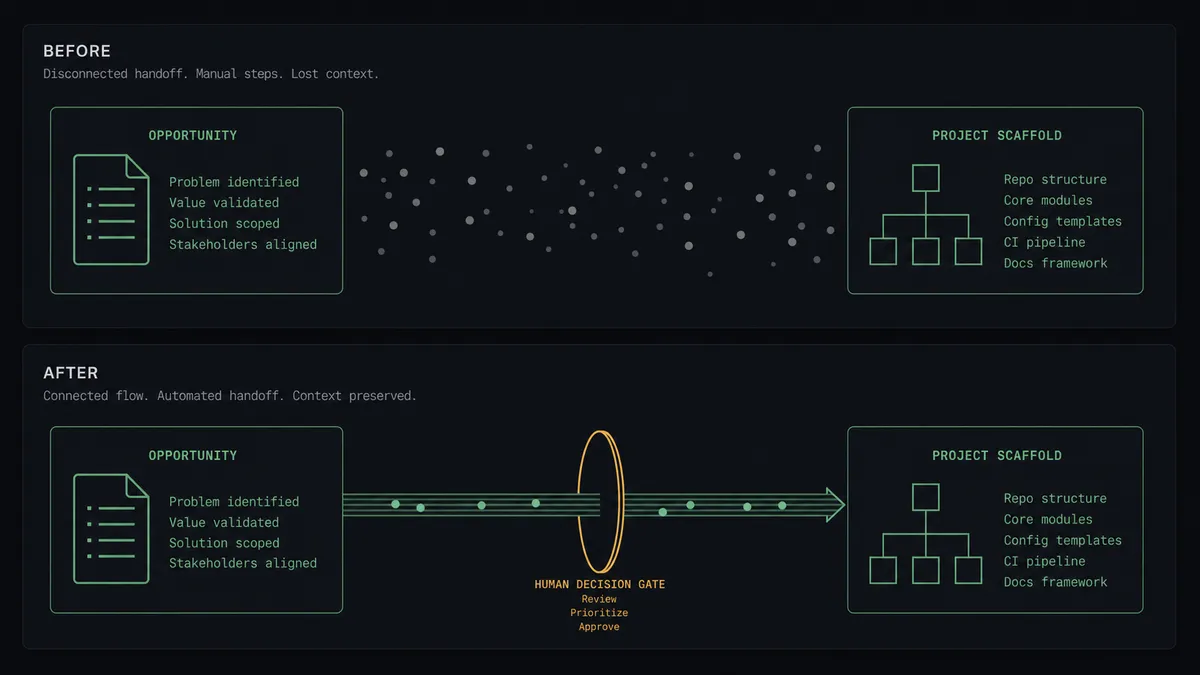
This is the digital andon cord in practice: like Toyota’s line, the workflow stops itself the moment the next step carries consequence it cannot fully judge, and a person pulls it forward. The routine ninety percent of the handoff runs without anyone touching it. The client-facing moment always gets a human.
FlowRunner vs n8n
Technical teams comparing tools for this pair will look at n8n, and there are honest reasons to. It self-hosts under a fair-code license, its integration library and community template gallery are among the largest anywhere, and a developer fluent in its node model can build a Salesforce-to-Workfront pipeline with precise control over every branch and retry. None of that is in dispute.
The dividing line is who owns the workflow and what happens at the client-facing step. FlowRunner makes the reasoning agent and the human gate native primitives an operations team can assemble visually.
| What matters for this pair | FlowRunner | n8n |
|---|---|---|
| Human-in-the-loop on Send Email | Native. The agent invokes an approval flow as a callable tool and pauses before any message reaches the client | Approval patterns exist as wait and form nodes a developer wires into the graph |
| Who runs the flow | An AI agent reads each opportunity, reasons, picks actions as tools | A node graph you design and maintain; AI runs inside nodes you configure |
| Users included | Unlimited users on every tier | Cloud plans meter by executions and plan level; unlimited on self-hosted |
| Bring your own AI keys | Yes, BYOK | Yes, n8n also connects your own model keys |
| Self-hosted option | Yes, cloud-hosted or self-hosted | Yes, self-hosting is a genuine n8n strength |
| Pricing model | Transparent workflow-based tiers with clear execution limits | Execution-based cloud pricing that teams find hard to predict; full cloud compliance sits in custom-priced Enterprise |
If your engineering team wants to own this pipeline as code-adjacent infrastructure, n8n is a credible home for it. If the operations leader who owns the handoff wants to build it, tune it, and put an account owner’s approval in front of every client email, with audit trails at $299/mo rather than a custom Enterprise quote, this pairing is the better fit.
Before and after
| Category | Before | After |
|---|---|---|
| Handoff speed | Days of dead air between closed won and a project existing in Workfront | The project, tasks, and assignees exist minutes after the opportunity closes |
| Scope fidelity | Scope is reconstructed from memory and buried attachments | The project description is assembled from the opportunity record and its attachments every time |
| Kickoff email | Written from scratch days later, with dates nobody verified | Drafted automatically with real project dates, sent only after the account owner approves |
| CRM accuracy | Salesforce goes quiet the moment the deal closes | Create Enhanced Note and Update Record keep delivery status on the opportunity |
| Accountability | Nobody can say who promised the client which date | The audit trail records who approved the kickoff message and when |
What you can build
Closed-won to project, hands off. Find Records by Query catches the closed opportunity, the agent pulls the account with Find Record, checks Search Projects for duplicates, and builds the plan with Create Project and Create Task, writing the reference back through Create Enhanced Note.
Gated kickoff email. The agent drafts the client welcome from the real record and holds it at the human gate. Send Email runs only after the account owner approves, and every send carries an approver and timestamp.
Attachment-aware scoping. For opportunities where the statement of work lives in files, the agent calls Get Record Attachments, folds the scope into the project description, and adds Create Task items for deliverables named in the documents.
Delivery status back to Salesforce. On a weekly schedule the agent reads Get Project for every active engagement and writes status summaries onto opportunities with Create Enhanced Note, so account owners see delivery health inside the CRM.
Change-order to expansion pipeline. The agent watches Search Issues for change orders on client projects, matches them to the account, and stages a new opportunity via Create Record for the account owner to confirm, keeping expansion revenue visible instead of buried in project chatter.
Common questions
Is it free to connect Salesforce Pro and Adobe Workfront on FlowRunner? You can build and run the connection on FlowRunner’s free plan, which includes 100 executions a month and every integration with no credit card required, and new accounts also get 14 days of Professional. Both connectors are available on every FlowRunner tier, and every tier includes unlimited users and unlimited workflows.
Can I self-host the Salesforce Pro to Adobe Workfront workflow? Yes. FlowRunner offers a cloud-hosted option and a self-hosted option, so the connection can run inside your own environment.
Does the AI agent need my own OpenAI or Claude key? FlowRunner uses a bring-your-own-keys model, so you connect the AI provider key you already have. You are not locked to one model.
What happens when the agent is unsure whether the kickoff email is ready to send? It never guesses with a client-facing message. The agent packages the drafted email, the project dates, and the opportunity context, posts them to the account owner’s channel, and waits. Send Email only runs after a named person approves the draft.
Which events start the Salesforce Pro to Adobe Workfront workflow? Neither connector publishes a catalog trigger, so the workflow runs on a schedule. It polls Salesforce with Find Records by Query, using a SOQL query for opportunities that reached closed won since the last run, and processes each one exactly once.
Can the workflow write delivery status back into Salesforce? Yes. The agent reads project status with Get Project in Workfront and writes it back using Create Enhanced Note or Update Record on the opportunity, so account owners see delivery health without leaving Salesforce.
Getting started
Start on the free plan: 100 executions a month, every integration included, no credit card required, plus 14 days of Professional for new accounts. Both connectors are available on every tier, and every tier includes unlimited users and unlimited workflows.
Explore the integration details:
- Salesforce Pro integration (26 actions covering leads, contacts, records, SOQL queries, and email)
- Adobe Workfront integration (10 actions covering projects, tasks, issues, users, and documents)
Start building free at flowrunner.ai or book a demo to see a live Salesforce Pro to Adobe Workfront workflow, kickoff-email approval and all.
Frequently asked questions
Is it free to connect Salesforce Pro and Adobe Workfront on FlowRunner?
You can build and run the connection on FlowRunner's free plan, which includes 100 executions a month and every integration with no credit card required, and new accounts also get 14 days of Professional. Both connectors are available on every FlowRunner tier, and every tier includes unlimited users and unlimited workflows.
Can I self-host the Salesforce Pro to Adobe Workfront workflow?
Yes. FlowRunner offers a cloud-hosted option and a self-hosted option, so the connection can run inside your own environment.
Does the AI agent need my own OpenAI or Claude key?
FlowRunner uses a bring-your-own-keys model, so you connect the AI provider key you already have. You are not locked to one model.
What happens when the agent is unsure whether the kickoff email is ready to send?
It never guesses with a client-facing message. The agent packages the drafted email, the project dates, and the opportunity context, posts them to the account owner's channel, and waits. Send Email only runs after a named person approves the draft.
Which events start the Salesforce Pro to Adobe Workfront workflow?
Neither connector publishes a catalog trigger, so the workflow runs on a schedule. It polls Salesforce with Find Records by Query, using a SOQL query for opportunities that reached closed won since the last run, and processes each one exactly once.
Can the workflow write delivery status back into Salesforce?
Yes. The agent reads project status with Get Project in Workfront and writes it back using Create Enhanced Note or Update Record on the opportunity, so account owners see delivery health without leaving Salesforce.