How to Connect Slack with Adobe Workfront (With or Without an AI Agent)
Connect Slack requests to Adobe Workfront tasks, optionally as an AI agent that files the work automatically and pauses for an operations lead before a new project is created.
How do you connect Slack to Adobe Workfront?
You connect Slack to Adobe Workfront by having Slack’s On Channel Message trigger drive Workfront actions: the workflow reads the request, calls Search Projects to find the right destination, resolves the owner with Search Users, and files the work with Create Task, so a message in your intake channel becomes a tracked, assigned task with planned dates. FlowRunner is a visual AI-agent orchestration platform where automations run autonomously and pause for human judgment on the steps that carry real consequence. The same connection can run as an AI agent that files routine tasks on its own and pauses for an operations lead before it calls Create Project, because a new project commits team capacity in a way a single task never does.
The problem it solves
Right now the bridge between Slack and Workfront is a coordinator. A request lands in the channel: “can we get a landing page refresh before the launch?” Someone reads it, decides which Workfront project it belongs to, opens Workfront, creates the task, and assigns it. Multiply that by every request, every day, across every team that treats your channel as the front door.
The edges are where it breaks. A request that never gets filed, so the work happens off the books and the resource plan is fiction. A duplicate task, because two people triaged the same thread. A request that was actually a new project, filed as a task inside the wrong one, so its dates never hit the portfolio view. And requesters ask “any update?” in Slack because they have no Workfront seat and no way to check.
How it works: the connection
The connection listens to Slack and writes to Adobe Workfront. Here is the plain version, grounded in the real connector actions.
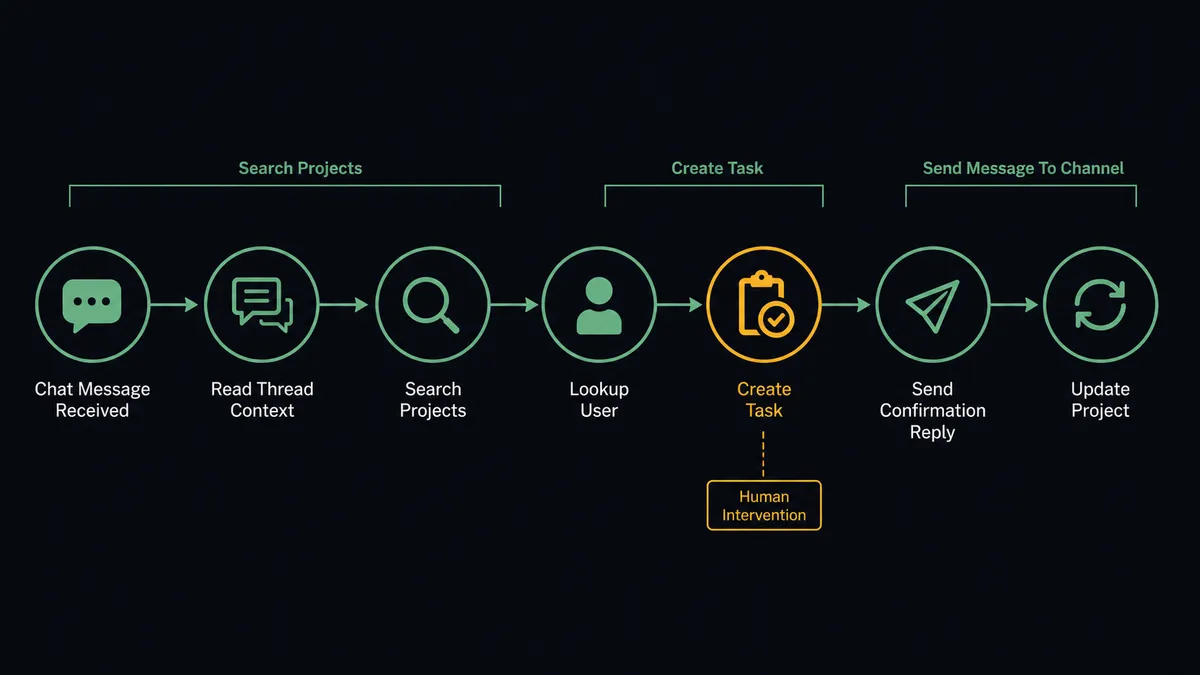
- Trigger: Slack fires On Channel Message when a request is posted in the watched intake channel.
- Read: The workflow calls Get Latest Thread Messages to pull the full thread.
- Find the destination: It calls Search Projects in Workfront, filtering by name and status, to locate the project the request belongs to.
- Resolve the owner: It calls Search Users to match the requester or the named teammate to a Workfront user ID.
- File the work: It calls Create Task with the request as the task name and description, the stated deadline as the planned completion date, and the resolved assignee.
- Confirm: It calls Send Message To Channel to reply in the thread with the task reference, so the requester knows it is filed without ever opening Workfront.
- Handle follow-ups: When someone replies “bump this to high priority,” the workflow calls Search Tasks to find the item and Update Task to change it.
That is the “just connect them” answer. Requests become tasks, follow-ups become updates, and the intake channel stops being a queue someone has to shovel by hand.
Can an AI agent run it? (and why a human stays in the loop)
Yes, and this is where the connection stops being a filing script. An AI agent reads each request the way your coordinator does: it holds Search Projects, Search Tasks, Search Users, Search Issues, Create Task, Update Task, and Create Project as tools, and it picks which to use based on the message in front of it. A vague thread gets a clarifying question posted back to the channel before anything is filed. A follow-up on an existing thread becomes an Update Task call instead of a duplicate.
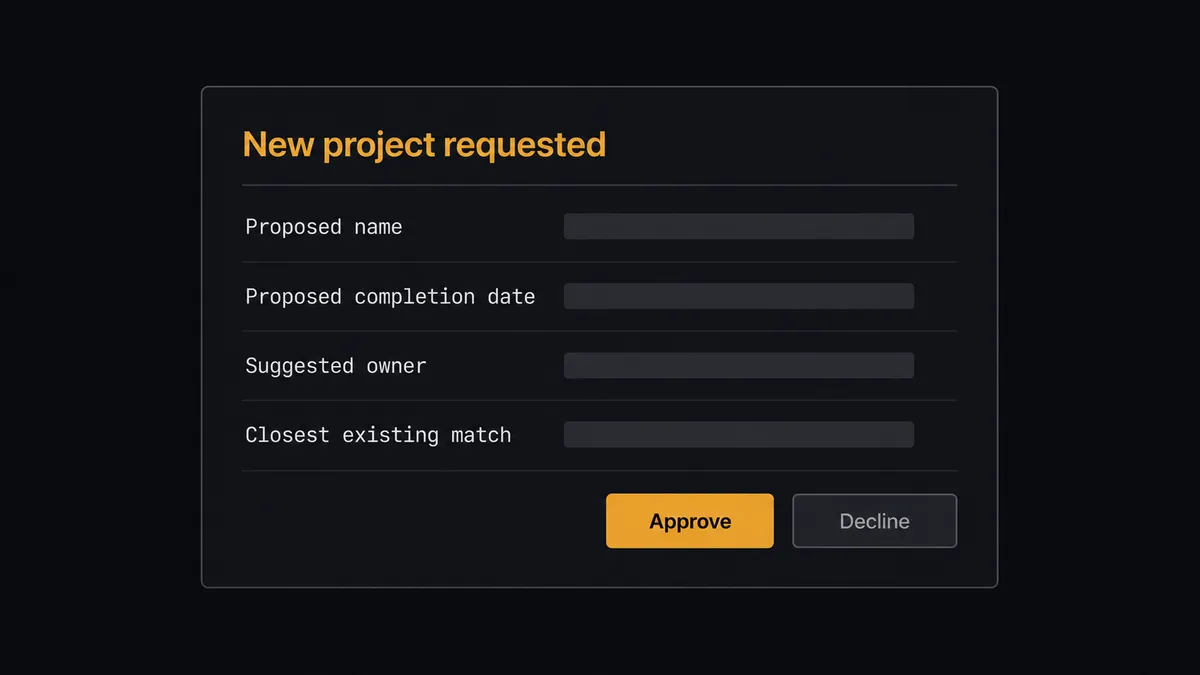
The consequential step is Create Project. A task is cheap to move or close; a project carries planned start and completion dates, an owner, and a slot in the portfolio that resource plans are built on. When the agent reads a request and concludes it does not fit any existing project, it does not just fire Create Project. It packages the scope, the proposed dates, the closest matches it rejected, and the suggested owner, then invokes a human-in-loop flow it holds as a callable tool. The workflow pauses and posts to the operations channel: “New project requested: [name], proposed completion [date], owner [name]. Closest existing match: [project]. Approve to create?” Only after the operations lead approves does the agent call Create Project, seed it with Create Task, and post the link back to the requester. The decision, the approver, and the timestamp all land in the audit trail.
This is the digital andon cord, the framing our own prospects gave us: like Toyota’s pull cord on the production line, the workflow stops the line the moment it hits uncertainty, and a person pulls it back into motion. The one decision that reshapes the team’s quarter waits for a human.
FlowRunner vs n8n
Technical teams comparing options for a Slack to Workfront bridge look hard at n8n, with reason. n8n’s self-hosting is mature and free on the Community edition with unlimited executions, its code runtime is more permissive for developers who want to script inside a workflow, and its community and template library are large. For a developer who wants to own every node in the graph, it is a credible choice.
The difference is who builds it and what happens at the step that carries consequence. In FlowRunner the agent decides mid-reasoning to call a human as a tool; in n8n a pause is a Wait node you place in the graph by hand, in the one spot you predicted you would need it.
| What matters for this pair | FlowRunner | n8n |
|---|---|---|
| Human-in-the-loop on Create Project | Native. The agent invokes an approval flow as a callable tool and pauses before Create Project | Wait-node approvals wired per workflow at a fixed spot, not a decision the agent makes |
| Who runs the flow | An AI agent reads the request, reasons, picks actions as tools | A node graph you wire by hand; agents via added LangChain nodes |
| Users included | Unlimited users on every tier | Also unlimited on cloud plans |
| Bring your own AI keys | Yes, BYOK | Yes, you connect your own model keys |
| Self-hosted option | Yes, cloud-hosted or self-hosted | Yes, mature free self-hosting on Community |
| Pricing model | Transparent workflow-based tiers, priced per execution | Also per-execution; SSO, RBAC, and audit features sit on custom-priced Enterprise |
If your team is developers who want a free self-hosted graph they fully control, n8n is a genuine fit. If the people running intake are operations people, and you want the project-creation decision gated by a named approver with an audit trail on a $299/mo tier rather than a custom-priced one, this pairing is where FlowRunner is the better fit.
Before and after
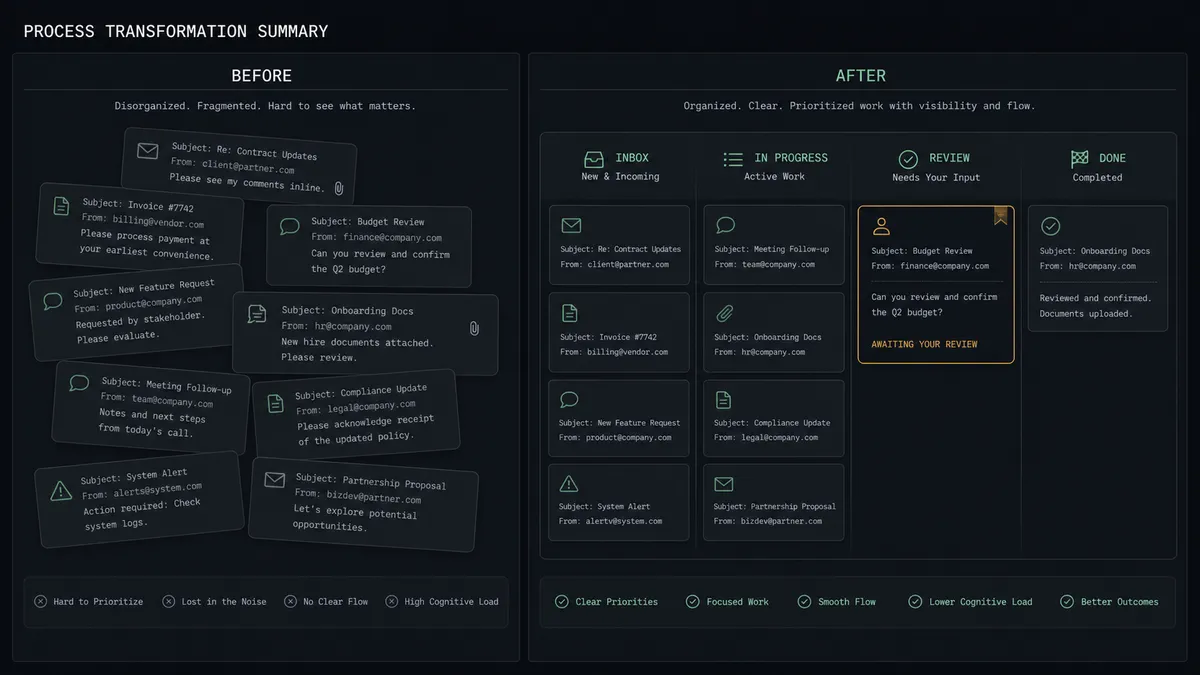
| Category | Before | After |
|---|---|---|
| Request intake | A coordinator reads the channel and retypes each request into Workfront | Every request in the intake channel becomes a Workfront task the moment it is posted |
| Assignment | The coordinator guesses the owner or leaves the task unassigned | Search Users resolves the assignee from the request and the task lands assigned |
| Follow-ups | ”Any update?” threads pile up because requesters have no Workfront access | The workflow replies in-thread with the task reference and posts changes back to Slack |
| New projects | Big requests get filed as tasks in the wrong project and vanish from the portfolio view | The agent flags project-shaped requests and an operations lead approves Create Project before capacity is committed |
| Accountability | Nobody can say who decided a project should exist | Every Create Project carries a named approver and timestamp in the audit trail |
What you can build
Intake channel to assigned task. On Channel Message fires, the agent pulls the thread with Get Latest Thread Messages, finds the destination with Search Projects, resolves the owner with Search Users, and files it with Create Task. The requester gets the reference in-thread via Send Message To Channel.
New project with named approval. A request too big to be a task triggers the human gate. The agent packages scope, dates, and owner, waits for the operations lead, then calls Create Project and seeds the first tasks with Create Task.
Status updates without a Workfront seat. Someone mentions the agent and asks where a deliverable stands. On Mention fires, the agent calls Search Tasks and Get Project, and replies in Slack with status, percent complete, and planned dates.
Reaction-driven triage. An emoji reaction from a team lead marks a message as accepted work. On Reaction Added fires and the agent files the task, so triage is one click instead of a copy-paste session.
Blocked-work escalation. A message reporting a blocker becomes a Search Issues lookup and, when no matching issue exists, an Update Task call that flags the item and posts the blocker summary to the project owner via Send Direct Message.
Common questions
Is it free to connect Slack and Adobe Workfront on FlowRunner? You can build and run the connection on FlowRunner’s free plan, which includes 100 executions a month and every integration with no credit card required, and new accounts also get 14 days of Professional. Both connectors are available on every FlowRunner tier, and every tier includes unlimited users and unlimited workflows.
Can I self-host the Slack to Adobe Workfront workflow? Yes. FlowRunner offers a cloud-hosted option and a self-hosted option, so the connection can run inside your own environment.
Does the AI agent need my own OpenAI or Claude key? FlowRunner uses a bring-your-own-keys model, so you connect the AI provider key you already have. You are not locked to one model.
What happens when the agent cannot match a Slack request to a Workfront project? The agent stops and invokes a human-in-loop step. It posts the request summary, the closest project matches from Search Projects, and its recommendation back to Slack, then waits for a person to pick the destination or approve a new project before anything is created in Workfront.
Which Slack events can trigger an Adobe Workfront action? Slack offers eight triggers: On Channel Message, On Mention, On Reaction Added, On Block Action, On File Shared, On New Member, On Channel Created, and On Message from Query. Adobe Workfront has no triggers in the catalog, so Slack starts every flow in this pair. On Channel Message and On Mention are the two most intake teams start with.
Can the workflow update existing Workfront tasks from Slack? Yes. The agent can call Search Tasks to find the work item, then Update Task to change status, priority, percent complete, or planned dates, and Update Project to adjust project fields. A thread reply like “push the deadline to Friday” becomes an Update Task call with the new planned completion date.
Getting started
Start on the free plan: 100 executions a month, every integration included, no credit card required, plus 14 days of Professional for new accounts. Both connectors are available on every tier, and every tier includes unlimited users and unlimited workflows.
Explore the integration details:
- Slack integration (8 triggers and 16 actions covering messages, mentions, reactions, channels, and members)
- Adobe Workfront integration (11 actions across projects, tasks, issues, users, and documents)
Start building free at flowrunner.ai or book a demo to see a live Slack to Adobe Workfront workflow, project approval and all.
Frequently asked questions
Is it free to connect Slack and Adobe Workfront on FlowRunner?
You can build and run the connection on FlowRunner's free plan, which includes 100 executions a month and every integration with no credit card required, and new accounts also get 14 days of Professional. Both connectors are available on every FlowRunner tier, and every tier includes unlimited users and unlimited workflows.
Can I self-host the Slack to Adobe Workfront workflow?
Yes. FlowRunner offers a cloud-hosted option and a self-hosted option, so the connection can run inside your own environment.
Does the AI agent need my own OpenAI or Claude key?
FlowRunner uses a bring-your-own-keys model, so you connect the AI provider key you already have. You are not locked to one model.
What happens when the agent cannot match a Slack request to a Workfront project?
The agent stops and invokes a human-in-loop step. It posts the request summary, the closest project matches from Search Projects, and its recommendation back to Slack, then waits for a person to pick the destination or approve a new project before anything is created in Workfront.
Which Slack events can trigger an Adobe Workfront action?
Slack offers eight triggers: On Channel Message, On Mention, On Reaction Added, On Block Action, On File Shared, On New Member, On Channel Created, and On Message from Query. Adobe Workfront has no triggers in the catalog, so Slack starts every flow in this pair. On Channel Message and On Mention are the two most intake teams start with.
Can the workflow update existing Workfront tasks from Slack?
Yes. The agent can call Search Tasks to find the work item, then Update Task to change status, priority, percent complete, or planned dates, and Update Project to adjust project fields. A thread reply like 'push the deadline to Friday' becomes an Update Task call with the new planned completion date.