How to Connect Jira with Hubstaff (With or Without an AI Agent)
Reconcile Jira issue status with Hubstaff tracked time automatically, with an AI agent that comments the evidence on each issue and pauses for a project lead before it moves or reassigns anyone's work.
How do you connect Jira to Hubstaff?
You connect Jira to Hubstaff with a scheduled workflow that reads tracked time from Hubstaff’s List Worked Time By Date and List Activities, matches it to the sprint’s issues from Jira’s Search Issues, and writes the evidence back with Add Comment, so every issue shows the hours actually spent on it. Neither connector exposes an event trigger, so the workflow runs on a schedule, typically once at end of day. FlowRunner is a visual AI-agent orchestration platform where automations run autonomously and pause for human judgment on the steps that carry real consequence. Run as an agent, the connection goes beyond posting numbers: it notices when effort and status disagree, proposes the board change that would fix it, and pauses for a project lead before Transition Issue or Assign Issue touches anyone’s work.
The problem it solves
In most teams, Jira and the time tracker tell two different stories. The board says an issue is in progress; Hubstaff says nobody has touched it in four days. The board says a ticket closed Tuesday; the time data shows hours still landing on it Thursday. Someone, usually a project manager or an ops lead, reconciles the two by hand before every standup and every client invoice: export the Hubstaff report, scan it against the sprint, chase the discrepancies over DM, update the board.
The edges are where it hurts. A contractor’s hours quietly pile onto an issue that was descoped, and the client invoice goes out wrong. An issue sits in review while its assignee is fully booked on a different project, and nobody rebalances until the sprint slips. Status meetings run on stale boards, so leadership makes calls on data that is days behind the actual work. The cost is not the reconciliation hour itself. It is every decision made in the gap between what the board says and what the time data knows.
How it works: the connection
The connection reads Hubstaff and writes to Jira. Here is the plain version, grounded in the real connector actions.
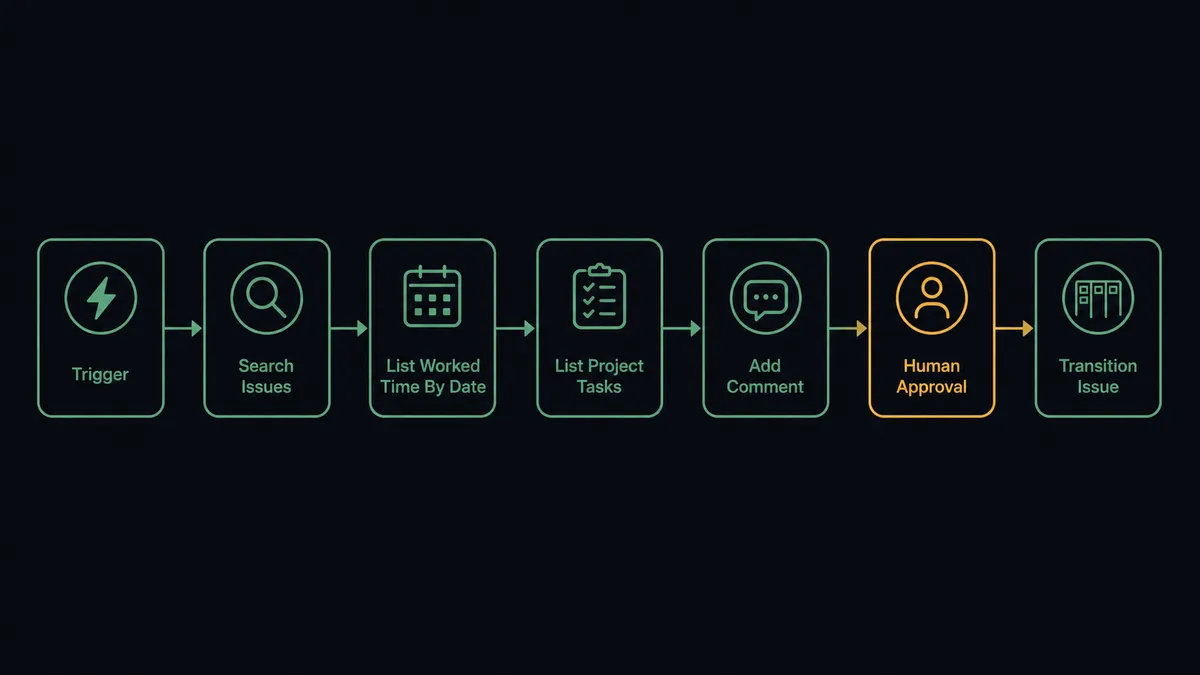
- Trigger: On a schedule, the end-of-day run opens the reconciliation pass.
- Read the board: Search Issues pulls the sprint’s active issues, and Get Issue fills in status, assignee, and estimates for each.
- Read the hours: List Worked Time By Date pulls the day’s tracked time per member, and List Activities adds the activity detail behind it.
- Match: List Project Tasks maps Hubstaff tasks to Jira issue keys, and List Members lines up who tracked the time with who holds the issue.
- Write the evidence: Add Comment posts a tracked-time summary on every issue that saw work, so the hours live where the conversation happens.
- Surface the gaps: Issues with hours but no status movement, or status movement but no hours, land in a daily digest for the project lead.
- Update the board: Where the lead confirms a change, Transition Issue moves the item and Assign Issue rebalances ownership.
That is the “just connect them” answer. The board and the time data stop drifting apart, and nobody exports a report to find out what happened today.
Can an AI agent run it? (and why a human stays in the loop)
Yes, and the agent version is the difference between a report and a reconciliation. A fixed sync can copy hours into comments. An AI agent holds Search Issues, Get Issue, List Worked Time By Date, List Activities, List Project Tasks, Add Comment, Transition Issue, and Assign Issue as tools, and it reasons about what the data means. Hours landing steadily on an in-progress issue is normal, so it posts the summary and moves on. Hours accumulating for days on an issue that has not changed status is a signal, and the agent treats it as one.
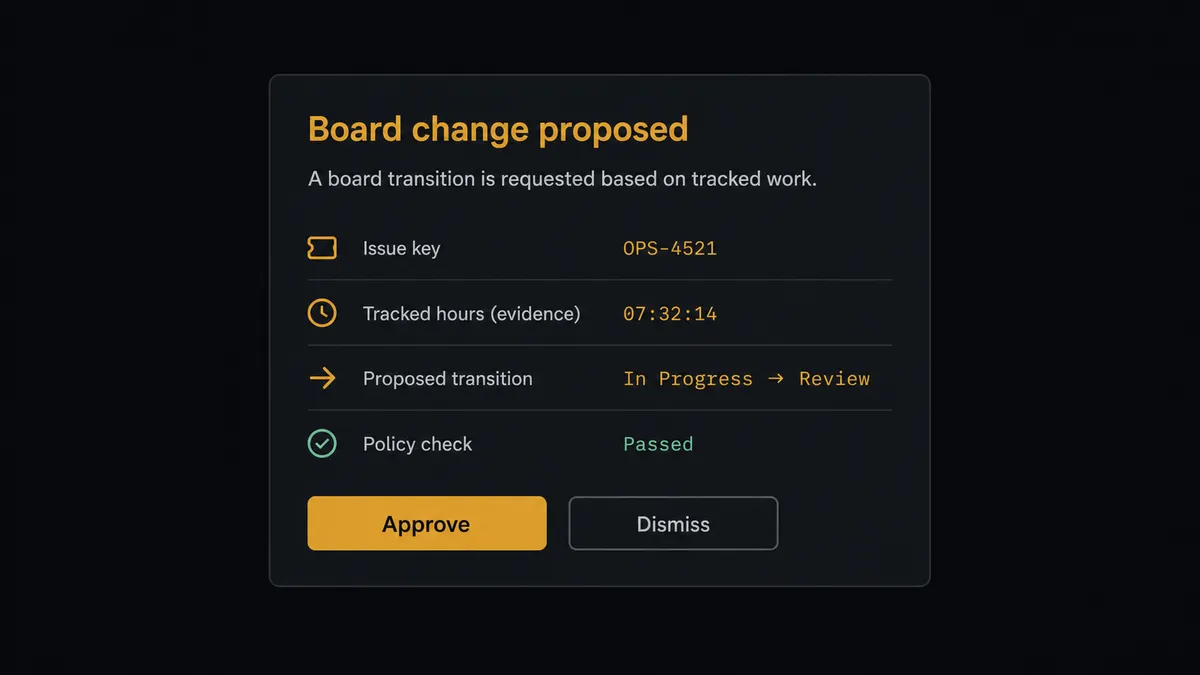
The consequential step is changing someone’s board. Transition Issue reshapes what the team believes about the sprint, and Assign Issue moves work from one person’s plate to another’s. Both are people decisions wearing a data costume, so the agent never takes them alone. When it finds a mismatch worth acting on, it packages the issue key, the status, the tracked hours, the activity pattern, and its proposed change, then invokes a human-in-loop flow it holds as a callable tool. The workflow pauses and posts to the project channel: “Issue [key] has tracked hours across several days with no status change. Assignee [name]. Proposal: transition to Blocked and flag for standup. Approve, adjust, or dismiss?” Only after the lead answers does Transition Issue run, and Add Comment records who approved the change and why.
This is the digital andon cord in practice, the framing FlowRunner’s own prospects use. Like Toyota’s line-stop cord, the workflow halts the moment the data stops being routine and starts requiring judgment, and it hands the pull to the person accountable for the sprint.
FlowRunner vs Zapier
Zapier is the natural first stop for this pair, and its strengths are real: the largest connector library in the category, a setup experience non-technical teams genuinely finish, and a template gallery that gets a basic Jira-to-anything Zap running in minutes. For simple one-way notifications, Zapier is fast and dependable.
The difference shows up when the workflow has to make judgment calls about people’s work. FlowRunner runs this connection as an agent with native human-in-the-loop, not as a fixed step sequence.
| What matters for this pair | FlowRunner | Zapier |
|---|---|---|
| Human-in-the-loop on board changes | Native. The agent pauses before Transition Issue or Assign Issue and waits for the lead | Available via added approval steps, not a native agent decision |
| Who runs the flow | An AI agent reads hours and status, reasons, and picks actions as tools | Predefined step sequence you configure per Zap |
| Users included | Unlimited users on every tier | Priced by task volume; seats vary by plan |
| Bring your own AI keys | Yes, BYOK | AI features tied to Zapier’s own AI offering |
| Self-hosted option | Yes, cloud-hosted or self-hosted | Cloud only |
| Pricing model | Transparent workflow-based tiers | Per-task pricing; a daily multi-issue reconciliation consumes tasks quickly |
If all you need is “when something happens in Jira, post a message,” Zapier will do it well. If you want tracked time reconciled against the board daily, with a person approving every change that touches someone’s work, this pairing is the better fit.
Before and after
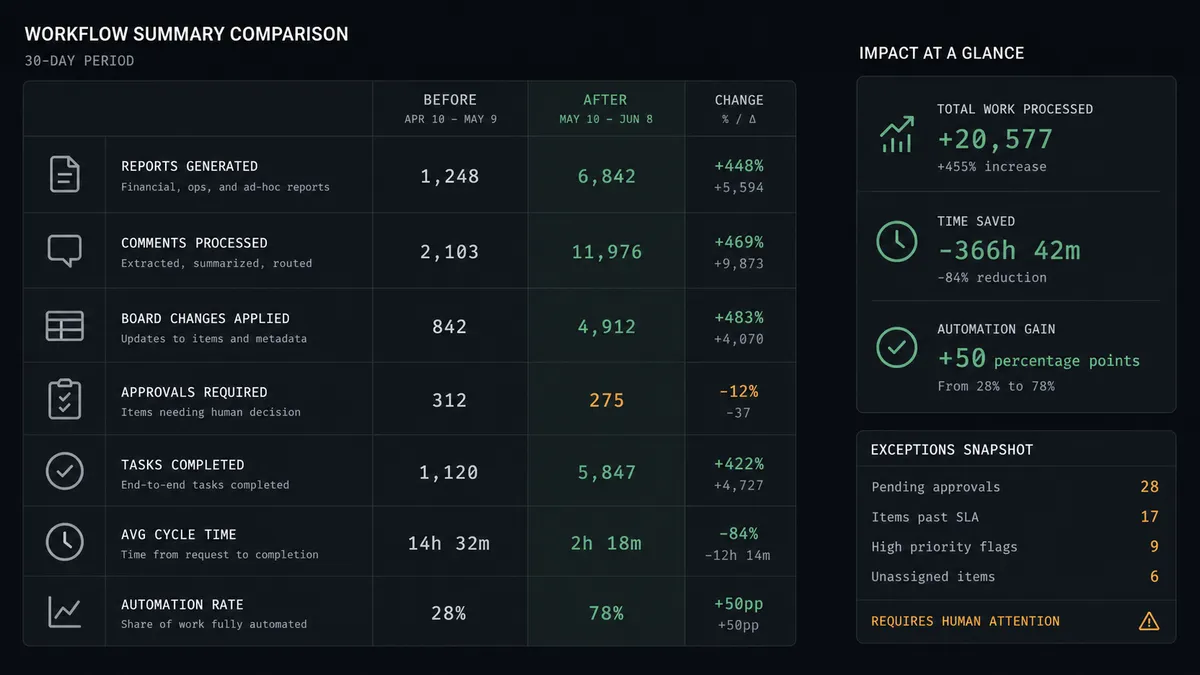
| Category | Before | After |
|---|---|---|
| Reconciliation | A PM exports Hubstaff reports and scans them against the sprint by hand | The end-of-day run matches hours to issues and posts the evidence automatically |
| Issue-level visibility | Tracked time lives in a separate tool nobody opens during standup | Every active issue carries its tracked-time summary as a comment |
| Stalled work | Hours pile onto stuck issues for days before anyone notices | Effort-versus-status mismatches surface in the daily digest with evidence attached |
| Reassignments | Rebalancing happens ad hoc, argued from memory in standup | Proposals arrive with tracked-time evidence and an approve or dismiss decision |
| Audit trail | Board changes have no recorded reason | Every approved transition carries the approver, the evidence, and a timestamp |
What you can build
Daily reconciliation digest. The end-of-day run matches List Worked Time By Date output to Search Issues results and posts one digest to the project channel: what saw work, what moved, and where the two disagree. Add Comment leaves the per-issue evidence behind.
Stalled-work escalation. When hours keep landing on an issue whose status has not changed, the agent proposes a transition to Blocked with the activity evidence attached. The lead approves, Transition Issue runs, and standup starts with the real list.
Invoice-ready client projects. For agency work, the agent maps List Project Tasks to client-facing Jira projects and posts weekly tracked-time summaries per issue, so the invoice line items trace to board items without a manual export.
Rebalancing proposals. When one member’s tracked hours concentrate on a single overrunning issue while their other assignments sit idle, the agent drafts a reassignment plan. Assign Issue runs only after the lead signs off.
Scope-drift alarm. Work logged against issues marked done, or against tasks with no matching issue, gets collected into a weekly drift report so descoped and untracked work stops leaking into delivery quietly.
Getting started
Start on the free plan: 100 executions a month, every integration included, no credit card required, plus 14 days of Professional for new accounts. Both connectors are available on every tier, and every tier includes unlimited users and unlimited workflows.
Explore the integration details:
- Jira integration (13 actions covering issues, comments, transitions, and assignments)
- Hubstaff integration (9 actions covering tracked time, activities, and project data)
Start building free at flowrunner.ai or book a demo to see a live Jira to Hubstaff workflow, board-change approval and all.
Frequently asked questions
Is it free to connect Jira and Hubstaff on FlowRunner?
You can build and run the connection on FlowRunner's free plan, which includes 100 executions a month and every integration with no credit card required, and new accounts also get 14 days of Professional. Both connectors are available on every FlowRunner tier, and every tier includes unlimited users and unlimited workflows.
Can I self-host the Jira to Hubstaff workflow?
Yes. FlowRunner offers a cloud-hosted option and a self-hosted option, so the connection can run inside your own environment.
Does the AI agent need my own OpenAI or Claude key?
FlowRunner uses a bring-your-own-keys model, so you connect the AI provider key you already have. You are not locked to one model.
What happens when tracked time and issue status disagree and the agent is not sure why?
It never resolves the ambiguity on its own. The agent posts the issue key, its status, the tracked hours from List Worked Time By Date, and its reading of the mismatch to the project channel, then waits for the lead to choose: move it, reassign it, or leave it alone with a note.
Which Jira and Hubstaff actions does this workflow use?
Both connectors are action-based, so the workflow runs on a schedule. It reads Jira with Search Issues, Get Issue, and Get Comments, reads Hubstaff with List Worked Time By Date, List Activities, and List Project Tasks, and writes back with Add Comment, Transition Issue, and Assign Issue.
Does the workflow move issues automatically when time is logged?
No. Posting the time evidence with Add Comment is automatic. Changing the board is not: Transition Issue and Assign Issue only run after a project lead approves the specific change, because status and ownership are commitments to people, not just fields.