How to Connect Jira with ClickMeeting (With or Without an AI Agent)
Turn Jira tickets into scheduled ClickMeeting sessions automatically, with an AI agent that manages registrations and pauses for a human before Update Conference or Delete Conference touches a session people signed up for.
How do you connect Jira to ClickMeeting?
You connect Jira to ClickMeeting by running Search Issues on a schedule to find tickets that reached your session-ready status, scheduling the room with Create Conference, enrolling participants with Register Person, and posting the room link back on the ticket with Add Comment, so a training request filed in Jira becomes a scheduled session without anyone touching a calendar. FlowRunner is a visual AI-agent orchestration platform where automations run autonomously and pause for human judgment on the steps that carry real consequence. Run as an AI agent, the same connection also manages conflicts and changes, and pauses for a named human before Update Conference or Delete Conference touches a session that people have already registered for.
The problem it solves
Today the gap between “ticket approved” and “session on the calendar” is a coordinator’s afternoon. A customer onboarding ticket gets approved in Jira. Someone reads it, opens ClickMeeting, creates the room, copies emails out of the ticket one by one to register attendees, pastes the room link back into a comment, and hopes they got the time zone right. Multiply that by every onboarding, every training request, every incident review that needs a live walkthrough. The tickets sit in “ready” for days because scheduling is nobody’s first job, and the customer’s first impression of your onboarding is the wait for it to start.
The edges hurt more than the queue. Two sessions get booked into the same hour because nobody checked the calendar. A reschedule happens in ClickMeeting but never reaches the ticket, so the account manager tells the customer the wrong time. Worst of all: someone cancels or moves a session that a dozen registrants planned their week around, with no notice and no record of who decided. A calendar mistake in front of customers is a trust incident, not a typo.
How it works: the connection
The connection reads Jira on a schedule and writes to ClickMeeting. Here is the plain version, grounded in the real connector actions.
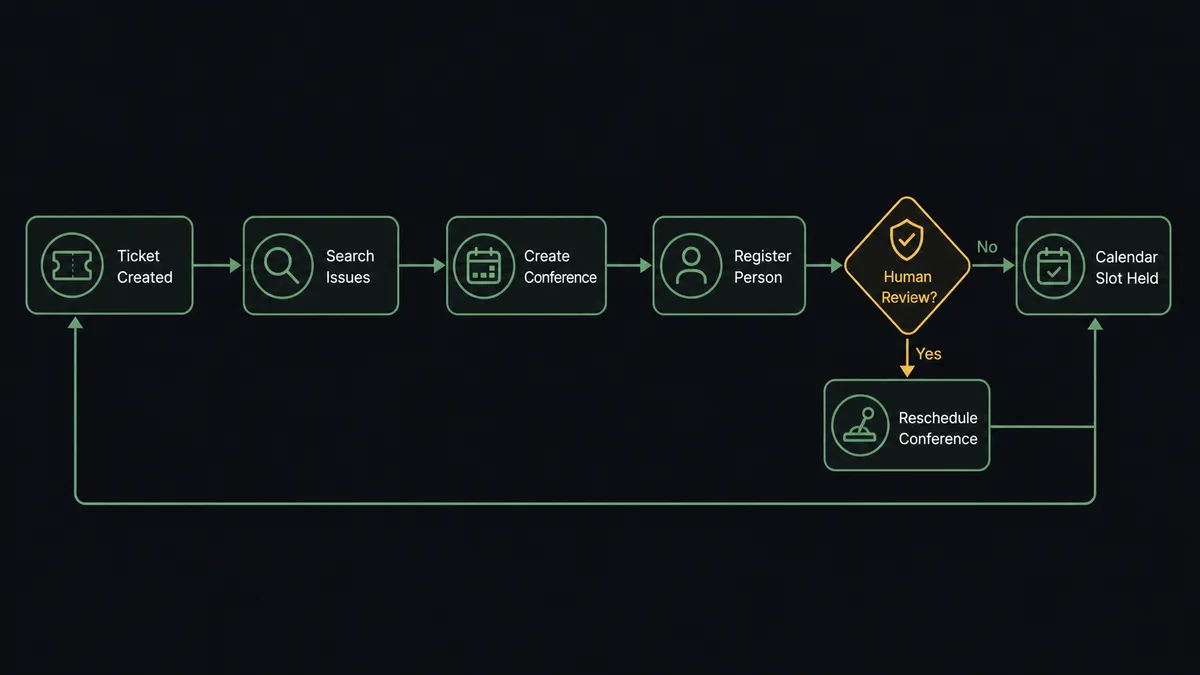
- Trigger: On a schedule, the workflow calls Search Issues with a JQL filter for tickets that entered the session-ready status since the last run.
- Read: Get Issue pulls each ticket’s summary, description, requested date, and participant emails.
- Check the calendar: List Conferences confirms the requested slot is free and no duplicate session already exists.
- Schedule: Create Conference books the ClickMeeting room with a name and time built from the ticket.
- Enroll: Register Person enrolls each participant listed on the ticket, so invitations go out immediately.
- Close the loop: Add Comment posts the room link and session details on the ticket, and Transition Issue moves it to a scheduled status.
That is the “just connect them” answer. A ticket becomes a booked, populated session in one polling cycle, and Jira stays the single source of truth for what was scheduled and when. After the session, the same connection runs in reverse: Get Session and List Registrations pull what actually happened, and Add Comment writes the attendance record onto the ticket.
Can an AI agent run it? (and why a human stays in the loop)
Yes, and scheduling is where reasoning beats rules. A fixed automation books whatever the ticket says. An AI agent notices that the requested slot collides with another customer session, that the same customer already has a session booked on a related ticket, or that the participant list on the ticket is missing the account manager who is on every other session for that account. Its toolbox is the real action set: Search Issues, Get Issue, List Conferences, Create Conference, Update Conference, Delete Conference, Register Person, List Registrations, Add Comment, Transition Issue.
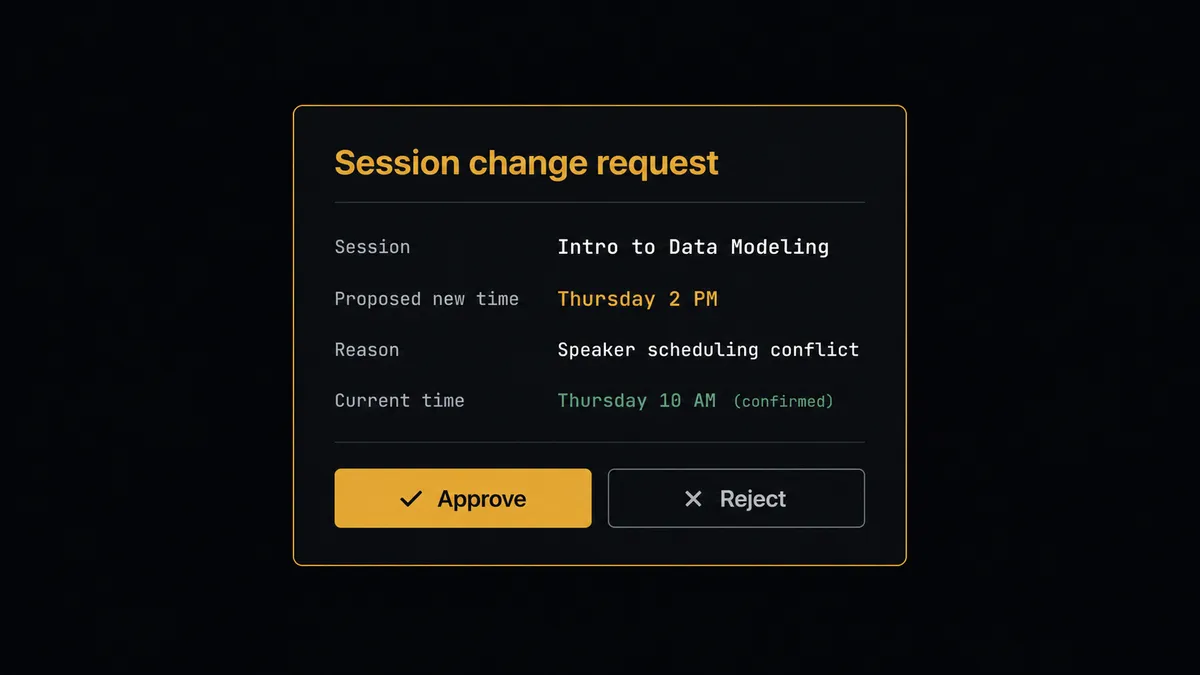
The consequential step is touching a session people committed to. Once registrations exist, a reschedule or cancellation reaches into a dozen calendars at once. So before Update Conference or Delete Conference runs on a session with registrants, the agent calls List Registrations, packages the context, and invokes a human-in-loop flow it holds as a callable tool. The workflow pauses and posts: “Reschedule requested for the onboarding session on [ticket key]. Registrations exist for this session. Proposed new time: Thursday 2 PM. Reason: trainer conflict. Approve the move?” Only after a named person signs off does the change execute, registrants get notified, and Add Comment records the decision on the ticket with approver and timestamp.
A brand-new booking with no registrants flows through without ceremony; the agent reserves escalation for changes that touch other people’s plans. Prospects call this a digital andon cord: the workflow stops the line the moment it hits uncertainty, and your team pulls it back into motion.
FlowRunner vs Zapier
Zapier is the first stop for most teams wiring Jira to a webinar tool, and it earns that position. The connector catalog is vast, the editor is approachable, and a Zap that creates a ClickMeeting conference when a Jira ticket changes status is a well-worn path with templates to copy. For simple one-way “ticket creates session” wiring, it works.
The difference is judgment on the calendar. FlowRunner runs this as an agent that checks for conflicts, reasons about registrations, and holds human approval as a native tool before any change reaches people who signed up.
| What matters for this pair | FlowRunner | Zapier |
|---|---|---|
| Human-in-the-loop on Update Conference and Delete Conference | Native. The agent invokes an approval flow as a callable tool and pauses when registrants are affected | Available via added approval steps, not conditioned on live registration state |
| Who runs the flow | An AI agent reads the ticket and calendar, reasons, picks actions as tools | Predefined step sequence you configure per Zap |
| Users included | Unlimited users on every tier | Priced by task volume; seats vary by plan |
| Bring your own AI keys | Yes, BYOK | AI features tied to Zapier’s own AI offering |
| Self-hosted option | Yes, cloud-hosted or self-hosted | Cloud only |
| Pricing model | Transparent workflow-based tiers | Per-task pricing that climbs with ticket volume |
If all you need is “status change creates a room,” Zapier gets you there quickly. If sessions carry customers, registrations, and reputations, and you want a named human on every calendar move that affects them, that is where FlowRunner is the better fit.
Before and after
| Category | Before | After |
|---|---|---|
| Scheduling | A coordinator reads each ticket and books the room by hand | Create Conference books the session in the same polling cycle the ticket becomes ready |
| Registration | Emails copied from the ticket into ClickMeeting one at a time | Register Person enrolls every listed participant automatically |
| Ticket accuracy | Room links and times live in someone’s head or a side chat | Add Comment and Transition Issue keep the ticket current at every step |
| Reschedules | Sessions get moved in ClickMeeting with no notice and no record | Changes to registered sessions wait for a named approver, then notify and log |
| Follow-through | Nobody records who actually attended | Get Session and List Registrations write the attendance summary back to the ticket |
What you can build
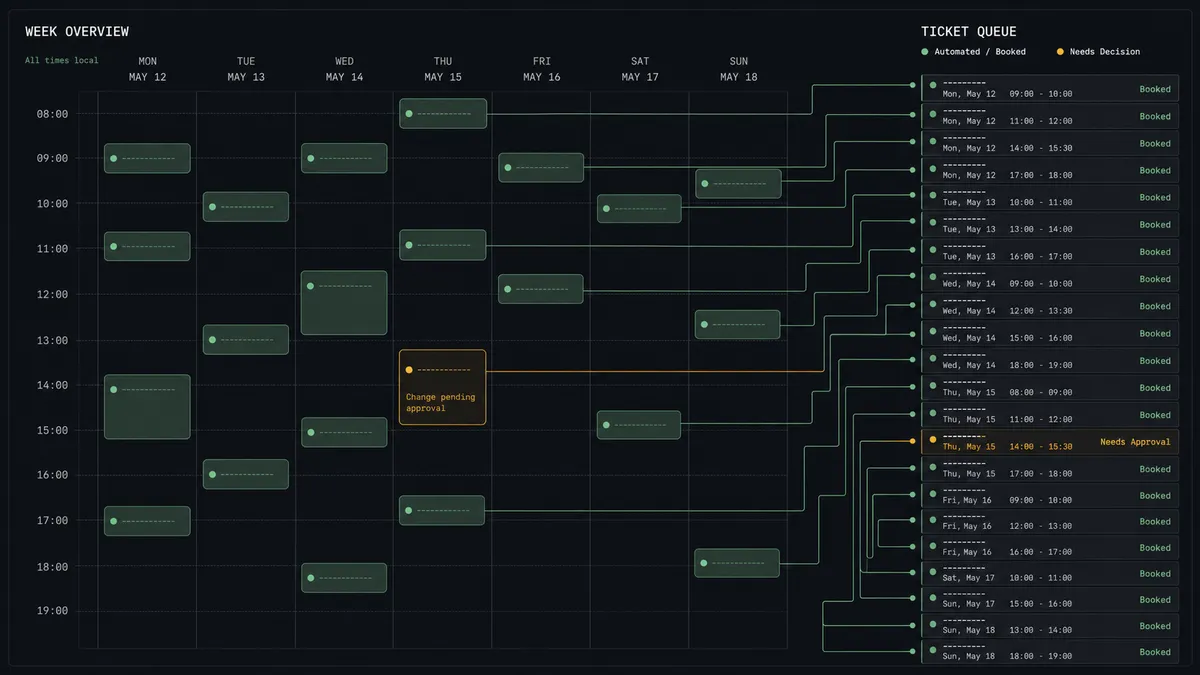
Onboarding tickets to booked sessions. Search Issues finds approved onboarding requests, Create Conference books the room, Register Person enrolls the customer contacts, and Add Comment posts the link on the ticket. The queue of “ready but unscheduled” tickets disappears.
Registration-aware rescheduling. When a trainer conflict forces a move, the agent pulls List Registrations, proposes a new slot, and waits for approval before Update Conference runs, so nobody’s calendar changes without a human owning the call.
Incident review scheduling. A resolved-incident ticket triggers a review session: Create Conference books it, Register Person enrolls the responders from the ticket, and Transition Issue marks the review scheduled, keeping the postmortem cadence honest.
Attendance back to Jira. After each session, Get Session and List Registrations feed an attendance summary into Add Comment, and tickets whose participants never attended get flagged for follow-up instead of silently closing.
Session request intake. A Jira request type becomes the front door for all live sessions: the agent validates the request, checks List Conferences for conflicts, books with Create Conference, and pushes back on the ticket via Add Comment when the requested slot is impossible.
Getting started
Start on the free plan: 100 executions a month, every integration included, no credit card required, plus 14 days of Professional for new accounts. Both connectors are available on every tier, and every tier includes unlimited users and unlimited workflows.
Explore the integration details:
- Jira integration (13 actions covering issues, comments, transitions, and attachments)
- ClickMeeting integration (9 actions covering conferences, registrations, and sessions)
Start building free at flowrunner.ai or book a demo to see a live Jira to ClickMeeting workflow, reschedule approval and all.
Frequently asked questions
Is it free to connect Jira and ClickMeeting on FlowRunner?
You can build and run the connection on FlowRunner's free plan, which includes 100 executions a month and every integration with no credit card required, and new accounts also get 14 days of Professional. Both connectors are available on every FlowRunner tier, and every tier includes unlimited users and unlimited workflows.
Can I self-host the Jira to ClickMeeting workflow?
Yes. FlowRunner offers a cloud-hosted option and a self-hosted option, so the connection can run inside your own environment.
Does the AI agent need my own OpenAI or Claude key?
FlowRunner uses a bring-your-own-keys model, so you connect the AI provider key you already have. You are not locked to one model.
What happens when the agent wants to reschedule a session people registered for?
It pauses. The agent calls List Registrations, packages who is affected and why the change is needed, and invokes a human-in-loop step. Update Conference or Delete Conference runs only after a named person approves, and the decision is logged.
Which actions drive the workflow if Jira has no triggers here?
The Jira connector is action-based, so the workflow runs on a schedule. Each run calls Search Issues with your JQL filter, finds tickets that just reached the session-ready status, and schedules the room with Create Conference in ClickMeeting.
Can the workflow close the loop after the session ends?
Yes. After the scheduled time, the agent calls Get Session and List Registrations, posts the attendance summary to the ticket with Add Comment, and moves the ticket forward with Transition Issue so Jira reflects that the session actually happened.