How to Connect Calendly with Salesforce Pro (With or Without an AI Agent)
Connect Calendly booking events to Salesforce Pro CRM records automatically, and optionally run it as an AI agent that pauses for human approval before irreversible actions like lead conversion.
How do you connect Calendly to Salesforce Pro?
When someone books a meeting through Calendly, the On Invitee Created trigger fires and a FlowRunner agent runs Find Record to locate the matching lead or contact in Salesforce Pro, then creates or updates the record with the booking details. FlowRunner is a visual AI-agent orchestration platform where automations run autonomously and pause for human judgment on the steps that carry real consequence. The same connection can run as an AI agent that scores the lead, decides whether conversion is warranted, and routes the conversion request to a sales manager for approval before executing the irreversible Convert Lead to Contact action.
The problem: bookings disappear into a gap between Calendly and Salesforce
Sales reps take a call, it goes well, and then someone has to manually log it. The booking event sits in Calendly. The CRM record sits in Salesforce. Nothing connects them unless a person does the work.
In most sales operations, that means the SDR or ops manager manually checks Calendly each morning, pulls the new bookings, looks up the matching Salesforce lead, and updates the deal stage. If the booking converts to a qualified opportunity, someone runs through the lead conversion steps by hand. High-value prospects fall through the cracks when reps are traveling or between shifts. No-shows go unrecorded. Lead conversion happens inconsistently, some reps convert early, some convert late, and the data in Salesforce reflects individual habits rather than a controlled process.
The result is a CRM that lags reality by hours or days. Marketing pulls campaign attribution reports from stale data. Revenue ops runs SOQL queries against records they know are incomplete. The weekly pipeline review starts with a round of “wait, did that booking close?” questions that should have been answered automatically.
How it works: the connection between Calendly and Salesforce Pro
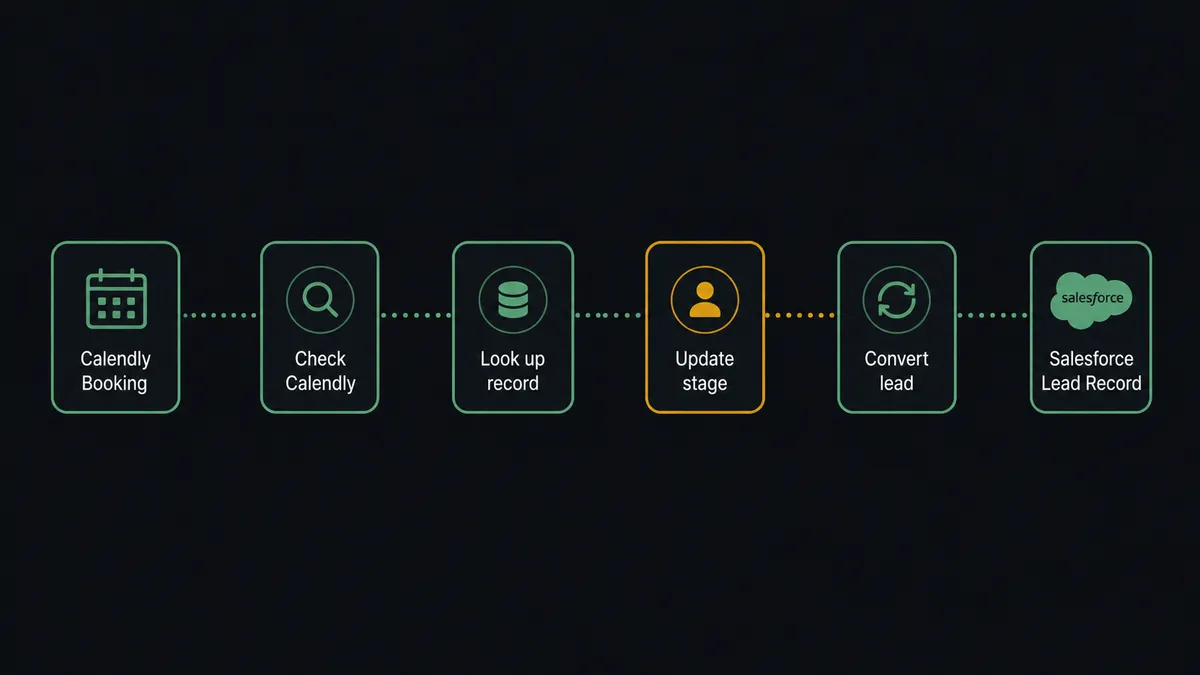
The core connection is straightforward. When On Invitee Created fires in Calendly, the workflow passes the invitee’s name, email, event type, and scheduled time to Salesforce Pro. From there:
- Find Record searches for an existing lead or contact by email address.
- If no record exists, Create Lead creates a new Salesforce lead with the booking source and meeting date.
- If a record exists, Update Lead or Update Contact logs the meeting details against the existing record.
- Create Note adds a structured activity note to the timeline: which Calendly event fired, when, and what the agent logged.
For cancellations, On Invitee Canceled fires the same lookup sequence, updates the lead or contact to reflect the cancellation, and logs it in the activity feed. For no-shows, On Mark Invitee as No-Show triggers a parallel sequence that logs the no-show and initiates a follow-up email sent via Salesforce’s Send Email action, so the touchpoint appears in the Salesforce activity timeline rather than in a disconnected outbox.
This covers the basic connection. Every booking, cancellation, and no-show moves from Calendly into Salesforce Pro within seconds, without anyone touching a spreadsheet.
Can an AI agent run it? (And why a human stays in the loop on lead conversion)
A linear sync handles the easy cases. An AI agent handles the rest.
When the agent runs Find Record and gets back a match, it does not just execute the next predetermined action. It reads the lead record: score, company size, territory, campaign source, prior engagement history. Then it decides. A lead scored above your ICP threshold, booked through your top-priority campaign, gets fast-tracked to Convert Lead to Contact with the right territory rep assigned. A lead below threshold gets enrolled in a Mailchimp nurture campaign via Add Lead to Campaign. A borderline lead, where the firmographics look right but the engagement history is thin, routes to the sales manager for a judgment call.
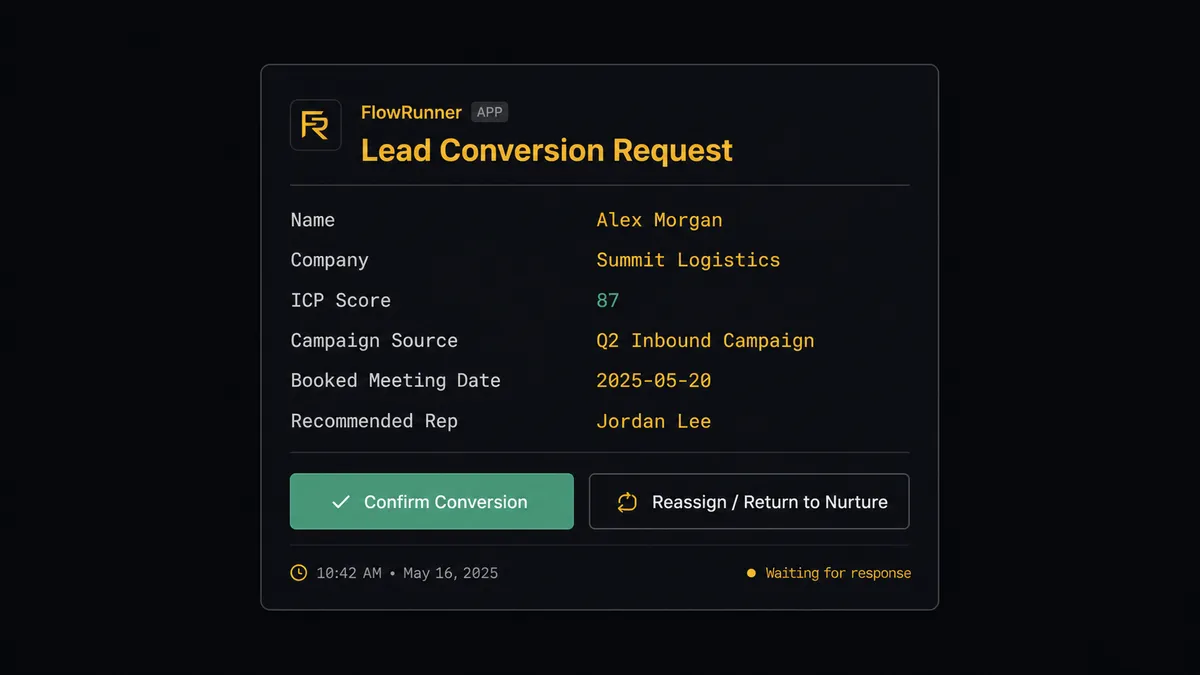
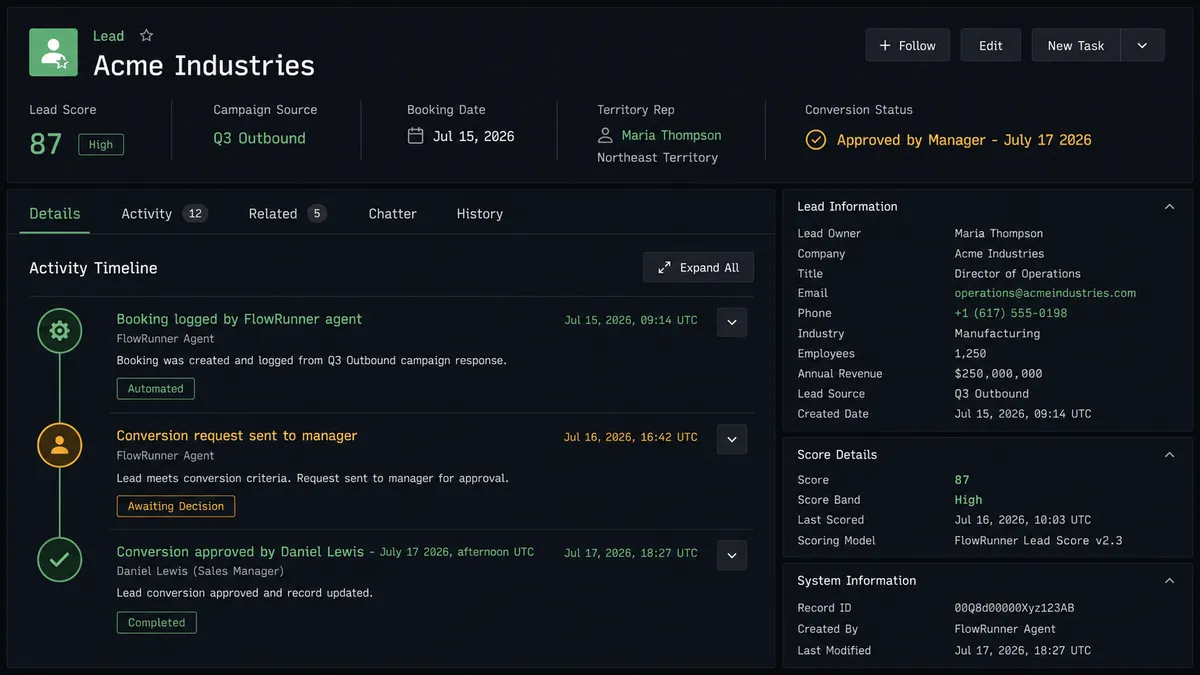
Lead conversion is where the human-in-loop step is non-negotiable. Convert Lead to Contact in Salesforce is irreversible. Once a lead becomes a contact, account, and opportunity, rolling it back is a manual data surgery job. The agent knows this. Before it executes the conversion, it packages the full context and sends it to the sales manager: “Lead [Name] at [Company] scored 87. Booked a demo for [date] through [campaign]. Ready to convert and assign to [Rep Name]. Confirm or reassign?”
The manager sees this in Slack. One click to confirm. One click to reassign to a different rep or return to nurture. The agent waits. When the response arrives, the agent executes the conversion, creates the opportunity, assigns the rep, and logs the approver’s identity and decision timestamp in the audit trail.
This is not a hardcoded threshold. The agent evaluates context. A high-value prospect who has been in the pipeline for 90 days and just booked their third meeting might warrant conversion at a lower score. A new inbound lead from an unfamiliar company might warrant human review even at a high score. The agent’s instructions set the judgment framework; the agent applies it.
FlowRunner vs Zapier: what’s the honest comparison?
Zapier is the most common tool non-technical sales ops teams use for Calendly to CRM connections. It is reliable, well-documented, and easy to set up for straightforward triggers and actions. For a basic sync, it works fine.
The differences show up when the workflow gets more complex.
| Feature | Zapier | FlowRunner |
|---|---|---|
| Basic Calendly trigger to Salesforce action | Yes | Yes |
| AI agent with reasoning and tool selection | No (linear automation only) | Yes, native |
| Human-in-loop on irreversible steps (Convert Lead) | No (no built-in pause-for-approval) | Yes, agent invokes as callable tool |
| Unlimited users on every tier | No (user limits on standard plans) | Yes, all tiers |
| BYOK for AI model | No | Yes |
| Self-host option | No | Yes (Community Edition free) |
| Audit trail with approver identity and timestamps | No | Yes, Professional tier and above |
Zapier is a good choice if the connection is genuinely simple: one trigger, one action, done. FlowRunner is the right choice when the workflow involves conditional logic, lead scoring, multi-step Salesforce operations, or any step where a human should decide before the system acts.
Before and after
| Category | Before | After |
|---|---|---|
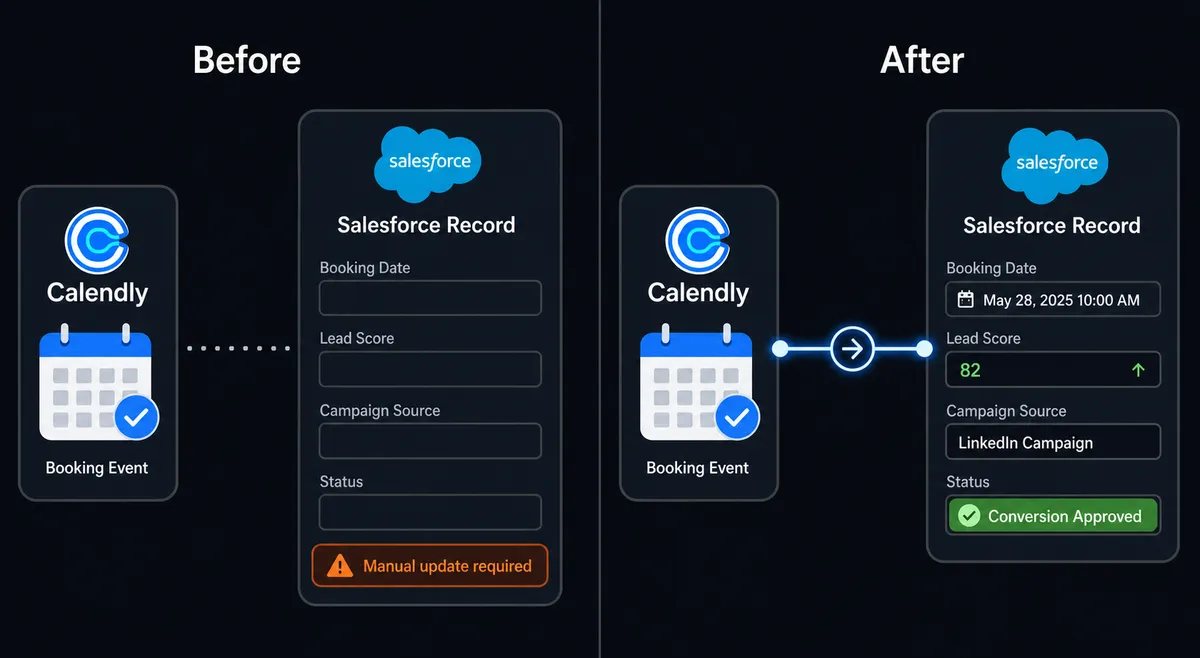
| Booking-to-CRM lag | Hours or days, depending on when a rep manually logged it | Seconds after On Invitee Created fires |
| Lead conversion process | Reps convert at different points in their individual workflows | Every conversion requires manager approval, logged with approver identity |
| No-show follow-up | Forgotten or done days later by whichever rep remembers | Automated follow-up email sent within 2 hours via Salesforce Send Email |
| CRM data accuracy | Bookings, cancellations, and no-shows logged inconsistently | Every scheduling event recorded in the Salesforce activity timeline |
| Campaign attribution | SOQL queries run against records that lag the actual booking data | Real-time field updates on every booking; attribution data current at all times |
What you can build
Booking-to-opportunity pipeline with manager approval. On Invitee Created fires. The agent runs Find Record to check for an existing lead, scores the record against ICP criteria, and routes qualified leads through Convert Lead to Contact after manager confirmation via Slack. Your pipeline reflects real conversions, not premature or missed ones.
No-show recovery with Salesforce activity logging. On Mark Invitee as No-Show fires. The agent updates the lead or contact record, waits 2 hours, generates a Create Single-Use Scheduling Link in Calendly for the recovery outreach, and sends the follow-up via Salesforce Send Email so the touchpoint lives in the CRM timeline. The rep sees exactly what happened without doing anything manually.
Routing form to lead qualification. On New Routing Form Submitted fires. The agent reads the form answers, scores against qualification criteria, creates or updates the Salesforce lead with form data, and either generates a Create Single-Use Scheduling Link for high-score prospects or uses Add Lead to Campaign to enroll low-score prospects in a nurture program. Borderline leads route to the sales manager via the human-in-loop tool.
High-value cancellation escalation. On Invitee Canceled fires. The agent looks up the Salesforce record, checks the associated opportunity value, and makes a judgment call. For a prospect with a deal above a threshold or a high ICP score, it pauses and routes to the sales manager: “This was a priority prospect. Do you want to reach out personally, or should I send the automated rescheduling link?” The manager decides. The relationship gets the right response.
Campaign attribution update on every booking. On Invitee Created fires. The agent runs a Custom SOQL Query to pull the contact’s campaign history, identifies the most recent campaign touchpoint before the booking, updates the campaign attribution field on the lead or opportunity, and creates a structured Create Enhanced Note in the Salesforce record documenting the attribution logic. Marketing gets clean, current attribution data without a weekly manual reconciliation.
Common questions
Is it free to connect Calendly and Salesforce Pro on FlowRunner? FlowRunner has a free plan with 100 executions a month, every integration included, and no credit card required, and new accounts get 14 days of Professional on top. Beyond the free plan, Growth is $45 per month. All tiers include unlimited users and unlimited workflows.
Can I self-host FlowRunner? Yes. FlowRunner offers a free Community Edition for self-hosting on a single instance. Enterprise self-hosting with multi-instance clustering and full compliance features is available at custom pricing.
Does the AI agent need my own OpenAI or Salesforce API key? FlowRunner uses a Bring Your Own Keys (BYOK) model for AI providers. You supply the API key for whichever AI model you choose. Your Salesforce Pro and Calendly connections authenticate through OAuth2 and are managed inside FlowRunner.
What happens when the AI agent is not sure what to do? The agent invokes a human-in-loop flow as a callable tool. It packages the context it gathered, sends it to a person via Slack, email, or WhatsApp, pauses execution, and waits for a decision. The human’s response, identity, and timestamp are all captured in the audit trail.
What triggers the Calendly to Salesforce Pro connection? The most common trigger is On Invitee Created, which fires the moment someone books a meeting through a Calendly link. You can also trigger on On Invitee Canceled or On Mark Invitee as No-Show to handle recovery workflows.
Can FlowRunner handle lead conversion in Salesforce automatically? Yes. The agent can execute Convert Lead to Contact in Salesforce Pro, but it is designed to pause for human approval first, because lead conversion is irreversible. The agent routes the conversion request to a manager with the lead’s score and recommended rep assignment before executing.
Getting started
FlowRunner has a free plan with 100 executions a month, every integration included, and no credit card required, and new accounts get 14 days of Professional on top. Corporate email gets you in; no @gmail or @yahoo accounts.
Start by connecting both integrations: Calendly and Salesforce Pro. Build the booking-to-CRM sync first, verify the trigger fires and the Salesforce records populate correctly, then layer in the AI agent and human-in-loop step for lead conversion.
Start your free trial at flowrunner.ai or book a 30-minute walkthrough at calendly.com/flowrunner/intro.
Frequently asked questions
Is it free to connect Calendly and Salesforce Pro on FlowRunner?
FlowRunner has a free plan with 100 executions a month, every integration included, and no credit card required, and new accounts get 14 days of Professional on top. Beyond the free plan, Growth is $45 per month. All tiers include unlimited users and unlimited workflows.
Can I self-host FlowRunner?
Yes. FlowRunner offers a free Community Edition for self-hosting on a single instance. Enterprise self-hosting with multi-instance clustering and full compliance features is available at custom pricing.
Does the AI agent need my own OpenAI or Salesforce API key?
FlowRunner uses a Bring Your Own Keys (BYOK) model for AI providers. You supply the API key for whichever AI model you choose. Your Salesforce Pro and Calendly connections authenticate through OAuth2 and are managed inside FlowRunner.
What happens when the AI agent is not sure what to do?
The agent invokes a human-in-loop flow as a callable tool. It packages the context it gathered, sends it to a person via Slack, email, or WhatsApp, pauses execution, and waits for a decision. The human's response, identity, and timestamp are all captured in the audit trail.
What triggers the Calendly to Salesforce Pro connection?
The most common trigger is On Invitee Created, which fires the moment someone books a meeting through a Calendly link. You can also trigger on On Invitee Canceled or On Mark Invitee as No-Show to handle recovery workflows.
Can FlowRunner handle lead conversion in Salesforce automatically?
Yes. The agent can execute Convert Lead to Contact in Salesforce Pro, but it is designed to pause for human approval first, because lead conversion is irreversible. The agent routes the conversion request to a manager with the lead's score and recommended rep assignment before executing.