A week after the last update, the next release is out. It has two new features: your AI tool can now run the flows it builds, and extension developers get a redesigned extension page with a proper form for testing. After those come a set of improvements and a round of bug fixes. Each item links to the docs page that shows how to use it.
FlowRunner Prompt to Flow: your AI tool now runs your flows
FlowRunner Prompt to Flow connects an AI tool such as Claude, ChatGPT, Codex or Cursor to your FlowRunner account, so it can build flows from a plain-language description. Until now the AI could build a flow and make it live, and then you called the flow yourself. Now the same AI can run it. Just ask:
Run Order Priority for an order of 150 from [email protected].
The AI starts a run of the flow’s live version with that data and tells you what came back. It’s a real run. It counts as a normal execution and shows up on the flow’s Instances tab, like a run started any other way.
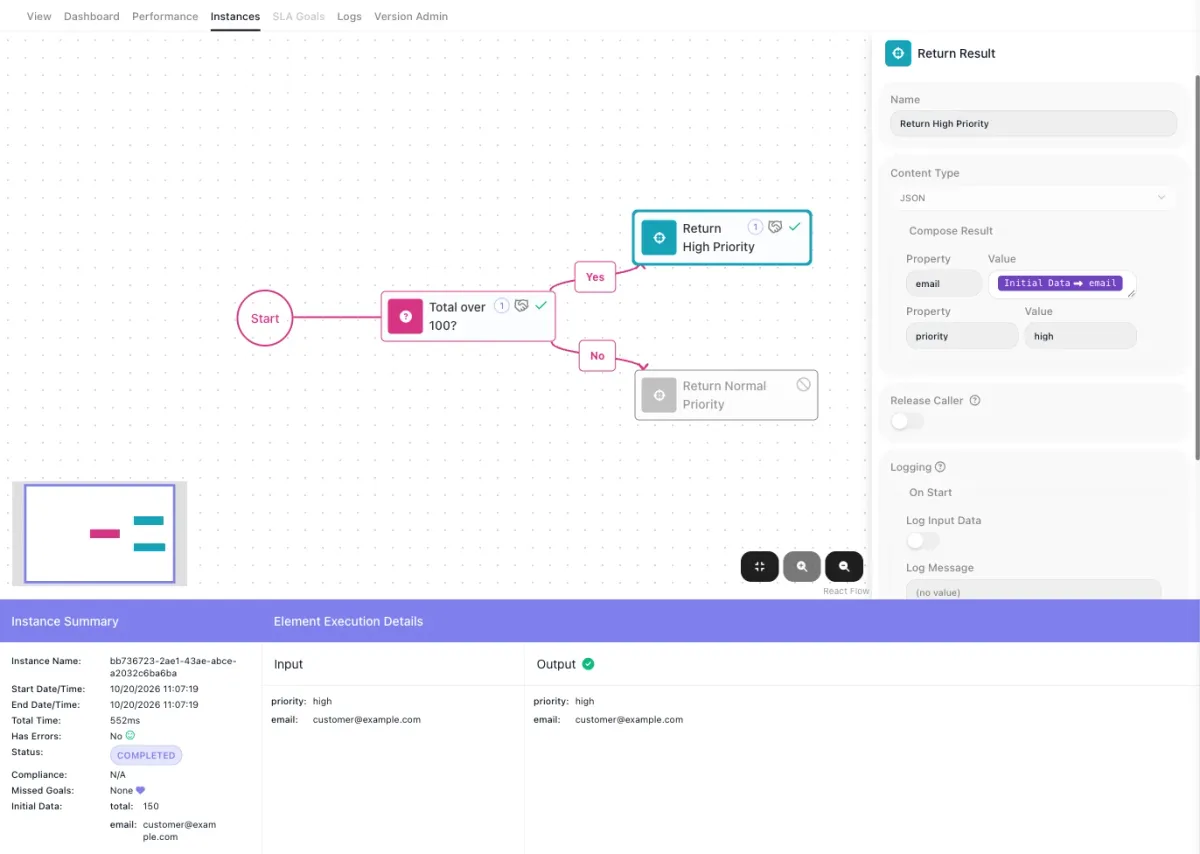
When you want something back, the AI waits for the flow’s answer. If a run takes longer, it keeps going and the AI tells you so instead of starting it again. If the data is missing a field the flow reads, nothing runs and the AI asks you for it. A flow that isn’t live can’t run this way, so the AI offers to make it live first. See Run a flow from your AI tool.
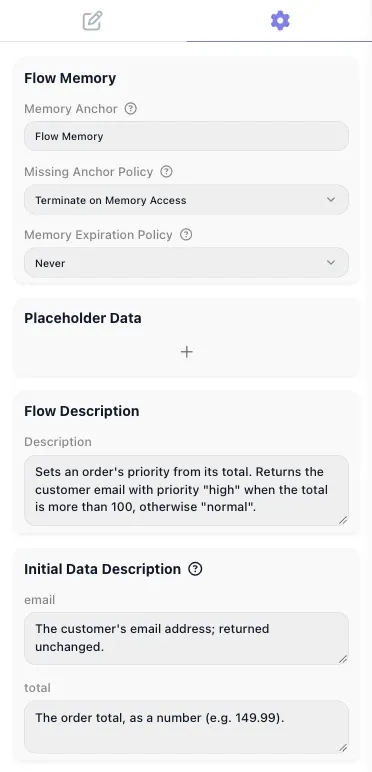
Flows that say what they expect. The AI can now write a description of what a flow does and of each field of the data it expects. They show up on the flow’s Flow Settings tab, so the people and tools that call the flow know what to send, and an AI Agent that uses the flow as a tool reads them too. The AI can also set up the flow’s Placeholder Data, the settings every run of the flow uses. See Describe a flow for its callers.
Signing in to the accounts a flow uses. When a flow needs one of your accounts, such as Slack or Google Sheets, the AI gives you a sign-in link that works for 30 minutes. You can also sign in by opening the flow in FlowRunner. See Connect the accounts a flow uses.
One more thing for Codex users: Codex now connects with just the server address, with no extra settings.
Custom Extensions: a redesigned page, and a real form for testing every method
If you write your own extensions, each one now has a redesigned page. The part you’ll use most is the Methods tab, which tests any action or dictionary with a proper form instead of plain text boxes.
Open Custom Extensions in the workspace navigation, click an extension, and pick a method on the Methods tab. Fill in its fields on the Test sub-tab and click Run. The Output column shows the result and how long it took, or the error in red.
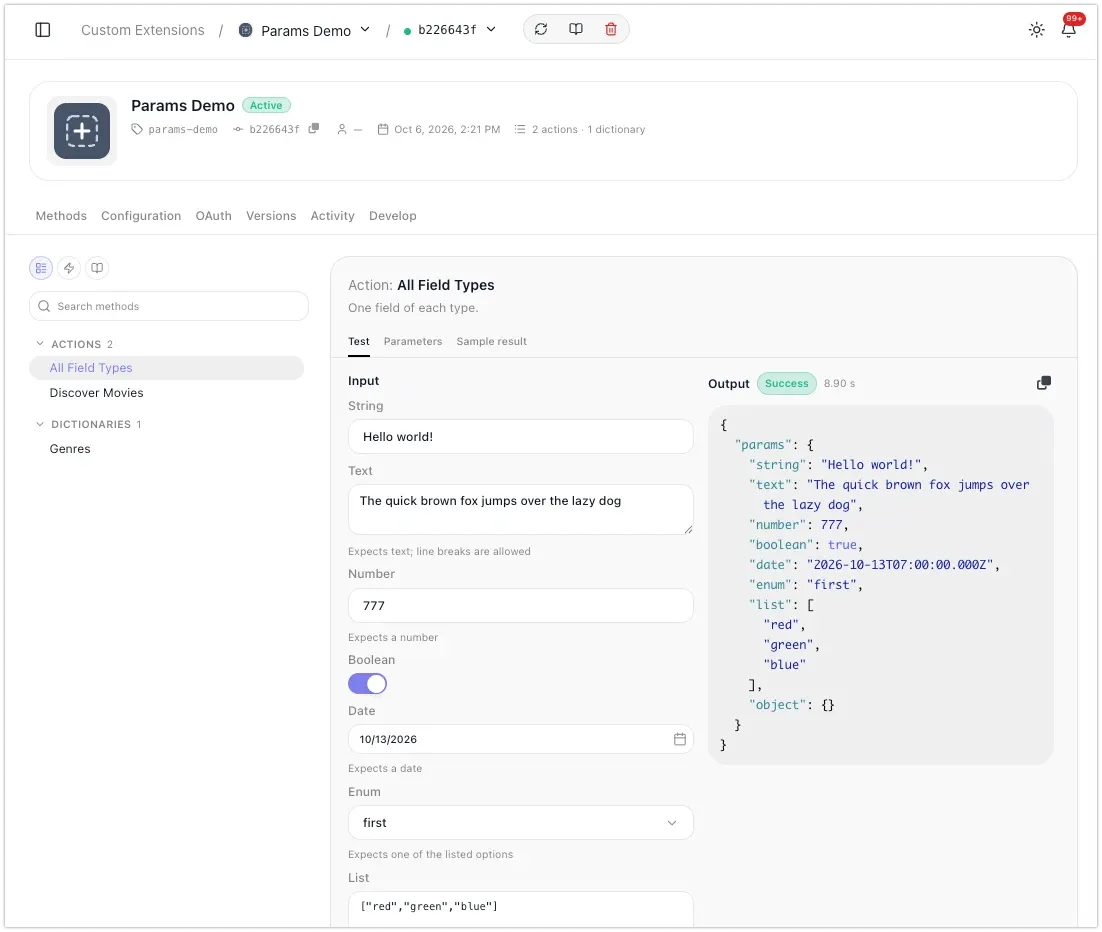
Each field gets the control for its type: a toggle for yes or no, a number box for a number, a dropdown for a fixed list of choices, a date picker for a date, and a text area for longer text or JSON. Required fields are marked, and Run checks every field before it sends anything, naming the field that needs a value.
The rest of the page got work too. The extension list shows each extension’s description, its methods, its version and when it was deployed. The Configuration tab holds the extension’s settings for the workspace, and a new deploy keeps them. An extension with no settings now says so plainly and shows how to add some. And deleting an extension now warns you that the flows using it will stop working. See Trying an action without a flow, or follow it step by step in Getting started.
Improvements
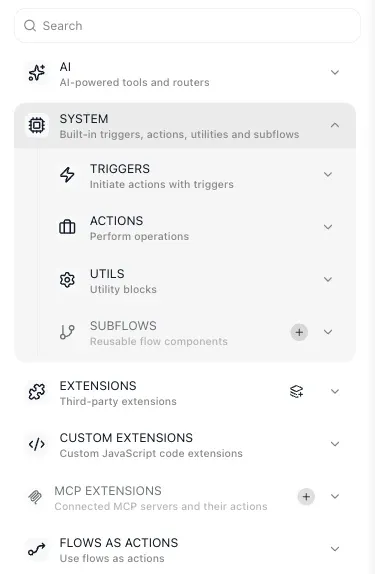
A tidier block list. The flow editor’s block list now puts the built-in blocks in two groups: AI, and System, which holds Triggers, Actions, Utils and Subflows. Extensions, Custom Extensions, MCP Extensions and Flows as Actions follow. See Blocks.
Find a past run by name when you test. When you launch a flow by hand, the Previous Instance list shows each earlier run by its name and start time, and a search box finds a run by name. So you can reuse the data from the exact order or ticket you’re looking for. See Testing.
SLA calendars fit more working weeks. A day can now have several working spans, such as a morning shift and an afternoon shift. The time zone list also includes half-hour offsets such as GMT+5:30, and GMT+5:45. See SLA Calendars.
A fuller Change Log. The workspace Change Log now also records flow exports, deleted and paused versions, SLA calendar changes, knowledge base changes, and new app connections for extensions. The Change Log is the audit trail included in the Professional, Business and Enterprise plans. See Change Log.
More of the notifications you’d want. The notification panel now tells you when a flow version is deleted and when a flow is exported. See Notifications.
Recent workspaces at the top. If you work in a lot of workspaces, the workspace switcher now opens with the three you used last, followed by every workspace sorted by name. See Switching workspaces.
Friendlier tooling for extension developers. The FlowRunner command-line tool now suggests the extension’s id from the name you type, and new projects get code-editor autocomplete for FlowRunner out of the box. See the command-line tool.
Bug fixes
- SLA calendar hours save correctly. The working-hours fields always showed 12:00 AM, and changing one end of a span reset the other. Now calendars show and save the hours you set, and a span that ends before it starts is refused with a clear message. See SLA Calendars.
- Extension descriptions show up. Developers had to write a description for every extension, and it was never shown. Now it appears under the extension’s name. See Service structure.
- No more false “redeploy” message. An extension with no settings told developers to redeploy it. Now it says the extension has no settings. See Service structure.
- Errors say which data was missing. When a step failed because a value it needed wasn’t there, the run history didn’t say which value. Now it names each missing value and why, for example that an order has no shipping address, and still shows the values that were there. See Finding the step that failed.
- Polling triggers never handle the same item twice. In rare cases a custom polling trigger could start a second run for an item it had already handled. Now it remembers items in the order it saw them, so it doesn’t happen. See Triggers.
Try it
If you already use Claude, ChatGPT, Codex or Cursor, the FlowRunner Prompt to Flow guide shows how to connect it. Then ask it to build a flow, and to run it. If you’re new to FlowRunner, start free. No credit card, and every integration is on every plan. The pricing page has the details for every plan.
Frequently asked questions
Can my AI assistant run a FlowRunner flow?
Yes. With FlowRunner Prompt to Flow connected, ask the AI to run one of your flows with some data, for example "Run Order Priority for an order of 150 from [email protected]". It starts a real run of the flow's live version and tells you what the flow returned.
Does a run started by an AI tool count as an execution?
Yes. It is a real run of the flow's live version. It counts as a normal execution and appears on the flow's Instances tab, like a run started any other way.
How do I test a custom extension's action without building a flow?
Open Custom Extensions in the workspace navigation, click the extension, pick the action on the Methods tab, fill in its fields on the Test sub-tab and click Run. The Output column shows the result and how long it took, or the error in red.