It’s been five weeks since we added the Free plan, and a lot has shipped since then. The biggest change is that you can now build a flow by describing it to the AI tool you already use. The rest are smaller changes that make building, testing and running flows less work. Each one links to the docs page that shows how to use it.
Build a flow by describing it
FlowRunner Prompt to Flow connects your AI tool to FlowRunner. It works with Claude (web and desktop), ChatGPT, Claude Code, Codex and Cursor. You connect the tool once, sign in with your FlowRunner account, and then describe the flow you want in plain words. The AI builds it in your workspace from the same blocks the flow editor uses, with the same checks, and makes it live when you ask. Your program then calls it like any other flow.
What you get is an ordinary flow. It shows up in your flow list, and you can open it in the flow editor or ask the AI to change it later.
Every tool connects to the same address, FlowRunner’s MCP server:
https://app.flowrunner.ai/mcpIn Claude, on the web or the desktop app, open Settings > Connectors, click Add, then Add custom connector, and enter that address. Then click Connect and approve the FlowRunner sign-in page. In Claude Code it’s two commands:
claude mcp add --transport http flowrunner https://app.flowrunner.ai/mcp
claude mcp login flowrunner
The sign-in page shows which FlowRunner account the AI will act as and the address it will send you back to. Nothing connects until you tick “I recognize and trust this URL” and click AUTHORIZE. After that, each tool can ask you before it does anything in FlowRunner. Claude, Claude Code and Cursor ask by default, ChatGPT asks before any action that changes something, and Codex asks once you turn on one setting.
Here’s a prompt that works as written:
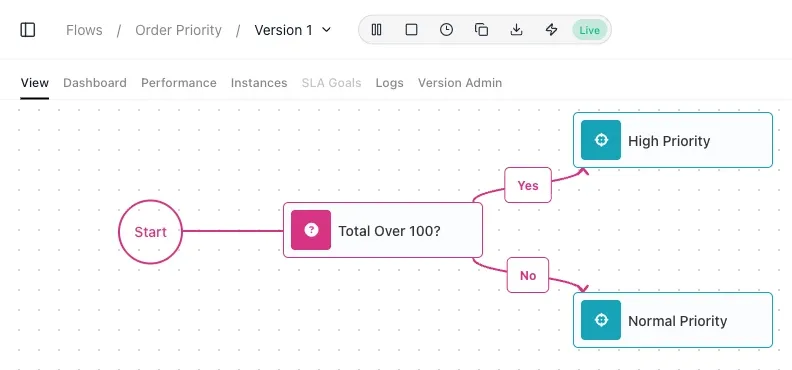
Using the FlowRunner tools, build a flow called “Order Priority”. My program will call it through the API and wait for the answer. The flow gets an order with a total and a customer email. If the total is more than 100, it returns the email with priority “high”; otherwise it returns the email with priority “normal”. When it is built, make it live and tell me exactly what my program sends and what it gets back.
That prompt built this flow, made it live, and the AI’s answer gave the exact request to send and the reply to expect.
The prompt works because it says what the flow does, what starts each run, whether to make it live, and what the AI should tell you when it’s done. Whatever you leave out, the AI decides for you, and it may not decide the way your program needs. The more detail you give it (field names, exact thresholds, which Slack channel to post to), the closer the first build gets. The FlowRunner Prompt to Flow guide has the setup steps for each tool and more on writing a good prompt.
Building flows
Waiting on another system is easier to set up. An External Callback is a step that waits for another system to call your flow back. It now lists the caller’s fields from the latest real call, with nothing to turn on. While you build, you can run the block on its own and send it one test call, or capture a sample with Learning Mode. You can do all of this on a new version while the live version keeps handling real calls. See External Callbacks.
The current date, in parts. In an expression, the current date is now the full date and time, and you pick the part you need (year, month, day, hour, minute, second or weekday) from the suggestions. See Expressions.
Renaming a placeholder no longer breaks fields. Every field that uses the placeholder follows the new name. An AI block’s API key can also come from an API KEY placeholder now. See Placeholders.
No more overwritten edits. A version has one editing session at a time. If you open a version that someone is editing somewhere else, FlowRunner asks whether you want to take over editing or stay in view mode, and the other session is told. See the flow editor.
Knowledge bases on your own database. A knowledge base can now store its data in OpenSearch or PostgreSQL, and a Test button checks the connection. See Knowledge Bases.
Testing and watching runs
Test the rest of a flow without calling the real service. Type the result a block should produce, or copy it from a past run, and test the blocks after it. The real service isn’t called again, so a test doesn’t send another email or write another row. See Testing.
Test values keep their type. When you launch a test run, a number you type is sent as a number. Same page: Testing.
Runs update live. Turn on the Live switch on the Instances list and it refreshes every 5 seconds, so you can watch runs come in without reloading. See Inspecting a run.
Logs are easier to read. There are new Shorten IDs and Wrap messages controls, and a “Past 24 hours” preset. See Monitoring.
Notifications you can act on. Failed runs of a flow are grouped into one notification. Open it and you see the reason, with a link straight to the failed run or to the activity log for that flow. You’re also notified when a flow is started, stopped, rescheduled or deleted, and when the workspace API key is regenerated. See Notifications.
A Change Log for the workspace. When a flow that worked yesterday starts failing, this is the first place to look. It shows who changed what and when: flows created, started, stopped or rescheduled, extensions deployed, and keys created or regenerated. Event details hide secret values. A separate Flows Activity Log lists what happened to runs across all your flows. See Compliance and security.
Connecting other systems
Keep the API key out of URLs. Every API call can now send the workspace API key in an FR-Access-Key header, at an /api/v1/ address. With the key in the header, the URL alone starts nothing, so a link preview or a URL someone pastes into a chat can’t start a run. The older address with the key in the URL keeps working, and there’s no date set for removing it. See Call Flow (Blocking).
For extension developers. A realtime trigger can now answer the provider exactly the way it expects, including challenge handshakes and status codes. Services such as Xero require that before they’ll send any webhooks. Failed calls also show the provider’s own error message now, which makes them quicker to debug. See Triggers and Actions.
Running a team
Role-based permissions. On the Professional plan and up, you choose exactly what each member can do. On lower plans every member has full access. See Team.
Handing a workspace to someone else. When you transfer a workspace, the new owner picks the plan and their own payment method when they accept. If they move it onto the Free plan, they don’t need a card. See Team and Billing.
Try it
If you have Claude, ChatGPT, Claude Code, Codex or Cursor open already, start free, connect it to https://app.flowrunner.ai/mcp, and ask for the flow you’ve been meaning to build. No credit card. The pricing page has the details for every plan.
Frequently asked questions
What is FlowRunner Prompt to Flow?
FlowRunner Prompt to Flow connects an AI tool to FlowRunner so you can build a flow by describing it in plain words. The AI builds the flow in your workspace from the same blocks, with the same checks, as the flow editor, and makes it live when you ask.
Which AI tools work with FlowRunner Prompt to Flow?
Claude (web and desktop), ChatGPT, Claude Code, Codex and Cursor. All of them connect to the same address, https://app.flowrunner.ai/mcp, and you sign in once with your FlowRunner account.
Is a flow the AI builds different from one built in the flow editor?
No. It is an ordinary flow. It is in your flow list, you can open and edit it in the flow editor, and you can ask the AI to change it.
Do I have to change my existing API calls to use the FR-Access-Key header?
No. The older address with the key in the URL keeps working, and no removal date is set. The header form is there so a URL on its own cannot start a run.