Todoist Slack Integration: Ask Before You Assign the Task
Connect Todoist and Slack so channel requests become tasks automatically, or run it as an AI agent that proposes the right owner and pauses for a lead to confirm the assignment in Slack.
How do you connect Todoist to Slack?
You connect Todoist and Slack by setting a Slack trigger, On Channel Message, On Mention, or On Reaction Added, to fire a Create Task action in Todoist whenever a teammate posts an actionable request. FlowRunner is a visual AI-agent orchestration platform where automations run autonomously and pause for human judgment on the steps that carry real consequence. The same connection that turns a Slack message into a scheduled Todoist task can run as an AI agent that reads the request, decides who should own it, and pauses in Slack for a lead to confirm the assignment before handing anyone work.
Why requests fall through the cracks without a task
Most teams run their day-to-day requests through Slack and their day-to-day work through Todoist, with a person bridging the two by hand. A teammate posts “can someone follow up with this vendor” in #ops. An office manager or team lead sees it eventually, copies the request into a task, guesses at a due date, and moves on. When the channel is busy or the person is out, the message scrolls past unread and no task ever gets created.
The damage compounds on shared projects. A request lands that clearly belongs to someone specific, but nobody wants to be the one who assigns work to a colleague without checking first. So the task sits unassigned, or it gets assigned to the wrong person, or someone sends a separate DM asking “hey, is this yours?” before anything moves. Ops leads end up spending time back on the plumbing between chat and task list instead of on the exceptions that actually need their judgment.
How it works: the connection
Todoist does not expose triggers through this connector, so the workflow starts on the Slack side. On Channel Message fires when any message posts to a monitored channel, useful for a general request channel where anyone can post. On Mention fires when a teammate tags the connected workflow directly in a message, useful when you want people to opt in explicitly rather than watching an entire channel. On Reaction Added works as a lightweight alternative: react to a message with a specific emoji and the workflow picks it up.
Once the trigger fires, the workflow calls Create Task in Todoist, mapping the Slack message content into the task, setting the project and section, applying labels, and parsing a natural-language due date like “tomorrow at 5pm” or “next Monday” directly from the request. List Projects and List Sections resolve where the task should file. Get Collaborators pulls the list of people on a shared project so the workflow knows who could own the work.
A simple connection looks like this: when a message posts to #ops-requests, the workflow creates a Todoist task in your Operations project with the message text as the content and a due date parsed from whatever the requester wrote. The inbox stops doubling as a task list because nothing sits in Slack waiting to be copied out.
Can an AI agent run it? (And why a human stays in the loop)
The plain connection handles the general request channel well. The AI agent handles the requests that need a specific owner.
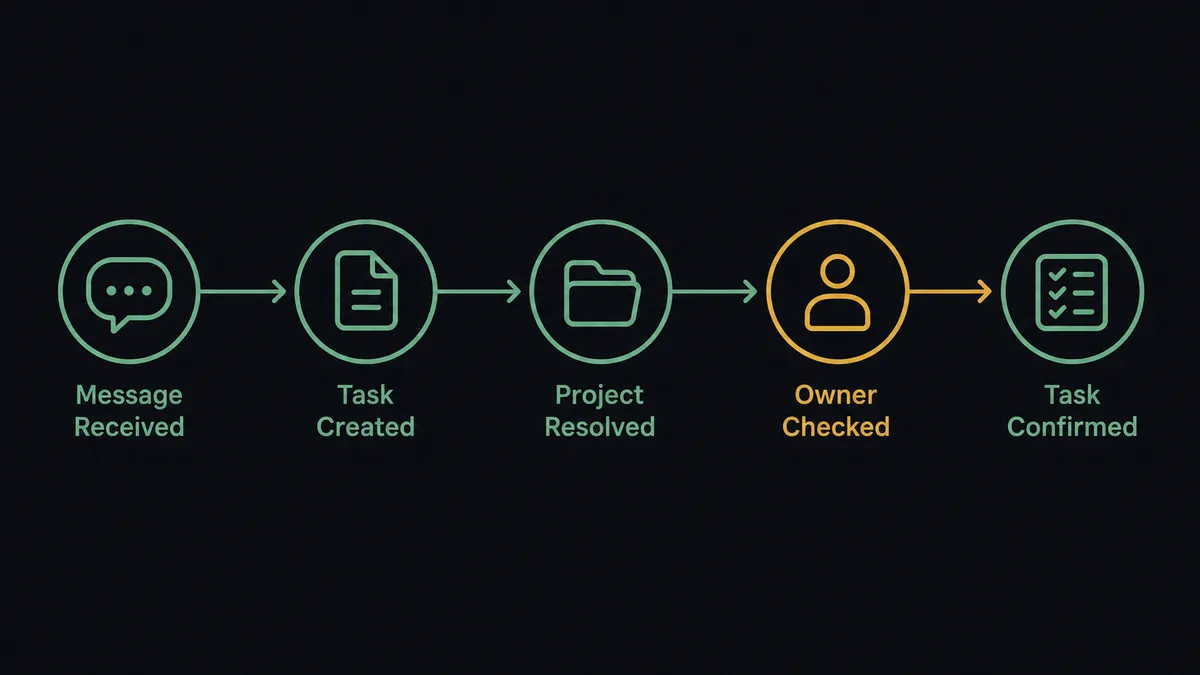
An AI Agent in FlowRunner is a workflow node that reads its instructions, evaluates the message in front of it, and picks the right tools from its toolbox. For a Todoist-Slack connection, that toolbox includes Create Task, Update Task, List Tasks, and Get Collaborators from Todoist, plus Send Message to Channel, Send Direct Message, and Find Member from Slack. The agent does not run a fixed sequence. It reads the request, decides the project and priority, and drafts the task.
Consider a request that comes in on a shared project channel: “someone needs to follow up with the vendor on the delayed shipment.” The agent creates the task with Create Task, setting a due date and priority based on the urgency in the message. Then it calls Get Collaborators on that project and evaluates who the likely owner is, based on who has handled similar requests before and who is listed on the project.
Assigning that task to a specific person is not something the agent decides on its own. Handing someone work is a call that should have a person behind it. The agent invokes the human-in-loop flow as a callable tool: it sends a Slack message to the project lead naming the likely owner, with context on why. “This request looks like it belongs to Priya on Vendor Ops. Assign the task to her, pick someone else, or leave it unassigned?” The message includes Approve, Reassign, and Leave Unassigned buttons, powered by the On Block Action trigger.
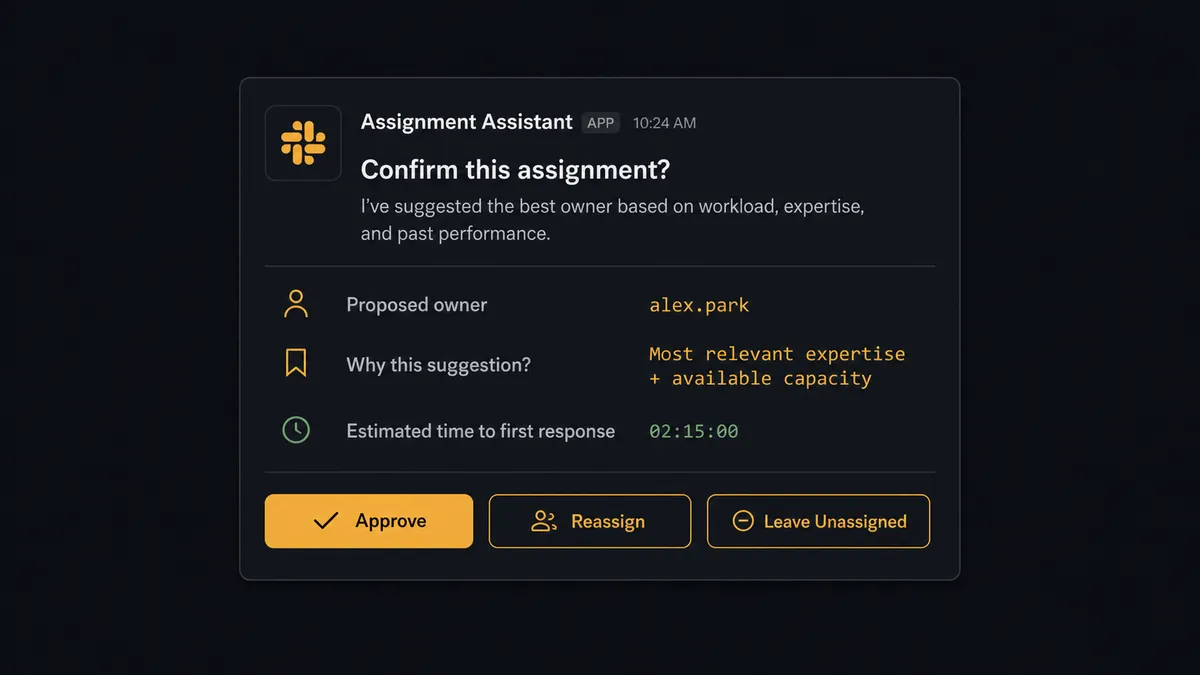
The workflow pauses. The lead reviews and clicks Approve. On Block Action fires, the agent reads the decision, and calls Update Task to set the assignee. If the lead clicks Reassign, the agent asks who instead and updates the task with the new owner. Either way, the decision, the decider, and the timestamp land in the audit trail automatically.
This is not a sync tool. The agent knows when to stop and ask before it puts work on someone’s plate.
FlowRunner vs Zapier for the Todoist and Slack connection
Zapier is the tool most non-technical teams reach for first for a Slack-to-Todoist connection. It has a large library of pre-built Zaps, fast setup, and a familiar interface. For a fixed rule, always create a task when a message posts to a specific channel, Zapier works fine.
The gap appears at the assignment step, where the workflow needs to reason about who should own the work instead of just moving data.
| Feature | Zapier | FlowRunner |
|---|---|---|
| AI agent that reads the message and decides project, priority, and owner | No | Yes |
| Human confirmation before assigning a task to a specific person | No (add-on workaround) | Native, built-in tool |
| Agent decides when a request needs a human vs when it doesn’t | No | Yes |
| Unlimited users on every pricing tier | No (user-based pricing) | Yes |
| Bring Your Own AI provider key (BYOK) | No | Yes |
| Audit trail with approver identity and timestamp | No | Yes |
Zapier handles the “always do X when Y” pattern. FlowRunner handles the “decide who should do this, and check first” pattern. If your team shares projects and hands off work, that difference shows up every day.
Before and after
| Category | Before | After |
|---|---|---|
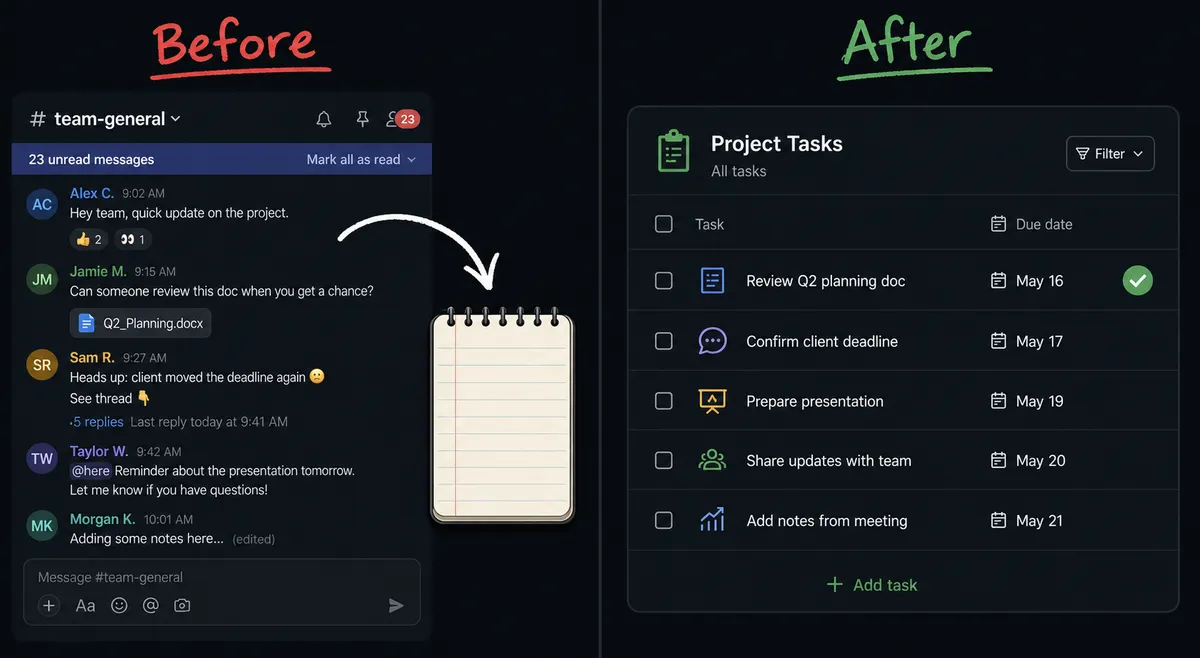
| Task creation | Actionable requests live in a Slack channel until someone copies them out by hand | Actionable messages become Todoist tasks the moment they post, with a due date parsed from natural language |
| Follow-up tracking | Requests slip through because no task was ever created | Every request that needs follow-up gets a task with a due date; nothing slips |
| Assignment decisions | A lead pings around in DMs asking who owns a request before handing it off | The agent proposes an owner from the project’s collaborators and confirms with a lead through Slack buttons |
| Approval trail | No record of who approved an assignment or when | Every assignment decision captured with approver identity and timestamp in the audit trail |
| Scheduling consistency | Deadlines get set from memory, or not at all | Due dates are parsed the same way every time, straight from the request’s own language |
What you can build
Request-to-task capture. When On Channel Message fires in a monitored #ops channel, the agent reads the request and calls Create Task with content, project, and a natural-language due date, so nothing posted in the channel goes unscheduled.
Assignment with a confirmation gate. On a shared project, the agent drafts the task, calls Get Collaborators to find the likely owner, and sends a Slack message with Approve and Reassign buttons before it calls Update Task to set the assignee.
Reaction-triggered follow-up. A teammate reacts to a message with a checkmark emoji. On Reaction Added fires, and the agent creates a Todoist task from that message so a lightweight signal turns into tracked work without anyone typing a task by hand.
Weekly workload digest. On a schedule, the agent calls List Tasks with a filter like “today | overdue” across the team’s projects and posts a formatted summary to #operations via Send Message to Channel, so leads see what is due without opening Todoist.
Comment-based status updates. When a task’s due date passes unresolved, the agent calls Create Comment on the Todoist task and sends a Direct Message in Slack to the assignee asking for a status update, keeping the conversation attached to the work.
Common questions
Is it free to connect Todoist and Slack on FlowRunner? FlowRunner has a free plan with 100 executions a month, every integration included, and no credit card required, and new accounts get 14 days of Professional on top. After that, Growth is $45 per month with 12,000 executions included. All tiers include unlimited users and unlimited workflows.
Does Todoist have its own trigger, or does Slack start the workflow? Todoist does not expose triggers through this connector, so the workflow starts on the Slack side: On Channel Message, On Mention, or On Reaction Added. The agent then calls Todoist actions like Create Task and Update Task to do the work.
Can I self-host FlowRunner? Yes. FlowRunner offers a free Community Edition for self-hosted single-instance deployments and an Enterprise tier for multi-instance clustering with the full compliance suite.
Do I need my own AI or OpenAI key to run the agent? Yes. FlowRunner uses a Bring Your Own Keys (BYOK) model, so you connect your own AI provider key (OpenAI, Anthropic, or others). You pay the AI provider directly and keep full control of your data and costs.
What happens when the agent isn’t sure who should own a task? The agent does not guess and assign anyway. It invokes a human-in-loop flow as a callable tool, sends a Slack message naming the likely owner and the options, and waits for a project lead to decide. The workflow resumes once the decision is captured.
How is this different from Zapier’s Todoist and Slack integration? Zapier connects a Slack trigger to a Todoist action in a fixed sequence. FlowRunner adds an AI agent layer that reads the message, decides the project and priority, and knows when a task needs a human to confirm the assignee before it hands work to a specific person. Zapier does not have that reasoning or approval layer built in.
Getting started
FlowRunner has a free plan with 100 executions a month, every integration included, and no credit card required, and new accounts get 14 days of Professional on top.
Both connectors are available immediately after signup. See the Todoist integration page for the full list of task, project, and label actions, and the Slack integration page for channel, messaging, and interactive button capabilities.
Start at flowrunner.ai to start on the free plan, or book a 30-minute walkthrough at calendly.com/flowrunner/intro if you want to see the agent decision logic before committing.
Frequently asked questions
Is it free to connect Todoist and Slack on FlowRunner?
FlowRunner has a free plan with 100 executions a month, every integration included, and no credit card required, and new accounts get 14 days of Professional on top. After that, Growth is $45 per month with 12,000 executions included. All tiers include unlimited users and unlimited workflows.
Does Todoist have its own trigger, or does Slack start the workflow?
Todoist does not expose triggers through this connector, so the workflow starts on the Slack side: On Channel Message, On Mention, or On Reaction Added. The agent then calls Todoist actions like Create Task and Update Task to do the work.
Can I self-host FlowRunner?
Yes. FlowRunner offers a free Community Edition for self-hosted single-instance deployments and an Enterprise tier for multi-instance clustering with the full compliance suite.
Do I need my own AI or OpenAI key to run the agent?
Yes. FlowRunner uses a Bring Your Own Keys (BYOK) model, so you connect your own AI provider key (OpenAI, Anthropic, or others). You pay the AI provider directly and keep full control of your data and costs.
What happens when the agent isn't sure who should own a task?
The agent does not guess and assign anyway. It invokes a human-in-loop flow as a callable tool, sends a Slack message naming the likely owner and the options, and waits for a project lead to decide. The workflow resumes once the decision is captured.
How is this different from Zapier's Todoist and Slack integration?
Zapier connects a Slack trigger to a Todoist action in a fixed sequence. FlowRunner adds an AI agent layer that reads the message, decides the project and priority, and knows when a task needs a human to confirm the assignee before it hands work to a specific person. Zapier does not have that reasoning or approval layer built in.