How to Connect Slack with Jira Issues (With or Without an AI Agent)
Connect Slack and Jira Issues so that messages and exceptions in Slack automatically create, update, and route Jira issues, with a human on every consequential assignment or escalation.
How do you connect Slack to Jira Issues?
You connect Slack to Jira Issues in FlowRunner by choosing a Slack trigger (On Channel Message, On Mention, or On Block Action) and pairing it with a Jira Issues action (Create Issue, Update Issue, or Transition Issue). FlowRunner is a visual AI-agent orchestration platform where automations run autonomously and pause for human judgment on the steps that carry real consequence. The same connection that creates a Jira ticket from a Slack message can also run as an AI agent that reads context, evaluates priority, and invokes a human decision before assigning a P1 issue to anyone.
The problem that manual ticket creation creates
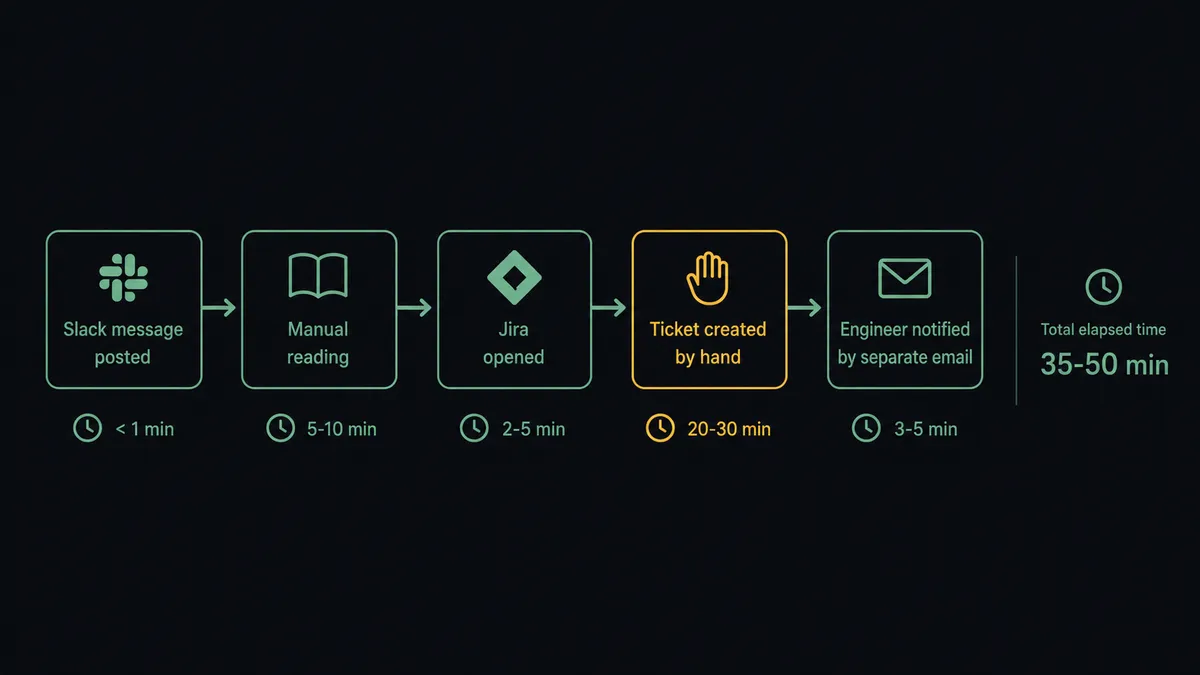
Your support team, ops leads, and engineering managers share a Slack workspace. When something goes wrong, someone posts in a channel. Then someone else manually opens Jira, creates a ticket, tries to remember the details from the Slack thread, and guesses at priority and assignment. By the time the issue is tracked, the context has already degraded. The engineer who gets the ticket sees a subject line and a sentence of description.
The situation compounds when exceptions come in batches. A Monday morning spike means three people spend 45 minutes creating tickets instead of resolving problems. Sprint health checks require a manager to manually scan Jira for unassigned or blocked issues. Status updates require someone to ask someone else. The tracking system designed to give visibility becomes another manual task that falls through the cracks when the team is already stretched.
How it works: the Slack to Jira Issues connection
The core connection works like this. A Slack trigger fires when the relevant event occurs in your workspace. The agent processes the message content and uses Jira Issues actions to create or update the corresponding ticket, all without anyone opening Jira manually.
The trigger options:
On Channel Message fires when any message lands in a monitored Slack channel. You can point this at a #support-escalations channel, a #vendor-docs channel, or any channel where incoming issues land. On Mention fires when someone @mentions your agent directly. On File Shared fires when a team member uploads a document, useful when the issue comes in as an attached screenshot or log file. On Block Action fires when a user clicks an interactive button in an agent-generated Slack message, which is how you collect human decisions and route them back into the workflow.
The Jira actions the agent uses:
Create Issue creates a new Jira ticket with custom fields, priority, assignee, and components. The agent maps the Slack message sender, content, and any extracted keywords directly to the issue fields. Get Project retrieves the available issue types and workflow states for the target project before creation, so the agent always creates valid issues. Search Issues runs a JQL query to check whether a related issue already exists before creating a duplicate. Assign Issue sets the right owner based on rotation data or the team lead’s input. Add Comment posts additional context, including the original Slack message text and any workflow execution trace, directly onto the issue. Transition Issue moves tickets through workflow states when external events confirm resolution.
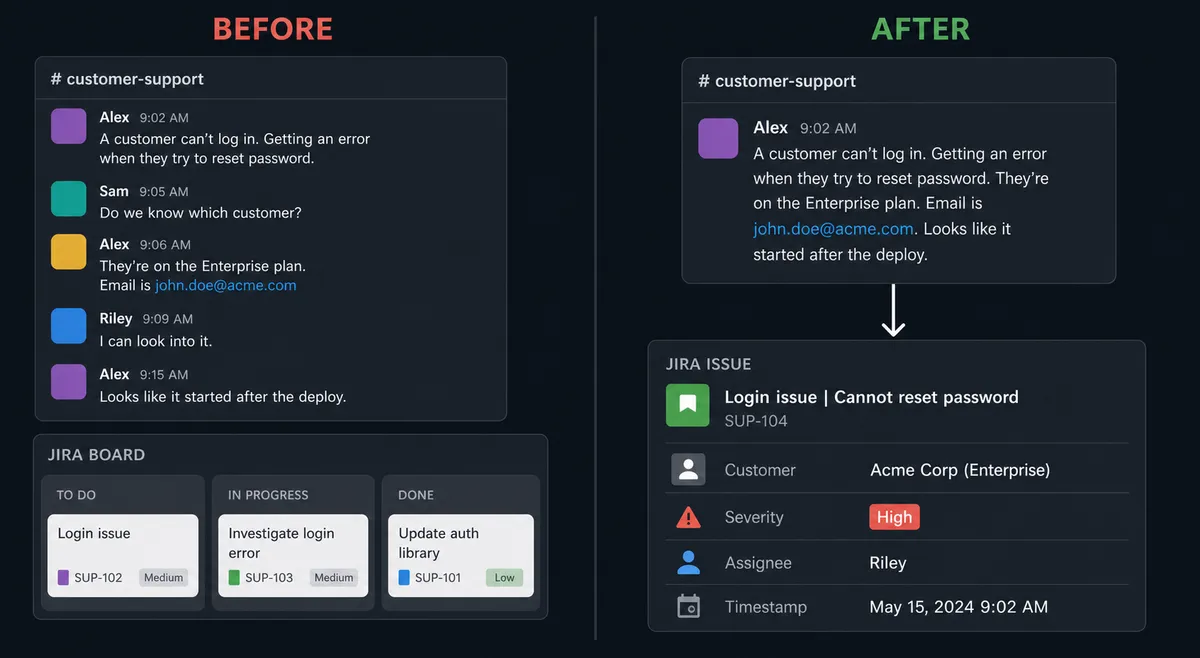
When a customer flags a critical problem in your support channel, the agent creates a Jira issue with the customer name, issue description, severity level, and source message attached, before anyone manually reads the Slack post.
Can an AI agent run it? And why a human stays in the loop
A basic Slack-to-Jira connection creates tickets mechanically: message received, ticket created, done. An AI agent does something different. It reads the message, reasons about what it found, and decides how to handle it, including whether a human needs to weigh in before the workflow proceeds.
Consider this: a team member posts in #support-escalations: “Customer ABC is reporting that their payment processing is down. They process $400K a day and it’s been two hours.” A rule-based tool creates a Jira ticket and assigns it to whoever is on rotation. The agent does more. It reads the message, extracts the customer name, the affected capability, the duration, and the revenue impact. It searches Jira to see if an open issue already exists for this customer or this component. It checks the severity against its instructions and concludes this is P1.
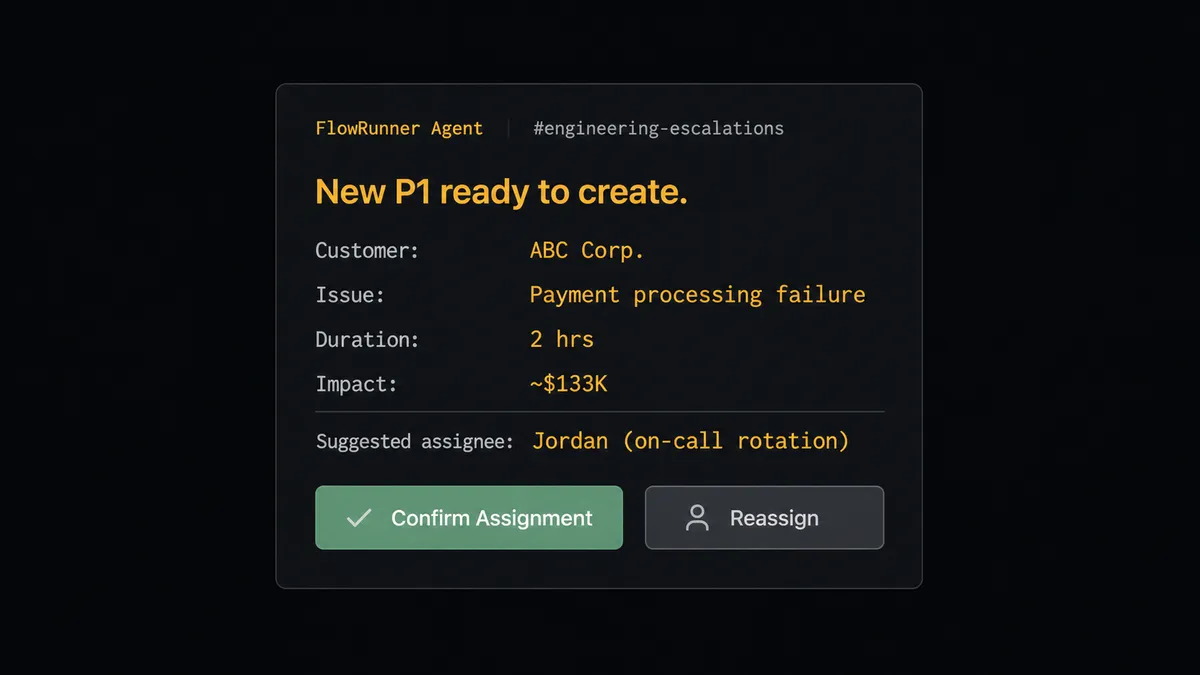
Then it pauses. The agent does not assume the on-call rotation engineer is the right assignment for a customer this size. It sends a Slack message to the engineering team lead: “New P1 issue ready to create: Payment processing failure, Customer ABC, 2 hours duration, estimated revenue impact $133K. Suggested assignee: Jordan (on rotation). Confirm or reassign?” The team lead sees this in Slack, with full context, and clicks Confirm or selects a different assignee. The agent creates the Jira issue with all structured fields, attaches the original Slack message, and sends a direct message to the assigned engineer: “New P1 assigned: [Issue link]. Customer ABC, payment processing down 2 hours.”
This is not a threshold. FlowRunner has a free plan with 100 executions a month, every integration included, and no credit card required, and new accounts get 14 days of Professional on top. It escalated because the combination of customer size, issue type, and duration, evaluated together, signaled that a human should confirm the assignment before it was locked in. The decision, the decider’s identity, and the timestamp are in the audit trail. Prospects call this a “digital andon cord”: the agent stops the line when it hits something that carries real consequence.
FlowRunner vs Zapier for Slack and Jira Issues
Zapier is the tool most non-technical teams reach for first when they want to connect Slack and Jira. It earns that position: the setup is fast, the templates are well-documented, and the interface is accessible to anyone. For straightforward “message in, ticket out” flows, Zapier works.
The differences that matter for this specific pair:
| Capability | Zapier | FlowRunner |
|---|---|---|
| AI agent reasoning on message content | Not available | Agent reads context, evaluates priority, and decides next action |
| Human-in-loop on issue assignment | Conditional branch (rule-based) | Agent decides when to pause; human responds in Slack with full context |
| JQL query support for duplicate checking | Limited filter logic | Full JQL via Search Issues before creating any ticket |
| Interactive Slack buttons routing back to workflow | Requires Zapier’s Interfaces product | Native via On Block Action trigger |
| Unlimited users on every pricing tier | Per-task pricing, user limits vary by plan | Unlimited users on all tiers including Growth at $45/mo |
| Bring-your-own AI keys | Not available | BYOK for all AI provider calls |
For teams that need the agent layer, the JQL depth, or the human-in-loop routing, Zapier’s Slack-to-Jira connection will hit its ceiling. For teams that want a fast, no-reasoning ticket-on-message connection with no budget, Zapier’s free tier may be the right starting point.
Before and after
| Category | Before | After |
|---|---|---|
| Ticket creation time | Support staff read each Slack message and manually create Jira tickets, taking 5-15 minutes per issue | Jira issue created with full context within seconds of the Slack message, before anyone opens Jira |
| Issue context quality | Engineers receive tickets with a subject line and minimal description | Customer name, issue description, severity, and original Slack message attached automatically |
| P1 assignment accountability | On-call rotation assigned without confirming appropriateness for the specific issue | Team lead confirms or redirects every P1 assignment before the issue is locked in |
| Duplicate issues | Multiple team members create separate tickets for the same problem | Agent runs a JQL search before creation; existing related issues surfaced instead of duplicates created |
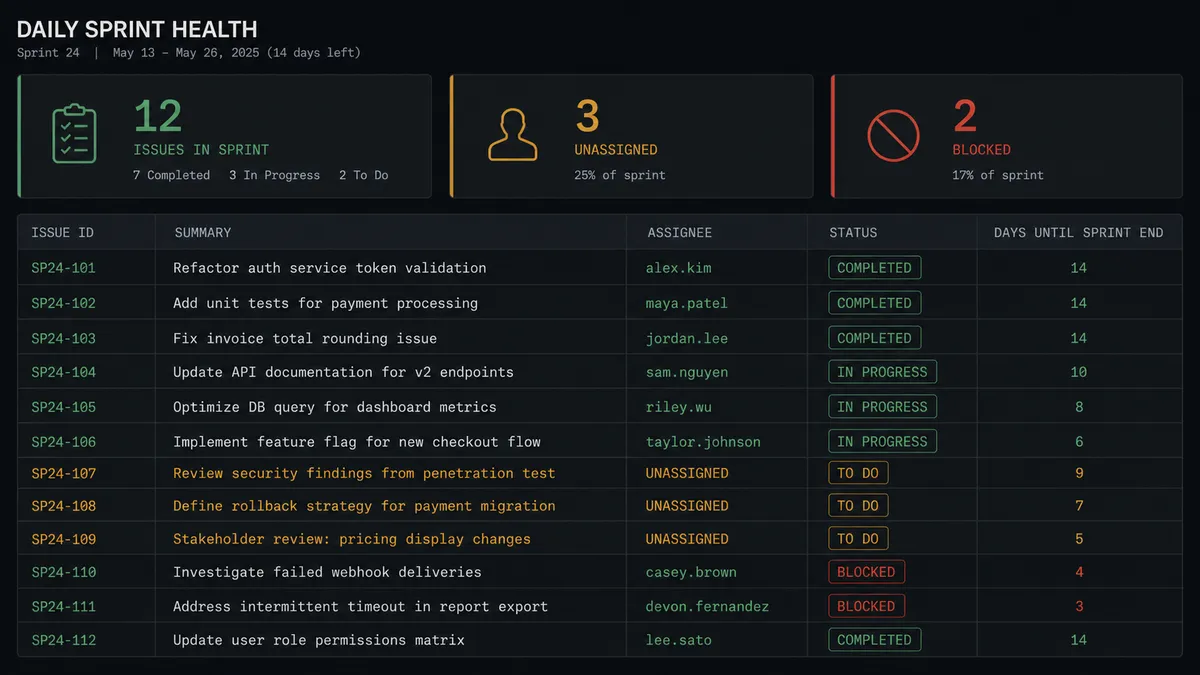
| Sprint visibility | Engineering manager scans Jira manually to find unassigned or blocked issues | Daily agent query surfaces unassigned and blocked issues to the Slack engineering channel each morning |
| Audit trail | Decision history scattered across Slack threads with no structured record | Every assignment confirmation captured with approver identity and timestamp in the workflow audit trail |
What you can build
Customer escalation to tracked Jira issue. When a customer or team member posts a critical issue in a monitored Slack channel, the agent extracts structured data via On Channel Message, checks for duplicates with Search Issues, and creates a Jira ticket using Create Issue with the customer name, description, severity, and source message attached. Engineers receive a direct Slack message with the Jira link before anyone opens their email.
Daily sprint health digest. An agent runs a JQL query at 9am every day using Search Issues: issues in the current sprint that are unassigned or flagged as blocked, with days remaining in the sprint calculated. It posts a formatted summary to #engineering-daily using Send Message to Channel. The engineering manager gets sprint visibility without building a single report.
Interactive P1 assignment confirmation. For issues above a priority threshold, the agent builds a Slack Block Kit message with the draft issue details and Confirm or Reassign buttons. When the team lead clicks, On Block Action fires, the agent receives the decision, and uses Assign Issue to set ownership before creating the ticket. Critical issues have accountable ownership from the moment they exist in Jira.
Operational exception to bug report. When a payment processing workflow detects an error requiring engineering investigation, the agent creates a Jira bug report using Create Issue with the full error context: timestamp, error code, affected transaction ID. It uses Add Comment to attach the workflow execution trace. When the engineering team resolves the issue, the agent uses Transition Issue to move the ticket to Done and logs the resolution time in the audit trail.
Jira status to Slack resolution notification. When a team member transitions a Jira issue to Done, the agent detects the status change via a scheduled Search Issues poll, retrieves the issue with Get Issue, and posts a resolution note to the original Slack thread where the issue was reported. The person who raised the issue gets confirmation in the same channel where they raised it.
Common questions
Is it free to connect Slack and Jira Issues on FlowRunner?
FlowRunner has a free plan with 100 executions a month, every integration included, and no credit card required, and new accounts get 14 days of Professional on top. Beyond the free plan, Growth is $45 per month and includes unlimited users, unlimited workflows, and full AI-agent capabilities with your own API keys.
Can I self-host FlowRunner if I have data residency requirements?
Yes. FlowRunner offers a self-hosted Enterprise option for teams that need to keep workflow data and audit trails within their own infrastructure. Contact us at flowrunner.ai to discuss requirements.
Does the AI agent need my own OpenAI or Anthropic API key?
Yes. FlowRunner uses a bring-your-own-keys model for AI providers, so your API calls go directly from your account to the model provider. FlowRunner never marks up AI usage or bundles model costs into its pricing.
What happens when the agent is not sure about an assignment or escalation?
The agent pauses the workflow and sends a Slack message with full context: the Jira issue summary, the suggested assignee, and the options available. A team lead confirms or redirects directly in Slack. The decision, the decider’s identity, and the timestamp are captured in the audit trail before the workflow resumes.
Does Jira Issues have native triggers in FlowRunner?
The current Jira Issues connector has 13 actions and 0 native triggers. Flows that start from a Jira event use Slack mentions, On Channel Message, or scheduled polling via Search Issues with JQL to detect changes and drive the workflow forward.
Can I use this connection for sprint monitoring, not just issue creation?
Yes. You can build an agent that runs a JQL query every morning via Search Issues, evaluates sprint health (unassigned issues, blocked tickets, sprint deadline proximity), and posts a structured summary to any Slack channel using Send Message to Channel. No manual report building required.
Getting started
FlowRunner has a free plan with 100 executions a month, every integration included, and no credit card required, and new accounts get 14 days of Professional on top. Any real email address works; disposable domains are not accepted.
Start by reviewing what each connector supports:
- Slack integration details: 8 triggers and 16 actions including On Block Action, Send Message to Channel, and Send Direct Message
- Jira Issues integration details: 13 actions including Create Issue, Search Issues with full JQL support, Assign Issue, Transition Issue, and Add Comment
To start building, visit flowrunner.ai and connect both accounts in under 10 minutes. If you want to talk through your specific use case before building, book a 30-minute intro at calendly.com/flowrunner/intro. No sales pitch. The goal is to find out whether this solves your problem.
Frequently asked questions
Is it free to connect Slack and Jira Issues on FlowRunner?
FlowRunner has a free plan with 100 executions a month, every integration included, and no credit card required, and new accounts get 14 days of Professional on top. Beyond the free plan, Growth is $45 per month and includes unlimited users, unlimited workflows, and full AI-agent capabilities with your own API keys.
Can I self-host FlowRunner if I have data residency requirements?
Yes. FlowRunner offers a self-hosted Enterprise option for teams that need to keep workflow data and audit trails within their own infrastructure. Contact us at flowrunner.ai to discuss requirements.
Does the AI agent need my own OpenAI or Anthropic API key?
Yes. FlowRunner uses a bring-your-own-keys model for AI providers, so your API calls go directly from your account to the model provider. FlowRunner never marks up AI usage or bundles model costs into its pricing.
What happens when the agent is not sure about an assignment or escalation?
The agent pauses the workflow and sends a Slack message with full context: the Jira issue summary, the suggested assignee, and the options available. A team lead confirms or redirects directly in Slack. The decision, the decider's identity, and the timestamp are captured in the audit trail before the workflow resumes.
Does Jira Issues have native triggers in FlowRunner?
The current Jira Issues connector has 13 actions and 0 native triggers. Flows that start from a Jira event use Slack mentions, On Channel Message, or scheduled polling via Search Issues with JQL to detect changes and drive the workflow forward.
Can I use this connection for sprint monitoring, not just issue creation?
Yes. You can build an agent that runs a JQL query every morning via Search Issues, evaluates sprint health (unassigned issues, blocked tickets, sprint deadline proximity), and posts a structured summary to any Slack channel using Send Message to Channel. No manual report building required.