How to Connect Slack with Canva (With or Without an AI Agent)
Connect Slack requests to Canva brand templates so designs are autofilled and exported on demand, with an AI agent that fills the template automatically and pauses for a human before anything with a price, date, or claim is exported and circulated.
How do you connect Slack to Canva?
You connect Slack to Canva by having Slack’s On Mention trigger drive Canva’s template actions: a teammate requests a design in the channel, the workflow resolves the right template with List Brand Templates, reads its fillable fields with Get Brand Template Dataset, fills it with Autofill Design and Wait, and produces the files with Export Design and Wait, so routine collateral gets made without a designer opening Canva. FlowRunner is a visual AI-agent orchestration platform where automations run autonomously and pause for human judgment on the steps that carry real consequence. The same connection can run as an AI agent that parses a loosely worded request, fills the template itself, and pauses for a named human before any design carrying a price, a date, or a claim is exported and circulated.
The problem it solves
Every ops and marketing team has a design request queue, and it is a Slack channel. “Can someone make the promo card for the September webinar?” “Need the sales one-pager with the new pricing by Friday.” The designs themselves are templated, the same layout with new words and numbers, but each one still costs a request, a wait, a designer context-switch, and a round of “actually the date changed.” The people who need collateral wait days for work that is ninety percent identical to last month’s version, and the designer’s actual design work gets crowded out by field-swapping.
The edges are what make everyone nervous about automating it. The one-pager with last quarter’s pricing that a rep sent to a prospect. The event card with the wrong date that got shared before anyone noticed. The version someone rebuilt off-brand from an old file because the queue was too slow. Collateral errors are quiet: nobody knows the wrong price is in the field until a customer holds you to it. Speed without a checkpoint just ships mistakes faster.
How it works: the connection
The connection listens to the requests channel and operates Canva. Here is the plain version, grounded in the real connector actions.
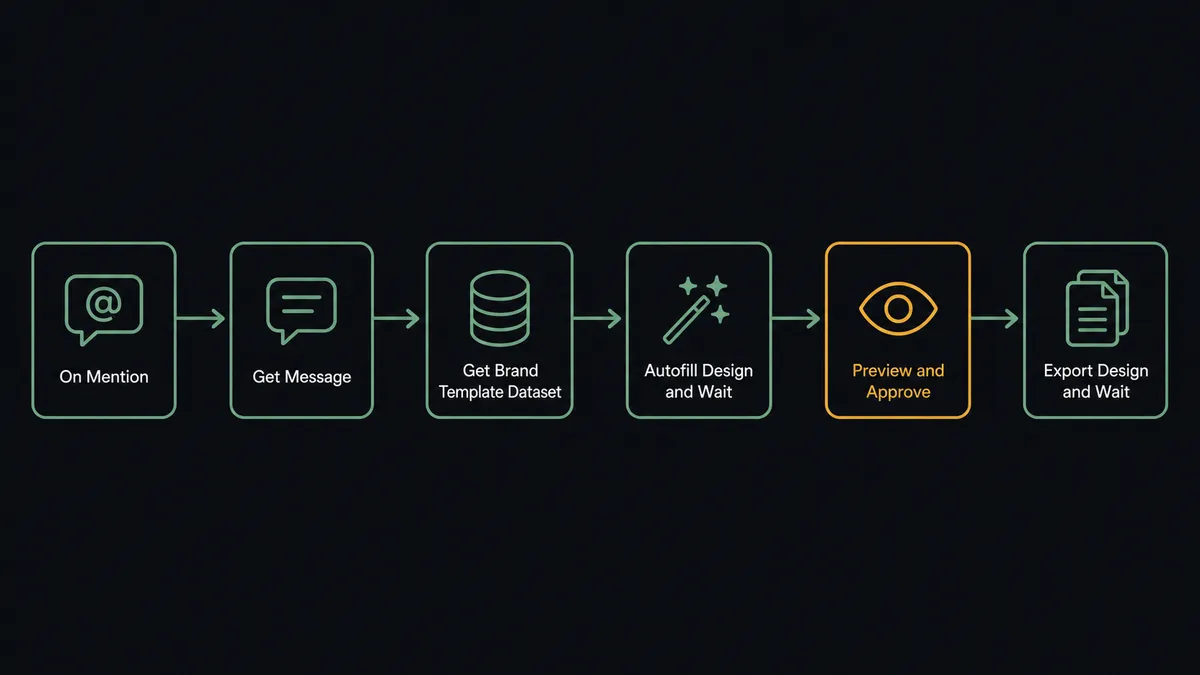
- Trigger: Slack fires On Mention when a teammate summons the workflow: “@flow webinar promo card, ‘Scaling Ops with Agents’, Sept 18, speaker Jane Doe.”
- Read: The workflow calls Get Message to pull the request and any corrections in the thread.
- Resolve: It calls List Brand Templates to find the matching template, then Get Brand Template Dataset to read exactly which fields it expects.
- Fill: It calls Autofill Design and Wait, mapping the request’s values into the template’s dataset fields.
- Preview: It calls Send Message To Channel to post the filled design and a plain list of every field value it used.
- Export: After the approval click, it calls Export Design and Wait to produce the PDF, PNG, or PPTX.
- Deliver: It posts the download link in the thread and files the design with Create Folder and Move Folder Item so it is findable later.
That is the “just connect them” answer. A request in chat becomes finished, on-brand files in the same thread, and the template system your designers built finally pays for itself at chat speed. On File Shared adds the reverse lane: images shared in Slack land in the media library via Upload Asset and Wait instead of dying in channel history.
Can an AI agent run it? (and why a human stays in the loop)
Yes, and the agent earns its keep between the request and the template. People do not write requests as key-value pairs. The agent reads “same as last month’s promo but for the September webinar, new speaker is Jane” and works out what that means: which template, which fields carry over, which are new, and, critically, which required fields from Get Brand Template Dataset the request never supplied. When the date is missing it asks in the thread instead of inventing one. Its toolbox is the real action set: List Designs to find last month’s version, Get Brand Template Dataset to know the contract, Autofill Design and Wait to fill it, Export Design and Wait to finish.
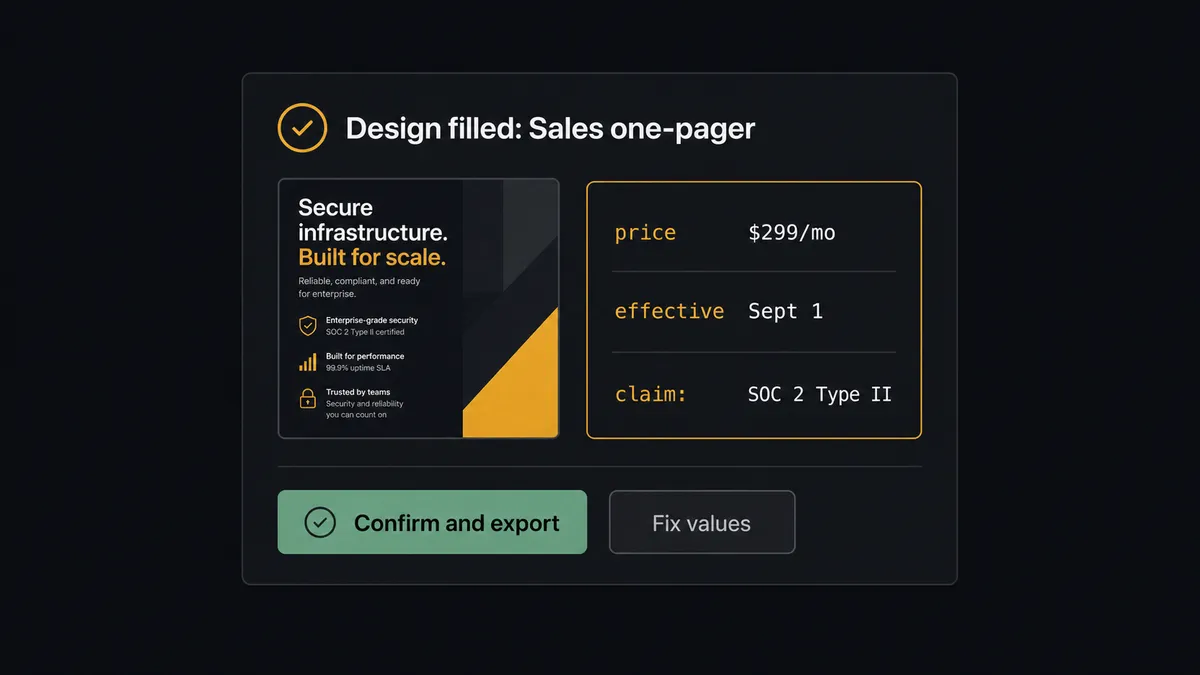
The consequential step is the export that gets circulated. A design sitting in Canva is harmless; a PDF in a sales rep’s outbox is not. So for any design carrying a price, a date, or a factual claim, the agent invokes a human-in-loop flow it holds as a callable tool. The workflow pauses and posts: “Filled ‘Sales one-pager v3’ from the request: plan price $299/mo, effective date Sept 1, claim ‘SOC 2 Type II’. Confirm these values before I export?” A named approver checks the three things that can actually hurt, clicks once, and Export Design and Wait runs. Purely decorative fills, a team meeting header, an internal deck cover, can skip the gate entirely; you decide where the line sits.
This is the digital andon cord, the framing our own prospects gave us: like the pull cord on a Toyota line, the workflow stops the line the moment the next step puts a number in front of a customer. Filling is fast and free to redo. A wrong price in the field is neither.
FlowRunner vs n8n
Technical teams pricing this out will find n8n quickly, and it holds up: a free self-hosted tier, a big node and template community, and full freedom to script the Canva API calls, polling loops, and payload shaping however an engineer likes. If you have that engineer and they want to own this, n8n can build it.
The difference is who can run it and where the checkpoint lives. Here is the honest side-by-side.
| What matters for this pair | FlowRunner | n8n |
|---|---|---|
| Human-in-the-loop before Export Design and Wait | Native. The agent invokes an approval flow as a callable tool, showing every filled value | Buildable with wait nodes and forms you assemble and maintain yourself |
| Who runs the flow | An AI agent parses loose requests, resolves templates, picks actions as tools | Node graph you design; request parsing is yours to script |
| Users included | Unlimited users on every tier; the whole marketing team can request and approve | Cloud plans meter workflows and executions; self-hosting shifts cost to your infra and time |
| Bring your own AI keys | Yes, BYOK | Yes, also BYOK |
| Self-hosted option | Yes, cloud-hosted or self-hosted | Yes, a genuine n8n strength |
| Pricing model | Transparent workflow-based tiers | Execution-based cloud pricing, or free self-host plus your own ops burden |
If your team wants to own this as engineered infrastructure and tune every API call, n8n is a credible choice. If you want the request channel producing checked, on-brand files this week, with the value-confirmation gate built in, this pairing is the better fit.
Before and after
| Category | Before | After |
|---|---|---|
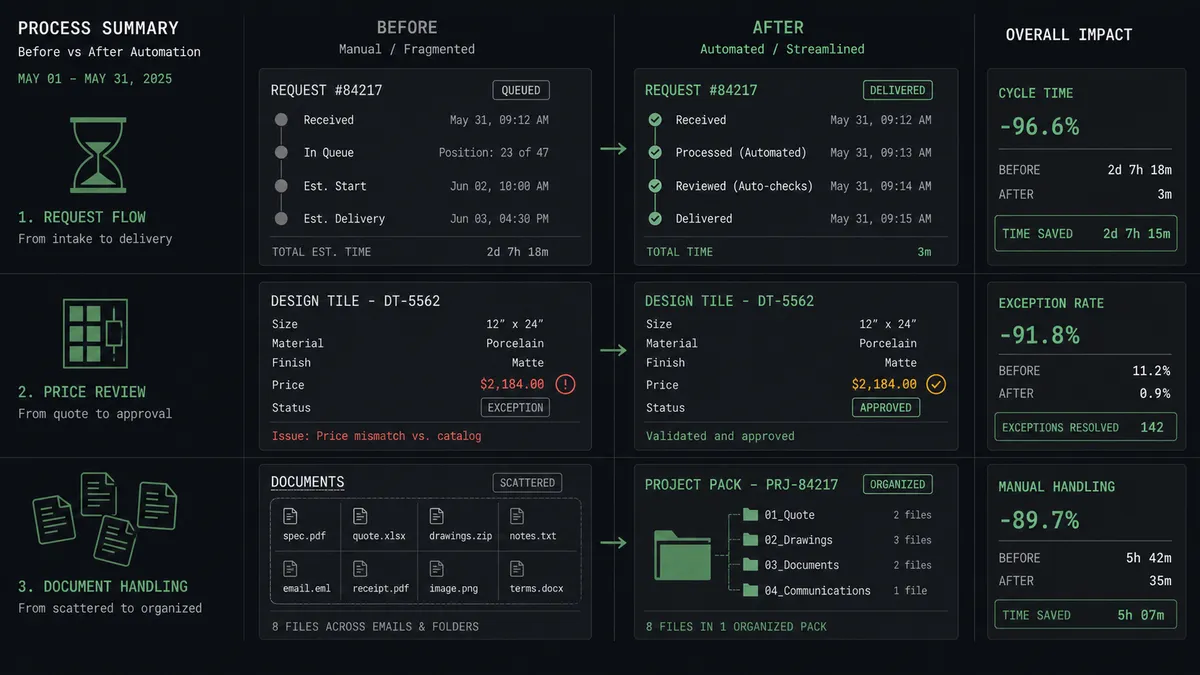
| Turnaround | Routine collateral waits days in a designer’s queue | Requested, filled, checked, and exported in one Slack thread |
| Designer time | Field-swapping crowds out actual design work | Designers build templates; the workflow handles the fills |
| Value errors | Wrong prices and dates surface when a customer holds you to them | Every price, date, and claim is confirmed by a named approver before export |
| Brand drift | Teams rebuild from old files when the queue is slow | Every output comes from a current brand template via Autofill Design and Wait |
| Asset findability | Finished files and shared images scattered across chat history | Exports and uploads filed with Create Folder and Move Folder Item |
What you can build
Request-to-file desk. On Mention takes the request, Get Brand Template Dataset defines the contract, Autofill Design and Wait fills it, and the gated Export Design and Wait delivers files in-thread. Routine collateral stops consuming designer days.
Pricing-change sweep. When pricing updates, the agent lists affected templates with List Brand Templates, refills each with Autofill Design and Wait using the new numbers, and queues every export behind one consolidated approval, so no stale-price one-pager survives the change.
Event card series. From one request with a list of sessions, the agent produces a card per session via repeated Autofill Design and Wait calls, posts the set for batch review, and exports the approved ones as a single package.
Chat-to-library asset intake. On File Shared, the workflow reads the file with Get File Info, places it in the media library with Upload Asset and Wait, and files it via Move Folder Item, so campaign photos shared in channels are in Canva before anyone asks.
Design lookup on demand. On Mention, “find the Q2 partner deck”, the agent runs List Designs and List Folder Items, posts matches with thumbnails and edit links from Get Design, and offers a fresh export of the winner.
Getting started
Start on the free plan: 100 executions a month, every integration included, no credit card required, plus 14 days of Professional for new accounts. Both connectors are available on every tier, and every tier includes unlimited users and unlimited workflows.
Explore the integration details:
- Slack integration (8 triggers and 16 actions covering messages, channels, members, and interactive approvals)
- Canva integration (26 actions covering designs, brand templates, autofill, exports, and the media library)
Start building free at flowrunner.ai or book a demo to see a live Slack to Canva workflow, value-confirmation gate and all.
Frequently asked questions
Is it free to connect Slack and Canva on FlowRunner?
You can build and run the connection on FlowRunner's free plan, which includes 100 executions a month and every integration with no credit card required, and new accounts also get 14 days of Professional. Both connectors are available on every FlowRunner tier, and every tier includes unlimited users and unlimited workflows.
Can I self-host the Slack to Canva workflow?
Yes. FlowRunner offers a cloud-hosted option and a self-hosted option, so the connection can run inside your own environment.
Does the AI agent need my own OpenAI or Claude key?
FlowRunner uses a bring-your-own-keys model, so you connect the AI provider key you already have. You are not locked to one model.
What happens when the agent is missing a value the template needs?
It asks instead of improvising. The agent reads the template's required fields from Get Brand Template Dataset, and when the request leaves one empty, it replies in the Slack thread naming exactly what is missing. Nothing is autofilled with a guessed price or date.
Which Slack triggers and Canva actions does this connection use?
The main path uses Slack's On Mention trigger, with On Channel Message and On File Shared as alternatives, driving Canva's List Brand Templates, Get Brand Template Dataset, Autofill Design and Wait, and Export Design and Wait actions.
Can the workflow put files shared in Slack into the Canva media library?
Yes. On File Shared fires when a file lands in a watched channel, the workflow reads it with Get File Info, and Upload Asset and Wait places it in the library, organized with Create Folder and Move Folder Item so assets are findable instead of buried in chat.