How to Connect Slack with AfterShip (With or Without an AI Agent)
Connect Slack to AfterShip so tracking numbers posted in a channel become monitored shipments with status replies, and an AI agent pauses for a human before Delete Tracking wipes a shipment's history.
How do you connect Slack to AfterShip?
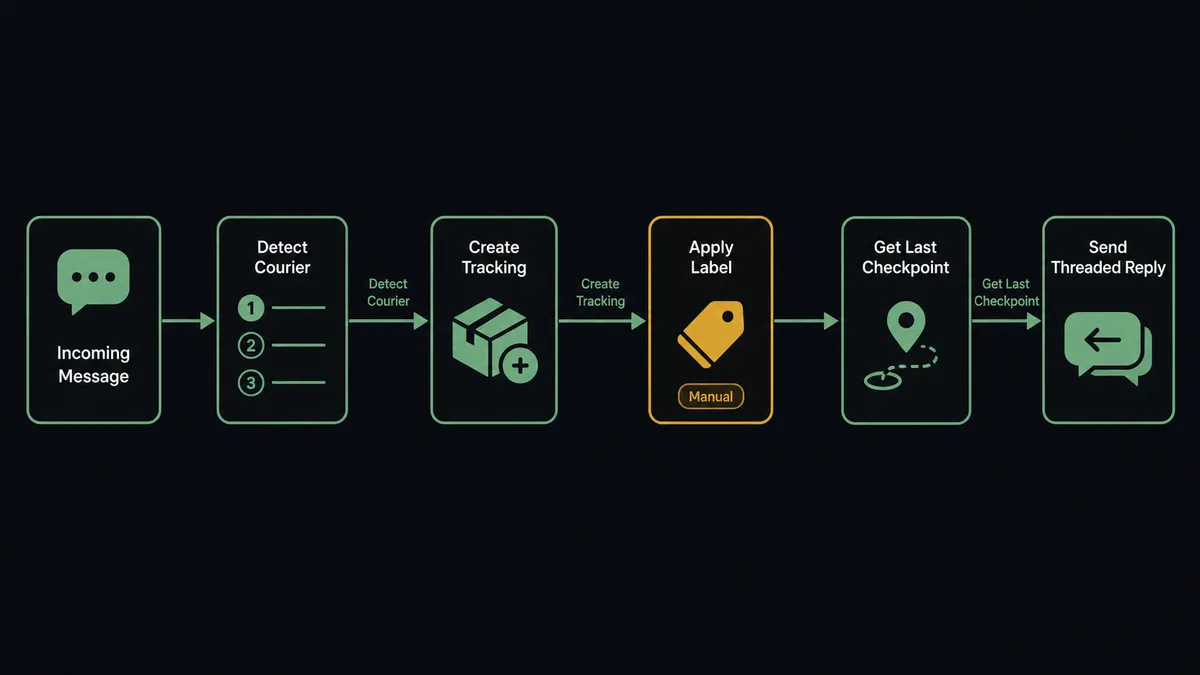
You connect Slack to AfterShip by having Slack’s On Channel Message trigger drive AfterShip actions: the workflow spots a tracking number in the message, calls Detect Courier to identify the carrier, calls Create Tracking to start monitoring, and replies in the thread with the current status from Get Last Checkpoint. FlowRunner is a visual AI-agent orchestration platform where automations run autonomously and pause for human judgment on the steps that carry real consequence. The same connection can run as an AI agent that answers shipment questions on its own and pauses for a named human before it calls Delete Tracking, the one action in this pair that permanently erases a shipment’s history.
The problem it solves
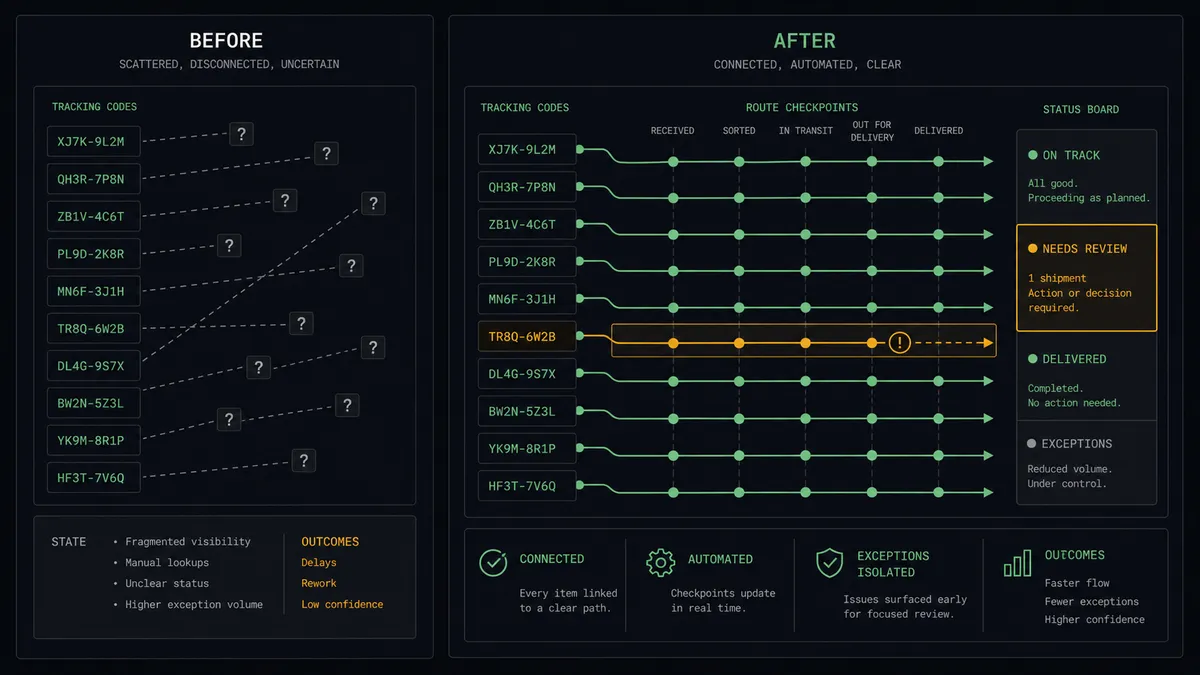
Right now, “where’s the shipment?” is a manual lookup loop. A customer emails support, support posts the tracking number in Slack, and someone on the ops team copies it into a carrier site, reads the status, and types the answer back into the thread. Different carriers, different sites, different formats. The same shipment gets looked up four times by three people, and nobody records what they found. Meanwhile the shipments no one asked about, the ones quietly stuck at a customs checkpoint or bouncing between depots, get zero attention because nobody is looking.
The edges are worse. A tracking number gets pasted with a typo and someone spends ten minutes on the wrong carrier’s site. A shipment marked delivered turns into a dispute three weeks later, and the checkpoint history that would settle it was never captured anywhere. And when someone does clean up an old tracking list, a still-live shipment gets deleted along with the dead ones, taking its entire event history with it. Delete Tracking cannot be undone.
How it works: the connection
The connection listens to Slack and drives AfterShip. Here is the plain version, grounded in the real connector actions.
- Trigger: Slack fires On Channel Message when a message containing a tracking number is posted in the watched channel.
- Identify the carrier: The workflow calls Detect Courier, which returns a ranked list of candidate carriers for the number, so monitoring starts against the right one.
- Start monitoring: It calls Create Tracking with the tracking number and confirmed courier slug. AfterShip begins following the shipment across its supported carriers.
- Label it: It calls Update Tracking to set a display title, such as the order reference or customer name from the message, and stores the Slack thread in custom fields.
- Answer immediately: It calls Get Tracking to pull the status tag, delivery estimate, and checkpoint history, then Send Message To Channel to reply in the thread with the current picture.
- Keep answering: On a schedule, the workflow calls List Trackings and Get Last Checkpoint for open shipments and posts changes back to the original threads, so status comes to the team instead of the team chasing it.
That is the “just connect them” answer. A pasted tracking number becomes a monitored shipment with a labeled record and an in-thread answer, and nobody opens a carrier site again.
Can an AI agent run it? (and why a human stays in the loop)
Yes, and the agent version is what turns a lookup script into a shipping desk. The agent holds Detect Courier, Create Tracking, Update Tracking, Get Tracking, Get Last Checkpoint, List Trackings, and Delete Tracking as tools, and it reasons about each message instead of pattern-matching it. A message with two tracking numbers becomes two trackings. A question like “did the Dallas order ship?” becomes a List Trackings keyword search on the order title rather than a failed regex. An ambiguous Detect Courier result does not become a coin flip: the agent posts the ranked candidates to the thread and asks.
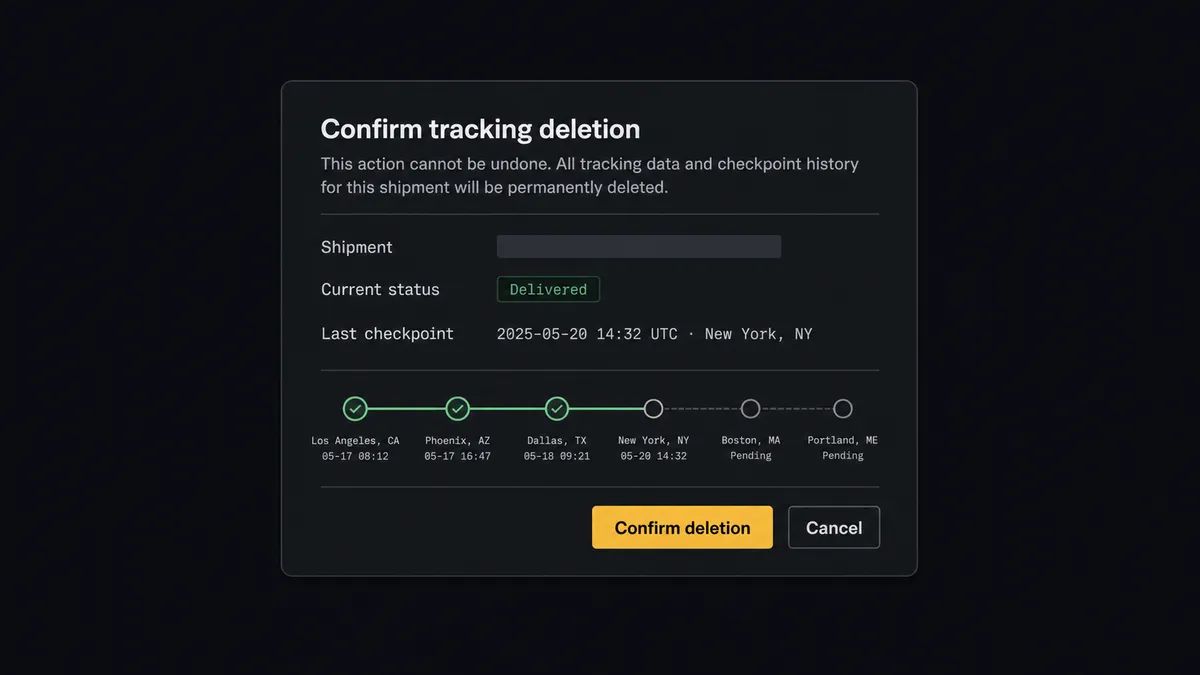
The consequential step is Delete Tracking. Every other action in this pair is additive or reversible in practice; this one permanently removes the tracking and its full checkpoint history, and the catalog states plainly that it cannot be undone. That history is what settles a delivery dispute, so the agent never runs cleanup alone. When a periodic sweep finds trackings that look finished or abandoned, the agent packages each one, calls the human-in-loop flow it holds as a tool, and posts: “Tracking [title], status delivered, last checkpoint [location and status]. Approve permanent deletion?” Only after a named approver signs off does Delete Tracking run, and the decision, approver, and timestamp land in the audit trail.
This is the digital andon cord, the framing our own prospects gave us: like Toyota’s pull cord on the production line, the workflow stops the line the moment an action would destroy something it cannot restore. Status questions flow through all day without a human touching them. The single destructive step waits for one.
FlowRunner vs Zapier
Zapier is the natural first stop for a Slack to AfterShip connection, and it earns that position. Its app directory is the largest in the category, its template gallery covers shipment-notification patterns out of the box, and a newcomer gets a first Zap running fast. Zapier also ships a native Request Approval step on paid plans, so a pause-for-a-person exists there too. Credit where it is due.
The difference is where the approval lives and what each run costs. In Zapier, the reviewer clicks through and signs in to Zapier’s interface to approve, and every action step in a run consumes a task from your quota. In FlowRunner, the agent invokes the approval as a tool, the approver acts on the card in Slack where the conversation already lives, and pricing is per workflow execution.
| What matters for this pair | FlowRunner | Zapier |
|---|---|---|
| Human-in-the-loop on Delete Tracking | Native. The agent invokes an approval flow as a callable tool and pauses before the deletion | Native Request Approval step on paid plans; the reviewer signs in to Zapier to act on it |
| Who runs the flow | An AI agent reads the message, reasons, picks actions as tools | A step sequence you configure per Zap |
| Users included | Unlimited users on every tier | Per-seat pricing until Enterprise |
| Bring your own AI keys | Yes, BYOK | AI runs through Zapier’s own AI products and billing |
| Self-hosted option | Yes, cloud-hosted or self-hosted | Cloud only |
| Pricing model | Transparent workflow-based tiers, priced per execution | Per-task; each action step in a run consumes a task |
If you need one simple shipment notification and you already live in Zapier, it will do the job. If your team fields shipment questions in Slack all day and you want the destructive step gated by an approval that happens where your team already works, this pairing is where FlowRunner is the better fit.
Before and after
| Category | Before | After |
|---|---|---|
| Status lookups | Someone copies each tracking number into a carrier site and types the answer back | The reply lands in the Slack thread with status and last checkpoint, automatically |
| Carrier identification | People guess the carrier from the number format and sometimes guess wrong | Detect Courier ranks candidates and the agent confirms before monitoring starts |
| Stuck shipments | Nobody notices a stalled shipment until the customer complains | Scheduled sweeps surface trackings with stale checkpoints to the channel |
| Delivery disputes | The checkpoint history was never captured, so disputes become arguments | Every monitored shipment keeps its full checkpoint record in AfterShip |
| Cleanup | Bulk deletions quietly take live shipments and their history with them | Delete Tracking runs only after a named approver signs off on each one |
What you can build
Paste-to-track support desk. On Channel Message fires on a tracking number, the agent calls Detect Courier, Create Tracking, and Get Tracking, and replies in-thread with the status and delivery estimate. One paste, one monitored shipment, one answer.
Ask-the-agent shipment lookup. Someone mentions the agent with “where is the Henderson order?” On Mention fires, the agent searches with List Trackings against display titles, pulls Get Last Checkpoint, and answers in the thread.
Morning exceptions sweep. Every morning the workflow calls List Trackings, checks each open shipment with Get Last Checkpoint, and posts a single digest of shipments whose status has not moved, so ops sees trouble before customers do.
Reaction-driven escalation. A team lead adds a flag reaction to a shipment update. On Reaction Added fires and the agent pins the details, updates the tracking title with an escalation marker via Update Tracking, and notifies the owner with Send Direct Message.
Approved cleanup cycle. A scheduled flow gathers delivered trackings past your retention window, and the agent walks the approver through them in Slack, calling Delete Tracking only for the ones a human confirms.
Getting started
Start on the free plan: 100 executions a month, every integration included, no credit card required, plus 14 days of Professional for new accounts. Both connectors are available on every tier, and every tier includes unlimited users and unlimited workflows, so support and ops can share the same shipment desk from day one.
Explore the integration details:
- Slack integration (8 triggers and 16 actions covering messages, mentions, reactions, channels, and members)
- AfterShip integration (9 actions covering trackings, checkpoints, and courier detection)
Start building free at flowrunner.ai or book a demo to see a live Slack to AfterShip workflow, deletion approval and all.
Frequently asked questions
Is it free to connect Slack and AfterShip on FlowRunner?
You can build and run the connection on FlowRunner's free plan, which includes 100 executions a month and every integration with no credit card required, and new accounts also get 14 days of Professional. Both connectors are available on every FlowRunner tier, and every tier includes unlimited users and unlimited workflows.
Can I self-host the Slack to AfterShip workflow?
Yes. FlowRunner offers a cloud-hosted option and a self-hosted option, so the connection can run inside your own environment.
Does the AI agent need my own OpenAI or Claude key?
FlowRunner uses a bring-your-own-keys model, so you connect the AI provider key you already have. You are not locked to one model.
What happens when the agent cannot tell which carrier a tracking number belongs to?
The agent calls Detect Courier, which returns a ranked list of candidate carriers. When the ranking is ambiguous, the agent does not guess. It posts the candidates back to the Slack thread and waits for a person to pick one before it calls Create Tracking, so monitoring never starts against the wrong carrier.
Which Slack events can trigger an AfterShip action?
Slack offers eight triggers: On Channel Message, On Mention, On Reaction Added, On Block Action, On File Shared, On New Member, On Channel Created, and On Message from Query. AfterShip has no triggers in the catalog, so flows start from Slack or from a schedule that sweeps trackings with List Trackings.
Why does deleting a tracking need human approval?
Delete Tracking permanently removes the tracking and its full checkpoint history from AfterShip, and the catalog is explicit that this cannot be undone. If a delivery is later disputed, that history is your evidence. The agent packages the tracking's status and last checkpoint and waits for a named approver before it deletes anything.