How to Connect SharePoint to Slack for Approved File Sharing
Connect SharePoint to Slack so every new file gets tracked and announced automatically, then let an AI agent request approval in Slack before it creates an external sharing link.
How do you connect SharePoint to Slack?
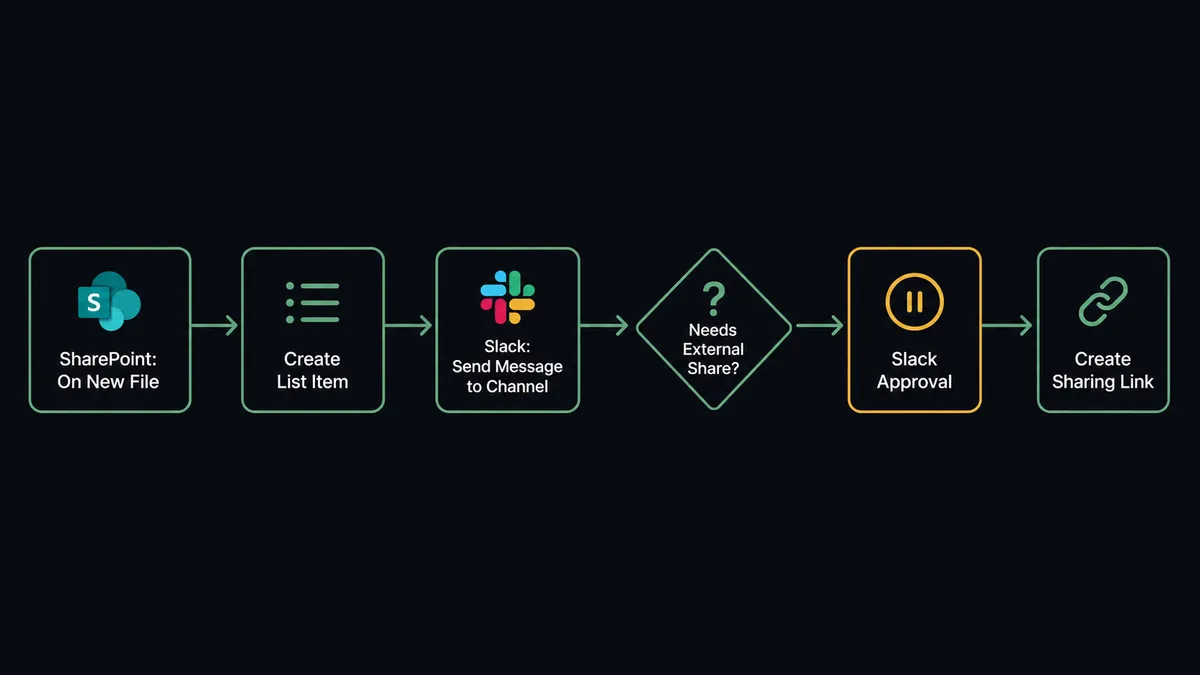
On New File in SharePoint triggers a flow that calls Create List Item to log the file against a tracking list, then calls Send Message to Channel in Slack to announce it to your team. FlowRunner is a visual AI-agent orchestration platform where automations run autonomously and pause for human judgment on the steps that carry real consequence. The same connection can run as an AI agent that reads the file, decides whether it needs to leave the tenant, and pauses for a human in Slack before it creates an external sharing link.
The problem it solves
Right now, someone on your team is the human glue between SharePoint and Slack. A vendor drops a signed agreement into a contracts library and it sits there until someone happens to open the folder and notices it. Nothing logs the file against the record it belongs to. Nothing tells the account manager it arrived. The file exists, but the work of connecting it to the deal, the client, or the project happens by memory, if it happens at all.
The second problem is sharing. When someone does need to send a file outside the company, they create the link by hand and pick the scope themselves, one file at a time. There is no consistent review, no record of who approved sending what to whom, and no way to answer “who has access to this file” six months later without digging through link settings one item at a time. An office manager or ops lead ends up doing both jobs: watching the library for new files and gatekeeping every external link, manually, all day.
How it works: the connection
FlowRunner watches SharePoint using the On New File trigger, which fires the moment a file lands in a monitored document library. The agent downloads the file into FlowRunner storage and reads its contents to identify what it is and which record it belongs to.
The agent then calls Get List Columns on the tracking list to confirm the field names, and calls Create List Item to log the file: the counterparty, the file name, the date, and a link back to the document. A file sitting in a folder that someone had to remember to log becomes a tracked record the moment it arrives, with no export and no manual entry.
Next, the agent calls Send Message to Channel in Slack to post the new file to the relevant team channel. The message names the file and the list item it was matched against, so the team sees the arrival in the same place they already work, instead of checking the library on a schedule.
If the flow later needs to sync that list item elsewhere, the agent calls Update List Item when the record changes, and the On Updated List Item trigger on the SharePoint side lets a downstream flow react when the change happens the other way. The library and the tracking list stay aligned without anyone exporting and pasting between them.
Can an AI agent run it? (and why a human stays in the loop)
A rule-based integration connects the trigger to the action and stops. An AI agent reads the file and the context around it and decides what happens next. That distinction matters most at the one step in this flow that cannot be undone: creating an external sharing link.
Reading a site, searching a library, and syncing an internal list are safe, reversible operations. Creating a sharing link that works outside the tenant is not. Once the link exists, anyone who holds it can open the file, and pulling the link back does not un-share what was already seen. The agent treats this as the boundary between assembling a file and exposing it.
Before calling Create Sharing Link, the agent evaluates the file, the destination, and who is asking for it. A weekly status report going to an internal SharePoint list stays internal automatically. A signed agreement that a deal is ready to send to an external client is a different situation, and the agent recognizes this from context, not a hardcoded rule about file type or folder name. It pauses execution and invokes a human-in-loop flow as a callable tool, posting to Slack through On Block Action with Approve and Restrict buttons: “This would create an anyone-with-the-link view link to Q3-Renewal-Agreement.pdf for an external client. Approve the link and its scope, or restrict it to the organization?”
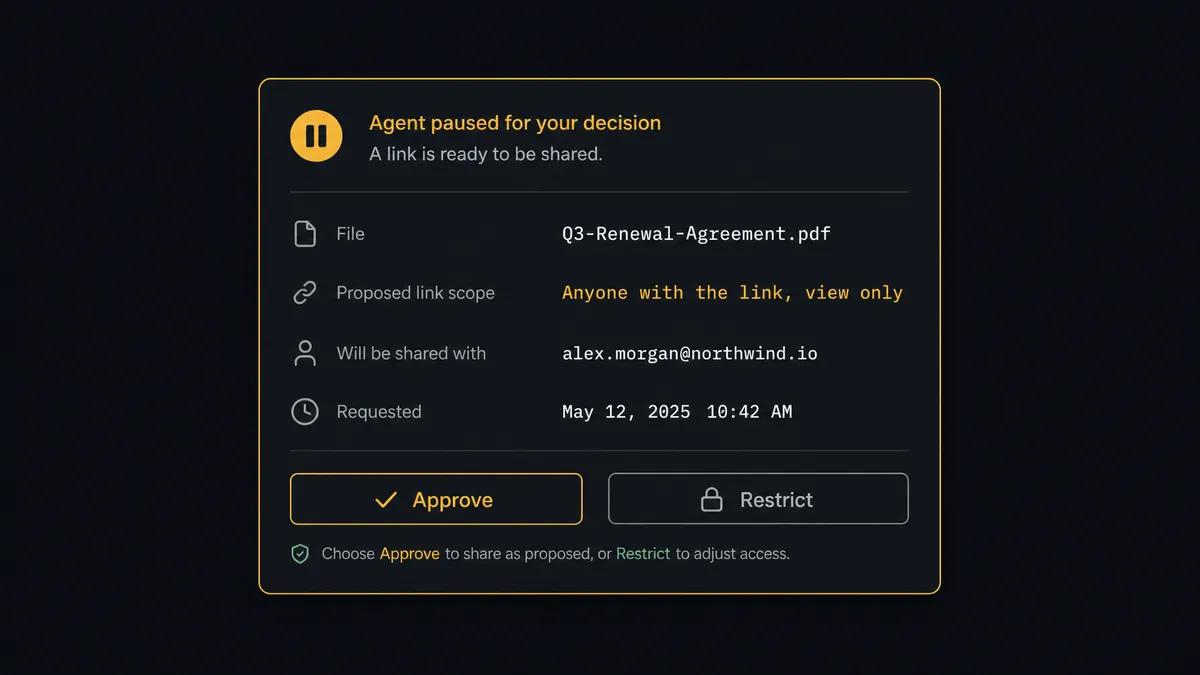
The person reviewing sees the exact file, the exact scope, and the exact recipient, and answers directly in Slack. On approval, the agent calls Create Sharing Link and posts the resulting URL back in the thread. On restriction, the agent logs the decision and the file stays internal. The approver’s identity and the timestamp are captured in the audit trail either way. This is not a sync tool. The agent knows when to stop and ask.
FlowRunner vs the tool you’re probably comparing
If you built this connection on Zapier, you have a trigger-action rule: a new file in SharePoint posts a Slack message. That rule fires the same way every time, whether the file is an internal status report or a signed contract headed to a client. Adding a review step before an external share requires wiring a separate approval tool by hand, with no native record of who approved the link or when.
Zapier is genuinely good at the basic version of this connection. It is fast to set up and its SharePoint and Slack integrations are well established. For the sharing-review piece specifically, here is where the comparison lands:
| Feature | Zapier | FlowRunner |
|---|---|---|
| Basic trigger-action connection | Yes, fast to set up | Yes, same speed |
| Native human approval before external sharing | Not native (requires manual Slack wiring) | Native callable tool; agent invokes it by judgment |
| AI agent that reasons about which files need review | Not available | Yes; agent reads the file and destination and decides |
| Audit trail of approvals | No | Yes; approver identity and timestamp captured |
| Unlimited users on every tier | No (seat-based pricing) | Yes |
| Bring your own AI keys | No | Yes (BYOK model) |
Before and after
| Category | Before | After |
|---|---|---|
| New files | Files land untracked; no matching record and no owner | Create List Item runs the moment On New File fires |
| Team visibility | Team checks the library on their own schedule to notice new files | Send Message to Channel announces every tracked file in Slack |
| External sharing | Someone creates each link by hand and picks its scope one file at a time | Every external link pauses for approval before it reaches anyone outside the tenant |
| List sync | Records copied between SharePoint and other systems by export and paste | List items sync to and from external systems as items are created or updated |
| Approval record | No record of who approved sending a file externally | Approver identity and timestamp captured in the audit trail |
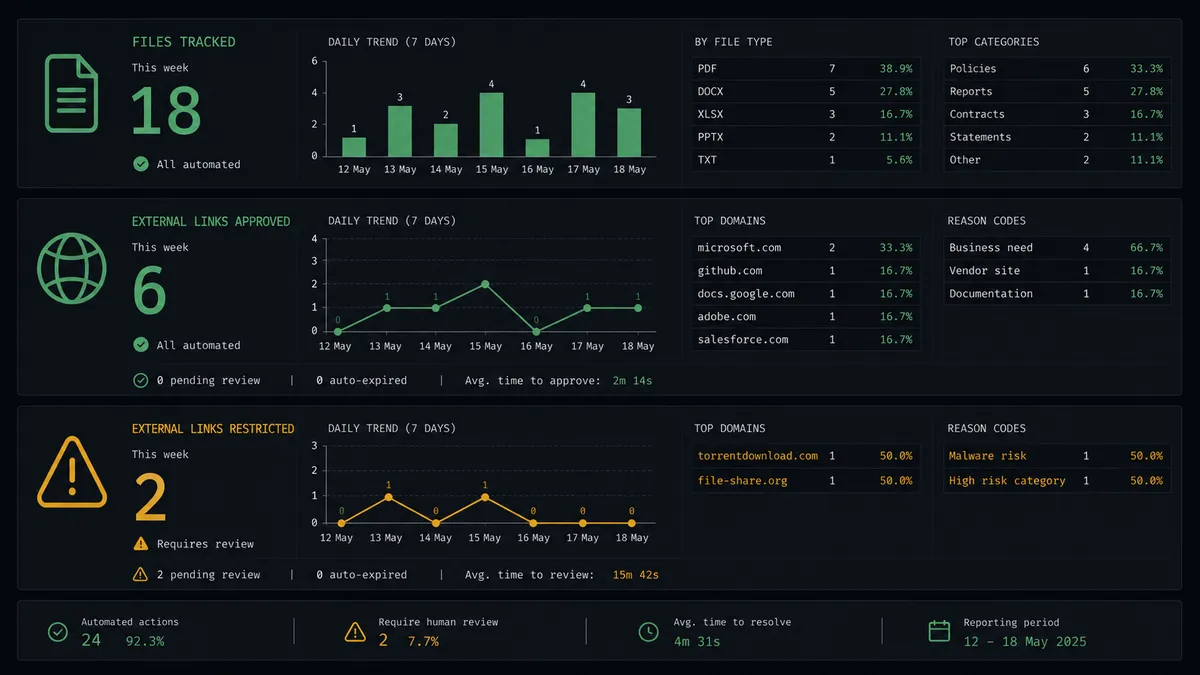
What you can build
Contract intake with tracked filing. When a vendor drops a signed agreement into a contracts library, On New File fires and the agent calls Create List Item to log the counterparty, effective date, and a link back to the file, then calls Send Message to Channel so the account owner sees it land.
Reviewed client deliverables. When a deliverable is finished in a document library, the agent assembles the file name, proposed link scope, and recipient, then pauses in Slack via On Block Action before calling Create Sharing Link. Nothing goes to a client without a person confirming the scope.
Two-way list sync with a source system. The agent reads rows from an external system on a schedule and calls Create List Item or Update List Item to mirror each record into a SharePoint list, using Get List Columns first to map field names. When On Updated List Item fires on the SharePoint side, the agent pushes the change back.
Onboarding workspace provisioning. When a new project starts, the agent calls Create List to set up a tracking list and Create Folder to build the library structure, then posts a summary to the project channel via Send Message to Channel so the team knows the workspace is ready.
Escalated sharing exceptions. When the agent restricts a link because the recipient or file type looks unusual, it calls Send Direct Message to route the specific exception to a manager with full context, rather than posting it to the whole channel.
Common questions
Is it free to connect SharePoint and Slack on FlowRunner? FlowRunner has a free plan with 100 executions a month, every integration included, and no credit card required, and new accounts get 14 days of Professional on top. The Growth plan is $45 per month and includes unlimited users, unlimited workflows, and full access to both the SharePoint and Slack connectors.
Can I self-host the SharePoint and Slack connection? Yes. FlowRunner offers a self-hosted Community Edition at no cost and an Enterprise self-hosted option with multi-instance clustering and a full compliance suite. Both include the same connector library as the cloud-hosted tiers.
Does the AI agent need my own OpenAI key to run this flow? Yes. FlowRunner uses a bring-your-own-keys model for AI providers. You connect your own key, plus your SharePoint account through Microsoft Graph and your Slack workspace. Your credentials stay in your environment.
What happens when the agent is not sure whether a file should be shared externally? The agent does not guess. It invokes a human-in-loop flow as a callable tool, posts the file name, the proposed link scope, and the recipient to Slack with Approve and Restrict buttons, and pauses until a person decides. The decision, the approver’s identity, and the timestamp are captured in the audit trail.
Can Slack notify my team when a file lands in a SharePoint library? Yes. When On New File fires, the agent can call Send Message to Channel in Slack to post the file name and library to your team the moment it arrives, before any list item or sharing decision happens.
What if the same file update fires the trigger twice? The agent checks the destination list for an existing item tied to the file before calling Create List Item, so a duplicate trigger does not create a duplicate record.
Getting started
FlowRunner has a free plan with 100 executions a month, every integration included, and no credit card required, and new accounts get 14 days of Professional on top. Every plan includes unlimited users and unlimited workflows.
Both connectors are ready to use:
Start building at flowrunner.ai or book a 30-minute walkthrough at calendly.com/flowrunner/intro.
Frequently asked questions
Is it free to connect SharePoint and Slack on FlowRunner?
FlowRunner has a free plan with 100 executions a month, every integration included, and no credit card required, and new accounts get 14 days of Professional on top. The Growth plan is $45 per month and includes unlimited users, unlimited workflows, and full access to both the SharePoint and Slack connectors.
Can I self-host the SharePoint and Slack connection?
Yes. FlowRunner offers a self-hosted Community Edition at no cost and an Enterprise self-hosted option with multi-instance clustering and a full compliance suite. Both include the same connector library as the cloud-hosted tiers.
Does the AI agent need my own OpenAI key to run this flow?
Yes. FlowRunner uses a bring-your-own-keys model for AI providers. You connect your own key, plus your SharePoint account through Microsoft Graph and your Slack workspace. Your credentials stay in your environment.
What happens when the agent is not sure whether a file should be shared externally?
The agent does not guess. It invokes a human-in-loop flow as a callable tool, posts the file name, the proposed link scope, and the recipient to Slack with Approve and Restrict buttons, and pauses until a person decides. The decision, the approver's identity, and the timestamp are captured in the audit trail.
Can Slack notify my team when a file lands in a SharePoint library?
Yes. When On New File fires, the agent can call Send Message to Channel in Slack to post the file name and library to your team the moment it arrives, before any list item or sharing decision happens.
What if the same file update fires the trigger twice?
The agent checks the destination list for an existing item tied to the file before calling Create List Item, so a duplicate trigger does not create a duplicate record.