How to Connect Google Drive with Slack (With or Without an AI Agent)
Connect Google Drive and Slack so file events trigger instant channel updates, optionally as an AI agent that pauses for a human before granting external access or acting on sensitive documents.
How do you connect Google Drive to Slack?
You connect Google Drive to Slack by setting a trigger in one system to drive an action in the other. The most common starting point: Google Drive’s On New File trigger fires when a document lands in a watched folder, and the agent calls Slack’s Send Message to Channel to post a notification with the file name, folder path, and a link. FlowRunner is a visual AI-agent orchestration platform where automations run autonomously and pause for human judgment on the steps that carry real consequence. That same connection runs as an AI agent with a human in the loop before it grants external access or acts on a sensitive document.
The problem it solves
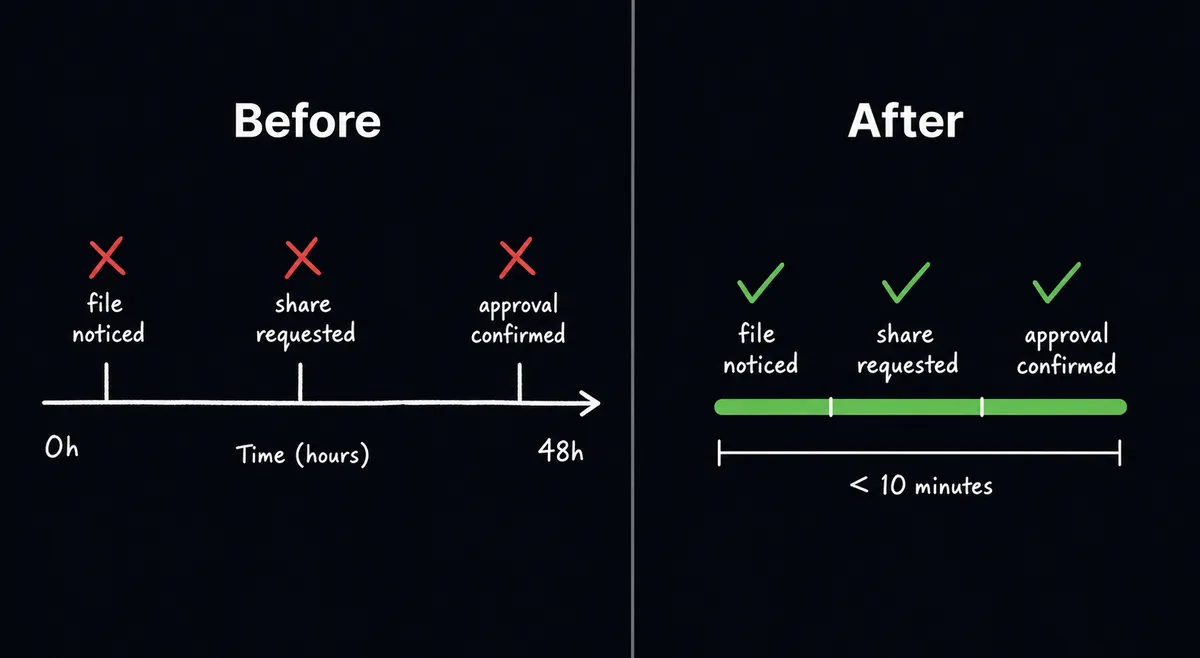
The manual process looks like this: a file lands in a shared Drive folder, someone notices it eventually, forwards a Slack message to the right person, that person opens Drive, checks the file, decides what to do, and either shares it or routes it back for corrections. Nothing falls through the cracks as long as someone is watching the folder. But folders do not watch themselves. Files sit unprocessed during off-hours, over weekends, and whenever the person responsible is in a meeting or on leave.
Sharing is the part that causes compliance problems. When an ops manager grants a client access to a project folder, there is rarely a record of who approved it, what scope was granted, or when it happened. The audit request six months later produces a shrug. Sharing requests routed through Slack DMs are even harder to trace. The work to clean this up falls on whoever is doing the next compliance review.
How it works: the connection
The connection between Google Drive and Slack runs in either direction. Here is the most common flow.
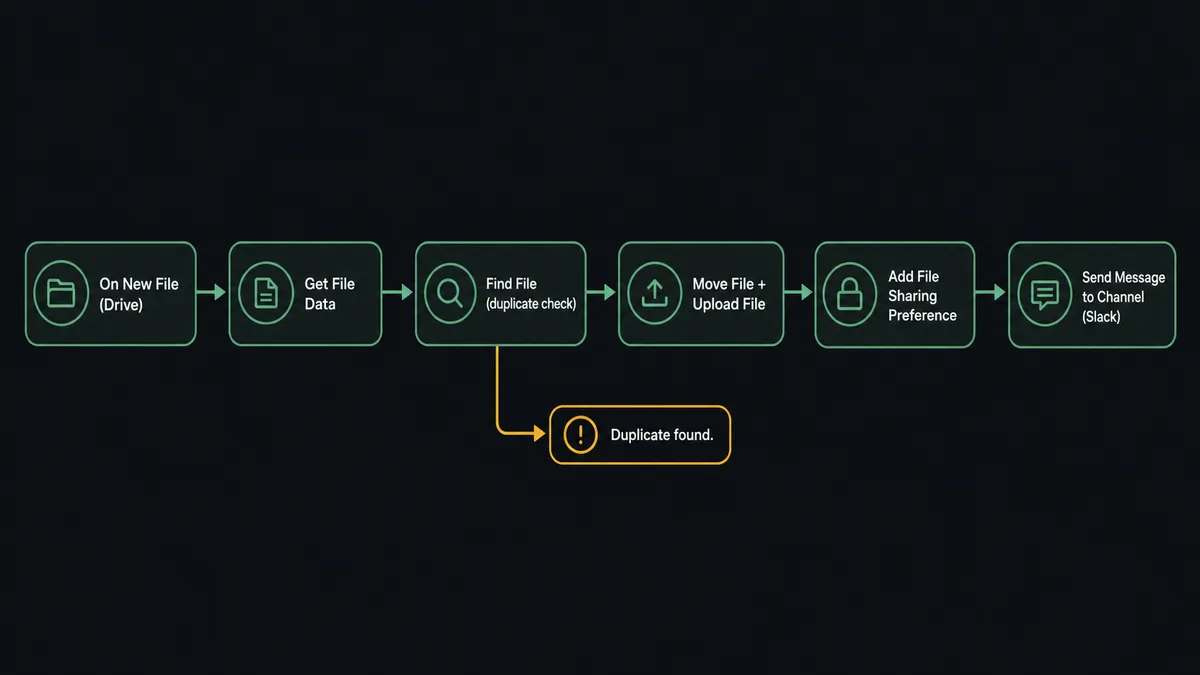
Google Drive’s On New File trigger fires the moment a file lands in a watched intake folder. The agent calls Get File Data to read the metadata (name, type, size, owner) and Get File Content to pull the document for any downstream processing. From there, it calls Find File to search the destination folder for a duplicate before acting.
If everything checks out, the agent calls Move File to route the original into a vendor-named or date-stamped archive folder. For any processed output, it calls Upload File to land the result in the right destination with the right name. Then it calls Add File Sharing Preference to apply the correct sharing scope, whether that is view-only for a leadership team or edit access for an internal collaborator.
The final step is Slack’s Send Message to Channel, which posts a structured summary to the relevant channel: the file name, the destination folder, who got access, and a direct link. The team gets confirmation without having to check Drive themselves.
For the reverse direction, Slack’s On File Shared trigger fires when a team member drops a file into a designated channel. The agent calls Get File Info to retrieve the metadata, downloads the file for processing, and uploads the result to the appropriate Google Drive folder with Upload File. It then posts a confirmation back to the Slack thread with the Drive link. The vendor-docs channel becomes an intake pipeline without anyone managing the handoff.
Can an AI agent run it? (and why a human stays in the loop)
A basic Zapier or n8n connection moves a file from one place to another. The same trigger, the same action, every time. An AI agent running this workflow reads the data, reasons about what it finds, and picks different tools depending on the situation.
Here is what that looks like in practice. The agent receives a file via On New File. It reads the metadata with Get File Data and the content with Get File Content. It runs Find File to check for duplicates. Then it evaluates: Is this file type expected in this folder? Is the recipient an internal address or an external one? Does the document contain any patterns the agent has been instructed to treat as sensitive?
When Add File Sharing Preference is about to extend access outside the organization, the agent does not execute on its own. That is the moment it invokes the human-in-loop flow as a callable tool. It sends a Slack Direct Message to the data owner with the full context: the file name, the folder, the external recipient, the requested role. The message includes three interactive buttons: Approve, Change Role, and Deny. The workflow pauses.
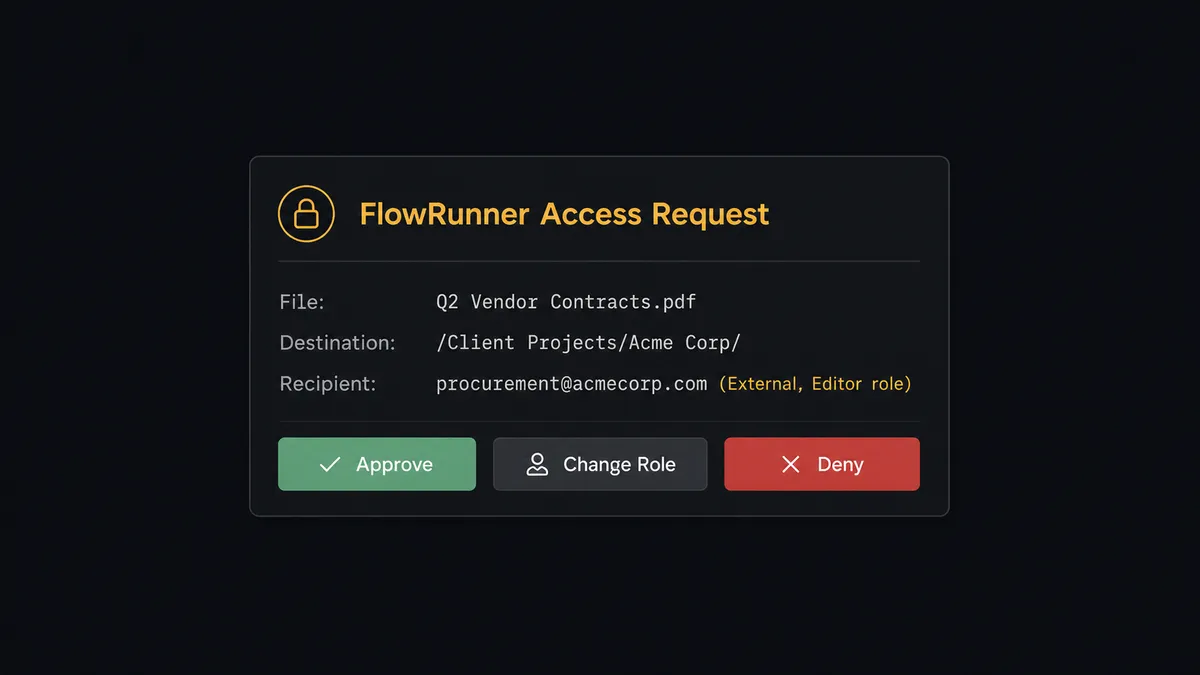
The data owner decides from their phone. On approval, the agent calls Add File Sharing Preference, completes the Move File step, and posts the sharing record to the team channel. On denial, the agent routes the request back with a note. The approver’s identity and the timestamp are captured automatically in the audit trail.
This is not a threshold. The agent decides whether to escalate based on context. It processes internal-only shares automatically and pauses on anything that leaves the building. A file shared to an internal collaborator in a known project folder clears in seconds. A file going to an address the agent has never seen from a folder it has not processed before gets a human in the loop. That distinction is the agent’s judgment call, not a rule in a spreadsheet.
Prospects call this the “digital andon cord.” The agent stops the line when it hits uncertainty. This is not a sync tool.
FlowRunner vs Zapier
Zapier is the right tool if you want a simple one-trigger, one-action connection between Drive and Slack with no custom logic. It is reliable, fast to set up, and has a large library of pre-built Zaps. For teams who need a file-lands, message-fires workflow and nothing more, Zapier gets there in minutes.
The gaps show up when the workflow needs to reason. Zapier runs a fixed sequence. There is no native mechanism for the tool to evaluate data and decide which path to take. Human-in-loop in Zapier means a conditional branch set to fire at a hardcoded threshold, not an agent that reads context and makes the call.
| Capability | Zapier | FlowRunner |
|---|---|---|
| Drive trigger to Slack notification | Yes | Yes |
| AI agent that reasons about file data | No | Yes |
| Human-in-loop as a callable tool | No (conditional branch only) | Yes (agent invokes as tool at runtime) |
| Audit trail with approver identity | No | Yes, on Professional tier and above |
| BYOK for AI model provider | No | Yes |
| Unlimited users on every tier | No (seat-based pricing) | Yes |
| Self-hosted deployment | No | Yes (Community Edition free) |
For a team that has outgrown the fixed-sequence model, or needs a record of who approved what and when, the gap between Zapier and FlowRunner is material.
Before and after
| Category | Before | After |
|---|---|---|
| File intake | Files checked manually by whoever remembers to look at the intake folder | On New File fires the moment a document lands; the agent processes it in real time |
| Sharing approvals | Shared via Slack DM with no consistent record of scope or approver | Add File Sharing Preference runs after Slack approval; approver identity and timestamp captured automatically |
| Duplicate checking | Checked by eye before filing, or discovered after the fact | Find File runs before every Move File or Upload File call; duplicates are flagged before action |
| Team notification | Email or Slack message written and sent manually after filing | Send Message to Channel posts the destination link, sharing scope, and summary automatically |
| Exception handling | Escalation via email chain or a meeting | Agent sends a Slack Direct Message with buttons; decision made from a phone in minutes |
What you can build
File intake pipeline from a Slack channel. When a team member drops a vendor invoice into #vendor-docs, On File Shared fires. The agent calls Get File Info, downloads the document, parses the content, uploads the result to Google Drive with Upload File, and posts a structured summary back in the Slack thread. The channel becomes a drop zone; Drive becomes the record of truth.
Client folder provisioning. When a new client engagement starts, the agent calls Create Folder to build the project structure in Drive, Upload File to land the kickoff packet, and Add File Sharing Preference to grant external collaborators the right scope. It then calls Create Private Channel in Slack, Invite User to Channel to add the right stakeholders, and Send Message to Channel with the folder link. Onboarding runs as one workflow instead of a checklist.
Report distribution with access control. A scheduled flow produces a weekly PDF. The agent calls Upload File into the reports folder, Add File Sharing Preference to grant leadership view-only access, and Create Shortcut to surface it in the executives’ top-level folder. It then calls Send Message to Channel to notify owners with the link. No manual upload, no forwarding links, no access requests.
Real-time compliance alert on sensitive documents. When On File Updated fires on a document marked as sensitive, the agent calls Get File Data to check who last modified it and what changed. If the modifier is unexpected, the agent sends a Slack Direct Message to the data owner with the file name, the modifier, and the timestamp. The owner reviews and either confirms or triggers a review workflow.
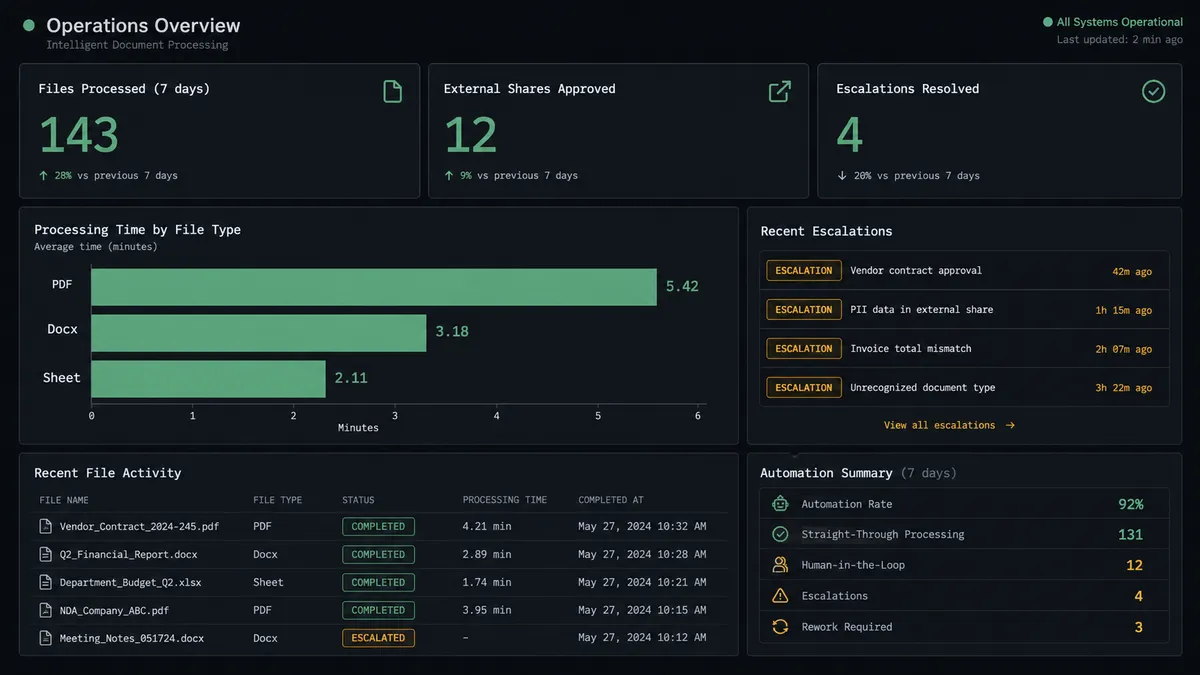
Common questions
Is it free to connect Google Drive and Slack on FlowRunner? FlowRunner has a free plan with 100 executions a month, every integration included, and no credit card required, and new accounts get 14 days of Professional on top. No credit card is required to start. Beyond the free plan, Growth costs $45 per month.
Can I self-host FlowRunner? Yes. FlowRunner offers a free Community Edition for single-instance self-hosted deployments. The Enterprise self-hosted tier adds multi-instance clustering, full compliance features, and dedicated support.
Does the AI agent need my own OpenAI key? FlowRunner uses a Bring Your Own Key (BYOK) model for AI providers. You connect your own API key from whichever AI provider you prefer. FlowRunner orchestrates the agent; you control the model and the cost.
What happens when the agent is not sure what to do? The agent invokes a human-in-loop flow as a callable tool. It sends a Slack message with full context, surfaces the specific uncertainty, and presents decision options. The workflow pauses until the human responds, then resumes with that input recorded in the audit trail.
Does FlowRunner limit the number of users who can use these workflows? No. All FlowRunner tiers include unlimited users and unlimited workflows. You are not paying per seat.
Can the agent react to files dropped into a Slack channel, not just Google Drive? Yes. The On File Shared trigger in Slack fires when a team member uploads a file to a monitored channel. The agent can then download that file using Get File Info, process it, and upload results back to Google Drive with Upload File.
Getting started
FlowRunner has a free plan with 100 executions a month, every integration included, and no credit card required, and new accounts get 14 days of Professional on top. Any real email address works; disposable domains are not accepted.
Connect both integrations to get started:
- Google Drive integration: OAuth2 setup takes under two minutes. The On New File trigger and all 17 Drive actions are available immediately.
- Slack integration: OAuth2 with multi-workspace support. All 8 triggers and 16 actions, including On Block Action for interactive approvals, are ready once connected.
Start a trial at flowrunner.ai. If you want to talk through your specific file handling or approval workflow before building, book a 30-minute intro at calendly.com/flowrunner/intro.
Frequently asked questions
Is it free to connect Google Drive and Slack on FlowRunner?
FlowRunner has a free plan with 100 executions a month, every integration included, and no credit card required, and new accounts get 14 days of Professional on top. No credit card is required to start. Beyond the free plan, Growth costs $45 per month.
Can I self-host FlowRunner?
Yes. FlowRunner offers a free Community Edition for single-instance self-hosted deployments. The Enterprise self-hosted tier adds multi-instance clustering, full compliance features, and dedicated support.
Does the AI agent need my own OpenAI key?
FlowRunner uses a Bring Your Own Key (BYOK) model for AI providers. You connect your own API key from whichever AI provider you prefer. FlowRunner orchestrates the agent; you control the model and the cost.
What happens when the agent is not sure what to do?
The agent invokes a human-in-loop flow as a callable tool. It sends a Slack message with full context, surfaces the specific uncertainty, and presents decision options. The workflow pauses until the human responds, then resumes with that input recorded in the audit trail.
Does FlowRunner limit the number of users who can use these workflows?
No. All FlowRunner tiers include unlimited users and unlimited workflows. You are not paying per seat.
Can the agent react to files dropped into a Slack channel, not just Google Drive?
Yes. The On File Shared trigger in Slack fires when a team member uploads a file to a monitored channel. The agent can then download that file using Get File Info, process it, and upload results back to Google Drive with Upload File.