How to Connect Salesforce Pro with Base64.ai (With or Without an AI Agent)
Connect Base64.ai to Salesforce so scanned IDs, applications, and signed agreements become verified leads and records, with a human confirming any borderline identity match before Convert Lead to Contact runs.
How do you connect Salesforce Pro to Base64.ai?
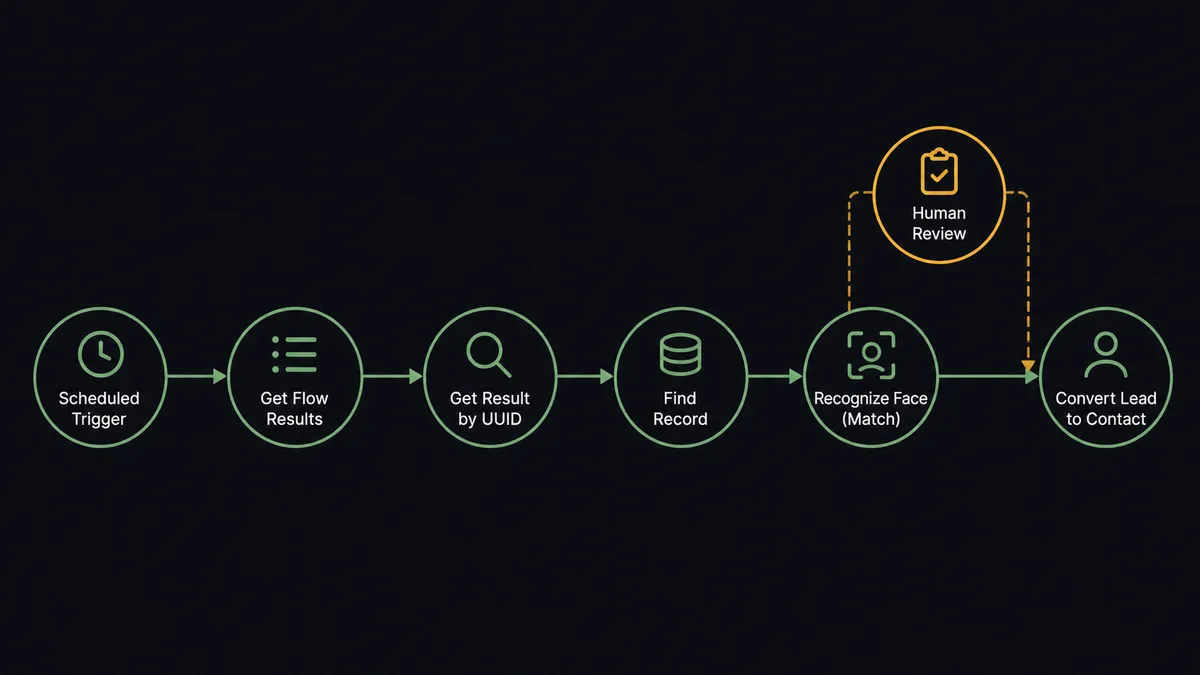
You connect Salesforce to Base64.ai with a scheduled workflow: each run calls Get Flow Results to collect the documents Base64.ai has processed, pulls each extraction with Get Result by UUID, checks Salesforce for the applicant with Find Record, and creates or updates the record with Create Lead, Update Record, and Add File to Record. FlowRunner is a visual AI-agent orchestration platform where automations run autonomously and pause for human judgment on the steps that carry real consequence. The same connection can run as an AI agent that verifies identity documents with face and signature matching, converts clean applicants on its own, and pauses for a named human before a borderline match becomes a trusted contact.
The problem it solves
Today, document-heavy intake runs on a person toggling between a PDF viewer and Salesforce. An application arrives with a scanned driver’s license, a signed agreement, and maybe a selfie for identity verification. Someone reads the ID, types the name and document number into a lead, eyeballs the photo against the selfie, checks that the signature page is actually signed, drags the files somewhere, and moves the record forward. It is slow, it is boring, and every manual step is an error waiting for an audit to find it.
The failures cluster at the edges. An applicant’s name is spelled one way on the ID and another way on the form, so a duplicate lead is born. The “verified” checkbox gets ticked without anyone comparing faces, because the queue was long that day. A signature that does not match the specimen sails through because signature comparison by eyeball is a coin flip. When compliance asks who verified a specific applicant and on what evidence, the answer is a shrug and a shared drive folder.
How it works: the connection
The connection reads from Base64.ai and writes to Salesforce. Here is the plain version, grounded in the real connector actions.
- Trigger: On a schedule, the workflow calls Get Flow Results in Base64.ai to collect documents processed since the last run.
- Read: Get Result by UUID pulls each extraction: the recognized document type, labeled fields, and per-field confidence scores.
- Match the applicant: Find Record checks Salesforce for an existing lead by email or document number. Create Lead adds new applicants with the extracted fields.
- Verify the face: Recognize Face (Match) compares the photo on the scanned ID with the submitted selfie and returns a similarity score.
- Verify the signature: Detect Signatures confirms the agreement is signed, and Verify Signature (Match) compares it against the specimen on file.
- Attach the evidence: Add File to Record stores the scanned document on the lead, and Create Enhanced Note records what was extracted and checked.
- Advance the record: For applicants who pass, Convert Lead to Contact promotes them, and Update Record writes the verified status.
That is the “just connect them” answer. Applications become structured, evidenced Salesforce records instead of a stack of PDFs someone will get to. Since neither connector exposes an event trigger, the schedule is the heartbeat, draining the extraction queue every run.
Can an AI agent run it? (and why a human stays in the loop)
Yes, and identity verification is exactly the kind of work that deserves an agent rather than a fixed script. The agent holds the real actions as tools: Scan Document, Recognize Face (Match), Detect Signatures, Verify Signature (Match) on the Base64.ai side; Find Record, Create Lead, Convert Lead to Contact, Add File to Record, Create Enhanced Note, Update Record on the Salesforce side. For each application it reasons about what the document is, what the scores say, and what the record already shows.
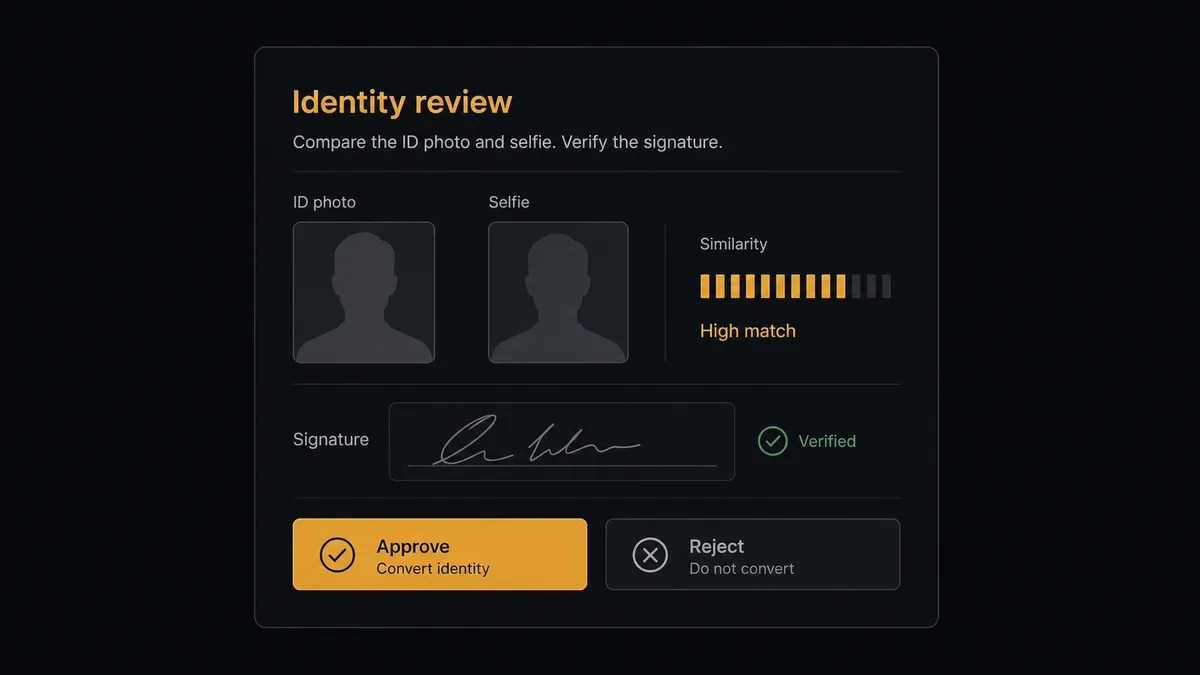
The consequential step is Convert Lead to Contact. Conversion is the moment your organization starts treating an applicant as a verified counterparty: they get onboarded, credentialed, or contracted on the strength of that record. So the agent refuses to treat verification as a pass-through. A high similarity score on both the face match and the signature match, with clean extracted fields, converts automatically with the evidence attached. A borderline score does not. The agent invokes a human-in-loop flow it holds as a callable tool and posts to your review channel: “Identity review for [applicant]. Face match score [score], signature match [score]. ID crop and selfie attached, agreement page linked. Approve conversion?” A person looks at the two images the way only a person should, decides, and only then does Convert Lead to Contact run. The reviewer’s name, the scores, and the timestamp are written into Create Enhanced Note on the record.
That stop is the product. Prospects describe it as a digital andon cord: like Toyota’s line-stop cord, the workflow halts itself the instant it hits uncertainty, and a human clears it. Verification volume scales with the agent; judgment stays with your team.
FlowRunner vs n8n
Engineering-led teams will look at n8n for this pair, with reason. n8n self-hosts on your own infrastructure at no license cost in its community edition, which matters when identity documents cannot leave your network, and its node system gives a developer full control over every API call to both Salesforce and Base64.ai. If you have engineers who want to own that pipeline end to end, n8n can absolutely build it.
The difference is what happens between the API calls. In n8n, the verification bar is a threshold in an IF node, and any human review is a wait state a developer wires and maintains per workflow. In FlowRunner, the agent reasons about each applicant and holds human review as a native, callable tool. Here is the honest side-by-side.
| What matters for this pair | FlowRunner | n8n |
|---|---|---|
| Human-in-the-loop on lead conversion | Native. The agent invokes an approval flow as a callable tool and pauses before Convert Lead to Contact | Wait and approval mechanisms exist, but the builder wires them per workflow; not an agent decision |
| Who runs the flow | An AI agent reads scores and records, reasons, picks actions as tools | A node graph a developer wires and maintains; AI agent nodes exist but the graph stays fixed |
| Users included | Unlimited users on every tier | Cloud plans meter workflows and executions; self-host capacity is yours to manage |
| Bring your own AI keys | Yes, BYOK | Yes, n8n also supports your own model keys |
| Self-hosted option | Yes, cloud-hosted or self-hosted | Yes, self-hosting is a core n8n strength |
| Pricing model | Transparent workflow-based tiers | Execution-based cloud pricing; full cloud compliance features sit on custom-priced Enterprise |
If your team is developers who want a free self-hosted graph and are happy owning the review logic themselves, n8n is a fair choice. If the people running intake are ops and compliance folks who need verification with a reviewer on every borderline match and a record of who approved what, this pairing on FlowRunner is the better fit.
Before and after
| Category | Before | After |
|---|---|---|
| Application intake | PDFs pile up in a queue until someone opens each one and re-keys it | Every processed document is picked up on the next scheduled run with labeled fields |
| Identity checks | Photo comparison by eyeball, skipped on busy days | Recognize Face (Match) scores every applicant, and borderline scores go to a person |
| Signature review | A glance at the last page, if anyone remembers | Detect Signatures and Verify Signature (Match) check every agreement against the specimen |
| Evidence storage | Scans scattered across a shared drive, disconnected from the record | Add File to Record and Create Enhanced Note keep evidence and decisions on the record itself |
| Accountability | Nobody can say who verified an applicant or on what basis | Every conversion carries the match scores, reviewer, and timestamp |
What you can build
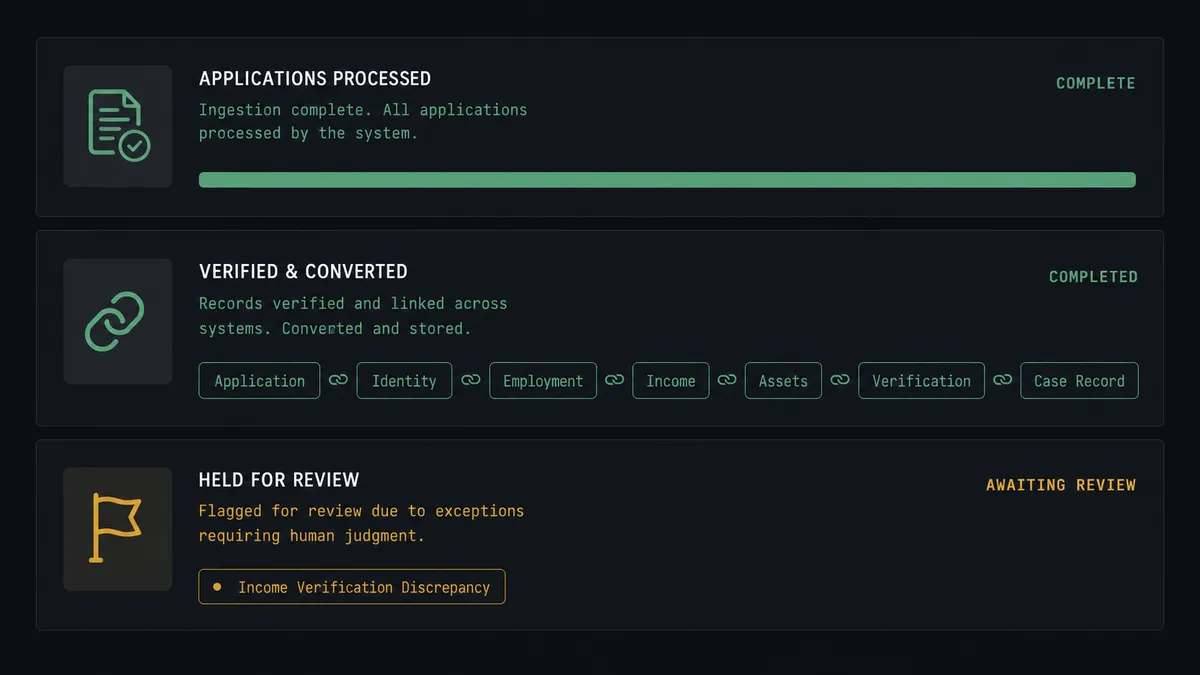
Application to verified lead, hands off. The scheduled run calls Get Flow Results, extracts each application with Get Result by UUID, checks for duplicates with Find Record, and calls Create Lead with clean fields. No re-keying, no duplicate applicants from spelling drift.
Identity verification with a human on the borderline. Recognize Face (Match) and Verify Signature (Match) score every applicant. High scores convert automatically via Convert Lead to Contact; borderline scores pause for a reviewer with the crops attached.
Signed-agreement gate. Before any record advances, Detect Signatures confirms the agreement actually carries a signature. Unsigned paperwork triggers Send Email to the applicant requesting the missing page instead of silently stalling.
Evidence-complete records. For every processed document, Add File to Record attaches the source scan and Create Enhanced Note writes what was extracted, what was checked, and who approved it, so audits read off the record instead of a shared drive.
Campaign follow-up from paper. Applicants captured at an event via scanned intake forms flow through Scan Document into Create Lead, then Add Lead to Campaign drops them into the right nurture track while the paper is still warm.
Getting started
Start on the free plan: 100 executions a month, every integration included, no credit card required, plus 14 days of Professional for new accounts. Both connectors are available on every tier, and every tier includes unlimited users and unlimited workflows, so intake ops, compliance reviewers, and the Salesforce admin all work in the same workspace from day one.
Explore the integration details:
- Salesforce Pro integration (26 actions covering leads, records, files, notes, and campaigns)
- Base64.ai integration (11 actions covering document scans, faces, signatures, and stored flow results)
Start building free at flowrunner.ai or book a demo to see a live Salesforce to Base64.ai workflow, borderline-match review and all.
Frequently asked questions
Is it free to connect Salesforce Pro and Base64.ai on FlowRunner?
You can build and run the connection on FlowRunner's free plan, which includes 100 executions a month and every integration with no credit card required, and new accounts also get 14 days of Professional. Both connectors are available on every FlowRunner tier, and every tier includes unlimited users and unlimited workflows.
Can I self-host the Salesforce Pro to Base64.ai workflow?
Yes. FlowRunner offers a cloud-hosted option and a self-hosted option, so the connection can run inside your own environment.
Does the AI agent need my own OpenAI or Claude key?
FlowRunner uses a bring-your-own-keys model, so you connect the AI provider key you already have. You are not locked to one model.
What happens when a face match or signature match comes back borderline?
The agent does not convert the lead. It invokes a human-in-loop step, posts the similarity score, the cropped images from the ID and the selfie, and the applicant's details to your review channel, then waits for an approve or reject decision before Convert Lead to Contact runs.
Which triggers does this connection use?
Neither connector exposes an event trigger, so the workflow runs on a schedule. It calls Get Flow Results in Base64.ai to pick up newly processed documents, then writes to Salesforce with actions like Create Lead, Add File to Record, Create Enhanced Note, and Update Record.
Does the original document get stored on the Salesforce record?
Yes. The workflow calls Add File to Record to attach the scanned document to the lead or contact, and Create Enhanced Note to record what was extracted and verified, so the evidence lives where your team already works.