How to Connect QuickBooks Online with Bland AI (With or Without an AI Agent)
Connect QuickBooks Online overdue invoices to Bland AI phone calls, optionally as an AI agent that prepares each payment-reminder call and pauses for a human before Send Call dials a customer.
How do you connect QuickBooks Online to Bland AI?
You connect QuickBooks Online to Bland AI with a scheduled workflow, because QuickBooks Online publishes no webhook triggers: each morning, FlowRunner calls List Invoices to find balances past due, pulls contact details with Get Customer, and places a payment-reminder call to each account with Send Call, then captures what happened with Get Call Details and Analyze Call. FlowRunner is a visual AI-agent orchestration platform where automations run autonomously and pause for human judgment on the steps that carry real consequence. When the connection runs as an AI agent, the agent also decides who genuinely belongs on today’s list, and it stops for a named human before Send Call dials a single customer.
The problem it solves
Chasing receivables is the job everyone defers. The bookkeeper runs the aging report, highlights the overdue rows, and the follow-up plan is “someone should call them.” Someone rarely does, because collection calls are uncomfortable, they interrupt real work, and each one requires opening QuickBooks Online, checking the balance, checking whether a payment just landed, and finding the right phone number. So the emails go out instead, land in spam or get skimmed, and invoices drift from thirty days to sixty while cash flow tightens for no reason except that phones are awkward.
The edges are what make manual chasing genuinely risky. Calling a customer whose payment posted yesterday burns goodwill over nothing. Calling about an invoice the customer already disputed turns a bookkeeping gap into an argument. And with no record of who called whom about what, two people chase the same account in the same week while another account goes untouched for a month. The aging report never captures any of that context; it just gets older.
How it works: the connection
The connection reads QuickBooks Online on a schedule and speaks through Bland AI. Here is the plain version, grounded in the real connector actions.
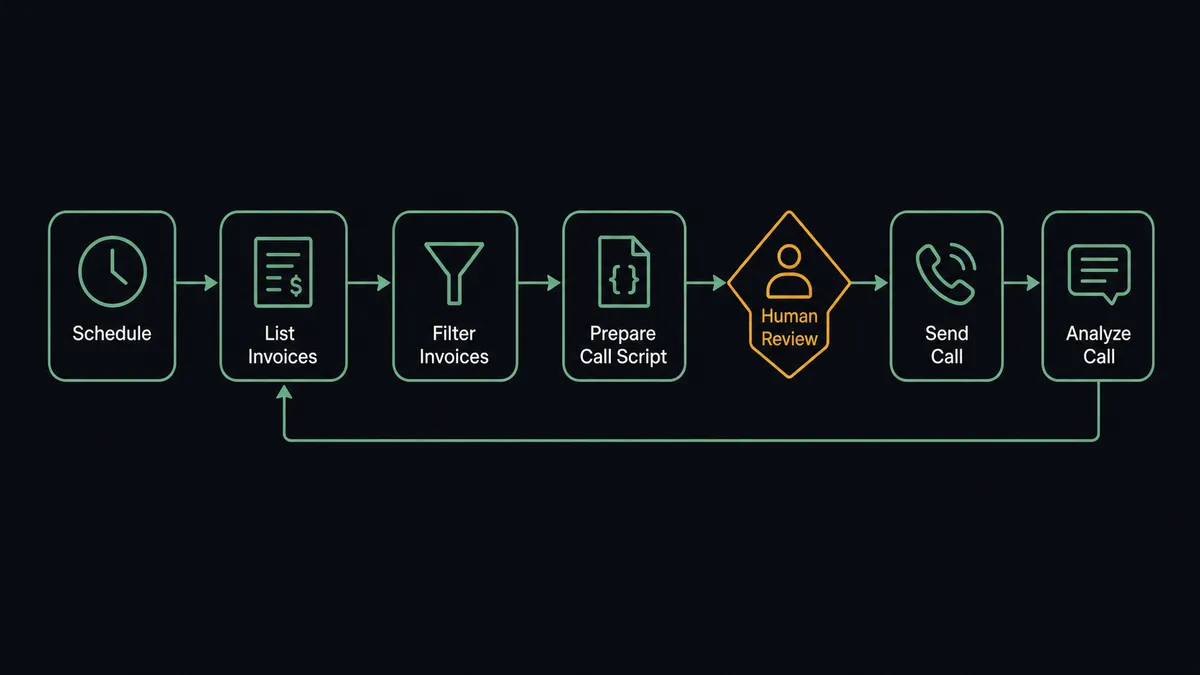
- Trigger: On a schedule each morning, the workflow calls List Invoices and filters for balances past their due date.
- Cross-check: List Payments confirms no payment has landed since the last run, so nobody gets called about money that already arrived.
- Read the account: Get Customer pulls the contact name and phone number for each overdue invoice.
- Prepare the call: The workflow builds a call task per account, with the invoice number, amount due, days outstanding, and the payment options to offer, choosing a voice via List Voices or a pre-built conversation via List Pathways.
- Place the call: Send Call dials the customer, and the voice agent delivers the reminder, answers basic questions, and records what the customer commits to.
- Capture the outcome: Get Call Details and Analyze Call pull the transcript and structured answers, such as a promised payment date or a stated dispute, with Get Call Recording kept for review.
- Route the follow-up: Promised dates schedule a future check against List Payments; disputes and wrong numbers get flagged for a person instead of another call.
That is the “just connect them” answer. The aging report turns into completed conversations with structured outcomes, instead of a highlighted spreadsheet nobody acts on.
Can an AI agent run it? (and why a human stays in the loop)
Yes, and the reasoning happens before anyone’s phone rings. The agent holds both connectors’ actions as tools: List Invoices, List Payments, Get Customer, Send Call, Get Call Details, Analyze Call, Stop Call. It reads each overdue account in context. A reliable customer eight days late with a payment history of paying on the ninth gets skipped this round. An account with a stated dispute gets routed to a person, not redialed. A large balance stretching past sixty days moves to the top of the list with a firmer script. The aging report is flat; the agent reads it with memory.
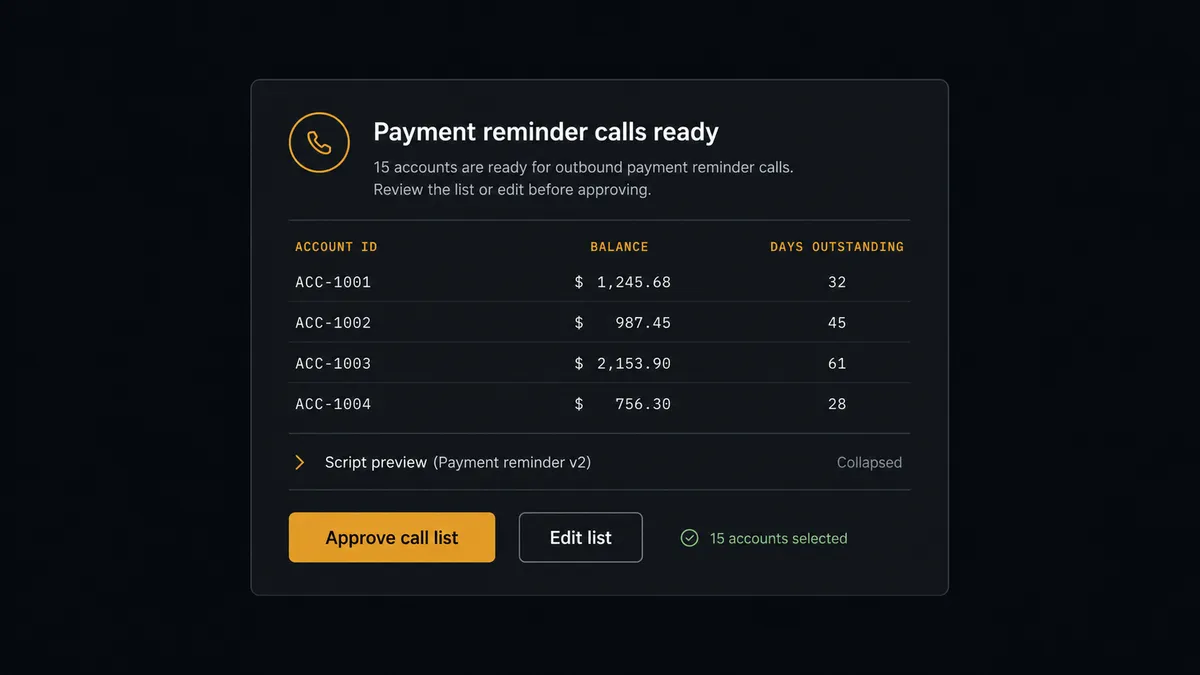
The consequential step is Send Call, because a phone call is your company’s voice speaking to a customer about money, in real time, with no unsend and no edit. So the agent never dials on its own authority. It assembles the day’s call list, each entry with the invoice context and the exact objective the voice agent will pursue, and invokes a human-in-loop flow it holds as a callable tool. The workflow pauses and posts: “Today’s payment-reminder call list is ready: accounts, balances, days outstanding, and each call’s script attached. Approve all, prune, or hold?” A person reviews, removes the account they know is mid-negotiation, and approves the rest. Only then does Send Call fire, and each call’s approver, transcript, and timestamp land in the audit trail. If a live call needs to end, Stop Call ends it.
This is the digital andon cord at its most literal. Like Toyota’s production line pull cord, the workflow stops the line before the step with a person on the other end, and your team releases it deliberately, once per day, in one review.
FlowRunner vs Zapier
Zapier will connect these two services, and credit where due: its connector breadth is unmatched, the editor is friendly, and for firing a single call off a single event it is quick to configure. If your need is “when X happens, place one call,” Zapier can wire that.
The difference is that collections is not one call; it is a judgment-laden daily batch aimed at your own paying customers. FlowRunner runs it as an AI agent that reasons per account, with a native human gate holding the entire list before the first dial tone.
| What matters for this pair | FlowRunner | Zapier |
|---|---|---|
| Human-in-the-loop on Send Call | Native. The agent posts the full call list and scripts for approval before dialing | Available by inserting approval-style steps, not a native agent decision |
| Who runs the flow | An AI agent reads each account’s history, reasons, picks actions as tools | Predefined step sequence you configure per Zap |
| Users included | Unlimited users on every tier | Priced by task volume; seats vary by plan |
| Bring your own AI keys | Yes, BYOK. Connect the AI provider key you already have | AI features tied to Zapier’s own AI offering |
| Self-hosted option | Yes, cloud-hosted or self-hosted | Cloud only |
| Pricing model | Transparent workflow-based tiers | Per-task pricing, and multi-step call flows consume tasks per invoice |
If you need one event to trigger one call, Zapier handles it. If you are automating the most sensitive conversation your company has, and you want judgment before the list and evidence after every call, this pairing is where FlowRunner is the better fit.
Before and after
| Category | Before | After |
|---|---|---|
| Overdue follow-up | The aging report gets highlighted and “someone should call them” | Every overdue account gets a prepared, approved reminder call |
| Pre-call checking | Balance, payment, and dispute status checked by hand, or not at all | List Payments and dispute flags screen the list before it reaches the approver |
| Call records | Whoever called scribbles a note, or nothing | Transcript, structured outcome, and promised date captured via Analyze Call |
| Awkward mistakes | Customers called about money that already arrived | Recent payments and disputes suppress the call automatically |
| Accountability | No record of who authorized contacting which customer | Every call carries a named approver, transcript, and timestamp in the audit trail |
What you can build
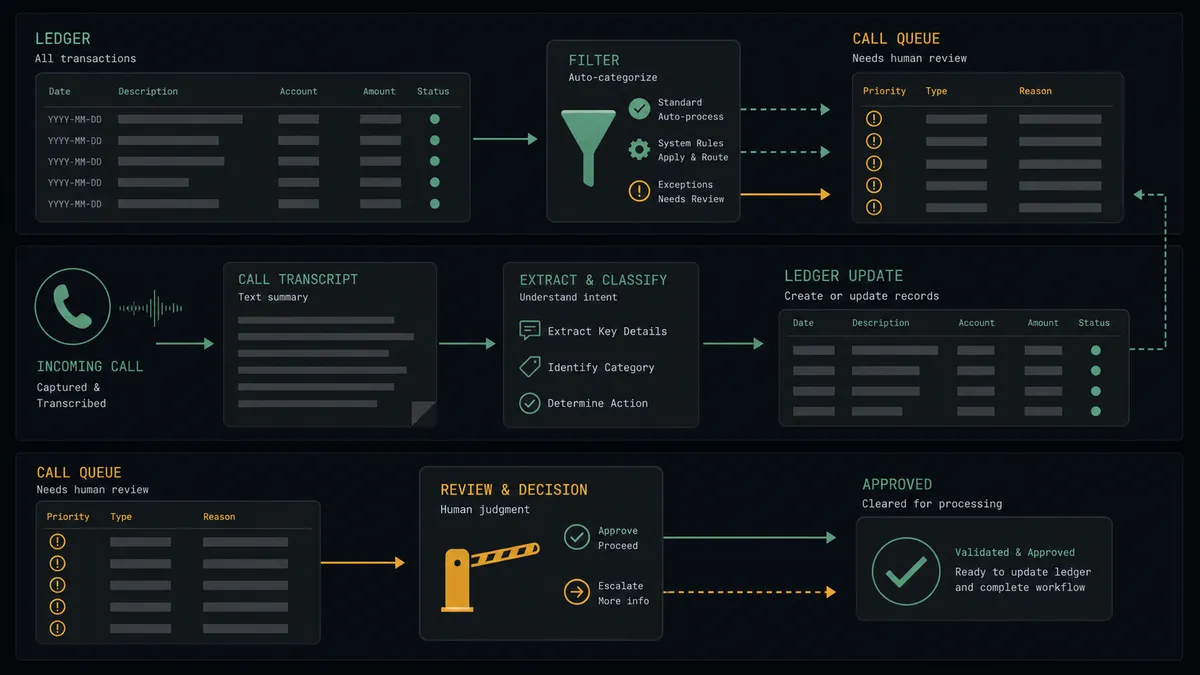
Morning collections round. The scheduled run builds the overdue list from List Invoices, screens it against List Payments, drafts a call per account, and dials with Send Call after one approval, with outcomes written back the same morning via Analyze Call.
Promise-to-pay tracker. When a customer commits to a date on the call, the agent extracts it as a structured answer, schedules a check of List Payments for that date, and only proposes a follow-up call if the money never arrives.
Dispute catcher. Any call where Analyze Call detects a dispute stops the sequence for that account, packages the transcript with the invoice from Get Invoice, and hands the case to a person before any further contact.
Gentle pre-due reminder. A softer variant calls a few days before the due date on large invoices, confirming receipt of the invoice and the payment method, so the overdue conversation never needs to happen.
Post-call ledger notes. After each round, the agent writes outcomes into the collections log and marks accounts for the next action, so anyone opening the account sees the full contact history instead of guessing who called last.
Common questions
Is it free to connect QuickBooks Online and Bland AI on FlowRunner? You can build and run the connection on FlowRunner’s free plan, which includes 100 executions a month and every integration with no credit card required, and new accounts also get 14 days of Professional. Both connectors are available on every FlowRunner tier, and every tier includes unlimited users and unlimited workflows.
Can I self-host the QuickBooks Online to Bland AI workflow? Yes. FlowRunner offers a cloud-hosted option and a self-hosted option, so the connection can run inside your own environment.
Does the AI agent need my own OpenAI or Claude key? FlowRunner uses a bring-your-own-keys model, so you connect the AI provider key you already have. You are not locked to one model.
What happens if a customer disputes the invoice during the call? The voice agent does not argue. Analyze Call extracts the dispute as a structured answer, the workflow flags the invoice for a person, and no follow-up call is scheduled for that customer until someone reviews the claim against the QuickBooks Online record. A live call already in progress can also be ended with Stop Call.
QuickBooks Online has no webhook trigger, so how does the workflow start? It runs on a schedule. FlowRunner calls List Invoices at the interval you choose, compares balances and due dates, and builds the day’s overdue list. Nothing depends on the vendor pushing events.
What does the workflow do after each call? Get Call Details and Analyze Call pull the transcript, the outcome, and structured answers such as a promised payment date. The workflow writes those back into the collections record, keeps Get Call Recording available for review, and schedules or suppresses the next touch accordingly.
Getting started
Start on the free plan: 100 executions a month, every integration included, no credit card required, plus 14 days of Professional for new accounts. Both connectors are available on every tier, and every tier includes unlimited users and unlimited workflows.
Explore the integration details:
- QuickBooks Online integration (56 actions covering customers, invoices, payments, bills, and P&L reporting)
- Bland AI integration (11 actions covering calls, pathways, voices, and analysis)
Start building free at flowrunner.ai or book a demo to see a live QuickBooks Online to Bland AI workflow, call-list approval and all.
Frequently asked questions
Is it free to connect QuickBooks Online and Bland AI on FlowRunner?
You can build and run the connection on FlowRunner's free plan, which includes 100 executions a month and every integration with no credit card required, and new accounts also get 14 days of Professional. Both connectors are available on every FlowRunner tier, and every tier includes unlimited users and unlimited workflows.
Can I self-host the QuickBooks Online to Bland AI workflow?
Yes. FlowRunner offers a cloud-hosted option and a self-hosted option, so the connection can run inside your own environment.
Does the AI agent need my own OpenAI or Claude key?
FlowRunner uses a bring-your-own-keys model, so you connect the AI provider key you already have. You are not locked to one model.
What happens if a customer disputes the invoice during the call?
The voice agent does not argue. Analyze Call extracts the dispute as a structured answer, the workflow flags the invoice for a person, and no follow-up call is scheduled for that customer until someone reviews the claim against the QuickBooks Online record. A live call already in progress can also be ended with Stop Call.
QuickBooks Online has no webhook trigger, so how does the workflow start?
It runs on a schedule. FlowRunner calls List Invoices at the interval you choose, compares balances and due dates, and builds the day's overdue list. Nothing depends on the vendor pushing events.
What does the workflow do after each call?
Get Call Details and Analyze Call pull the transcript, the outcome, and structured answers such as a promised payment date. The workflow writes those back into the collections record, keeps Get Call Recording available for review, and schedules or suppresses the next touch accordingly.