How to Connect QuickBooks Online with Bigin (With or Without an AI Agent)
Connect QuickBooks Online invoices and payments to Bigin deals, optionally as an AI agent that drafts the invoice when a deal closes and pauses for a human before Send Invoice reaches the customer.
How do you connect QuickBooks Online to Bigin?
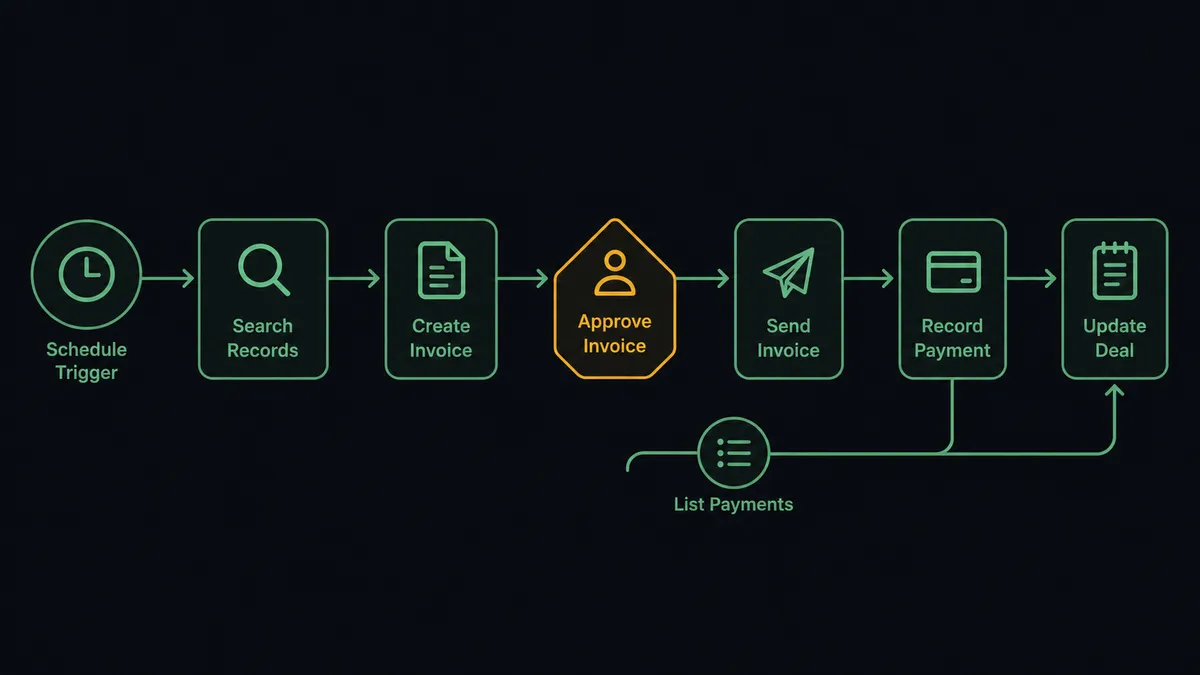
You connect QuickBooks Online to Bigin with a scheduled workflow, because neither service publishes webhook triggers: at the interval you choose, FlowRunner calls Search Records in Bigin to find deals that just entered a won stage, matches the buyer in QuickBooks Online with Get Customer or Create Customer, drafts the bill with Create Invoice, and emails it with Send Invoice, then writes the invoice number back to the deal with Add Note and Update Deal. FlowRunner is a visual AI-agent orchestration platform where automations run autonomously and pause for human judgment on the steps that carry real consequence. When the connection runs as an AI agent, the agent also compares the deal amount against the invoice it drafted and stops for a named human before Send Invoice puts anything in the customer’s inbox.
The problem it solves
On most small teams the handoff between sales and finance is a message. A rep marks a deal won in Bigin, then pings whoever owns QuickBooks Online: “Can you invoice Meridian? Amount is in the deal.” That person opens QuickBooks Online, checks whether the customer exists, creates them if not, retypes the amount from the deal card, builds the invoice, and sends it. If they are heads-down on month-end close, the invoice goes out Thursday for a deal that closed Monday. The company extended three days of free credit for no reason other than a queue.
The edges are worse than the lag. The rep typed the discounted number into the deal but the contract says list price, so the invoice is wrong and the customer notices. The customer exists in QuickBooks Online twice, once as “Meridian LLC” and once as “Meridian,” and the payment lands on the wrong record. And once the invoice is out, sales goes blind: the deal card says won, but nobody in Bigin can see that the invoice is three weeks overdue, so the account manager cheerfully asks for a referral from a customer who has not paid. Two systems, both correct on their own terms, telling two different stories.
How it works: the connection
The connection reads Bigin on a schedule and writes to QuickBooks Online, then closes the loop in the other direction. Here is the plain version, grounded in the real connector actions.
- Trigger: On a schedule, the workflow calls Search Records in Bigin to find deals that moved to a won stage since the last run.
- Read: Get Record pulls the full deal: contact, company, amount, close date, and owner.
- Match the customer: Get Customer looks up the buyer in QuickBooks Online by name and email. If no record exists, Create Customer makes one from the Bigin contact fields.
- Draft the bill: Create Invoice builds the invoice from the deal amount, with the deal name in the memo so finance can trace it.
- Send it: Send Invoice emails the invoice to the customer’s billing contact.
- Close the loop in Bigin: Add Note writes the invoice number and date onto the deal, and Update Deal flags the record as invoiced.
- Watch for payment: On a second schedule, List Payments and List Invoices check status. Paid invoices trigger Update Deal and a note; overdue ones trigger Create Task assigned to the deal owner.
That is the “just connect them” answer. Won deals become sent invoices without a handoff message, and payment status appears where sales actually looks.
Can an AI agent run it? (and why a human stays in the loop)
Yes, and this is where the connection stops being a field-copier. An AI agent holds the QuickBooks Online and Bigin actions as tools: Get Customer, Create Customer, Create Invoice, Send Invoice, Update Deal, Add Note, Create Task. Instead of running the same steps in the same order every time, it reads each won deal and reasons about it. A clean deal with a standard amount and an existing customer flows straight through. A deal whose amount does not match the pricing the agent expects, or whose customer matches two QuickBooks Online records, gets held.
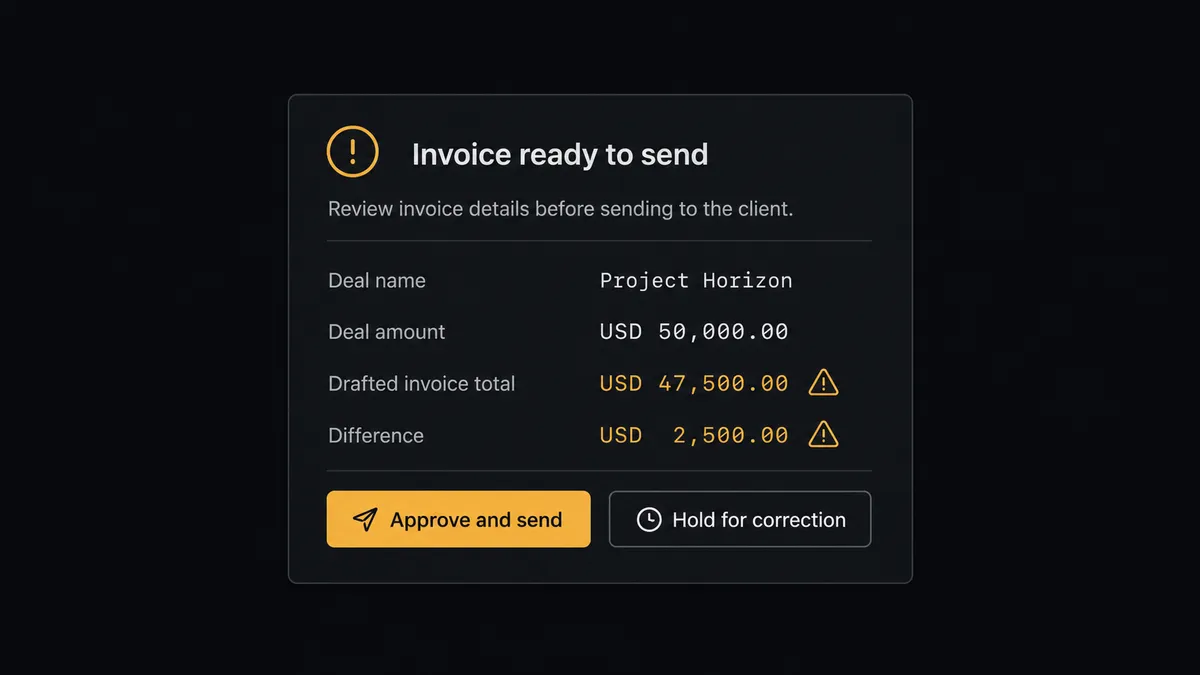
The consequential step is Send Invoice, because that is the moment the automation reaches a customer. A wrong invoice is not an internal typo; it is a billing dispute, an awkward call, and a credit memo. So before the agent sends anything it is unsure about, it invokes a human-in-loop flow it holds as a callable tool. The workflow pauses and posts to your team’s channel: “Deal [name] closed won at [deal amount]. Drafted invoice totals [invoice amount]. The two disagree. Approve the invoice as drafted, or correct it before it goes out?” A person clicks once. Only then does Send Invoice fire, and the decision, the approver’s identity, and the timestamp land in the audit trail.
The escalation is contextual, not a dumb threshold. A routine renewal at the same amount as last year sails through. A first invoice to a brand-new customer, a deal amount that is far off the account’s history, a possible duplicate customer record: each of those is a reason to stop, even when the dollar figure is small. Prospects describe this as a digital andon cord. Like Toyota’s production line pull cord, the workflow stops the line the moment it hits uncertainty, and a person pulls it back into motion with one decision instead of doing the whole job by hand.
FlowRunner vs Zapier
Most teams searching for this connection find Zapier first, and Zapier has earned that position. Its connector library is enormous, its editor is genuinely easy for a first-time builder, and its template gallery almost certainly has a QuickBooks Online and CRM recipe you can clone in an afternoon. For a simple one-way push, it works.
The difference shows up at the step that reaches your customer, and in who is doing the thinking. FlowRunner is built around an AI agent that reasons per deal and a native human-in-the-loop step that pauses before consequence, rather than a fixed step sequence.
| What matters for this pair | FlowRunner | Zapier |
|---|---|---|
| Human-in-the-loop on Send Invoice | Native. The agent invokes an approval flow as a callable tool and pauses before the invoice reaches the customer | Available by inserting approval-style steps, not a native agent decision |
| Who runs the flow | An AI agent reads the deal, reasons, picks actions as tools | Predefined step sequence you configure per Zap |
| Users included | Unlimited users on every tier | Priced by task volume; seats vary by plan |
| Bring your own AI keys | Yes, BYOK. Connect the AI provider key you already have | AI features tied to Zapier’s own AI offering |
| Self-hosted option | Yes, cloud-hosted or self-hosted | Cloud only |
| Pricing model | Transparent workflow-based tiers | Per-task pricing that gets harder to predict as invoice volume grows |
If you need a one-way “deal won, create invoice” push and nothing else, Zapier is a fine choice. If you want the invoice checked before it reaches the customer, payment status flowing back to the pipeline, and one named approver on record for every sent bill, this pairing is where FlowRunner is the better fit.
Before and after
| Category | Before | After |
|---|---|---|
| Invoice creation | Rep pings finance, finance retypes the deal amount into QuickBooks Online when they get to it | Won deals become drafted invoices on the next scheduled run, no handoff message |
| Billing accuracy | Amount mismatches surface when the customer disputes the invoice | The agent compares deal and invoice totals and holds mismatches for a person before sending |
| Customer records | Duplicate customers accumulate in QuickBooks Online, payments land on the wrong one | Get Customer matches first, Create Customer only when no record exists |
| Payment visibility | Sales sees “won” in Bigin and nothing else, overdue balances are invisible to the account owner | Paid status posts to the deal via Update Deal, overdue invoices become Create Task follow-ups for the owner |
| Accountability | Nobody can say who approved sending a given invoice | Every sent invoice carries a named approver and timestamp in the audit trail |
What you can build
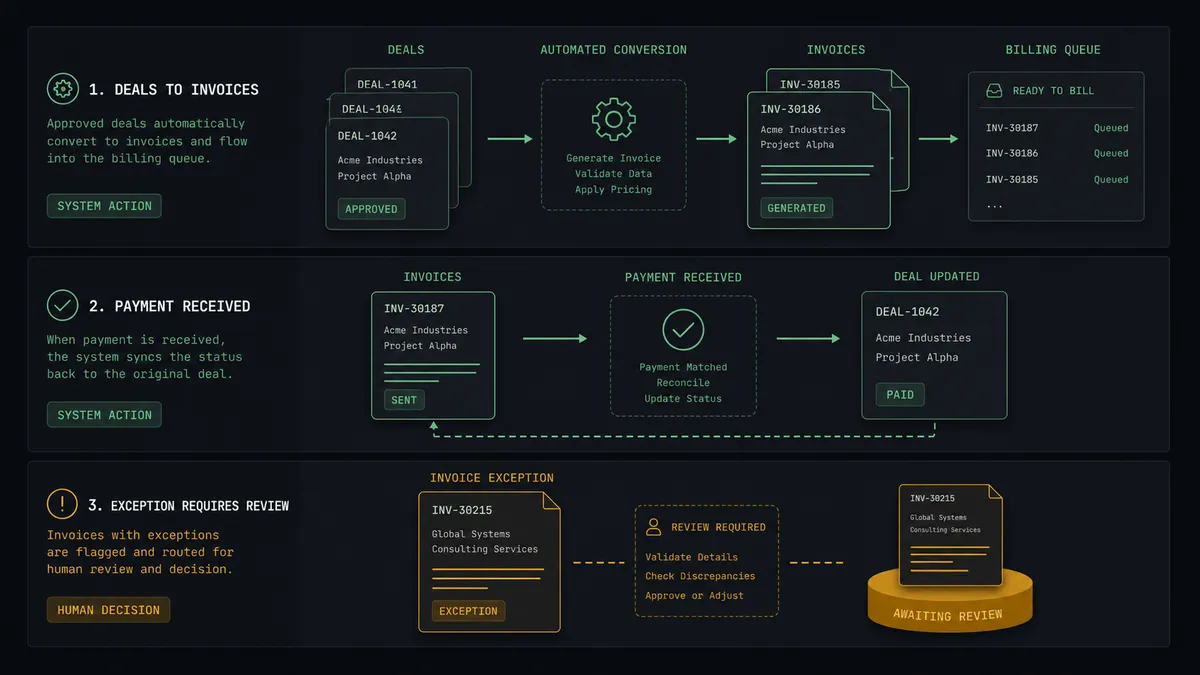
Won deal to sent invoice. The scheduled run calls Search Records for newly won deals, matches the buyer with Get Customer or Create Customer, drafts the bill with Create Invoice, and emails it with Send Invoice after approval. Add Note writes the invoice number back onto the deal.
Payment status back to the pipeline. A second schedule calls List Payments and List Invoices in QuickBooks Online. When an invoice is paid, the agent calls Update Deal and Add Note so the deal owner sees paid status inside Bigin without asking finance.
Overdue chase with a named owner. When List Invoices shows a balance past terms, the agent calls Create Task in Bigin assigned to the deal owner, with the invoice number, amount due, and days outstanding in the task, so the follow-up call belongs to the person with the relationship.
Estimate before the close. For deals still in a proposal stage, the agent drafts with Create Estimate and, after the same human approval, sends it with Send Estimate. When the deal closes, the estimate converts to the invoice flow with the numbers already agreed.
Quiet books check. On a weekly schedule the agent calls Get Profit and Loss Report, compares invoiced revenue against the pipeline’s won total in Bigin, and posts a short reconciliation note so a gap between what sales closed and what finance billed never survives the week.
Common questions
Is it free to connect QuickBooks Online and Bigin on FlowRunner? You can build and run the connection on FlowRunner’s free plan, which includes 100 executions a month and every integration with no credit card required, and new accounts also get 14 days of Professional. Both connectors are available on every FlowRunner tier, and every tier includes unlimited users and unlimited workflows.
Can I self-host the QuickBooks Online to Bigin workflow? Yes. FlowRunner offers a cloud-hosted option and a self-hosted option, so the connection can run inside your own environment.
Does the AI agent need my own OpenAI or Claude key? FlowRunner uses a bring-your-own-keys model, so you connect the AI provider key you already have. You are not locked to one model.
What happens when the deal amount and the invoice total do not match? The agent stops before anything reaches the customer. It posts the Bigin deal amount, the drafted QuickBooks Online invoice total, and the difference to your team’s channel, then waits for a person to correct the deal, correct the invoice, or approve the number as written.
Neither QuickBooks Online nor Bigin has a webhook trigger, so how does the workflow start? It runs on a schedule. FlowRunner calls Search Records in Bigin at the interval you choose to find deals that just moved to a won stage, and calls List Invoices and List Payments in QuickBooks Online to catch payments and overdue balances. Nothing depends on either vendor pushing events.
Does payment status flow back into Bigin? Yes. When List Payments shows an invoice paid, the workflow calls Update Deal and Add Note on the matching Bigin deal, so the sales side sees paid status without opening QuickBooks Online. Overdue invoices become Create Task follow-ups assigned to the deal owner.
Getting started
Start on the free plan: 100 executions a month, every integration included, no credit card required, plus 14 days of Professional for new accounts. Both connectors are available on every tier, and every tier includes unlimited users and unlimited workflows.
Explore the integration details:
- QuickBooks Online integration (56 actions covering customers, invoices, payments, bills, and P&L reporting)
- Bigin integration (17 actions across contacts, companies, deals, tasks, and notes)
Start building free at flowrunner.ai or book a demo to see a live QuickBooks Online to Bigin workflow, invoice approval and all.
Frequently asked questions
Is it free to connect QuickBooks Online and Bigin on FlowRunner?
You can build and run the connection on FlowRunner's free plan, which includes 100 executions a month and every integration with no credit card required, and new accounts also get 14 days of Professional. Both connectors are available on every FlowRunner tier, and every tier includes unlimited users and unlimited workflows.
Can I self-host the QuickBooks Online to Bigin workflow?
Yes. FlowRunner offers a cloud-hosted option and a self-hosted option, so the connection can run inside your own environment.
Does the AI agent need my own OpenAI or Claude key?
FlowRunner uses a bring-your-own-keys model, so you connect the AI provider key you already have. You are not locked to one model.
What happens when the deal amount and the invoice total do not match?
The agent stops before anything reaches the customer. It posts the Bigin deal amount, the drafted QuickBooks Online invoice total, and the difference to your team's channel, then waits for a person to correct the deal, correct the invoice, or approve the number as written.
Neither QuickBooks Online nor Bigin has a webhook trigger, so how does the workflow start?
It runs on a schedule. FlowRunner calls Search Records in Bigin at the interval you choose to find deals that just moved to a won stage, and calls List Invoices and List Payments in QuickBooks Online to catch payments and overdue balances. Nothing depends on either vendor pushing events.
Does payment status flow back into Bigin?
Yes. When List Payments shows an invoice paid, the workflow calls Update Deal and Add Note on the matching Bigin deal, so the sales side sees paid status without opening QuickBooks Online. Overdue invoices become Create Task follow-ups assigned to the deal owner.