How to Connect Gmail with Google Sheets (With or Without an AI Agent)
Connect Gmail and Google Sheets on FlowRunner to log emails, attachments, and form responses automatically, or run the connection as an AI agent that pauses for human judgment on the steps that carry real consequence.
How do you connect Gmail to Google Sheets?
You connect Gmail to Google Sheets by choosing a Gmail trigger, such as On New Email or On New Attachment, and mapping the email’s fields to a Google Sheets Add Row or Update Row action. FlowRunner is a visual AI-agent orchestration platform where automations run autonomously and pause for human judgment on the steps that carry real consequence. The same Gmail-to-Sheets connection can run as a plain sync or as an AI agent that reads each email, decides what to log, and stops for a human review when an email does not match any known pattern.
The problem with managing email data by hand
Most operations teams have a version of the same problem: someone checks a shared Gmail inbox, picks out the important emails, and copies the relevant information into a Google Sheet. The sheet is the team’s working record. The inbox is where work lands before it gets processed. The person in the middle is the bottleneck.
When volume goes up, that person falls behind. Invoices sit unlogged. Form responses stack up. Support emails wait while the spreadsheet stays stale. Exceptions fall through the cracks not because anyone is careless, but because manual triage does not scale. The sheet that was supposed to give the team visibility ends up reflecting last week’s inbox, not today’s.
How it works: the connection
The core connection works in three steps. A Gmail trigger fires when a matching email arrives. An extraction step reads the email body or saves the attachment. A Google Sheets write action logs the result.
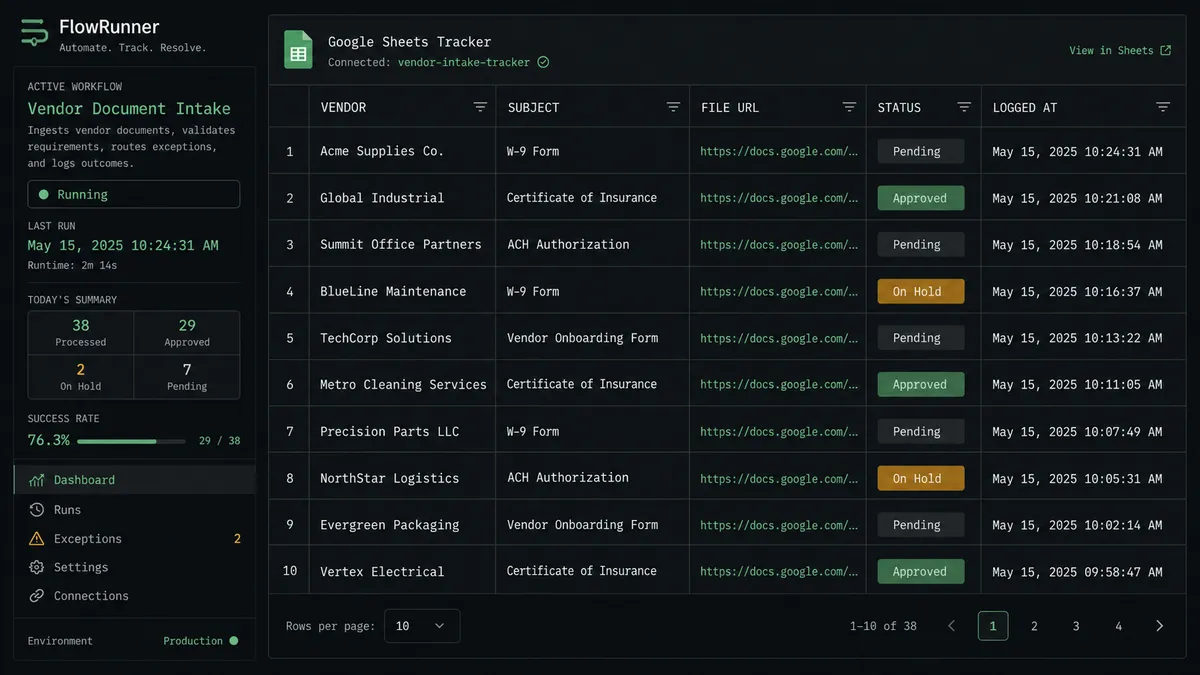
For document intake, the recommended trigger is On New Attachment. When a vendor emails an invoice PDF, the trigger fires immediately. The flow calls Get Message to read the sender and subject, then calls Save Attachment to move the file from the inbox into FlowRunner’s file storage, returning a URL. That URL, along with the sender, subject, and timestamp, maps directly to columns in the tracking sheet via Add Row. The sheet gains a new row the moment the email lands, not when someone gets around to checking the inbox.
For support or form-response logging, the trigger is On New Email or On New Thread. The flow reads the message body with Get Message, extracts the key fields, and appends a row with Add Row. A follow-up Update Cell writes a status value back to the same row once downstream steps complete, so the sheet reflects not just that an email arrived but what happened to it.
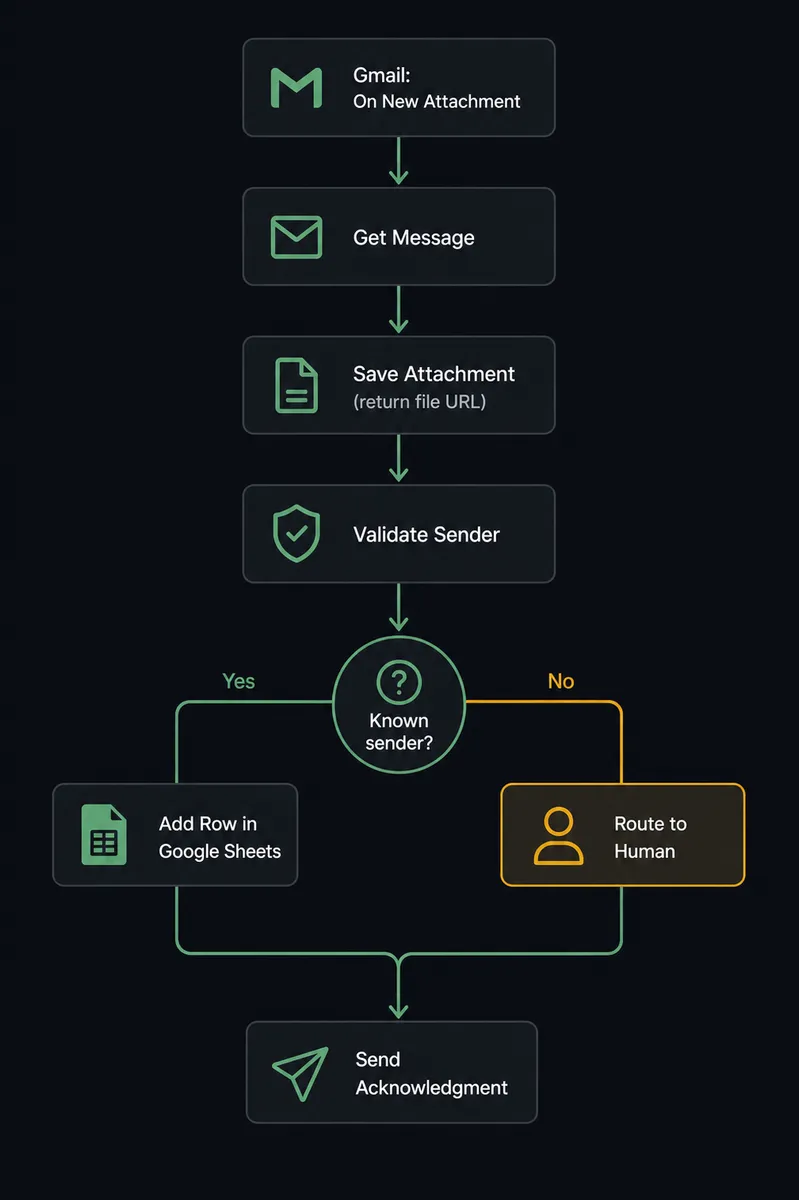
Can an AI agent run it? (And why a human stays in the loop)
A plain connection runs the same sequence every time regardless of what the email contains. An AI agent reads the email, evaluates what it finds, and decides which actions to run. That distinction matters most when the inbox carries exceptions.
Consider invoice intake. A vendor emails an invoice for three times their usual amount. A plain connection logs it without question. An AI agent reads the sender, the subject line, and the attachment name. It calls Find Row in Google Sheets to check whether this vendor has a history in the tracker. It finds the vendor’s prior invoices, compares the amount in this email to the trailing average, and flags the discrepancy. Not because the amount crossed a hardcoded threshold. Because the agent evaluated the context and decided this step carries consequence.
At that point the agent invokes the human-in-loop tool. It sends a message to the AP manager via Slack: “Invoice from [Vendor Name] received. This invoice is significantly higher than their recent average. Approve and log it, hold for review, or flag as a potential duplicate?” The AP manager replies with one click. The agent resumes with the decision as its input, either logging the row with an approved status or writing a hold flag to the sheet and labeling the Gmail thread for follow-up.
This is not a sync tool. The agent knows when to stop and ask.
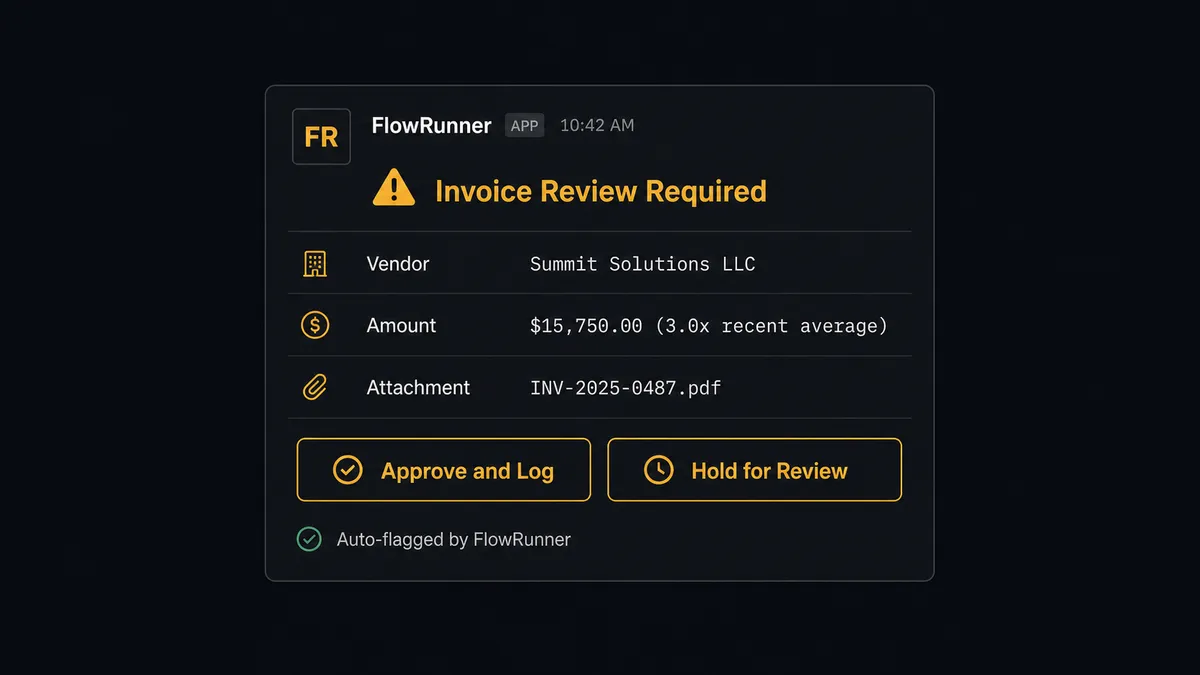
The decision, the decider’s identity, and the timestamp all land in the FlowRunner audit trail automatically. Regulators and auditors can see exactly who approved what and when, without anyone maintaining a separate approval log.
FlowRunner vs Zapier
Zapier is the right comparison for most non-technical operations teams connecting Gmail and Google Sheets. Zapier’s interface is approachable, its integration library is wide, and most people can get a basic Zap running without any setup help. That is a real strength.
The differences become visible when the workflow gets more complex.
| Feature | Zapier | FlowRunner |
|---|---|---|
| Human-in-loop orchestration | Approval steps available as a paid add-on; logic is rule-based, not agent-decided | Agent decides when to escalate based on context, not thresholds; human response resumes the flow |
| AI agent with tool access | Zapier AI features available; agent picks from Zapier’s action list | Agent calls any FlowRunner integration action as a tool; BYOK for any AI provider |
| Unlimited users | User seats priced per plan | All FlowRunner tiers include unlimited users |
| Pricing model | Task-based; volume spikes cause billing surprises | Workflow-execution-based with hard limits; executions pause at 100%, no overage surprises |
| Self-hosting | Not available | Free Community Edition; Enterprise self-hosted with clustering |
| Audit trail | Not included in standard tiers | 30-day audit trails at Professional ($299/mo); 90-day at Business ($999/mo) |
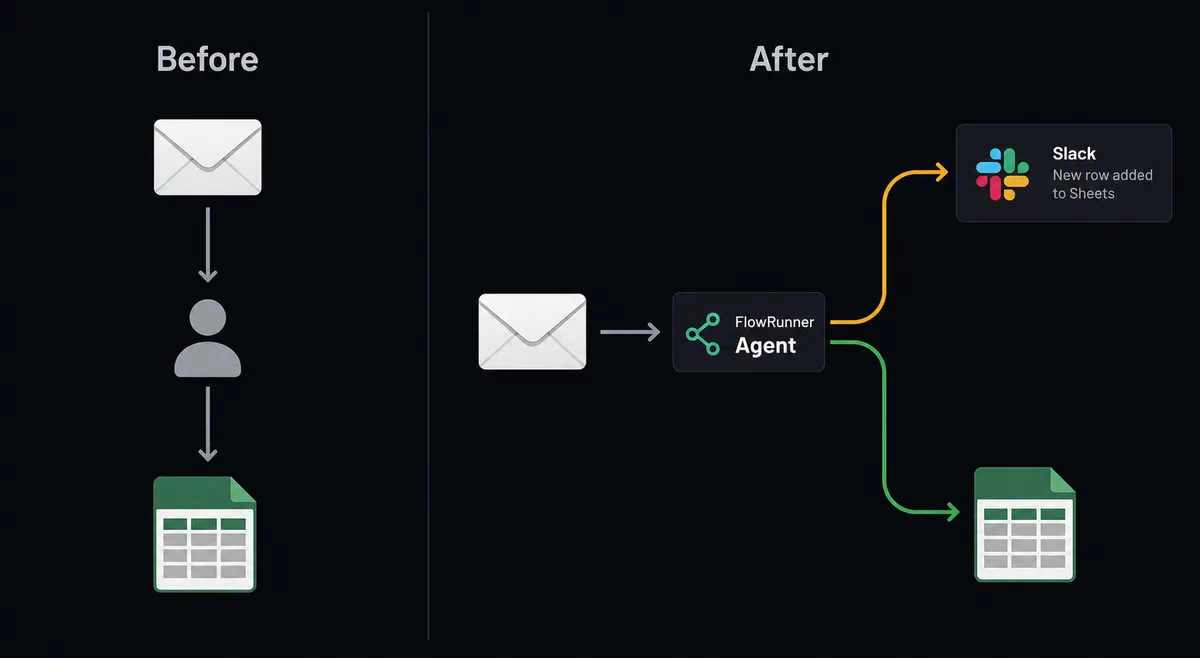
Before and after
| Category | Before | After |
|---|---|---|
| Email logging | Someone checks the inbox and manually copies email details into the sheet; delays of hours or days are normal | Gmail trigger fires on arrival; Add Row writes the record within seconds |
| Attachment handling | Files are downloaded from Gmail and re-uploaded into other tools by hand | Save Attachment moves the file to storage; the URL lands in the sheet automatically |
| Exception handling | Unusual emails get processed the same as routine ones, or sit until someone notices | Agent flags exceptions and routes them to a person before taking action |
| Sheet accuracy | Sheet reflects whoever last remembered to update it | Sheet reflects real-time processing status via Update Cell on each completed step |
| Audit visibility | No record of who processed what or when | FlowRunner audit trail captures every action, decision, and human approval with timestamps |
What you can build
Invoice intake tracker. Gmail’s On New Attachment trigger fires when a vendor emails a PDF. The agent calls Save Attachment, then uses Find Row in the tracker sheet to check for a matching vendor record. It calls Add Row to log the new invoice with status “Pending” and sends an acknowledgment with Send Message. Vendors get a receipt; the AP team gets a live log.
Support email to Sheets queue. On New Email triggers when a customer support message arrives. The agent calls Get Message to extract the issue, calls Add Row in a support queue sheet with the sender, subject, body summary, and received timestamp, then marks the thread with Add Label To Message so the inbox stays organized. The queue sheet becomes the team’s working ticket list without a separate ticketing system.
Scheduled sheet report by email. A time-based trigger fires each weekday at 8 AM. The agent calls Export Sheet on the weekly tracker, gets back a file URL, and calls Send Message to email the file to the ops team. No one opens a browser. The report arrives in the inbox.
Form response logger with validation. A Google Sheets On New Row trigger fires when a form submission lands in the intake sheet. The agent calls Get Message Labels on the Gmail thread if the submission came by email, validates required fields using Find Row to check for duplicates, and calls Update Row to write a “Processed” status. Rows missing required fields are flagged with Format Row and routed to the data owner.
Starred email escalation. Gmail’s On Email Starred trigger fires when someone on the team stars an important message. The agent calls Get Message, extracts the details, and calls Add Row to log the email in an escalations sheet. It then calls Update Cell to record which team member starred it and when. Starred messages become a tracked queue, not just a personal inbox flag.
Common questions
Is it free to connect Gmail and Google Sheets on FlowRunner? FlowRunner has a free plan with 100 executions a month, every integration included, and no credit card required, and new accounts get 14 days of Professional on top. Corporate email required to sign up.
Can I self-host FlowRunner? Yes. FlowRunner offers a free Community Edition for self-hosted single-instance deployments. Enterprise self-hosted options include multi-instance clustering and a full compliance suite.
Does the agent need my own AI API key? FlowRunner uses a BYOK model. You connect your own key from any supported AI provider. The platform orchestrates your agents; it does not resell model access.
What happens when the agent is not sure how to handle an email? The agent does not guess. It holds the email, applies a triage label in Gmail, and routes the message to a person via Slack or email with full context: sender, subject, and the options. Work resumes only after a human decides.
Can one flow handle multiple Gmail accounts or multiple Sheets? Yes. FlowRunner flows can connect to multiple authenticated accounts in a single workflow. Each integration node uses the credentials you configure for that step.
What is the difference between a plain connection and an AI agent? A plain connection runs the same sequence every time. An AI agent reads each email, reasons about what it finds, and chooses which actions to run. It can skip steps, add steps, or stop and call a human depending on what the data shows.
Getting started
FlowRunner has a free plan with 100 executions a month, every integration included, and no credit card required, and new accounts get 14 days of Professional on top. No credit card required at signup. Corporate email required.
Connect both integrations from the FlowRunner integration panel: Gmail and Google Sheets. Both use OAuth2, so you authorize once and FlowRunner manages the token.
Start your free trial at flowrunner.ai or book a 30-minute walkthrough at calendly.com/flowrunner/intro to see the Gmail-to-Sheets agent running on your own data.
Frequently asked questions
Is it free to connect Gmail and Google Sheets on FlowRunner?
FlowRunner has a free plan with 100 executions a month, every integration included, and no credit card required, and new accounts get 14 days of Professional on top. Corporate email required to sign up.
Can I self-host FlowRunner?
Yes. FlowRunner offers a free Community Edition for self-hosted single-instance deployments. Enterprise self-hosted options include multi-instance clustering and a full compliance suite.
Does the agent need my own AI API key?
FlowRunner uses a BYOK model. You connect your own key from any supported AI provider. The platform orchestrates your agents; it does not resell model access.
What happens when the agent is not sure how to handle an email?
The agent does not guess. It holds the email, applies a triage label in Gmail, and routes the message to a person via Slack or email with full context: sender, subject, and the options. Work resumes only after a human decides.
Can one flow handle multiple Gmail accounts or multiple Sheets?
Yes. FlowRunner flows can connect to multiple authenticated accounts in a single workflow. Each integration node uses the credentials you configure for that step.
What is the difference between a plain connection and an AI agent?
A plain connection runs the same sequence every time. An AI agent reads each email, reasons about what it finds, and chooses which actions to run. It can skip steps, add steps, or stop and call a human depending on what the data shows.