How to Connect Gmail with Slack (With or Without an AI Agent)
Connect Gmail and Slack so new emails, attachments, and threads trigger Slack messages automatically, optionally as an AI agent that pauses for human judgment on the emails that carry real consequence.
How do you connect Gmail to Slack?
You connect Gmail to Slack by setting a Gmail trigger, On New Email or On New Attachment, to fire a Slack action, Send Message to Channel or Send Direct Message, mapping the email fields you need into the message body. FlowRunner is a visual AI-agent orchestration platform where automations run autonomously and pause for human judgment on the steps that carry real consequence. That same connection can run as an AI agent that reads each email, applies labels, saves attachments, and contacts a person in Slack before acting on anything it does not recognize.
The problem it solves
The inbox is where work disappears. An invoice arrives as a PDF attachment and sits in someone’s Gmail until they notice it, download it, and manually upload it to wherever invoices go. A support request lands and waits for the right person to spot it, read it, and open a ticket. A vendor sends a contract update and it gets buried under twelve other emails before anyone flags it to the right team member. None of this is hard work. All of it takes time that compounds across every person doing it every day.
The Slack side of the problem is separate but connected. Exceptions from any process end up as emails or verbal updates, tracked in separate threads with no structured outcome. A manager asks for a status on an open item and someone has to go find it. Decisions that should take two minutes stretch into an afternoon because there is no single place where the question lands with full context and the answer gets captured. Your team spends time chasing status instead of handling the cases that actually need a human.
How it works: the connection
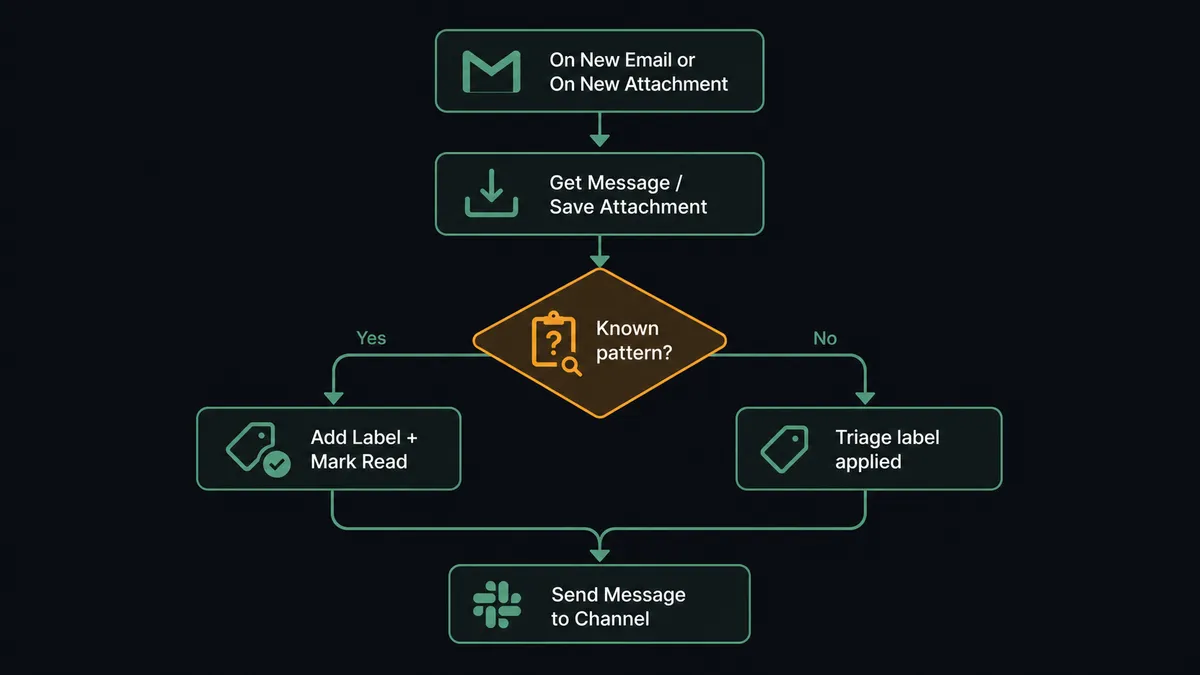
The core connection works through a Gmail trigger driving a Slack action. Set the trigger to On New Email and filter by sender domain, subject keyword, or label, and every qualifying message fires the flow. Set it to On New Attachment to catch invoices, contracts, and documents the moment they arrive. The flow calls Get Message to pull the email body and sender, calls Save Attachment to move any files into flow storage and return a URL, then calls Send Message to Channel to post a structured update to the right Slack channel.
The data mapping is direct. The email sender becomes the message author field in Slack. The subject becomes the alert header. The attachment URL becomes a link the team can open from Slack without touching Gmail. If the email comes from a known vendor in the AP queue, the agent calls Add Label To Message to mark it as received and Mark Message as Read so the inbox stays clean. The Slack channel sees the update. The Gmail inbox reflects that the item is handled.
Can an AI agent run it? (and why a human stays in the loop)
A direct trigger-to-action connection moves every email to Slack. An AI agent reads each email and decides what to do with it. That distinction matters because not every email should get the same treatment, and a hardcoded rule cannot cover everything that lands in a real inbox.
The agent has a toolbox: Get Message, Get Attachments, Save Attachment, Add Label To Message, Remove Label From Message, Mark Message as Read, Send Message to Channel, Send Direct Message. It reads each incoming message and reasons about what it found. A PDF attachment from a vendor in the approved list means Save Attachment, extract the data, label it received, and post a summary to #ap-team. An email from the same vendor but with an amount three times their usual invoice means something different. The agent does not auto-process it.
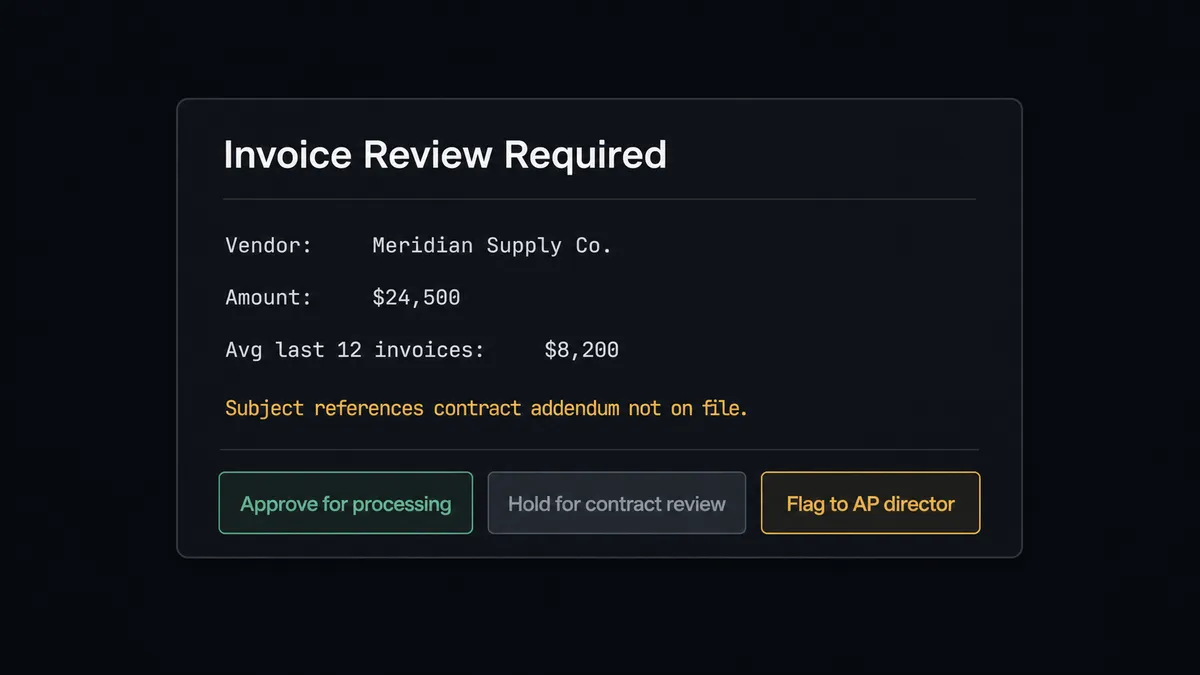
When the agent encounters that exception, it does not fail or skip the message. It calls its human-in-loop tool: a separate FlowRunner flow that sends a Slack message to the right person with the full context. “Invoice from [vendor] for $24,500. Their last 12 invoices averaged $8,200. Subject line references a contract addendum we do not have on file. Options: approve for processing, hold for contract review, or flag to AP director.” The human receives that message in Slack with three interactive buttons. They tap one from their phone. The agent resumes with the decision captured in the audit trail.
This is the digital andon cord. The agent stops the line when something does not add up. It is not a threshold check. It is the agent evaluating context: vendor history, invoice amount, subject line content, whether an attachment matches what was expected. The human makes the call on what the agent flags. Everything else runs without interruption.
FlowRunner vs Zapier
Zapier is the tool most non-technical teams reach for first when they want to connect Gmail and Slack. It connects them quickly, it has a large library of pre-built Zaps, and it works for straightforward trigger-to-action flows without any setup complexity. That is genuine value and worth acknowledging.
The differences show up at the edges. Zapier runs the Zap or it does not; it does not read the email and reason about it. Adding human oversight means building a conditional branch that checks a specific field value and routes accordingly. A threshold. The agent model in FlowRunner is different: the agent decides when to involve a human based on context it evaluates at runtime, not a value you hard-coded at build time.
| Feature | Zapier | FlowRunner |
|---|---|---|
| Basic Gmail to Slack connection | Yes, quick setup | Yes, visual builder |
| AI agent reads and reasons about each email | No | Yes, agent node with full toolbox |
| Human-in-loop as a callable agent tool | No (conditional branches only) | Yes, agent invokes it contextually |
| Unlimited users on every plan | No (user limits on lower tiers) | Yes, all tiers |
| Bring Your Own Keys for AI models | No | Yes |
| Self-hosted deployment | No | Yes (Community and Enterprise) |
| Decision audit trail with approver identity | No | Yes, built into every human-in-loop step |
Before and after
| Category | Before | After |
|---|---|---|
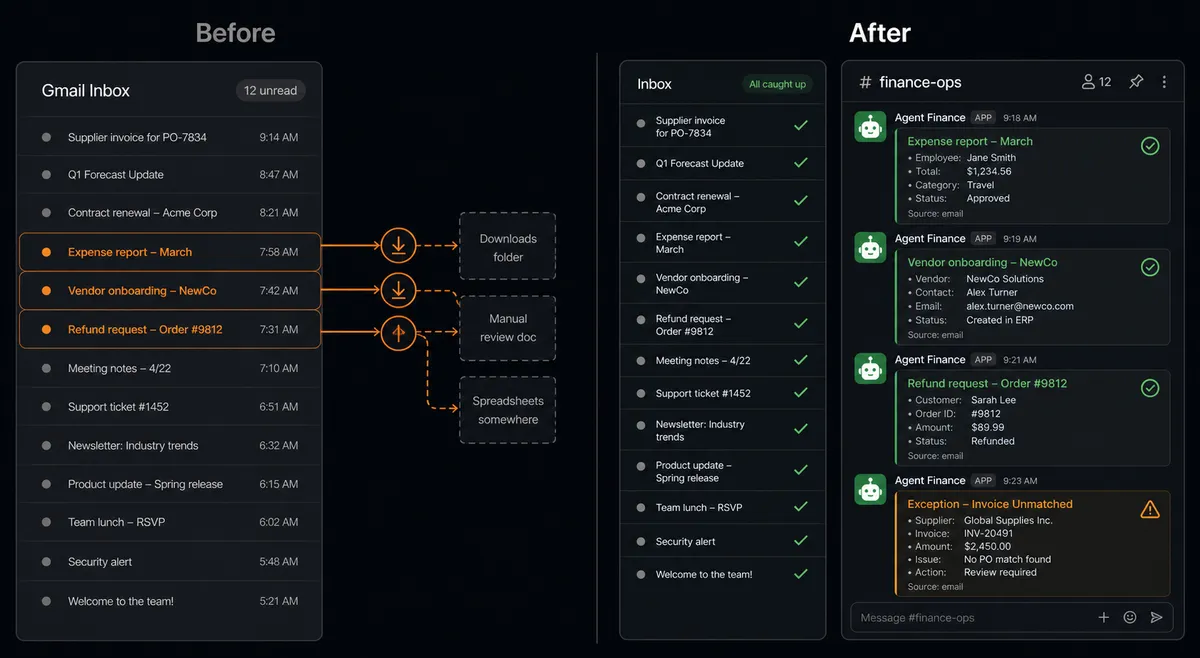
| Attachment handling | Downloaded from Gmail and re-uploaded to other tools by hand | Agent calls Save Attachment and passes the URL directly to the processing step |
| Inbox routing | Sorted manually before any downstream work can start | On New Email or On New Attachment fires the right flow automatically |
| Exception handling | Emailed or flagged verbally, tracked in separate threads | Agent sends a structured Slack message with context and interactive buttons; decision captured in audit trail |
| Routine notifications | Composed and sent by a person | Agent calls Send Message to Channel as a flow step; no one types it |
| Unknown senders | Sit in inbox until someone notices | Agent applies triage label and routes to Slack for a human decision; inbox stays clean |
| Approval turnaround | Email chain or meeting before resolution | Slack button click from a phone; agent resumes within minutes |
What you can build
Invoice intake with an exception gate. Gmail On New Attachment fires when a vendor emails a PDF. The agent saves it with Save Attachment, extracts the data, and compares it against expected amounts. Routine invoices post a summary to #ap-team. Anything outside the expected range routes to the AP manager in Slack with Approve and Hold buttons.
Support email to Slack ticket. Gmail On New Email fires on messages to your support address. The agent calls Get Message, extracts the issue category and customer details, and posts a structured card to #support-queue with the key fields. The team works from Slack instead of a shared inbox. The email thread gets a label applied so it is marked as handled.
Vendor document channel. A dedicated Slack channel receives vendor files. On File Shared fires when a vendor drops a PDF or spreadsheet. The agent calls Get File Info, processes the document, validates it against expected format, and posts a structured summary in the thread. If the document does not match the expected format, the agent asks the channel to confirm before processing further.
Starred email to direct Slack message. On Email Starred fires when a team member stars a message to flag it for follow-up. The agent reads the email with Get Message and sends a Send Direct Message to the team lead with the email summary and a link to the thread. Stars become action items without any copy-paste.
Weekly inbox digest. On a schedule, the agent calls Get Messages List with a query for the past seven days, summarizes the volume by sender category, and posts a structured report to #operations using Send Message to Channel. Leadership sees inbox throughput without pulling a report manually.
Common questions
Is it free to connect Gmail and Slack on FlowRunner? FlowRunner has a free plan with 100 executions a month, every integration included, and no credit card required, and new accounts get 14 days of Professional on top. After the trial, Growth is $45 per month with 12,000 executions and unlimited users and workflows.
Can I self-host FlowRunner to keep email data on my own infrastructure? Yes. FlowRunner offers a Community Edition for free on a single instance and an Enterprise self-hosted tier with multi-instance clustering. Self-hosting keeps your Gmail and Slack data entirely within your own environment.
Does the AI agent need my own OpenAI or Claude key? FlowRunner uses a Bring Your Own Keys model. You connect your preferred AI provider, whether that is OpenAI, Anthropic, or another supported model, and the agent uses your key. FlowRunner does not route your data through a shared AI backend.
What happens when the agent is not sure how to handle an email? The agent does not guess. It applies a triage label in Gmail, sends a Slack message with the email subject, sender, and a description of why it could not match the message to a known pattern, and waits for a human decision before taking any action.
Can the agent handle emails from multiple Gmail accounts? Yes. You can connect multiple Gmail accounts to a FlowRunner workspace and route each account’s triggers to separate flows or a shared orchestration layer. Each account authenticates independently over OAuth2.
Do I need a developer to set this up? No. FlowRunner’s visual builder lets operations and admin teams configure Gmail triggers, map data fields, and add Slack actions without writing code. Connecting a new integration takes around 30 minutes.
Getting started
Start on the free plan: 100 executions a month, every integration included, no credit card required, plus 14 days of Professional for new accounts.
Connect both integrations from the FlowRunner integrations library: Gmail and Slack. Both authenticate over OAuth2 and are ready to use as triggers, actions, or agent tools from the moment you connect them.
Start the trial at flowrunner.ai or book a 30-minute walkthrough at calendly.com/flowrunner/intro if you want to see the agent and human-in-loop setup before building it yourself.
Frequently asked questions
Is it free to connect Gmail and Slack on FlowRunner?
FlowRunner has a free plan with 100 executions a month, every integration included, and no credit card required, and new accounts get 14 days of Professional on top. After the trial, Growth is $45 per month with 12,000 executions and unlimited users and workflows.
Can I self-host FlowRunner to keep email data on my own infrastructure?
Yes. FlowRunner offers a Community Edition for free on a single instance and an Enterprise self-hosted tier with multi-instance clustering. Self-hosting keeps your Gmail and Slack data entirely within your own environment.
Does the AI agent need my own OpenAI or Claude key?
FlowRunner uses a Bring Your Own Keys model. You connect your preferred AI provider, whether that is OpenAI, Anthropic, or another supported model, and the agent uses your key. FlowRunner does not route your data through a shared AI backend.
What happens when the agent is not sure how to handle an email?
The agent does not guess. It applies a triage label in Gmail, sends a Slack message with the email subject, sender, and a description of why it could not match the message to a known pattern, and waits for a human decision before taking any action.
Can the agent handle emails from multiple Gmail accounts?
Yes. You can connect multiple Gmail accounts to a FlowRunner workspace and route each account's triggers to separate flows or a shared orchestration layer. Each account authenticates independently over OAuth2.
Do I need a developer to set this up?
No. FlowRunner's visual builder lets operations and admin teams configure Gmail triggers, map data fields, and add Slack actions without writing code. Connecting a new integration takes around 30 minutes.