How to Connect Airtable with Dialpad (With or Without an AI Agent)
Connect Airtable records to Dialpad so a status change sends the customer an SMS or queues a call, with an AI agent that drafts the message from record context and pauses for a human before texting anything sensitive.
How do you connect Airtable to Dialpad?
You connect Airtable to Dialpad by having Airtable’s On New or Updated Record trigger drive Dialpad actions: when a record’s status changes, the workflow pulls the row with Find Record, makes sure the customer exists in Dialpad with Create Contact, and reaches them with Send SMS or connects a rep with Initiate Call, so the operational truth in your base becomes a customer update without anyone copying phone numbers between tabs. FlowRunner is a visual AI-agent orchestration platform where automations run autonomously and pause for human judgment on the steps that carry real consequence. Run as an AI agent, the same connection drafts each message from the record’s actual context, sends the routine ones on its own, and stops for a named human before texting anything that touches a delay, a dispute, or a customer already running hot.
The problem it solves
Right now the link between your Airtable base and your customers’ phones is a person doing swivel-chair work. A job status flips to scheduled, and someone copies the customer’s number into Dialpad, types out a confirmation text, and hopes they picked the right record. An installation slips a day, and the update text goes out late, or never, because the sender was in meetings all afternoon. The base always knows the current state; the customer finds out when a human gets around to telling them.
The edges are where trust erodes. The delay notification that never went out, so the customer sat home waiting. The text sent to the wrong number because two records had similar names. The customer who called twice last week about a problem, now receiving a chipper automated-sounding confirmation as if nothing happened. And the reverse gap: calls happen in Dialpad, but what was said never makes it back to the record, so the next person to open the row has no idea a conversation took place.
How it works: the connection
The connection listens to Airtable and acts through Dialpad, then writes outcomes back. Here is the plain version, grounded in the real connector actions.
- Trigger: Airtable fires On New or Updated Record when a record’s status field changes on your jobs or appointments table.
- Read: The workflow calls Find Record to pull the full row: customer name, phone, the new status, and the fields that describe what changed.
- Sync the contact: It calls List Contacts in Dialpad to check for the number, and Create Contact if the customer is not there yet, so caller ID and history work for every rep.
- Send the update: It calls Send SMS with a message assembled from record fields, the appointment window, the job reference, the new status.
- Connect a person when it matters: For records marked for a live conversation, it calls Initiate Call to ring the assigned rep and connect them to the customer.
- Write back: It calls Update Record with the send time and outcome, and after any call, Get Call Transcript pulls what was said so the record carries the conversation.
- Report: On a schedule, Request Statistics and Get Statistics Result summarize call and SMS volume into a metrics table in the base.
That is the “just connect them” answer. Status changes become customer updates in seconds, numbers stay synced, and the base becomes the single record of both the work and the conversation about the work.
Can an AI agent run it? (and why a human stays in the loop)
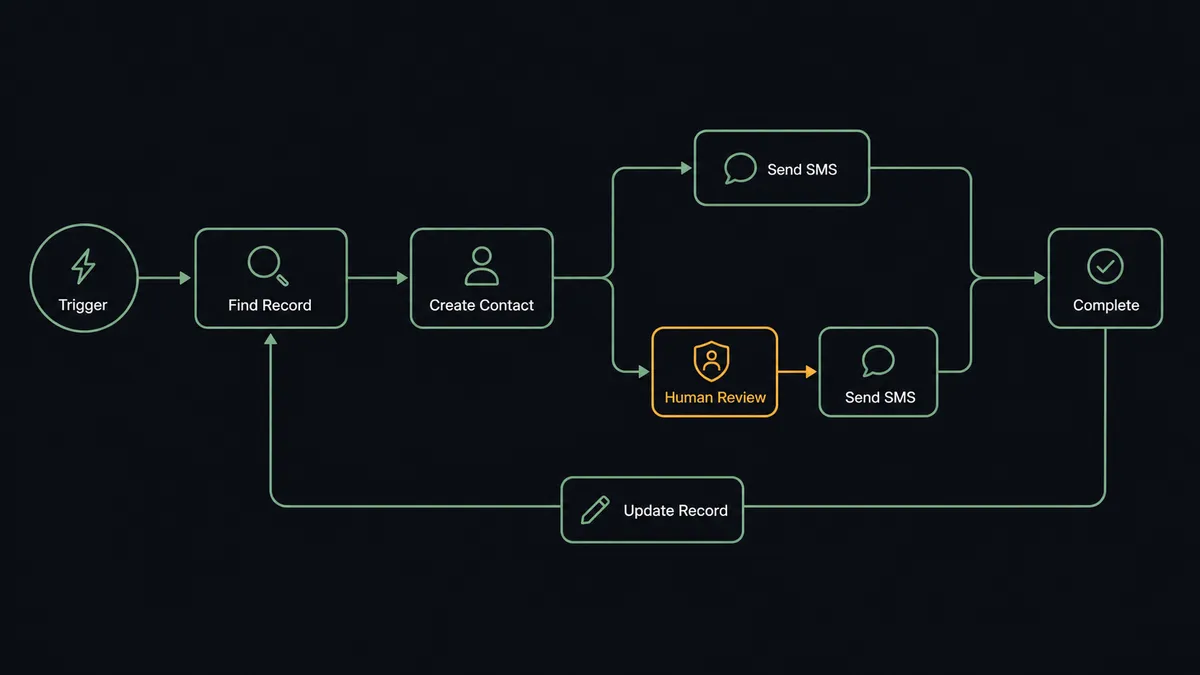
Yes, and this is the difference between a notification pipe and a communicator with judgment. A template automation sends the same text for every status change, whatever the account’s temperature. An AI agent holds Find Record, Create Contact, Send SMS, Initiate Call, Get Call Transcript, and Update Record as tools, reads the record before writing a word, and composes the message a thoughtful coordinator would send: specific to this job, this customer, this history.
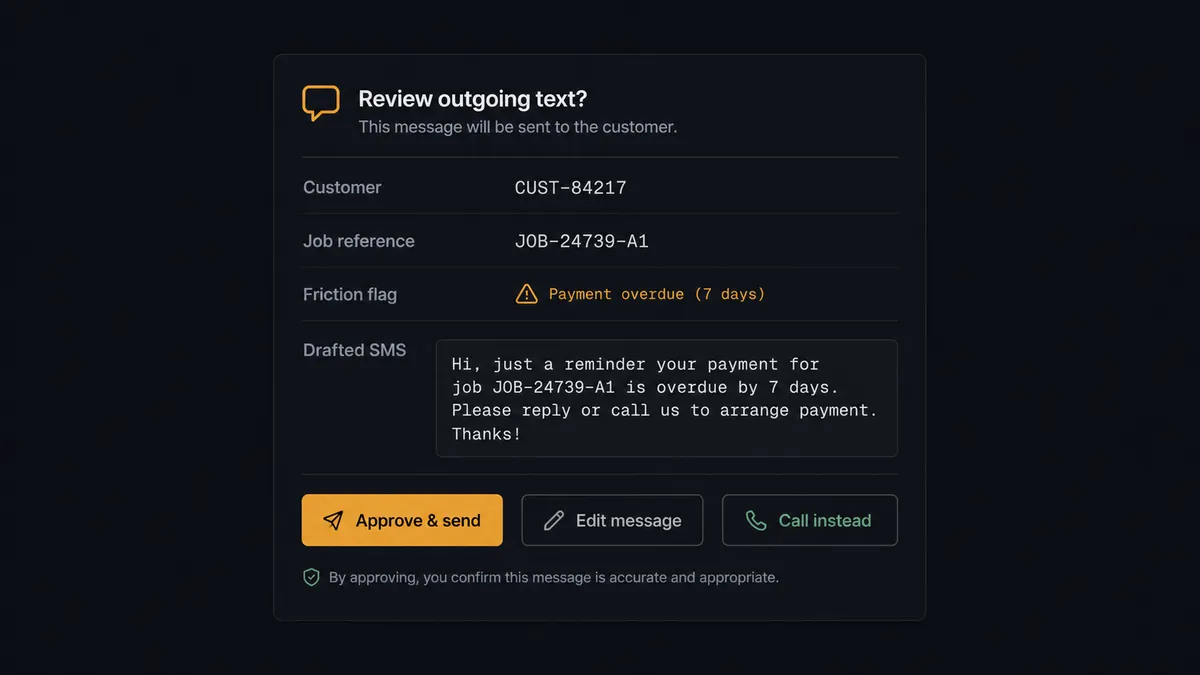
The consequential step is Send SMS, because a text from your business number lands in the most personal inbox a customer has, and there is no recall button. Routine sends, a confirmation to a clean account, go out without ceremony. But when the message concerns a delay, a reschedule, or an account whose record shows recent friction, the agent invokes a human-in-loop flow it holds as a callable tool. The workflow pauses and posts to your team’s channel: “Job [reference] for [customer] moved to delayed. Record shows two calls about this job last week. Draft: [message text]. Approve, edit, or handle by phone instead?” The coordinator approves, rewrites a warmer version, or picks the call option, in which case Initiate Call connects them directly. Only after that decision does anything reach the customer, and Update Record captures who decided what.
This is the digital andon cord for customer communication: like Toyota’s production line pull cord, the workflow stops the line the moment it hits uncertainty. The routine updates flow at machine speed. The messages that carry relationship risk wait for a named human, and the record keeps the receipt either way.
FlowRunner vs Zapier
Zapier is the natural first stop for this pair and it earns the position: both connectors are supported, the editor is fast to learn, and the template gallery covers “new row, send SMS” patterns well. For a fixed confirmation text fired on record creation, a Zap is genuinely the quickest route.
The difference is everything around the send. This pair’s risk is not moving a phone number between systems, it is deciding what to say and whether to say it by text at all. Zapier fires the message you templated; it does not read the record’s history or weigh the account’s mood. FlowRunner runs the connection as an agent that drafts per-record messages and treats the pause-for-a-person as a first-class step in the flow.
| What matters for this pair | FlowRunner | Zapier |
|---|---|---|
| Human-in-the-loop before Send SMS on sensitive messages | Native. The agent invokes an approval flow as a callable tool and pauses before the send | Available via added approval steps, not a native agent decision |
| Who runs the flow | An AI agent reads the record, drafts the message, picks actions as tools | Predefined step sequence with templated message fields |
| Users included | Unlimited users on every tier | Priced by task volume; seats vary by plan |
| Bring your own AI keys | Yes, BYOK. Connect the AI provider key you already have | AI features tied to Zapier’s own AI offering |
| Self-hosted option | Yes, cloud-hosted or self-hosted | Cloud only |
| Pricing model | Transparent workflow-based tiers | Per-task pricing that can be hard to predict as volume grows |
If your texts are uniform confirmations and volume is modest, Zapier does the job. If your messages vary with context and one wrong text to an unhappy customer costs real goodwill, the agent-with-a-gate model is what this pairing delivers.
Before and after
| Category | Before | After |
|---|---|---|
| Customer updates | Someone copies numbers into Dialpad and types each text by hand, when they remember | Status changes become drafted, context-aware texts within seconds |
| Delay notifications | Bad-news texts go out late or not at all because nobody wants to send them | Delay messages are drafted immediately and held for a one-click human approval |
| Contact hygiene | Dialpad and the base hold different phone numbers for the same customer | Create Contact syncs every number from the base before the first send |
| Conversation history | Calls happen in Dialpad and vanish from the record | Get Call Transcript writes what was said back to the row with Update Record |
| Team visibility | Nobody knows which customers were contacted about what | Every send and skip carries a timestamp, an approver where one was needed, and lives on the record |
What you can build
Appointment confirmations from the base. On New or Updated Record fires when a job moves to scheduled. The agent pulls the row with Find Record, syncs the number with Create Contact, and sends a specific confirmation with Send SMS, writing the outcome back with Update Record.
Delay notices with a human gate. When a status flips to delayed, the agent drafts the message from the record’s fields, checks for friction flags, and holds at the approval step. The coordinator approves, softens the wording, or chooses Initiate Call to deliver the news personally.
Escalation call bridge. A record marked urgent triggers Initiate Call to ring the assigned rep and connect them to the customer, and afterward Get Call Transcript writes the conversation summary onto the row so the whole team sees how it resolved.
New-lead first touch. On New Record fires when a lead lands in the base. The agent creates the Dialpad contact, sends a short introduction with Send SMS, and logs the send, so no lead waits a day for a first response.
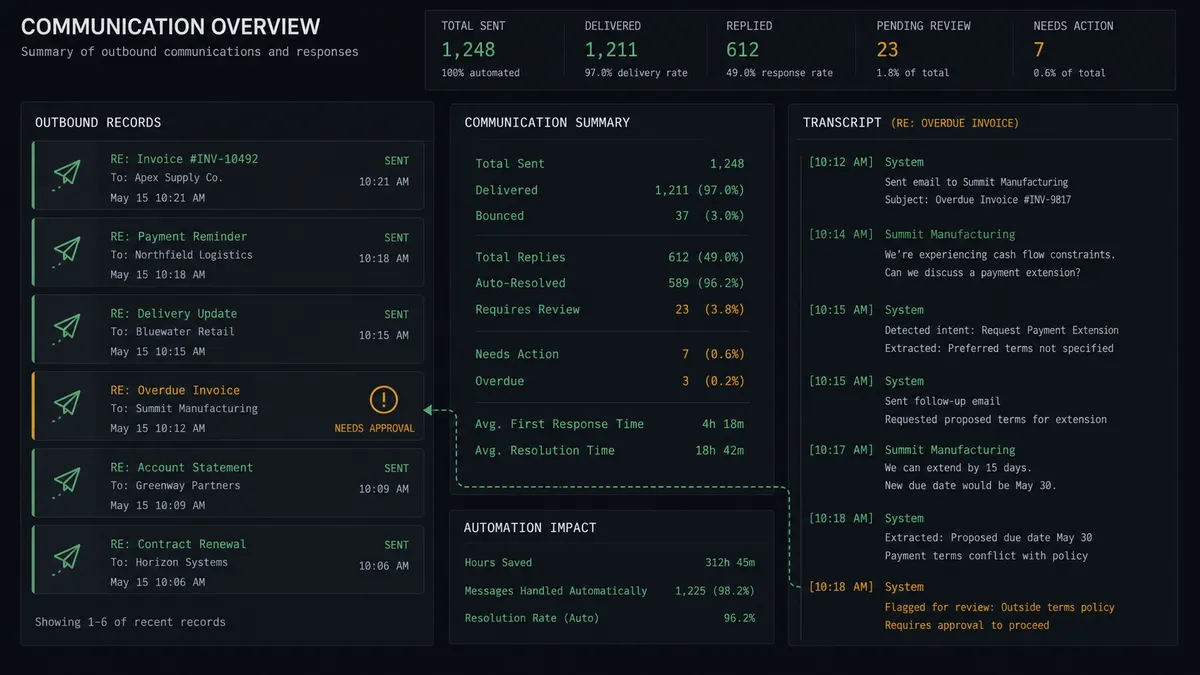
Weekly comms digest in the base. On a schedule, the agent calls Request Statistics and Get Statistics Result for SMS and call volume, then writes the summary into a metrics table with Create Record, so operations reviews communication load next to the job data it relates to.
Getting started
Start on the free plan: 100 executions a month, every integration included, no credit card required, plus 14 days of Professional for new accounts. Both connectors are available on every tier, and every tier includes unlimited users and unlimited workflows.
Explore the integration details:
- Airtable integration (2 triggers and 17 actions covering full record CRUD)
- Dialpad integration (33 actions covering calls, SMS, and telephony admin)
Start building free at flowrunner.ai or book a demo to see a live Airtable to Dialpad workflow, message approval and all.
Frequently asked questions
Is it free to connect Airtable and Dialpad on FlowRunner?
You can build and run the connection on FlowRunner's free plan, which includes 100 executions a month and every integration with no credit card required, and new accounts also get 14 days of Professional. Both connectors are available on every FlowRunner tier, and every tier includes unlimited users and unlimited workflows.
Can I self-host the Airtable to Dialpad workflow?
Yes. FlowRunner offers a cloud-hosted option and a self-hosted option, so the connection can run inside your own environment.
Does the AI agent need my own OpenAI or Claude key?
FlowRunner uses a bring-your-own-keys model, so you connect the AI provider key you already have. You are not locked to one model.
What happens when the agent is unsure whether a text should go out?
It holds the message. The agent posts the drafted SMS, the record context, and its reason for hesitating to your team's channel, then waits for a person to approve, edit, or cancel the send before Send SMS runs. Nothing reaches the customer's phone until someone signs off.
Which Airtable events can trigger a Dialpad action?
Airtable offers two triggers: On New Record and On New or Updated Record. This pair uses On New or Updated Record so a status field change, like a job moving to scheduled or delayed, is what fires the workflow.
Can the workflow put call outcomes back into Airtable?
Yes. After a call completes, the workflow retrieves the conversation with Get Call Transcript and writes the summary to the record with Update Record, so the base shows what was said without anyone typing up notes.