A few days ago someone running an agricultural supply business posted a question in r/n8n. Their product data lives in PDFs: datasheets, price lists, and catalogs in Google Drive. They wanted a product list they could trust, and they wrote down a 12-step plan to get there: watch Drive, extract the fields with AI, normalize the units, send anything uncertain to a person, settle conflicts with a decision, and keep an audit trail of who approved what. Their priority, in their own words:
“My priority is data accuracy, traceability, and maintainability, not creating the most complicated AI agent possible.”
That’s a good description of what FlowRunner is for, so we tried it. We gave FlowRunner Prompt to Flow one request in plain English, and then fed the result a real catalog to see what happened.
The request
This is the whole prompt, as sent:
Build a flow that turns product documents in Google Drive into a reviewed product list, with a person approving anything uncertain.
Start whenever a file is added to or updated in my Google Drive folder “Product Documents”.
- Download the file. It’s a PDF: a product datasheet or a price list.
- Use an AI agent to read it and pull out these fields for each product in it: product name, product code, specifications, price, availability, packaging, application notes, safety data, and compliance. Keep each value with the units as written in the document, and also a normalized version (metric units, prices in USD).
- For each product, also return how confident the agent is about each field, and which page of the document the value came from.
- Look up the product code in my Google Sheet “Products” (the approved list).
- If the product is new, every field is confident, and nothing conflicts, add it to a second sheet called “Staging” with status “ready”.
- If any field is uncertain, or the values conflict with what’s already in “Products” (for example a different price or specification), don’t write it to “Products”. Send me a Slack message in #product-data that shows the product, the uncertain or conflicting fields side by side with the current values, and a link to the document and page. Let me approve, correct a value, or reject.
- When I approve or correct, write the product to “Products” and mark it in “Staging” as approved. When I reject, mark it rejected.
- For every product, add a row to a sheet called “Audit log”: the document name and its last-modified time, the product code, what changed, whether a person reviewed it, who approved it, and when.
- If anything fails, like the download or the AI step, retry twice, then post the error and the file name in #product-data so nothing gets lost silently.
What it asked before building
The first thing FlowRunner Prompt to Flow did was notice what didn’t exist yet. The Google account connected to the workspace had no “Products” spreadsheet and no “Product Documents” folder, so it asked where they were instead of guessing. It also left the flow stopped, because a Drive trigger with no folder set would have watched the entire Drive.
When asked for a starter spreadsheet, it created one with three tabs, Products, Staging, and Audit log, seeded Products with four sample products, and read the sheet back to check that the headers and values came through. It then suggested test documents that would exercise each path: a new product, a known product with a different price, an unchanged product, and a value too smudged to trust.
What it built, and the calls it made
It built two flows, not one.
Extract and review (44 blocks) starts when a file lands in the folder or changes. It skips anything that isn’t a PDF, and it remembers which file versions it has already processed, because Google Drive can report the same change more than once. It downloads the file, has an AI agent extract every product, converts prices to USD, compares each product with the approved list, stages the clean ones, and sends one Slack review card for each product that needs a person. Every product gets an audit log row either way.
Slack approvals (29 blocks) starts when someone clicks a button or submits a correction on one of those cards. It’s a separate flow because a review can come back minutes or days later, and the extraction shouldn’t sit waiting for it. It works out what the decision means (add a new product, update an existing one, reject, or apply a correction), writes it to the sheets, records it in the audit log, and replies in the card’s thread.
Along the way it made a few judgment calls of its own and said so:
- Writes aren’t retried. Downloads and the AI step get three attempts each, but a Google Sheets write that timed out may have actually succeeded, and retrying it could create a duplicate row. A failed write goes straight to #product-data instead.
- USD comes from a live exchange-rate lookup, not from the AI. The agent reports the price in the document’s own currency and the flow converts it. If no rate is available, the product goes to review rather than getting a guessed price.
- A field missing from a document never counts as a conflict. A price list with no specifications won’t flag every specification as changed, and approving it won’t blank those fields out in Products.
- A product needs a code to be approved. The whole pipeline matches products by their code, so a product approved without one could never be found again, and the next document would add it a second time. The review card asks for the code instead.
The test: a real 30-page catalog
For the test we used a public product catalog from a fertilizer manufacturer, the kind of document an agricultural supplier actually receives: 30 pages of product families, tables of formulations and release periods, and photos of bags and bottles.
The agent pulled 58 products out of it into Staging, each with its specifications kept as written and normalized. For one coated urea, for example, the catalog’s table row became N≥45.0%; 60 days; Max 5.0%; Max 50%; 2.00-4.75 mm Min 90% as written, alongside a normalized version the sheet can sort and compare on.
The catalog has no product codes anywhere, so every product went to review. That’s the right outcome. A product list keyed on codes shouldn’t invent them, so each product waited for a person to supply one.
The review, in Slack
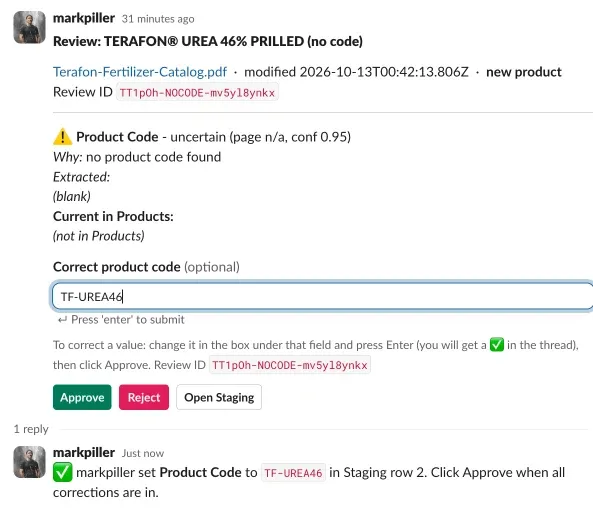
Each review card shows the product, the fields the agent wasn’t sure about, why, and what’s currently in Products. Under each uncertain field is a box. The reviewer types the right value and presses Enter, and the flow writes it to the Staging row and confirms in the thread.
The second card is the more interesting one. The agent flagged two fields for Seaweed Biostimulants: the missing product code, and the packaging, which the catalog never states in text. The agent read “5L” off the bottle in the product photo, reported where it came from (“read from bottle artwork”, page 16), and gave it a confidence of 0.80. That’s low enough to ask a person rather than write it straight into the approved list.
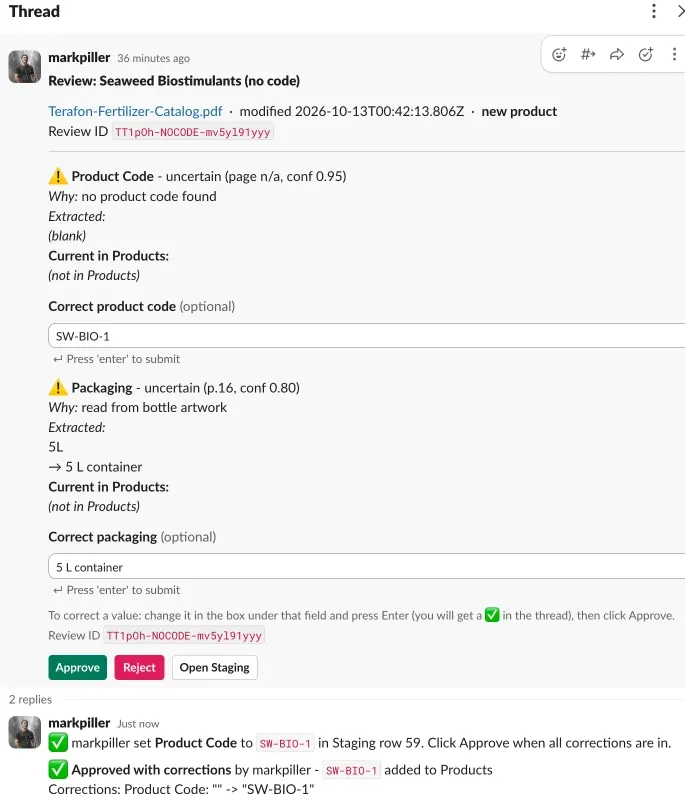
The reviewer never left Slack. They typed the code, pressed Enter, checked the packaging, and clicked Approve.
The record
The approval landed where the original poster wanted it. In Staging, both reviewed products are marked approved with their codes, while the rest of the catalog waits for review:
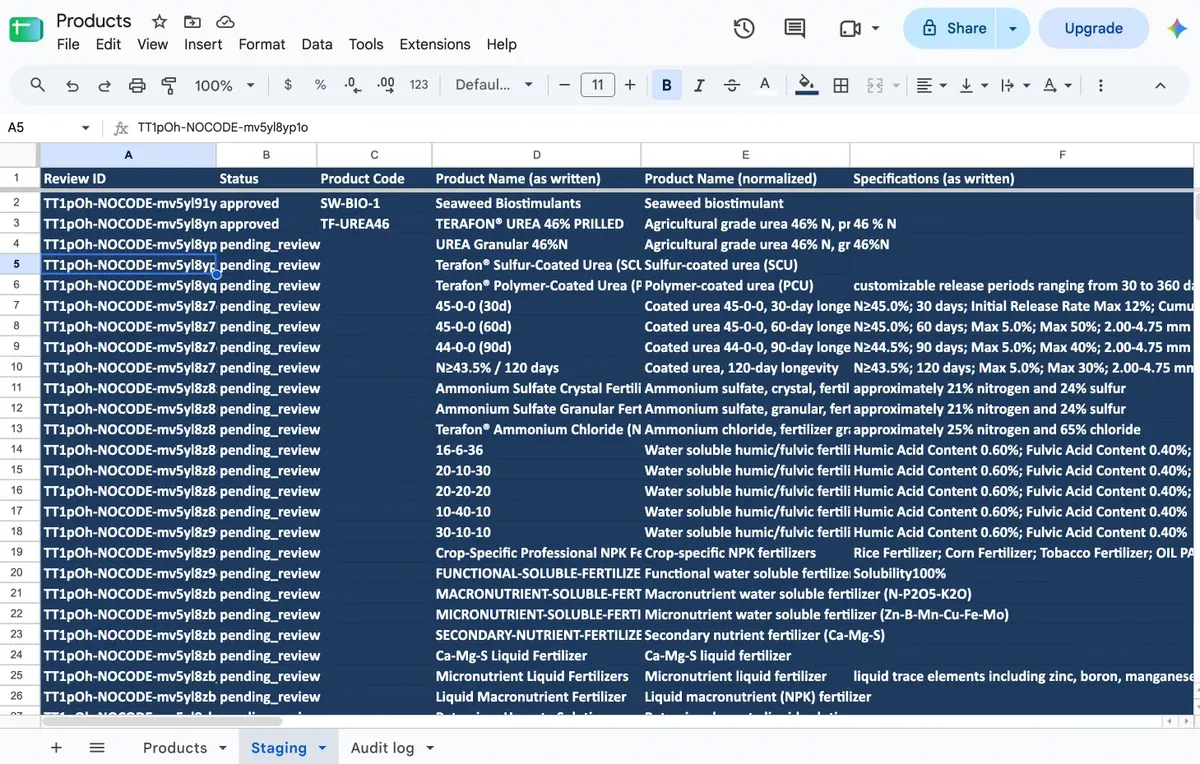
And the audit log has a row for every product in the document, ending with the two decisions: who reviewed them, that they were approved with corrections, and that they were added to Products.
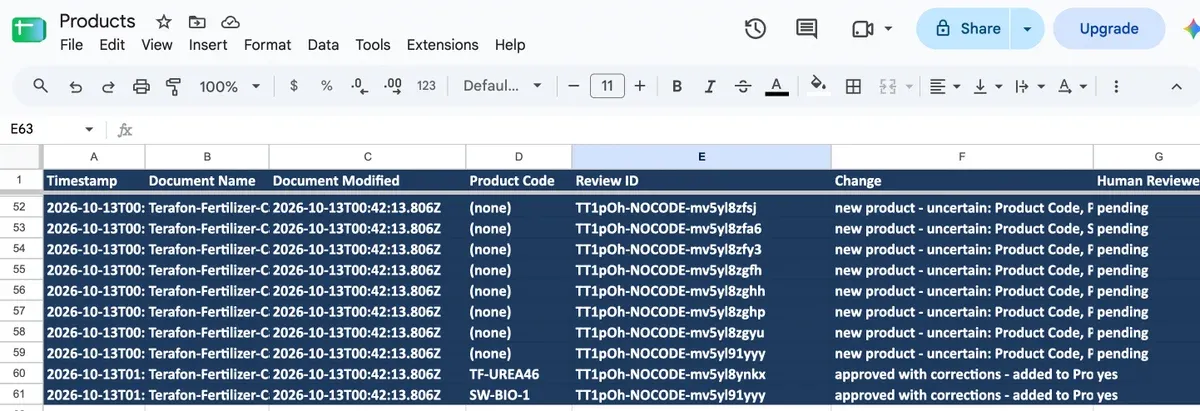
That’s the traceability the poster asked for. For any product in the list you can see which document it came from, which version of that document, what changed, and who signed off.
What it took
One prompt, a few answers to the questions FlowRunner Prompt to Flow asked, and connecting Google Drive, Google Sheets, Slack, and an Anthropic key. The AI step runs on the customer’s own key, in this case Claude, so the model cost goes to the provider directly with no markup. Nobody opened the flow editor to build it.
A supplier whose datasheets carry product codes would see most products go straight to Staging as ready, with only the genuinely uncertain ones reaching Slack. The catalog we tested with is close to the worst case, and it still ended with a clean, reviewed record.
Import the finished flows
If you’d rather start from what we built than from the prompt, download both flows and import them. In FlowRunner, click + beside Flows, choose the file under Import a Flow Version, and click Create. Import both, because the second one is what handles the clicks in Slack.
The files have our connections and IDs taken out. After importing, connect Google Drive, Google Sheets, Slack, and your AI key, then pick your folder, spreadsheet, and Slack channel on the blocks that ask for them. The spreadsheet needs the same three tabs and column headers we used, so make a copy of our starter spreadsheet, or ask FlowRunner Prompt to Flow to create one for you, as it did for us.
Try it
FlowRunner Prompt to Flow works from Claude, ChatGPT, Claude Code, Codex, and Cursor. Connect it, sign in to your FlowRunner account, and paste the request above with your own folder, sheet, and channel names. The Free plan needs no card and includes every integration and human-in-the-loop. If you’d rather have someone set it up with you, send us a note.