A small renovation company posted a question on Reddit this week that a lot of growing businesses could have written. They run their finances on a set of Google Sheets, issue invoices from SAGE One, download bank statements as XLSX files, and handle more than 150 financial documents a month. They wanted to automate the back office, but they were clear about how:
“We don’t want to introduce AI just for the sake of using it.”
One of their questions was specific: what’s a reliable way to import XLSX bank statements and match transactions to invoices automatically, with the ambiguous cases flagged for a person? We gave that question to FlowRunner Prompt to Flow, through Claude, to see what it would build.
The short answer: an AI built the automation, and plain rules run it. No AI model decides which invoice gets marked paid.
The request
This is the whole prompt, as sent:
Build a flow that reconciles our bank statement against our financial register in Google Sheets, with a person reviewing anything that doesn’t match.
Start whenever an XLSX bank statement is added to my Google Drive folder “Bank statements”.
- Read every transaction row from the file: date, description, amount, and the bank’s reference.
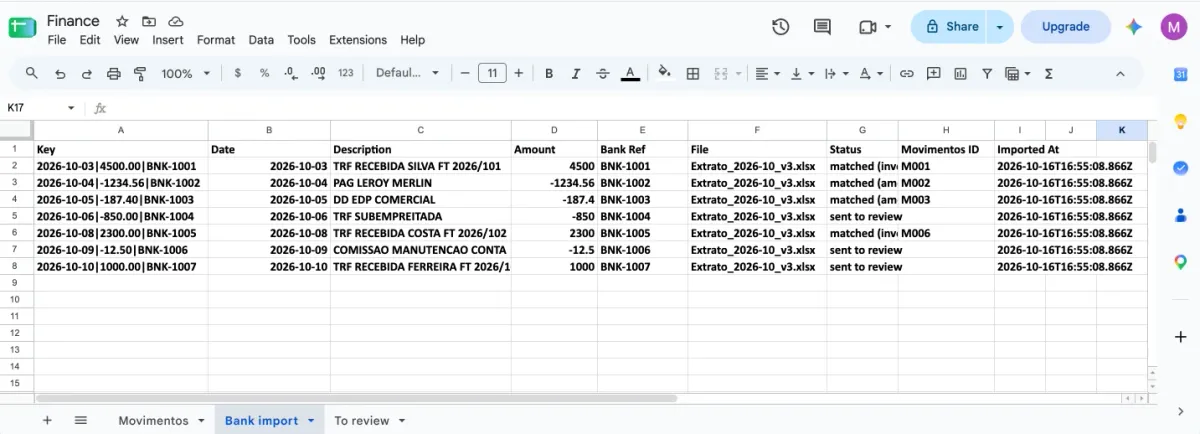
- Give each transaction a key made from its date, amount, and bank reference, and skip any key already recorded in the “Bank import” tab of my Google Sheet “Finance”, so importing the same statement twice never creates duplicates.
- For each new transaction, look for a match in the “Movimentos” tab: first by an invoice number that appears in the description, then by the exact amount within 5 days of the date.
- If there is exactly one match, mark that row in Movimentos as paid, with the payment date and the bank reference.
- If there is no match, or more than one, don’t change Movimentos. Add the transaction to a “To review” tab together with the candidate rows, and email me once a day with what’s waiting and a link to the tab.
- Record every transaction in “Bank import” with what happened to it: matched, sent to review, or skipped as a duplicate.
- If the file can’t be read, email me the file name and the error instead of skipping it quietly.
What it asked first
Before building anything, it asked five questions: which FlowRunner workspace to use, how the Movimentos tab and the bank file are laid out, who gets the email and when, and whether to connect accounts now or later. We had no real company data to give it, so we asked it to create sample data instead.
It did that properly. It made a “Bank statements” folder in Google Drive, and a “Finance” spreadsheet whose Movimentos tab uses the same Portuguese columns as the original poster’s register (ID, Data, Tipo, Entidade, Nº Fatura, Valor, Estado, and so on), with eight invoices: three sales and five costs, one of them already paid. Then it wrote a bank statement with seven transactions, each one built to test a different rule.
What it built
Three flows.
Bank Statement Reconciliation runs once for each new file in the folder. It downloads the statement, reads the rows from the XLSX, loads the Bank import log and the Movimentos tab, runs the matching, marks matched invoices as paid, adds anything uncertain to the To review tab, and logs every transaction in Bank import. If the download, the file read, or the matching step fails, it emails the file name and the error instead of failing silently.
The matching is about a hundred lines of JavaScript in one code block, written by the AI and tested against the sample data before it went into the flow. Everything else is standard FlowRunner blocks for Google Drive, Google Sheets, and Gmail. The rules run in this order:
- Duplicates first. Each transaction gets a key from its date, amount, and bank reference, for example
2026-10-03|4500.00|BNK-1001. A key that’s already in Bank import is logged as a skipped duplicate, and nothing else happens. - Invoice number. Look for an unpaid invoice whose number appears in the bank description. Spaces and punctuation are ignored, so “FT 2026/101” still matches. The amount has to agree too. If the number matches but the amount doesn’t, it goes to review as a likely partial payment, and the next rule isn’t tried.
- Amount and date. If no invoice number matched, look for unpaid invoices with exactly the same amount, to the cent, dated within 5 days of the payment.
- Decide. Exactly one candidate: mark it paid. None, or more than one: send it to review with the candidates listed.
An invoice that matched once isn’t offered again to a later transaction in the same file.
Bank Reconciliation Daily Review Email runs every morning at 8:00. It reads the To review tab, keeps the items nobody has resolved yet, and emails a table of them (date, description, amount, bank reference, reason, and candidates) with a link to the tab. Putting any value in the Resolved column takes a row off the next email. If nothing is waiting, it doesn’t send anything.
Reset Bank Reconciliation Demo puts the sample data back the way it started, so the demo can be run again.
The test
We dropped the sample statement into the Drive folder. Four of the seven transactions were matched and marked paid automatically, and three went to a person:
| Bank transaction | Amount | What happened | Why |
|---|---|---|---|
| TRF RECEBIDA SILVA FT 2026/101 | 4,500.00 | Matched, marked Pago | The invoice number is in the description |
| PAG LEROY MERLIN | -1,234.56 | Matched, marked Pago | Only one invoice with that exact amount within 5 days |
| DD EDP COMERCIAL | -187.40 | Matched, marked Pago | Only one invoice with that exact amount within 5 days |
| TRF SUBEMPREITADA | -850.00 | Sent to review | Two subcontractor invoices for -850.00 within 5 days, both listed |
| TRF RECEBIDA COSTA FT 2026/102 | 2,300.00 | Matched, marked Pago | The invoice number is in the description |
| COMISSAO MANUTENCAO CONTA | -12.50 | Sent to review | A bank fee, with no invoice to match |
| TRF RECEBIDA FERREIRA FT 2026/103 | 1,000.00 | Sent to review | Quotes invoice FT 2026/103, but for 1,000.00 of its 1,800.00, so a partial or wrong payment |
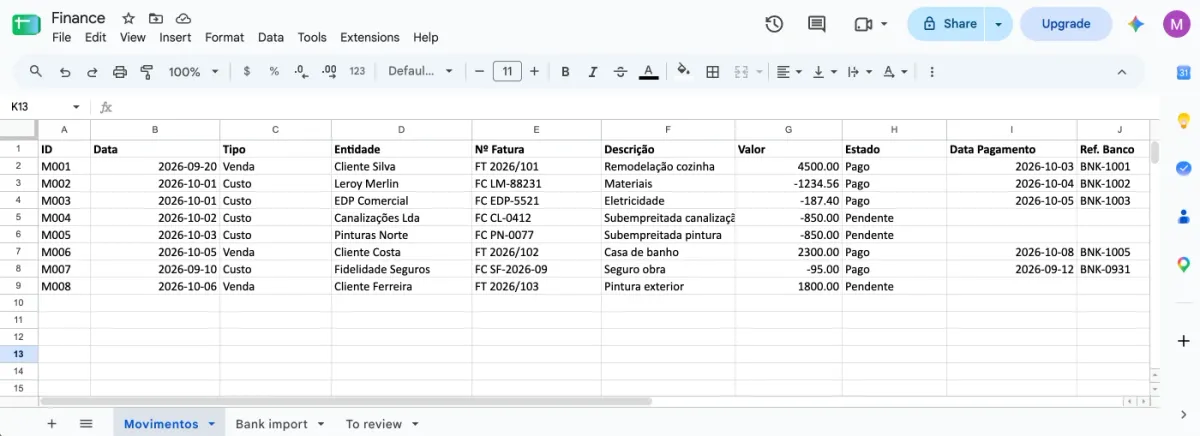
Each matched invoice got Estado = Pago, the payment date from the bank, and the bank reference. The invoices it left alone were the right ones to leave alone: the two subcontractor invoices it couldn’t tell apart, the one that was only partly paid, and the one that was already paid before the import.
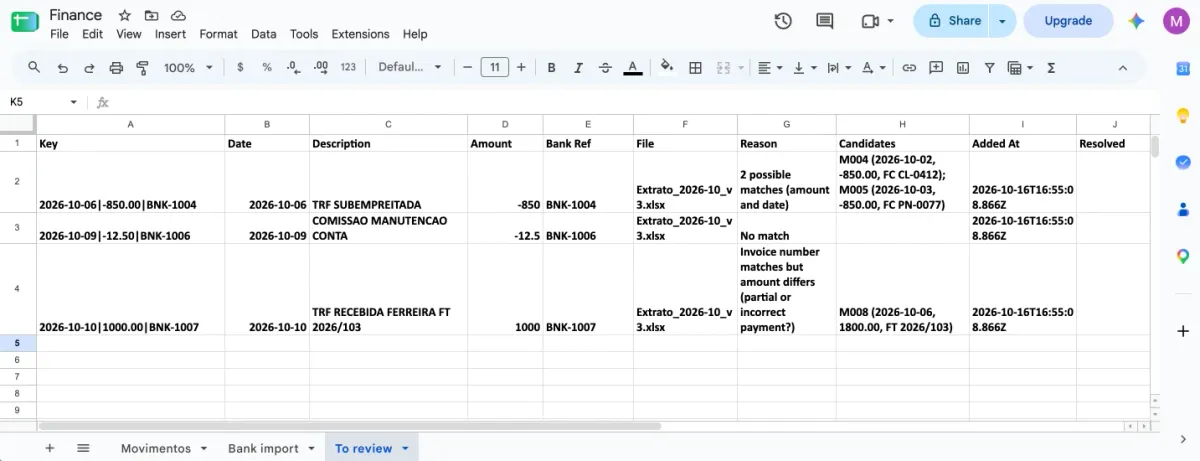
The review email lists the same three items, with the reason and the candidates for each, and a link to the tab:
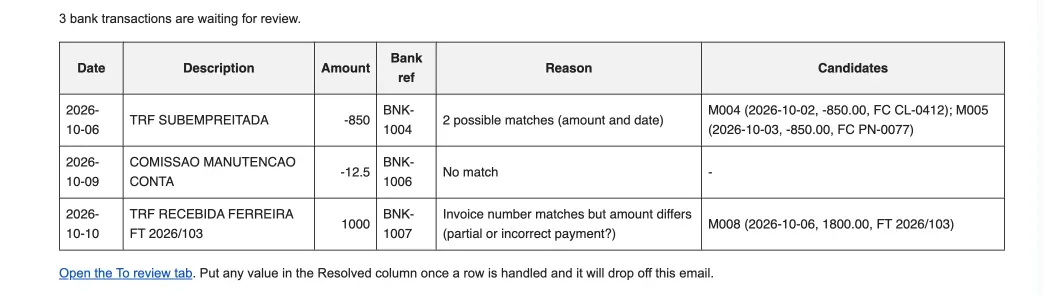
One rule changed after the first run. As the prompt was written, step 3 matched on the invoice number alone, so a partial transfer that quoted the invoice number would have marked the whole invoice paid. The AI pointed that out when it finished, and we asked it to require the amount to agree as well. The Ferreira transfer in the table is that case: it quotes invoice FT 2026/103 but pays 1,000.00 of 1,800.00, so it went to a person instead of closing the invoice.
Then we dropped the same statement in again. All seven transactions were skipped as duplicates, and nothing changed. That’s the “safe to re-run” property the original poster asked for, and Bank import records every one of those decisions, which gives them the audit trail they asked for too.
What testing caught
It didn’t work the first time, and the way it got fixed is part of the point.
The first failure was in the test data. The sample XLSX file it had uploaded to Drive was corrupted on the way, and the flow’s Read Transactions step refused it with “unable to read the workbook.” The flow was right to reject it. The AI rebuilt a valid file, checked that it opened, and made later test copies inside Drive instead of uploading them again.
The second was more instructive. The right invoices were matched, but the “paid” updates landed one row too low and overwrote two other invoices. The AI had passed the spreadsheet’s row numbers to the Google Sheets update step, which counts from the first row under the header. The Bank import log showed the correct matches while Movimentos showed the wrong rows changed, and comparing the two exposed the bug. The AI corrected the offset, wrote the reset flow so the test could start clean, and ran it again. That run is the table above.
Two things are worth saying about that. Before the fixes, the AI told us plainly that the flow was built but the end-to-end test hadn’t passed, rather than reporting success. And that second bug is exactly the kind of mistake a test with realistic data catches and a demo that only shows the happy path doesn’t.
What it doesn’t do yet
This answers one of the five problems in the original post, on sample data. Some limits are worth knowing before anyone copies it:
- Partial payments are flagged, not tracked. They go to review, and the flow doesn’t keep track of the remaining balance. A person decides what happens to the invoice.
- One payment covering several invoices isn’t handled. It goes to review today. The original poster asked about this case, and it’s the natural next rule.
- Resolving a review item is manual. Marking it resolved takes it off the daily email; the person updates Movimentos themselves.
- XLSX only. The reader recognizes common English and Portuguese column names and both date styles, so a bank with different headers would need a small edit.
- The “file can’t be read” email is built and switched on, but we haven’t seen it fire yet, because every test file was readable. The review email arrives as described.
What it took
One prompt, a few answers, and about an hour from the request to a verified, working flow, debugging included. Google Drive, Google Sheets, and Gmail were already connected to the workspace, so there was no sign-in step. Nobody opened the flow editor to build it.
The part we’d point to for anyone with the same constraint as the original poster is where the AI sits. It wrote the flow, the matching code, and the test data. It doesn’t run in the flow. Every run is the same rules in the same order, which is easier to trust with money and easier to explain to an accountant.
Import the finished flows
If you’d rather start from what we built than from the prompt, download both flows and import them. In FlowRunner, click + beside Flows, choose the file under Import a Flow Version, and click Create.
The files have our connections, folder, spreadsheet, and email address taken out. After importing, connect Google Drive, Google Sheets, and Gmail, then pick your folder, spreadsheet, and the address the email goes to. The matching code expects the same tabs and columns we used, so make a copy of our sample spreadsheet to start from, or ask FlowRunner Prompt to Flow to adjust the code to your own columns.
Try it
FlowRunner Prompt to Flow works from Claude, ChatGPT, Claude Code, Codex, and Cursor. Connect it, sign in to your FlowRunner account, and paste the request above with your own folder, sheet, and tab names. The Free plan needs no card and includes every integration. If you’d rather have someone set it up with you, send us a note.