How to Connect Zendesk with Slack (With or Without an AI Agent)
Connect Zendesk and Slack so every new ticket routes to the right Slack channel instantly, with an optional AI agent that triages, escalates, and pauses for a human before bulk moves go through.
How do you connect Zendesk to Slack?
You connect Zendesk to Slack by using FlowRunner’s On Ticket Event trigger to fire when a ticket is created or updated, then routing that ticket’s details to a Slack channel using Send Message to Channel. FlowRunner is a visual AI-agent orchestration platform where automations run autonomously and pause for human judgment on the steps that carry real consequence. The same connection can run as an AI agent that triages each ticket, updates it in Zendesk, and invokes a human decision in Slack before any bulk move applies.
The problem support and ops teams run into
Your support team lives in Zendesk. Your ops and leadership team lives in Slack. When a high-priority ticket lands, someone has to notice it in Zendesk, decide where it belongs, update the fields, and then remember to tell the right people in Slack. That handoff is manual. It involves checking two tabs, copying a link, and hoping the right person sees the message before the ticket ages against your SLA.
The same problem compounds at scale. When your queue grows, someone has to sweep through open tickets and move batches to the right group or status. That sweep happens manually, with no second pair of eyes, and the risk of an orphaned escalation or a missed SLA goes up every time. Exceptions fall through the cracks not because your team is careless but because the process depends on people remembering to check.
How it works: the connection
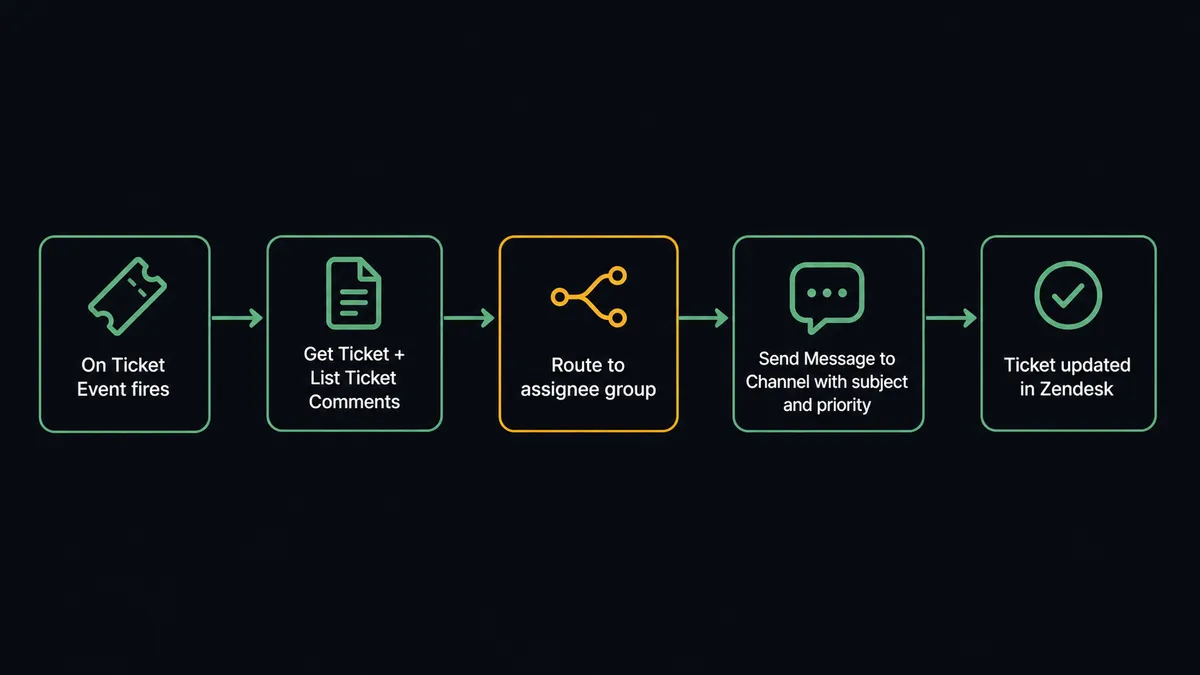
The base connection is straightforward. In FlowRunner, you set On Ticket Event as the trigger. This fires in real time whenever a ticket is created or updated in Zendesk. FlowRunner provisions the Zendesk webhook and business-rule trigger automatically. You do not configure anything manually in Zendesk admin.
From there, the flow reads the ticket with Get Ticket, which returns the subject, status, priority, requester, assignee, group, tags, and custom fields. If you need the full conversation history before routing, List Ticket Comments retrieves every comment in chronological order. The flow then posts to your support channel with Send Message to Channel, mapping the ticket subject, priority, requester email, and a direct link.
That is the base layer. Every new ticket surfaces in Slack within seconds of arriving in Zendesk, with enough context for the right person to act without opening another tab.
Can an AI agent run it? (And why a human stays in the loop)
The plain trigger-and-action connection routes every ticket the same way. An AI agent does something different: it reads the ticket, reasons about it, and picks the right action from its toolbox based on what it finds.
The agent has access to Get Ticket, List Ticket Comments, Update Ticket, Search Tickets, Send Message to Channel, and Send Direct Message as callable tools. When a ticket arrives, the agent reads the full record, checks priority, group, and tags against the routing rules you wrote in plain language, and decides: update the assignee with Update Ticket, post an alert to the on-call channel, or both. A routine ticket gets routed silently. An urgent ticket fires an immediate Slack alert with the subject, requester, and link before it ages.
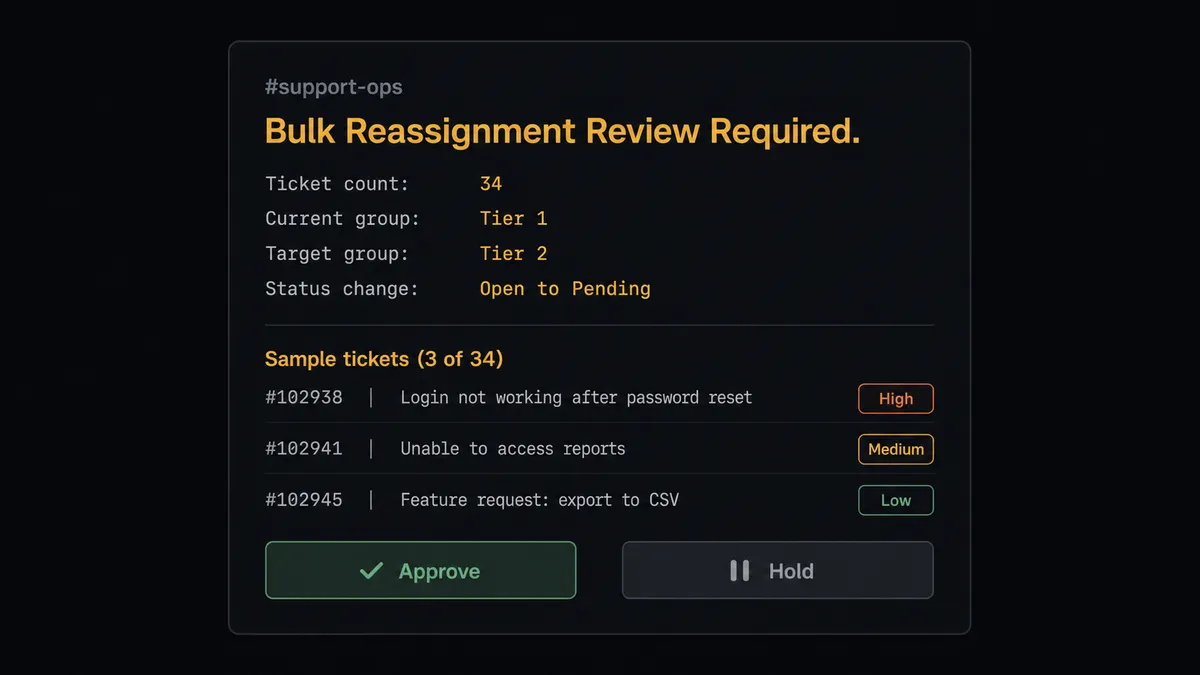
The human-in-loop moment is where this differs from a standard sync tool. When a flow would reassign or mass-update more than a handful of tickets at once, a bulk move that could miss an SLA, orphan a conversation, or bury an escalation, the agent does not proceed. It pauses. It sends a Slack message to the support lead showing the ticket count, the current and target assignee, the status change, and a sample of the affected subjects. The message includes two options: “Approve” or “Hold.” The lead responds from Slack. The agent resumes with the decision in the audit trail.
That decision to escalate is not a hardcoded threshold. The agent might apply 40 routine reassignments without asking anyone and then stop at a 5-ticket move from a group that has open SLA commitments today. The reasoning is contextual. This is not a sync tool. The agent knows when to stop and ask.
FlowRunner vs Zapier for Zendesk and Slack
Zapier is the right comparison for most support teams looking at this connection. Zapier is genuinely good at simple trigger-action automations. Its library is large, its interface is fast to use, and most non-technical users can set up a basic Zap in minutes. For a team that wants “new Zendesk ticket posts to Slack,” Zapier gets the job done.
The gaps appear when the connection needs judgment. Zapier can evaluate a field value and branch on it, but it cannot reason about context. It does not read the full ticket conversation, weigh multiple factors, and decide to escalate based on what it finds. It cannot pause mid-flow, send a structured Slack approval message, collect a button response, and resume with that decision captured.
| Zapier | FlowRunner | |
|---|---|---|
| Basic trigger-action connection | Yes | Yes |
| AI agent with contextual reasoning | No | Yes, native agent nodes |
| Human-in-loop via Slack buttons | No native support | Yes, On Block Action + agent toolbox |
| Bulk move approval before applying | No | Yes, agent pauses and routes to a person |
| Unlimited users on every tier | No, per-seat pricing | Yes, all tiers |
| Self-hosted option | No | Yes, Community and Enterprise tiers |
Before and after
| Before | After | |
|---|---|---|
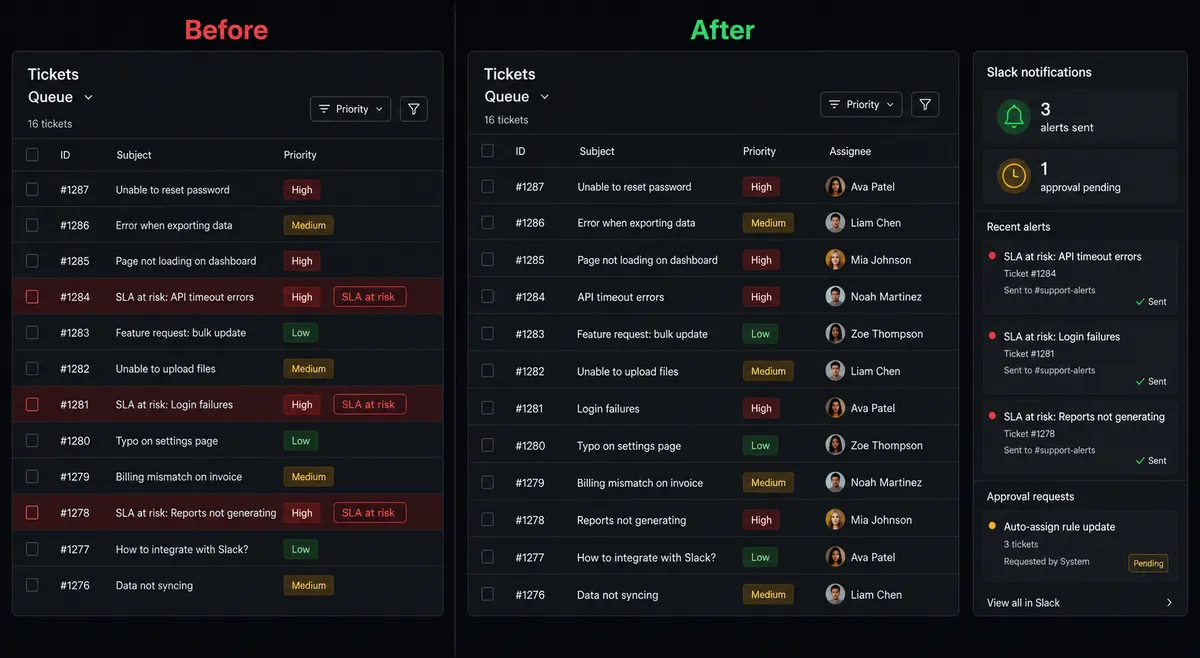
| Ticket triage | Agents open each ticket manually and set priority | On Ticket Event routes every ticket the moment it lands |
| Urgent escalations | Urgent tickets sit in the queue until someone notices | Agent alerts the on-call Slack channel as soon as an urgent ticket appears |
| Bulk reassignments | A mass move happens with no review and no audit record | Agent pauses, sends a Slack approval message, and applies only on confirmation |
| Cross-team visibility | Support and ops teams check different systems for status | Every routed ticket surfaces in Slack with subject, priority, and requester |
| Audit trail | Decisions are informal, captured in email threads or not at all | Every human decision captured with approver identity and timestamp |
What you can build
Ticket triage on arrival. When On Ticket Event fires for a new ticket, the agent calls Get Ticket, reads priority and tags, and sets the assignee and group with Update Ticket. The ticket reaches the right team already sorted. Support agents spend their time answering, not triaging.
Urgent escalation with real-time Slack alert. For any ticket that arrives at urgent priority, the agent posts to the on-call Slack channel with Send Message to Channel, attaching subject, requester, and a direct Zendesk link. The response starts before the ticket ages.
Bulk reassignment with Slack approval gate. When a routing sweep would move more than a defined count of tickets, the agent packages the batch details, sends a structured Slack approval message to the support lead, and waits for On Block Action to fire before applying any Update Ticket calls.
Customer record sync from Slack inbound. When a team member posts a customer email or case number into a designated Slack channel, On Channel Message fires. The agent calls Search Users to find the customer in Zendesk and Create Ticket to open a support request with the right fields already set.
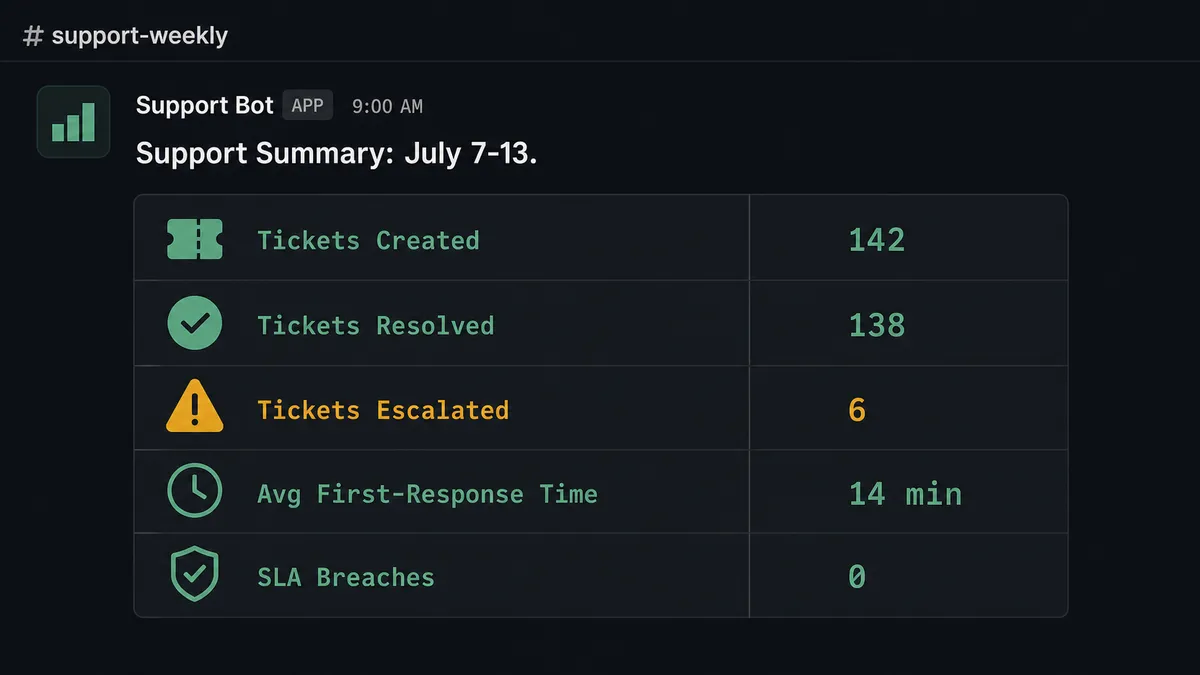
Weekly support digest to Slack. On a schedule, the agent calls List Tickets with a filter for the past week, compiles counts by priority and group, and posts a formatted summary to the ops Slack channel using Block Kit for clean visual structure.
Common questions
Is it free to connect Zendesk and Slack on FlowRunner? FlowRunner has a free plan with 100 executions a month, every integration included, and no credit card required, and new accounts get 14 days of Professional on top. You can connect Zendesk and Slack, run real workflows, and see results before you spend a dollar.
Can I self-host the Zendesk and Slack integration? Yes. FlowRunner offers a self-hosted Community Edition at no cost and an Enterprise self-hosted tier for compliance-heavy environments. You run the orchestration engine on your own infrastructure while connecting to Zendesk and Slack via their APIs.
Does the agent need my own AI API key? FlowRunner uses a BYOK (Bring Your Own Keys) model. You connect your own key from Claude, OpenAI, or another provider. The agent runs on your key, and you control the model and the cost.
What happens when the agent isn’t sure what to do? The agent does not fail or skip. It pauses, packages the context it has (ticket count, assignees, risk factors), sends a Slack message to the right person or channel with decision options, and waits. When the human responds, the agent resumes with that input captured in the audit trail.
Can I run this without an AI agent, just as a plain trigger-and-action? Yes. The simplest setup is: On Ticket Event fires in Zendesk, the flow reads the ticket with Get Ticket, and posts to a Slack channel with Send Message to Channel. No AI layer required. You add the agent and human-in-loop step only when your routing logic needs judgment, not rules.
Does FlowRunner limit how many users or workflows I can have? No. Every FlowRunner tier includes unlimited users and unlimited workflows. You are billed on execution volume, not seat count, so your whole support and ops team can use the same account without per-seat fees.
Getting started
FlowRunner has a free plan with 100 executions a month, every integration included, and no credit card required, and new accounts get 14 days of Professional on top.
Start with the base trigger-action connection: On Ticket Event in Zendesk routing to Send Message to Channel in Slack. See your first ticket surface in the right channel within minutes of setup. Then add the AI agent node and the human-in-loop sub-flow when you’re ready to handle routing logic that needs judgment.
Integration pages: Zendesk and Slack.
Start your trial at flowrunner.ai or book a 30-minute walkthrough at calendly.com/flowrunner/intro.
Frequently asked questions
Is it free to connect Zendesk and Slack on FlowRunner?
FlowRunner has a free plan with 100 executions a month, every integration included, and no credit card required, and new accounts get 14 days of Professional on top. You can connect Zendesk and Slack, run real workflows, and see results before you spend a dollar.
Can I self-host the Zendesk and Slack integration?
Yes. FlowRunner offers a self-hosted Community Edition at no cost and an Enterprise self-hosted tier for compliance-heavy environments. You run the orchestration engine on your own infrastructure while connecting to Zendesk and Slack via their APIs.
Does the agent need my own AI API key?
FlowRunner uses a BYOK (Bring Your Own Keys) model. You connect your own key from Claude, OpenAI, or another provider. The agent runs on your key, and you control the model and the cost.
What happens when the agent isn't sure what to do?
The agent does not fail or skip. It pauses, packages the context it has (ticket count, assignees, risk factors), sends a Slack message to the right person or channel with decision options, and waits. When the human responds, the agent resumes with that input captured in the audit trail.
Can I run this without an AI agent, just as a plain trigger-and-action?
Yes. The simplest setup is: On Ticket Event fires in Zendesk, the flow reads the ticket with Get Ticket, and posts to a Slack channel with Send Message to Channel. No AI layer required. You add the agent and human-in-loop step only when your routing logic needs judgment, not rules.
Does FlowRunner limit how many users or workflows I can have?
No. Every FlowRunner tier includes unlimited users and unlimited workflows. You are billed on execution volume, not seat count, so your whole support and ops team can use the same account without per-seat fees.