How to Connect Typeform with Salesforce Pro (With or Without an AI Agent)
Connect Typeform to Salesforce Pro so every form submission creates or updates the right lead, contact, or record automatically, with a human in the loop on the conversions that are irreversible.
How do you connect Typeform to Salesforce Pro?
Use FlowRunner’s Get Form Responses action to poll your Typeform for new submissions, then pass the response data into Salesforce Pro using Create Lead, Create Contact, or Create Record, depending on where the submitter sits in your pipeline. FlowRunner is a visual AI-agent orchestration platform where automations run autonomously and pause for human judgment on the steps that carry real consequence. The same connection that routes a form submission into a lead record can also run as an AI agent that scores the lead, checks for duplicates, and holds the conversion decision for a sales manager before Salesforce touches the record.
The manual process no one has time to fix
Right now, someone on your team is exporting Typeform responses into a spreadsheet, reviewing each row, and deciding whether to create a new lead or update an existing one in Salesforce. That person is probably an SDR, an ops coordinator, or a sales admin. They are doing this once a day, or once a week, or whenever they remember. Submissions fall through the cracks. Leads go cold before anyone touches them.
The deeper problem is the judgment call buried in the middle of that process. Not every form submission deserves to become a lead. Not every lead deserves to become a converted contact and opportunity. Those decisions require someone who knows the ICP, the territory rules, and the rep’s current capacity. When those decisions sit in a spreadsheet queue, they get made inconsistently, incompletely, or not at all.
How it works: the connection
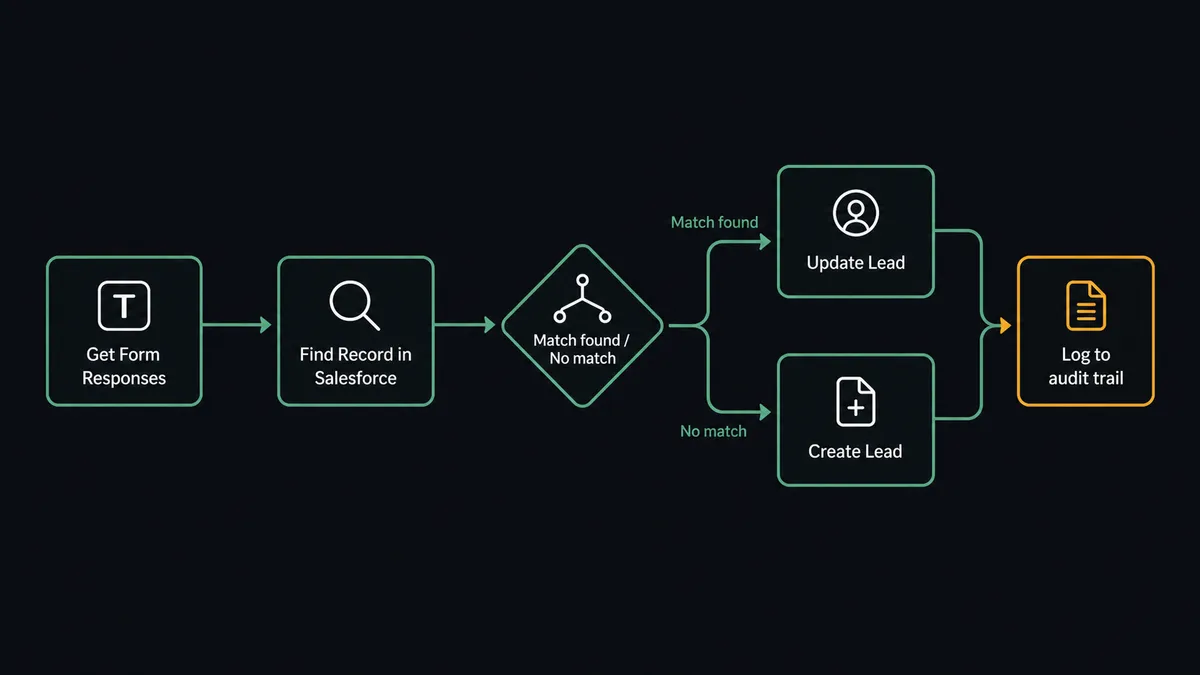
The connection between Typeform and Salesforce Pro runs through FlowRunner’s polling model. The agent calls Get Form Responses on a schedule (every 15 minutes, every hour, whatever your team needs). For each new submission, it reads the answer fields, then routes into Salesforce.
Before creating anything, the agent calls Find Record to check whether the submitter already exists in Salesforce. If a matching lead or contact is found, it calls Update Lead or Update Contact with the new data. If no match exists, it calls Create Lead and populates the standard Salesforce lead fields from the Typeform answers: name, company, email, phone, and any custom fields you have mapped.
The field mapping is configured once in FlowRunner’s visual builder. The agent handles every submission the same way, every time, without someone opening a spreadsheet.
Can an AI agent run it? (And why a human stays in the loop)
A basic Typeform-to-Salesforce connection creates records. An AI agent makes decisions about those records. That distinction matters when the next step is irreversible.
Lead conversion in Salesforce is not a small operation. When the agent calls Convert Lead to Contact, it creates or merges a contact, an account, and an opportunity. It assigns territory. It moves the record out of the lead queue permanently. Get that wrong and you have territory disputes, duplicate accounts, and a sales manager asking how the contact got into the wrong rep’s pipeline.
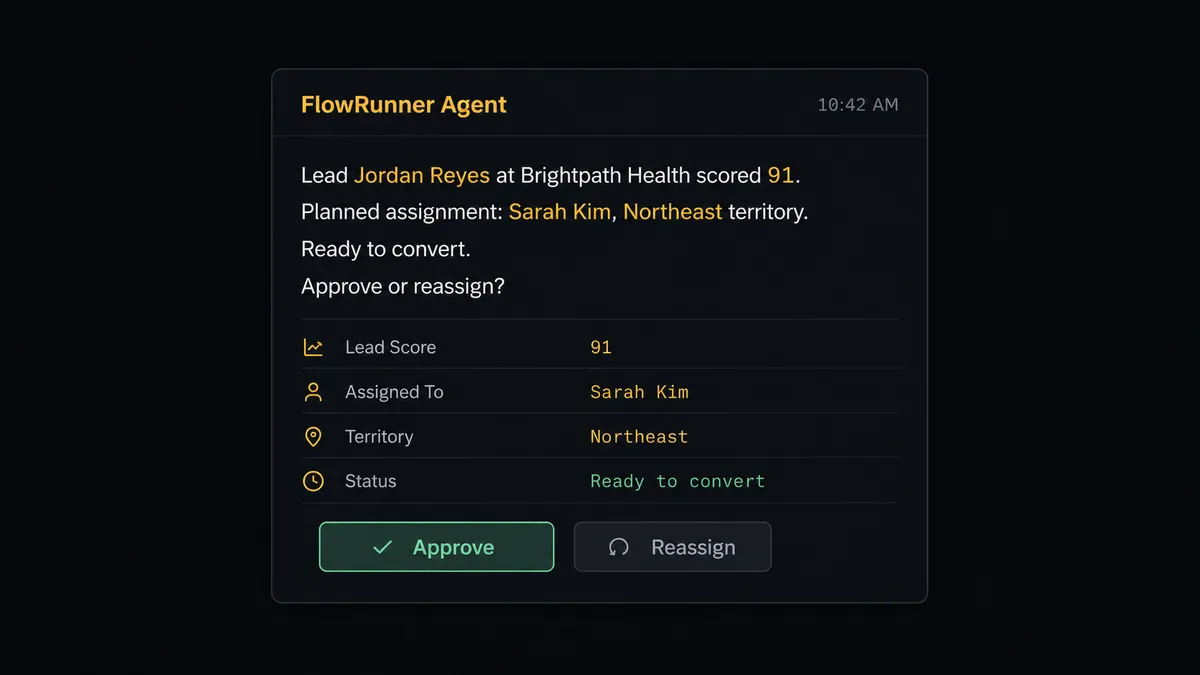
The FlowRunner agent does not make that call on its own. Before executing Convert Lead to Contact, the agent scores the lead against your ICP criteria using the firmographic data in the Typeform submission. If the score is above your threshold, the agent pauses and invokes the human-in-loop flow as a tool. It packages the lead’s full context: name, company, score, the rep it plans to assign to, and the reason for conversion. That package goes to the sales manager via Slack.
The message is specific: “Lead Jordan Reyes at Brightpath Health scored 91. Ready to convert and assign to Sarah Kim (Northeast territory). Approve or reassign?” The manager responds in one click. The agent converts. The decision, the approver, and the timestamp go into the audit trail.
This is not a threshold rule. An agent that always converts leads above 80 and never converts leads below 80 is a script. The FlowRunner agent reads the full context: the company size, the deal history with similar accounts, the rep’s current pipeline load. It decides when to escalate based on the situation, not a fixed cutoff. That is the “digital andon cord” behavior that prospects consistently name as the difference between this and every other automation tool they have tried.
FlowRunner vs Zapier (the tool you are probably using now)
If your team is not technical, Zapier is the natural starting point for Typeform-to-Salesforce workflows. It is easy to set up, well documented, and handles the basic trigger-to-action connection without a developer. That is a genuine strength, and it is the reason many teams start there.
The differences show up when the workflow gets more complex:
| Feature | Zapier | FlowRunner |
|---|---|---|
| Basic Typeform trigger to Salesforce record | Yes | Yes |
| AI agent that scores and routes submissions | No | Yes |
| Human-in-loop approval before lead conversion | Requires workaround (external tool or multi-step Zap) | Native tool the agent invokes on its own judgment |
| Unlimited users on every plan | No (per-seat pricing) | Yes |
| Bring-your-own AI key (model control) | No | Yes |
| Self-hosted option for data residency | No | Yes (Enterprise) |
| Audit trail with approver identity and timestamp | No | Yes (Professional tier and above) |
Zapier’s per-task pricing also creates a specific friction point for high-volume Typeform workflows. If your form collects hundreds of submissions per week, the cost scales with volume. FlowRunner’s workflow-based pricing does not change when submission volume increases.
Before and after
| Category | Before | After |
|---|---|---|
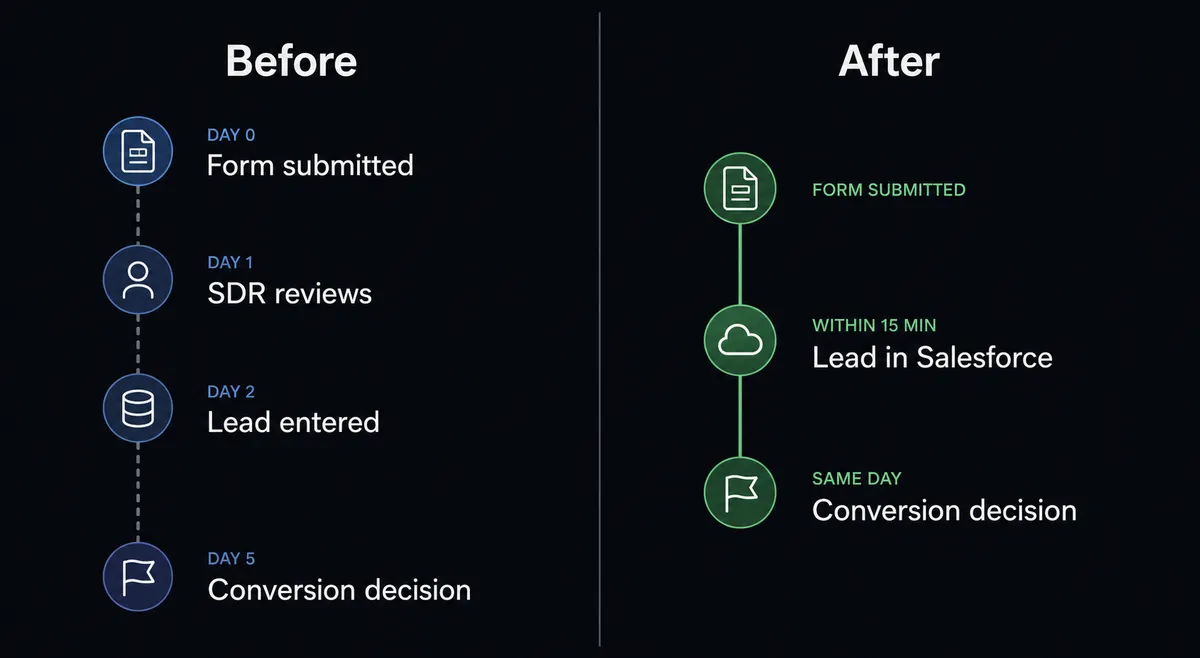
| Lead entry lag | Submissions processed in batches, 1-2 days after submission | New leads in Salesforce within 15 minutes of submission |
| Duplicate records | SDR creates new lead without checking; ops cleans up quarterly | Find Record runs before every Create Lead; duplicates blocked at entry |
| Lead conversion consistency | Different reps convert at different stages; no standard process | Every conversion requires manager approval; process is identical for every lead |
| Audit trail | No record of who made which decision or when | Approver identity, decision, and timestamp logged on every conversion |
| SDR time on data entry | 20-30 minutes per day copying responses into Salesforce | Zero; agent handles entry and routing automatically |
What you can build
High-intent lead capture from product request forms. A Typeform asks visitors about their use case, team size, and current stack. The agent calls Get Form Responses, scores each submission with Custom SOQL Query against your historical win data, creates the lead with Create Lead, and adds it to the right nurture campaign with Add Lead to Campaign. High-scoring submissions go to a rep with a Slack notification and the full context.
Event registration into Salesforce campaign membership. A Typeform event registration form collects attendee details. For each new submission, the agent creates or updates the contact with Create Contact or Update Contact, then calls Add Contact to Campaign to associate them with the event campaign in Salesforce. Post-event, it runs a Custom SOQL Query to pull campaign engagement and posts the report to your revenue ops channel.
Partner application processing. A Typeform partner application collects business details, revenue range, and integration requirements. The agent retrieves responses with Get Form Responses, creates a custom object record in Salesforce with Create Record, attaches the application data as a structured document with Create Enhanced Note, and routes applications above a quality threshold to the partner team via Slack for review.
New client intake into Salesforce after deal close. A deal closes in Salesforce. The agent creates a custom onboarding Typeform with Create Empty Form and sends the URL to the new client. When the client submits, the agent retrieves the intake data with Get Form Responses, updates the Salesforce contact record with Update Contact, creates the project record with Create Record, and logs the intake completion in the activity timeline with Create Note.
Compliance form submission with mandatory review. A compliance questionnaire collects legally significant answers. The agent retrieves submissions with Get Form Responses and checks for flagged response patterns. When a submission contains high-risk answers, the agent holds it for a compliance reviewer before creating any Salesforce record. The reviewer approves forwarding; the agent creates the record and logs the review decision.
Common questions
Is it free to connect Typeform and Salesforce Pro on FlowRunner? FlowRunner has a free plan with 100 executions a month, every integration included, and no credit card required, and new accounts get 14 days of Professional on top. Any real email address works; disposable domains are not accepted. Beyond the free plan, Growth is $45 per month.
Can I self-host FlowRunner if I have Salesforce data-residency requirements? Yes. FlowRunner offers a self-hosted Enterprise tier for teams that need data to stay on their own infrastructure. Contact the team at flowrunner.ai to discuss requirements.
Does the AI agent need my own OpenAI or AI provider key? FlowRunner uses a bring-your-own-key model. You connect your preferred AI provider (OpenAI, Anthropic, or others) and the agent runs against your key. You control the model and the cost.
What happens when the agent is not sure whether to convert a lead? The agent pauses and routes the decision to a sales manager via Slack with the lead’s score, company, and the rep it plans to assign to. The manager approves or reassigns in one click. The decision, the approver, and the timestamp are all logged in the audit trail.
Does FlowRunner require a developer to set up the Typeform-to-Salesforce connection? No. The visual builder lets non-technical users connect both accounts, map fields, and activate the workflow. A developer is not required for the standard connection or for adding the human-in-loop approval step.
What Salesforce objects can the agent create from a Typeform submission? The agent can create leads, contacts, and any standard or custom Salesforce object using the Create Lead, Create Contact, and Create Record actions. It can also convert leads to contacts and opportunities using Convert Lead to Contact.
Getting started
FlowRunner has a free plan with 100 executions a month, every integration included, and no credit card required, and new accounts get 14 days of Professional on top. Corporate email required.
Start by connecting both integrations:
- Typeform integration connects your forms and response data.
- Salesforce Pro integration connects your Salesforce org with full access to leads, contacts, SOQL, and the complete object model.
Start your trial at flowrunner.ai or book a 30-minute walkthrough at calendly.com/flowrunner/intro to see the agent handle a real Typeform-to-Salesforce workflow, including the lead conversion approval step.
Frequently asked questions
Is it free to connect Typeform and Salesforce Pro on FlowRunner?
FlowRunner has a free plan with 100 executions a month, every integration included, and no credit card required, and new accounts get 14 days of Professional on top. Any real email address works; disposable domains are not accepted. Beyond the free plan, Growth is $45 per month.
Can I self-host FlowRunner if I have Salesforce data-residency requirements?
Yes. FlowRunner offers a self-hosted Enterprise tier for teams that need data to stay on their own infrastructure. Contact the team at flowrunner.ai to discuss requirements.
Does the AI agent need my own OpenAI or AI provider key?
FlowRunner uses a bring-your-own-key model. You connect your preferred AI provider (OpenAI, Anthropic, or others) and the agent runs against your key. You control the model and the cost.
What happens when the agent is not sure whether to convert a lead?
The agent pauses and routes the decision to a sales manager via Slack with the lead's score, company, and the rep it plans to assign to. The manager approves or reassigns in one click. The decision, the approver, and the timestamp are all logged in the audit trail.
Does FlowRunner require a developer to set up the Typeform-to-Salesforce connection?
No. The visual builder lets non-technical users connect both accounts, map fields, and activate the workflow. A developer is not required for the standard connection or for adding the human-in-loop approval step.
What Salesforce objects can the agent create from a Typeform submission?
The agent can create leads, contacts, and any standard or custom Salesforce object using the Create Lead, Create Contact, and Create Record actions. It can also convert leads to contacts and opportunities using Convert Lead to Contact.