How to Connect Jotform with Google Sheets (With or Without an AI Agent)
Connect Jotform to Google Sheets so every form submission lands as a row automatically, then let a FlowRunner AI agent validate the data, route exceptions to a human, and keep your sheet clean.
How do you connect Jotform to Google Sheets?
A FlowRunner agent calls Jotform’s Get Form Submissions action on a schedule, reads each new entry, and uses the Google Sheets Add Row action to log it with all mapped fields. FlowRunner is a visual AI-agent orchestration platform where automations run autonomously and pause for human judgment on the steps that carry real consequence. That same connection can run as an AI agent that validates each submission before writing it, and invokes a human on any entry with missing or conflicting data.
The problem every ops team knows
Right now, the process looks like this: someone opens the Jotform admin, scans the submissions list, exports a CSV, reformats the columns, pastes the data into the right tab of the tracking spreadsheet, and repeats. If there are fifty submissions, they are still doing it by hand. If they are out of the office, it waits.
The other half of the problem is data quality. Form submissions come in with missing fields, wrong formats, and the occasional duplicate. When those entries get pasted into the sheet and pushed into downstream systems, bad data spreads. The billing manager builds a report on top of it. The ops lead uses it to make decisions. Nobody finds the problem until a customer calls.
Manual intake creates two costs: the time it takes each time, and the cleanup cost when something slips through the cracks.
How it works: the connection
The basic connection has three moving parts: a trigger, a read, and a write.
The trigger. FlowRunner runs on a schedule you define, hourly or daily, and calls Jotform’s Get Form Submissions action to pull every new entry since the last run. You specify the form ID; the action returns the full submission data including all field answers and the submission timestamp.
The read. The agent uses Get Form Questions to understand the column structure of the form before processing submissions. This means the field mapping stays accurate even if the form changes over time.
The write. For each submission, the agent calls Google Sheets’ Add Row action to append a new row to your tracking sheet. If you have a complex header structure, Load Header Row lets the agent address columns by name rather than letter, which keeps the mapping readable when anyone on the team edits the workflow later.
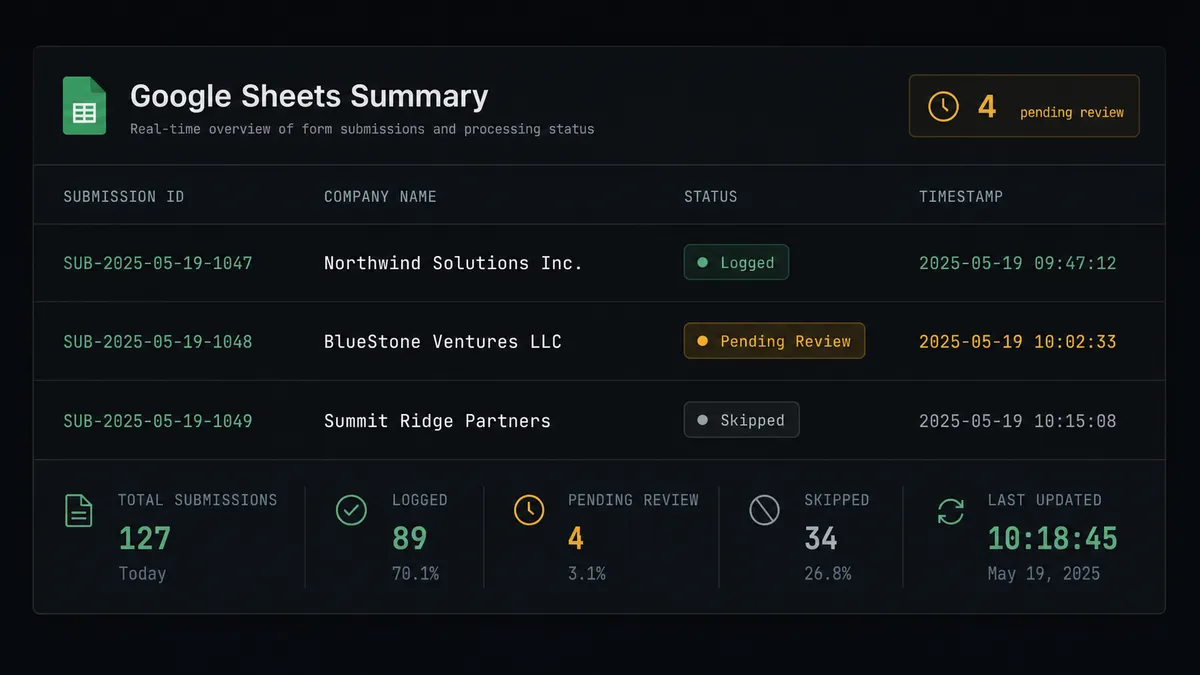
After writing each row, the agent calls Update Cell to mark the row with a processing status. The sheet always reflects what happened and when.
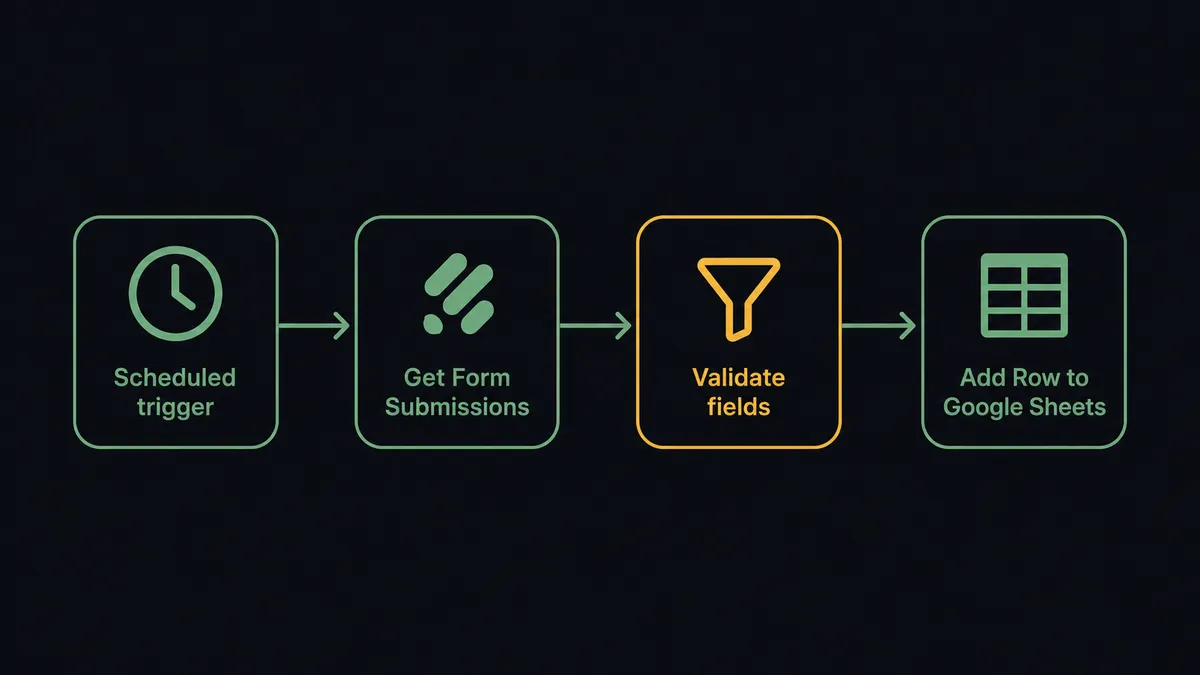
That is the plain connection. It runs without anyone touching it. If you want it to also catch bad data before it reaches the sheet, that is where the AI agent comes in.
Can an AI agent run it? (And why a human stays in the loop)
A basic trigger-and-append workflow treats every submission the same. It does not know that the registration form requires a company name, or that two submissions from the same email in one day is unusual. An AI agent does.
The agent reads each submission in full context. It has access to Get Form Submissions, Get Form Questions, and the Google Sheets write actions as tools. It evaluates what it sees against its instructions and decides what to do. It does not follow a fixed sequence.
Here is a specific decision moment. A vendor qualification survey comes in from a supplier the team has worked with for three years. All fields are complete, the numbers match the prior year, and there are no conflicts. The agent calls Add Row, writes the entry, and marks the row complete. No human needed.
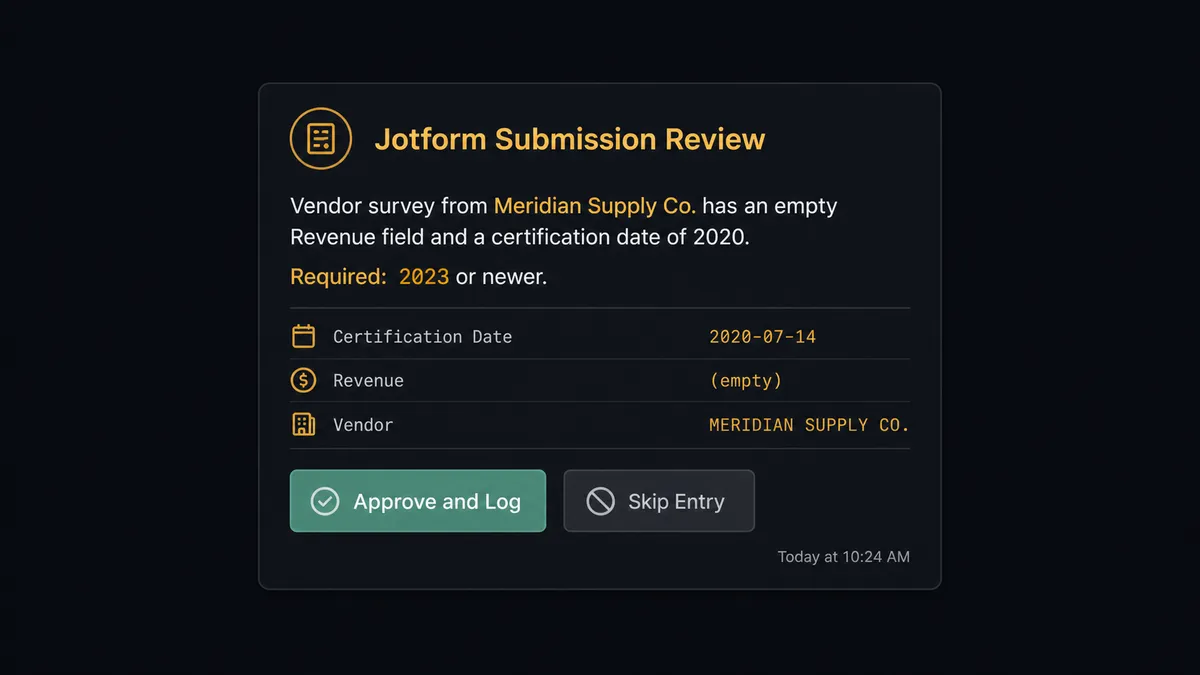
A second submission comes in from a new vendor. The annual revenue field is blank. The quality certification date is six years old. The agent does not push this entry to the sheet. Instead, it invokes the human-in-loop flow: “Vendor survey from [Name] has an empty Revenue field and a certification date of 2020. Qualification requires 2023 or newer. Review before I log this entry?”
The ops manager gets a Slack message with the full submission, the specific issues flagged, and two options: correct the data or skip this entry. They respond. The agent resumes with that decision as its input and either calls Add Row or marks the entry skipped. The decision, the decider, and the timestamp go into the audit trail.
This is not a hardcoded rule. The agent does not escalate every submission over a certain field count. It reads the data, reasons about what it means for this specific submission, and makes a judgment call about whether a human should see it before it lands in the sheet.
Prospects call this a “digital andon cord.” The agent stops the line when it hits something a person should decide.
FlowRunner vs Zapier
Zapier is a reasonable starting point for this connection. It is widely used, well documented, and most non-technical teams can set up a basic Jotform-to-Google Sheets zap in under an hour. The trigger and action coverage is solid, and the ecosystem of pre-built zap templates is large.
The differences matter at scale and when data quality is a requirement.
| Capability | Zapier | FlowRunner |
|---|---|---|
| Basic form-to-sheet sync | Yes | Yes |
| AI agent that validates before writing | No | Yes, native AI Agent node |
| Human-in-loop on exception submissions | No native flow | Yes, invoked by the agent as a callable tool |
| Agent reads its own decision context | No | Yes, up to 15 messages of history |
| Unlimited users on every paid plan | No (seat-based) | Yes, all tiers |
| Bring your own AI provider key | No | Yes, BYOK model |
| Self-hosted deployment option | No | Yes, Community and Enterprise editions |
| Audit trail for human decisions | No | Yes, every decision logged with decider and timestamp |
Zapier handles the connection. FlowRunner handles the connection and everything that happens when the data is not clean.
Before and after
| Category | Before | After |
|---|---|---|
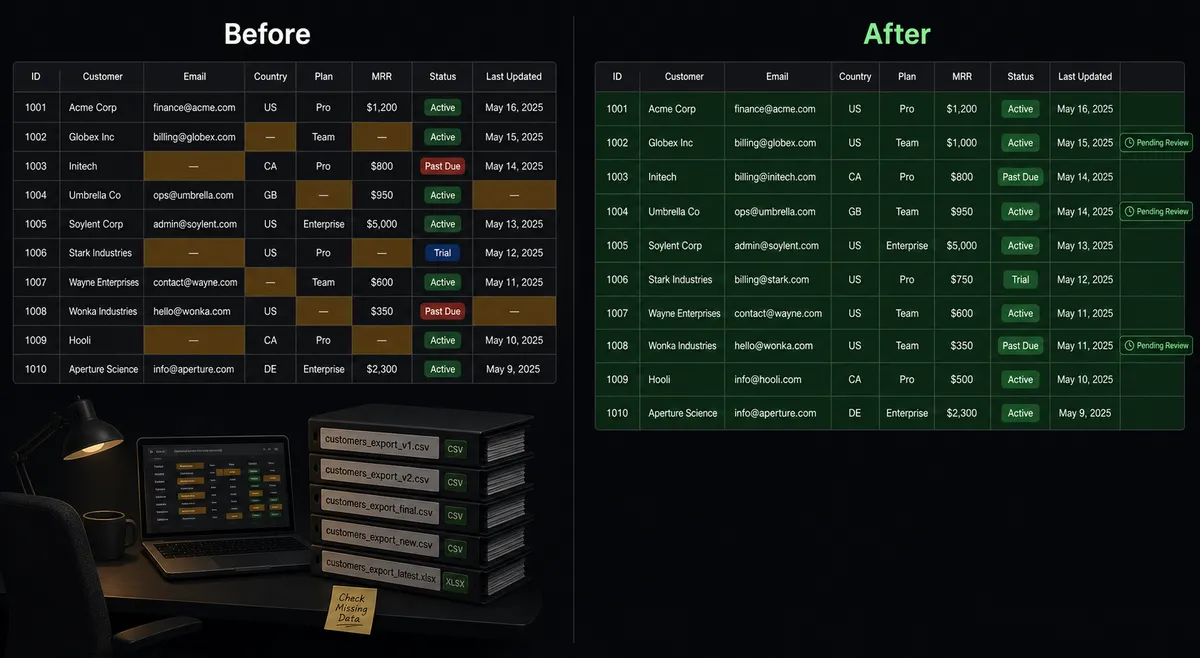
| Submission processing | Staff check Jotform admin, export CSV, paste into sheet by hand | Submissions logged to sheet automatically on a schedule |
| Data quality | Incomplete submissions imported as-is, creating bad records downstream | Incomplete submissions held and routed to a human before any record is created |
| Status visibility | No indication in the sheet whether a row was processed or ignored | Every row marked with a processing status and timestamp |
| Team time | Repeated manual export and paste cycle for every batch | Team only sees submissions that need a judgment call |
| Exception handling | Exceptions noticed after the fact, if at all | Exceptions flagged in real time with full context before they reach any system |
What you can build
Client intake processing. Run Get Form Submissions each morning for your client onboarding form. The agent validates each submission, calls Add Row to log complete entries, and routes incomplete ones to the ops manager before any downstream record is created. Intake is processed before the office opens.
Event registration tracker. Poll registrations hourly. The agent adds each new registration as a row, writes the event name and submission timestamp, and calls Update Cell to mark the row once downstream tasks are created. Every registrant is tracked without anyone managing a list manually.
Vendor qualification review. After a survey deadline, the agent retrieves all responses via Get Form Submissions, checks each against qualification criteria, logs passing vendors to the approved sheet with Add Row, and routes failed or incomplete responses to the procurement lead for review. The review queue builds itself from the form data.
Scheduled report export. After the agent appends the week’s submissions, it calls Export Sheet to produce an Excel or PDF of the current data and delivers it to the team as an email attachment. The weekly report goes out without anyone opening the spreadsheet.
Duplicate detection before logging. Before calling Add Row, the agent calls Find Row to check whether a submission from the same email or ID already exists in the sheet. If it finds a match, it routes the potential duplicate to a team member rather than creating a second row.
Common questions
Is it free to connect Jotform and Google Sheets on FlowRunner? FlowRunner has a free plan with 100 executions a month, every integration included, and no credit card required, and new accounts get 14 days of Professional on top. Corporate email required to sign up.
Can I self-host FlowRunner? Yes. FlowRunner offers a free Community Edition for self-hosted single-instance deployments. Enterprise self-hosted includes multi-instance clustering and the full compliance suite.
Does the AI agent need my own OpenAI key? FlowRunner uses a bring-your-own-keys model, so you connect whichever AI provider you prefer. There is no locked-in model.
What happens when the agent finds incomplete or duplicate data in a Jotform submission? The agent holds the submission, flags the row in Google Sheets, and routes a message to the responsible team member via Slack or email with the specific missing fields listed. The row is not pushed to any connected system until a human approves it.
How many users and workflows can I have? Every FlowRunner tier includes unlimited users and unlimited workflows. Pricing is based on monthly executions, not team size.
Do I need a developer to set this up? No. FlowRunner is a visual, no-code builder. You connect your Jotform account with an API key and your Google Sheets account with OAuth2, then map the fields in the builder. No code required.
Getting started
FlowRunner’s Growth tier starts at $45 per month with 12,000 executions. FlowRunner has a free plan with 100 executions a month, every integration included, and no credit card required, and new accounts get 14 days of Professional on top. No credit card needed.
Connect both integrations from the integration directory: Jotform and Google Sheets. Each page has the full action reference.
Start your free trial at flowrunner.ai or book a 30-minute walkthrough at calendly.com/flowrunner/intro to see the Jotform and Google Sheets connection running live with the AI agent handling a validation exception.
Frequently asked questions
Is it free to connect Jotform and Google Sheets on FlowRunner?
FlowRunner has a free plan with 100 executions a month, every integration included, and no credit card required, and new accounts get 14 days of Professional on top. Corporate email required to sign up.
Can I self-host FlowRunner?
Yes. FlowRunner offers a free Community Edition for self-hosted single-instance deployments. Enterprise self-hosted includes multi-instance clustering and the full compliance suite.
Does the AI agent need my own OpenAI key?
FlowRunner uses a bring-your-own-keys model, so you connect whichever AI provider you prefer. There is no locked-in model.
What happens when the agent finds incomplete or duplicate data in a Jotform submission?
The agent holds the submission, flags the row in Google Sheets, and routes a message to the responsible team member via Slack or email with the specific missing fields listed. The row is not pushed to any connected system until a human approves it.
How many users and workflows can I have?
Every FlowRunner tier includes unlimited users and unlimited workflows. Pricing is based on monthly executions, not team size.
Do I need a developer to set this up?
No. FlowRunner is a visual, no-code builder. You connect your Jotform account with an API key and your Google Sheets account with OAuth2, then map the fields in the builder. No code required.