Can an AI Agent Keep GitLab and Jira Issues in Sync?
Connect GitLab and Jira Issues so a monitoring alert or customer escalation files a linked issue in both, with an AI agent that pauses for a named engineer before any production merge.
How do you connect GitLab to Jira Issues?
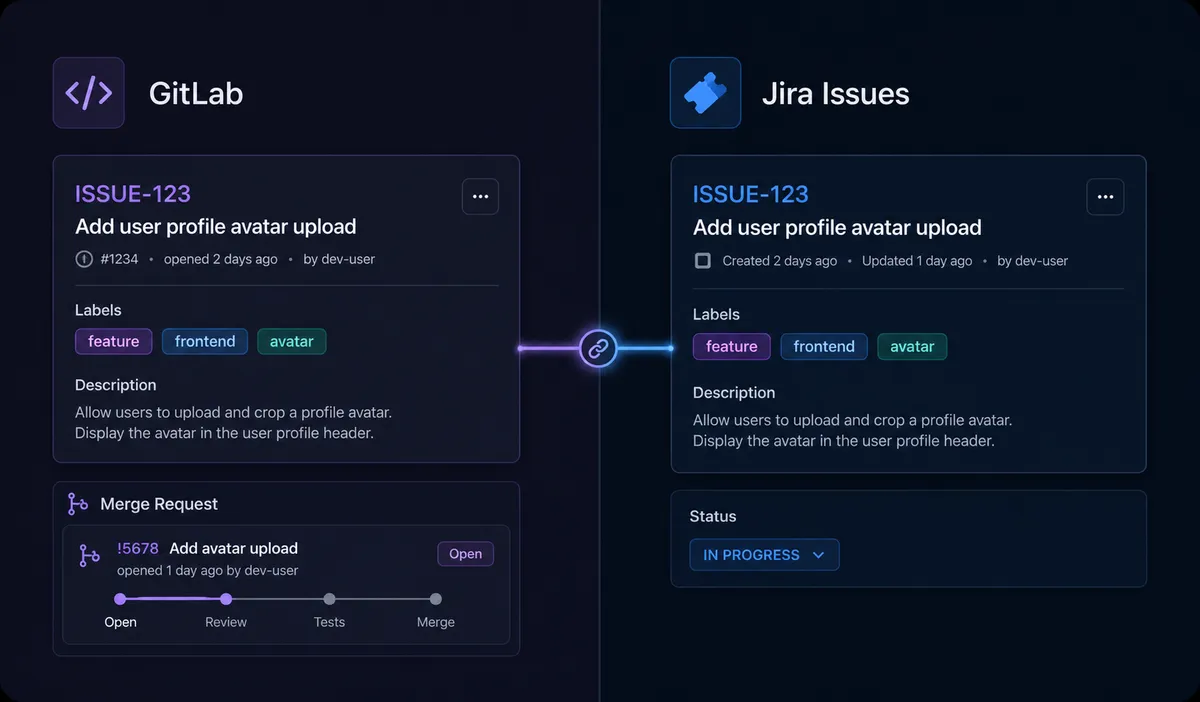
You connect GitLab to Jira Issues by having a FlowRunner flow watch for the event that starts the work, a monitoring alert or a customer escalation, and mirror it into both tools with Create Issue, so the same incident exists as a tracked GitLab issue for engineering and a tracked Jira issue for cross-functional visibility, cross-referenced with a comment on each. FlowRunner is a visual AI-agent orchestration platform where automations run autonomously and pause for human judgment on the steps that carry real consequence. The same connection can run as a straight sync, or as an AI agent that checks for duplicates before filing, confirms P1 assignments with a team lead, and holds the GitLab production merge for a named engineer’s approval.
The problem it solves
When a production alert fires today, an engineer files a GitLab issue by hand, then someone, often a support lead or a PM, has to separately open a Jira ticket so the rest of the org can see it in sprint planning and status reports. The details get retyped, sometimes with a different severity label than the one the engineer used, sometimes not at all if the person is busy. Leadership loses a clear view of what engineering is actually working on, and a P1 can sit unassigned in Jira for hours because nobody outside engineering knew it existed.
The same gap reopens on the way out. Someone has to remember to close both tickets when a fix ships, mark the Jira issue Done, and record who approved the production merge. Without a system tying the two together, a GitLab issue closes while its paired Jira ticket sits open for days, or worse, the Jira issue moves to Done before the merge request has actually landed on main. Reconciling the two trackers by hand eats the exact time back that automation is supposed to return.
How it works: the connection
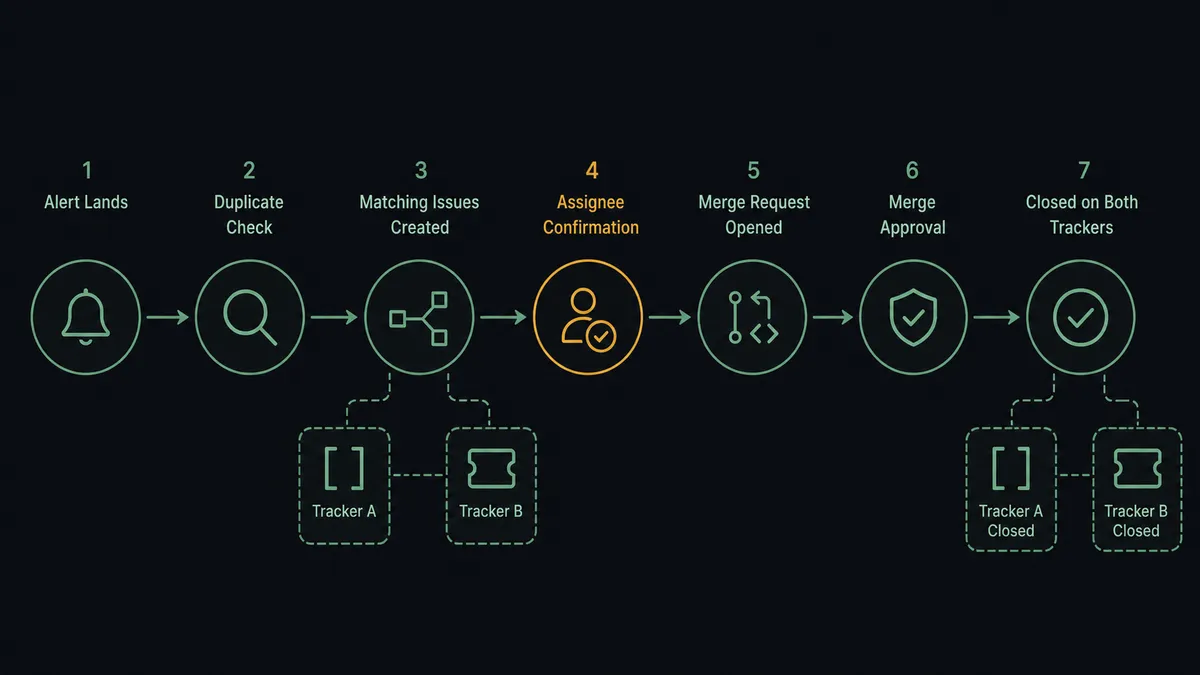
The flow starts wherever the incident enters FlowRunner: a monitoring alert, a support ticket, or a customer escalation email. Before filing anything, the agent calls List Issues in GitLab to confirm the alert hasn’t already been filed, so a repeat alert doesn’t create a repeat issue.
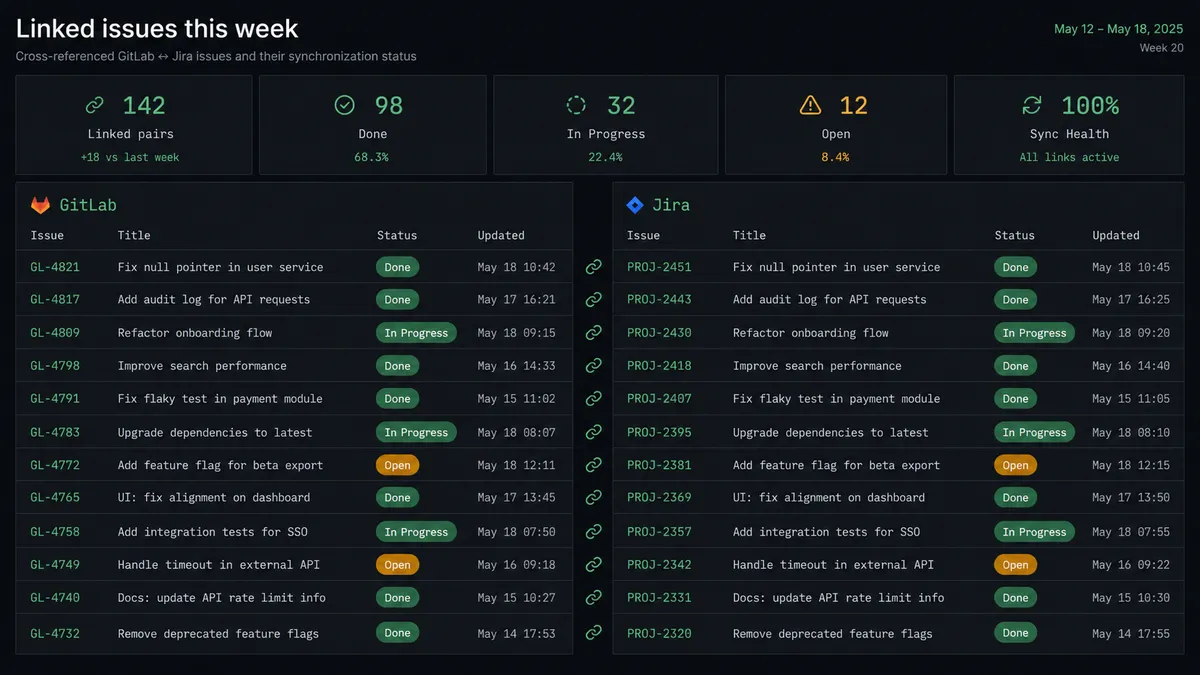
Once it’s confirmed new, the agent calls Create Issue in GitLab with the alert details, the right labels, and a link back to the source, and calls Create Issue in Jira Issues with the same customer name, description, and severity, using the structured data pulled from the original email or ticket. It then adds a note to the GitLab issue and a comment to the Jira issue, each linking to the other, so anyone reading one tracker can jump straight to the matching record in the other. The engineering channel gets the GitLab issue link; the on-call rotation determines who Jira suggests as the assignee.
From there, as the engineer works the fix and opens a merge request, the agent calls Transition Issue in Jira to move the ticket to In Progress, keeping the project view current without anyone touching Jira directly. When the merge request passes CI, the agent calls Get Pipeline and List Merge Requests to confirm the state before it does anything else. See GitLab’s integration page and Jira Issues’ integration page for the full action list on each side.
Can an AI agent run it? (and why a human stays in the loop)
The upgrade over a plain sync tool is that the agent doesn’t just copy fields, it reasons about what it’s looking at and calls GitLab and Jira actions as tools while it works. It reads the alert, decides which project and labels apply, checks for a duplicate, and files both issues. Then it stops at two specific moments, not because a threshold told it to, but because those steps carry real consequence.
The first is Jira assignment on P1 severity. Instead of auto-assigning based on rotation data alone, the agent posts to the team lead: “New P1 issue ready to create: [Summary]. Assign to [Suggested Assignee] based on rotation, or do you want to assign someone else?” The lead confirms or redirects in Slack, and the issue carries accountable ownership from the moment it exists.
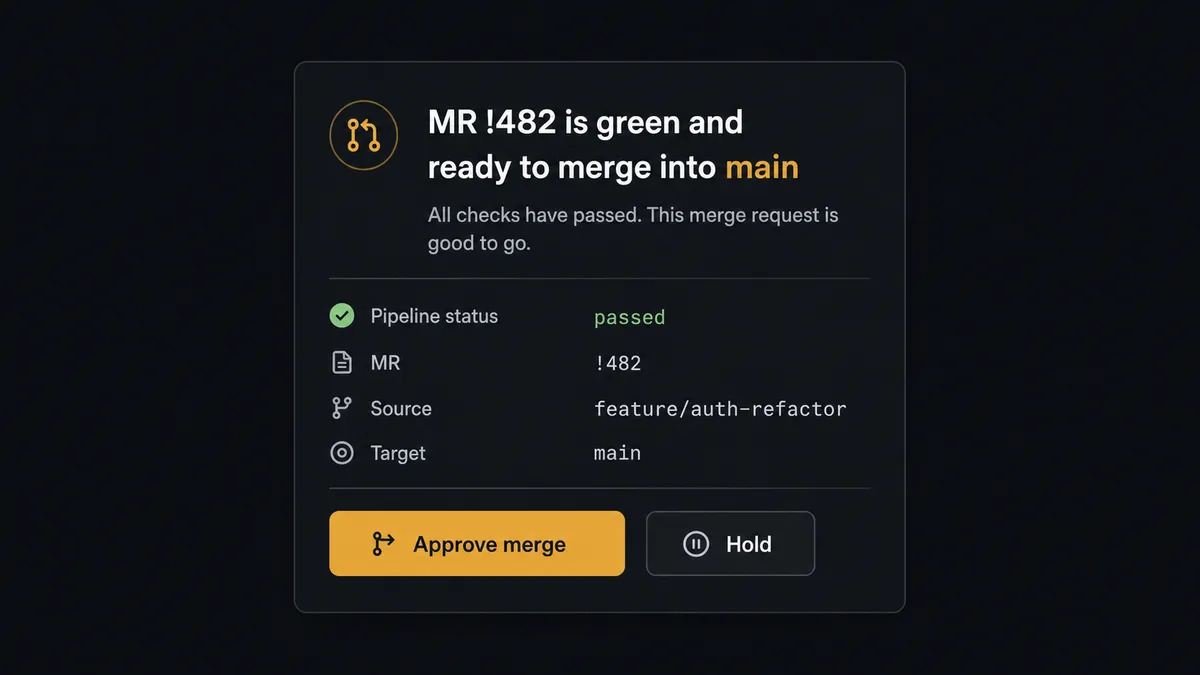
The second is the GitLab production merge. Filing issues, committing to a feature branch, and running CI are reversible, so the agent handles those by rule. Merging to the default branch and shipping a release are not, so the agent stops. When the merge request is green, it posts to the release channel: “MR !482 is green and ready to merge into main. Approve the production merge?” with the pipeline status and diff summary attached. Only after a named engineer approves does it call Merge Merge Request, then Create Release, then transition the linked Jira issue to Done.
This is not a sync tool. It’s a digital andon cord: the agent keeps both trackers moving on its own, and pulls a person in the moment the change is about to go live.
FlowRunner vs n8n
Technical teams already comfortable in a workflow tool often reach for n8n here, and it’s a fair instinct: n8n has mature, well-documented nodes for both GitLab and Jira, a large community of shared workflows for exactly this kind of dev-ops sync, and it’s genuinely strong for a team with an engineer willing to own the JSON.
Where FlowRunner differs is what happens at the merge gate and the assignment decision. n8n can branch on a condition, but the decision to escalate has to be hardcoded in advance. FlowRunner’s agent reasons about the specific merge request or issue in front of it and decides whether the situation warrants a person, with the full context packaged into the message it sends.
| Capability | FlowRunner | n8n |
|---|---|---|
| Human-in-loop | Native: the agent invokes an approval flow as a callable tool | Bolt-on: conditional branches you configure and hardcode in advance |
| Users included | Unlimited on every tier | Priced per active workflow / execution tier |
| AI provider | BYOK: bring your own OpenAI or Anthropic key | Requires separate LangChain node setup for agentic behavior |
| Self-hosting | Enterprise tier includes a supported self-hosted option | Self-hostable, community-supported |
| Pricing model | Transparent workflow-based tiers with a fixed execution ceiling | Execution-based pricing that can be hard to forecast at scale |
Before and after
| Category | Before | After |
|---|---|---|
| Issue creation | An engineer copies alert details into GitLab by hand, and a PM separately retypes the same details into Jira | The agent files a labeled, linked GitLab issue and a structured Jira issue within seconds of the alert, cross-referenced automatically |
| Duplicate filing | The same alert can file the same GitLab issue twice because nobody checked first | The agent calls List Issues before filing, so the tracker stays clean |
| P1 assignment | Jira tickets get assigned to whoever’s turn it is, with no documented decision on high-severity issues | The team lead confirms or redirects P1 assignments in Slack, so critical issues carry accountable ownership from creation |
| Production merges | A release merge happens without a clear record of who approved it | Merges to main wait for a named engineer’s approval, captured in the audit trail |
| Status sync | Jira sits stale after GitLab work moves forward, or shows Done before the merge actually happened | The agent transitions the Jira issue to In Progress and Done in step with the real GitLab merge and release |
What you can build
Monitoring alert to cross-linked issues. A monitoring alert lands, the agent checks for duplicates, then files a labeled GitLab issue and a matching Jira issue in the same pass, posting the GitLab link to the engineering channel.
Customer escalation with engineering handoff. A support email creates a Jira P1 issue with severity and customer context. The agent files the matching GitLab issue in the right repo, confirms the assignee with the team lead, and transitions Jira through the engineer’s work until the release ships.
Sprint health digest across two systems. Each morning, the agent runs a JQL query for unassigned or blocked Jira issues, then calls List Merge Requests in GitLab to check whether a fix is already open for any of them, and posts the combined picture to #engineering-daily.
Release note propagation. After Create Release runs in GitLab, the agent adds a comment to the linked Jira issue with the release version and posts a summary to stakeholders, so the Jira ticket reflects what actually shipped.
Common questions
Is it free to connect GitLab and Jira Issues on FlowRunner? Yes. FlowRunner has a free plan with 100 executions a month, every integration included, and no credit card required, and new accounts get 14 days of Professional on top.
Can I self-host the GitLab and Jira Issues connection? Yes. FlowRunner’s Enterprise tier includes a self-hosted option, and the GitLab connection works against gitlab.com or a self-managed GitLab instance without changing the flow.
Does the agent need my own OpenAI key? Yes. FlowRunner runs on a bring-your-own-key model, so you connect your own OpenAI, Anthropic, or other provider key and the agent uses it to reason about severity, duplicates, and assignment.
What happens when the agent isn’t sure? It stops and asks. For a P1 Jira issue, it posts the suggested assignee to the team lead in Slack and waits for confirmation. For a GitLab production merge, it posts the merge request and pipeline status to the release channel and waits for a named engineer to approve before it calls Merge Merge Request.
Do I need to already use Jira automation rules or GitLab CI to set this up? No. The FlowRunner flow replaces the manual cross-posting between the two tools. Your existing Jira workflows and GitLab CI/CD pipelines keep running as they do today, and the agent simply calls the same API actions a person would.
Will this create duplicate issues if the same alert fires twice? No. The agent calls List Issues in GitLab before filing, so a repeat alert adds a note to the existing issue instead of creating a second one.
Getting started
Start on the free plan: 100 executions a month, every integration included, no credit card required, plus 14 days of Professional for new accounts. Connect GitLab and Jira Issues, pick the event that should start the flow, and add the two human-in-loop steps described above before you turn it on.
Go to flowrunner.ai to start building, or book time at calendly.com/flowrunner/intro if you’d rather walk through the setup with someone first.
Frequently asked questions
Is it free to connect GitLab and Jira Issues on FlowRunner?
Yes. FlowRunner has a free plan with 100 executions a month, every integration included, and no credit card required, and new accounts get 14 days of Professional on top.
Can I self-host the GitLab and Jira Issues connection?
Yes. FlowRunner's Enterprise tier includes a self-hosted option, and the GitLab connection works against gitlab.com or a self-managed GitLab instance without changing the flow.
Does the agent need my own OpenAI key?
Yes. FlowRunner runs on a bring-your-own-key model, so you connect your own OpenAI, Anthropic, or other provider key and the agent uses it to reason about severity, duplicates, and assignment.
What happens when the agent isn't sure?
It stops and asks. For a P1 Jira issue, it posts the suggested assignee to the team lead in Slack and waits for confirmation. For a GitLab production merge, it posts the merge request and pipeline status to the release channel and waits for a named engineer to approve before it calls Merge Merge Request.
Do I need to already use Jira automation rules or GitLab CI to set this up?
No. The FlowRunner flow replaces the manual cross-posting between the two tools. Your existing Jira workflows and GitLab CI/CD pipelines keep running as they do today, and the agent simply calls the same API actions a person would.
Will this create duplicate issues if the same alert fires twice?
No. The agent calls List Issues in GitLab before filing, so a repeat alert adds a note to the existing issue instead of creating a second one.