Connect Cal.com to Zoom: Every Confirmed Booking Gets a Meeting
Connect Cal.com to Zoom so every confirmed booking automatically becomes a Zoom meeting with a join link sent to the attendee, optionally as an AI agent that pauses for a human on borderline requests before any meeting is created.
How do you connect Cal.com to Zoom?
When Booking Requested fires on an approval-gated Cal.com event type, FlowRunner reads the requester’s answers, confirms the booking with Confirm Booking, then creates the meeting in Zoom with Create Meeting and registers the requester with Add Meeting Registrant so their personal join link goes out automatically. FlowRunner is a visual AI-agent orchestration platform where automations run autonomously and pause for human judgment on the steps that carry real consequence. The same connection can run as an AI agent that scores each booking request against your qualification rules and pauses for a human on the ones that land between a clear yes and a clear no, before any Zoom meeting gets created.
The problem it solves
Right now, someone on your team is reviewing every Cal.com booking request that needs approval, deciding by hand whether it clears the bar, and only after that decision does anyone open Zoom to set up the meeting and copy the join link into a confirmation email. The requester waits in a queue that only moves when the approver has time. Meanwhile the meeting setup itself is a second manual step that happens after the first one, which means a confirmed booking and a scheduled meeting are two separate to-do items instead of one action.
The exceptions are where it really falls apart. A borderline request, one where the intake answers don’t clearly qualify or disqualify, sits in the same queue as the routine ones, waiting for the same overloaded approver. A cancelled booking means someone has to remember to also cancel or repurpose the Zoom meeting, or the attendee shows up to a call that no longer has a reason to happen. None of this is complicated work, but it is manual, it is inconsistent depending on who is covering the queue that day, and it eats the time an operations lead should be spending on the requests that actually need judgment.
How it works: the connection
The flow starts with On Cal.com Event, filtered to the Booking Requested event on any event type set to require confirmation. The trigger registers a Cal.com webhook while it’s enabled, so it fires the moment a prospect requests a slot rather than on a polling delay.
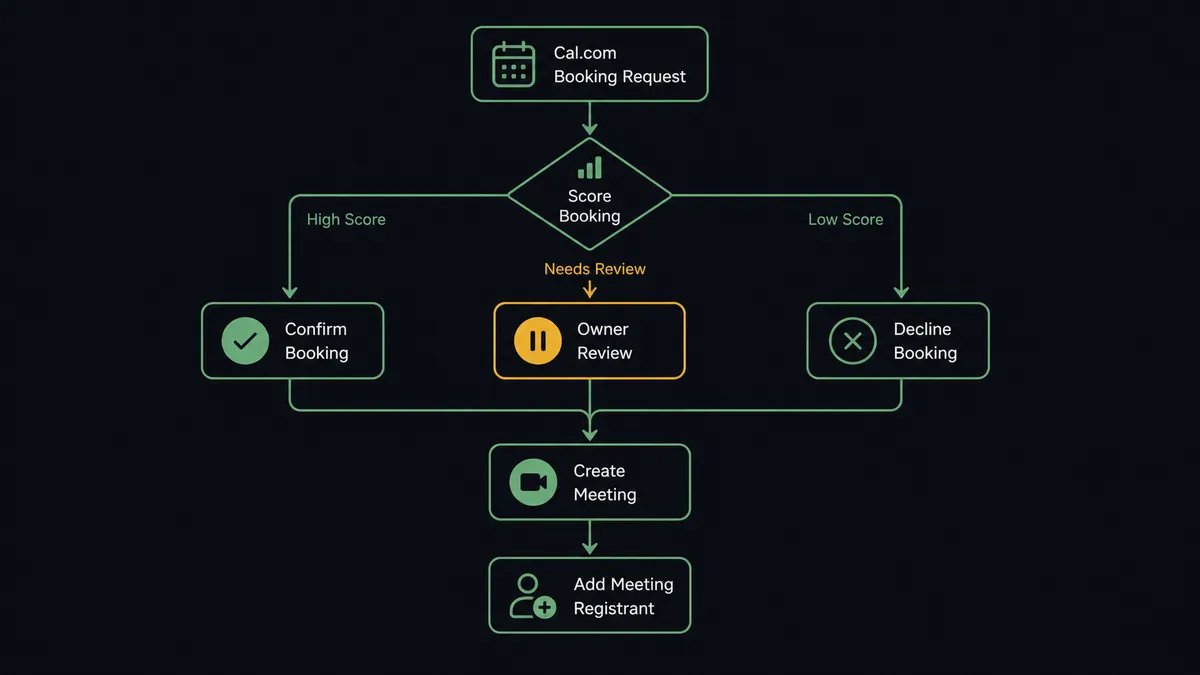
Once the request lands, the agent reads the requester’s answers and the event type’s qualification rules. Clear-yes requests run Confirm Booking immediately. Clear-no requests run Decline Booking and exit the flow. For everything that confirms, whether automatically or after a human decides, Create Meeting provisions the Zoom meeting and returns the join URL. Add Meeting Registrant enrolls the requester so they get their own personal join link rather than a shared one, and Get Meeting Invitation pulls the ready-to-send invitation text so the confirmation email doesn’t have to be written from scratch.
After the meeting happens, the same flow can pick up the loose ends that used to require someone to remember them. Get Meeting Recordings retrieves the cloud recording download link so it can be archived or attached to the record the booking belongs to. List Past Meeting Participants pulls join and leave times, which closes the loop on whether the person who requested the meeting actually showed up.
Can an AI agent run it? (and why a human stays in the loop)
A rule-based sync would need someone to pre-decide, once, what counts as confirm and what counts as decline, and then apply that rule to every request forever regardless of how the specifics look. An agent reads each request and decides. It has Confirm Booking, Decline Booking, Create Meeting, Add Meeting Registrant, and the rest of the Cal.com and Zoom action library available as tools, and it chooses which ones to call based on what the request actually contains.
The moment that matters most is the borderline request. When a booking scores between the clear-yes and clear-no thresholds on the qualification rules, the agent does not default to either outcome. It pauses and routes to the request owner through their preferred channel with the specifics packaged in: “[Requester] at [Company] requested a [Event Type] slot on [date]. Their answers scored borderline on [criterion]. Confirm the booking or decline it?” The owner decides. Only then does the agent run Confirm Booking or Decline Booking, and only a confirmed booking ever reaches Create Meeting. No Zoom meeting gets provisioned for a request that’s still waiting on a person.
The same discipline shows up on the Zoom side independently. Deleting a cloud recording cannot be undone cleanly, so even in a fully routine cleanup workflow, the agent never calls Delete Meeting Recordings on its own. It pauses and asks: “The workflow wants to delete the cloud recording for [Meeting] on [date]. This cannot be undone. Confirm the deletion, or keep the recording?” This is the digital andon cord in practice. Two separate systems, two separate irreversible or judgment-heavy moments, and the agent stops at both of them without being told to by a hardcoded rule each time.
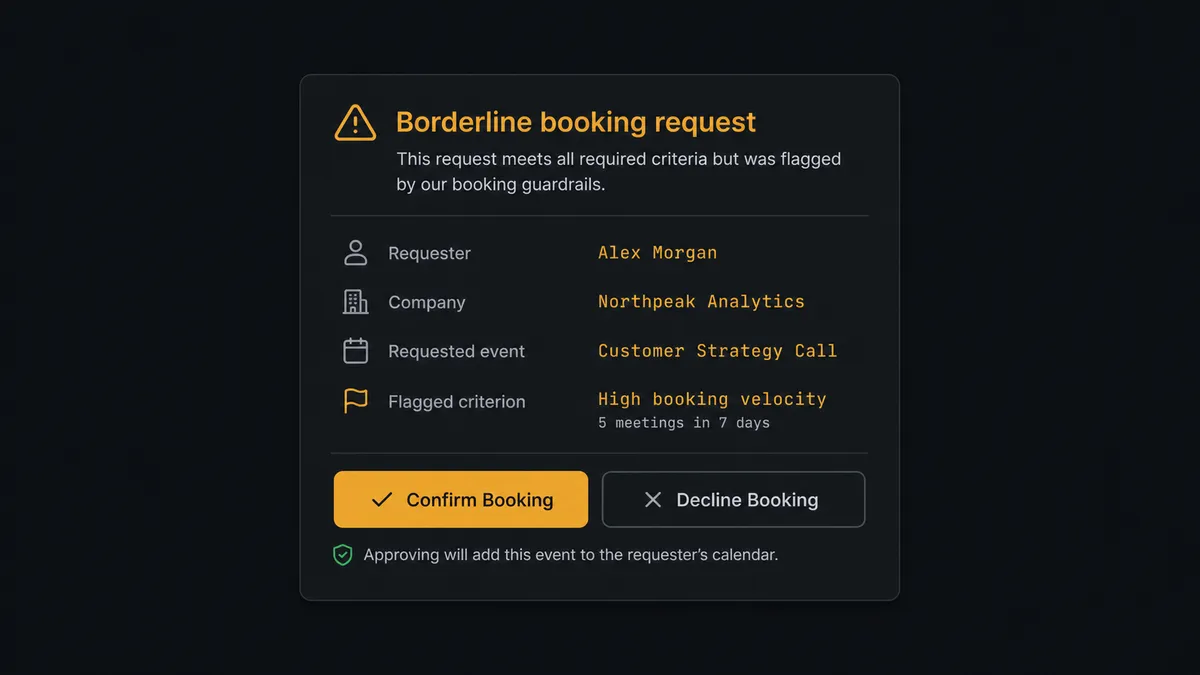
This is not a sync tool. The agent knows when to stop and ask, and it does not create the meeting until the booking is actually confirmed.
FlowRunner vs Zapier
Zapier connects Cal.com and Zoom well for the simple case: a webhook trigger on a confirmed booking maps straight to a Create Meeting action, no approval logic involved. It’s fast to set up, has both apps in its library, and that one-path version of this integration works exactly as advertised.
Where it stops is the judgment layer. Zapier can’t read a borderline request’s answers and decide whether it needs a human, and it can’t decline the booking, hold the Zoom meeting, and route to an owner in one coherent flow. That logic either gets left out entirely, so every request auto-confirms and gets a meeting whether it qualifies or not, or it gets bolted together with a separate approval tool and no shared audit trail.
| Feature | Zapier | FlowRunner |
|---|---|---|
| Basic trigger-action connection | Yes, fast to set up | Yes, same speed |
| Native human approval step | Not native; requires a separate app wired in manually | Native callable tool; agent invokes it by judgment, not a fixed rule |
| Borderline-request scoring | Not available; every confirmed booking treated the same | Agent scores each request and only escalates the ones that need it |
| Meeting created only after confirmation | Depends on manual Zap ordering, easy to misconfigure | Enforced by the flow; Create Meeting only follows a confirmed booking |
| Unlimited users on every tier | No, seat-based pricing | Yes |
| Audit trail of approvals | No | Yes; reviewer identity and timestamp captured |
Before and after
| Category | Before | After |
|---|---|---|
| Booking approval | Someone reviews every approval-gated request by hand to decide confirm or decline | Rules clear the routine requests automatically the moment they arrive |
| Confirmation speed | Requesters wait while the approver gets to the queue | Every request is scored the same way, so confirmations are quick and consistent |
| Meeting setup | Zoom meeting created and join link copied into an email as a separate manual step | Create Meeting and Add Meeting Registrant run automatically the moment a booking confirms |
| Recording follow-up | Staff hunt for the recording link after the call and forward it | Get Meeting Recordings retrieves and archives the download link automatically |
| Attendance tracking | Who joined and for how long is pieced together from memory or the Zoom UI | List Past Meeting Participants pulls join and leave times without manual lookup |
| CRM trail | Approved bookings aren’t logged back to the deal or record they belong to | The confirmed booking and meeting outcome are written back in context |
What you can build
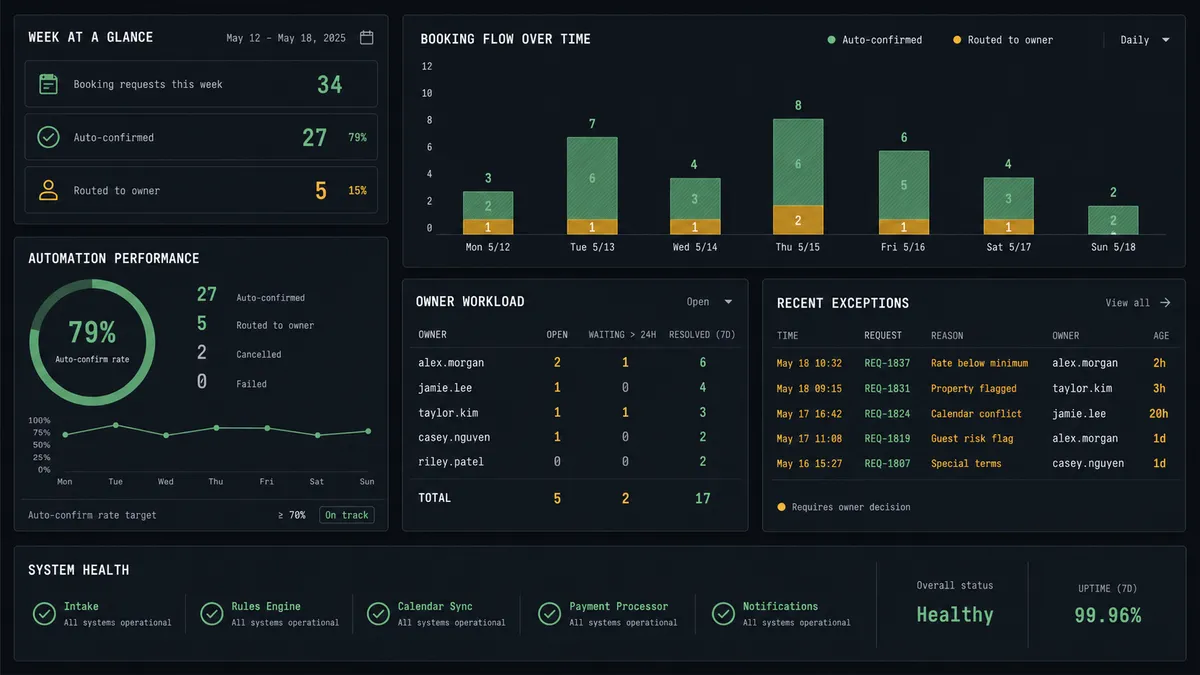
Approval booking triage with instant meeting setup. When Booking Requested fires, the agent scores the requester’s answers, runs Confirm Booking or Decline Booking, and for confirmed requests immediately calls Create Meeting and Add Meeting Registrant so the requester gets a join link without a second manual step.
First-free-slot scheduling. For inbound requests that don’t need approval, the agent calls Get Available Slots, books the first open time with Create Booking, and provisions the Zoom meeting in the same flow, so the meeting always lands on a slot that’s actually open.
Cancellation recovery. When Booking Cancelled fires, the agent logs the cancellation and offers the requester a rebooking link built from the next open slots. If the cancelled meeting was tied to a high-value opportunity, it flags the owner to decide on a personal follow-up instead of just sending a generic link.
Post-meeting recording archive. After a meeting ends, the agent calls Get Meeting Recordings to fetch the download link and archives it, but routes any later Delete Meeting Recordings call through a human confirmation first.
Attendance-based follow-up. The agent calls List Past Meeting Participants to see who actually showed, then routes no-shows into a rebooking sequence using Cal.com’s Get Available Slots while attendees who joined get a different follow-up path.
Common questions
Is it free to connect Cal.com and Zoom on FlowRunner? Yes for a trial period. FlowRunner has a free plan with 100 executions a month, every integration included, and no credit card required, and new accounts get 14 days of Professional on top. Growth is $45 per month and includes unlimited users and unlimited workflows.
Can I self-host the Cal.com and Zoom connection? Yes. FlowRunner offers a free Community Edition for self-hosting a single instance, and an Enterprise self-hosted option with multi-instance clustering and the full compliance suite for larger teams.
Does the agent need my own AI provider key? Yes. FlowRunner uses a bring-your-own-key model, so you connect the AI provider you already pay for rather than paying FlowRunner a markup on model usage.
What happens when the agent isn’t sure whether to confirm a booking? It does not guess. It packages the requester’s answers and the criterion they scored borderline on, then asks the event owner to confirm or decline through their preferred channel before any Zoom meeting is created.
Does the Zoom meeting get created even if the Cal.com booking is declined? No. Create Meeting only runs after a booking is confirmed, either automatically for clear-yes requests or after a human confirms a borderline one. Declined requests never reach the Zoom step.
Can the agent delete a Zoom recording automatically during cleanup? No. Deleting a cloud recording cannot be undone cleanly, so the agent always pauses and asks the meeting owner to confirm before it runs Delete Meeting Recordings, regardless of how routine the rest of the workflow is.
Getting started
FlowRunner has a free plan with 100 executions a month, every integration included, and no credit card required, and new accounts get 14 days of Professional on top. Connect Cal.com and Zoom to see the trigger and action library for each, start building at flowrunner.ai, or book a walkthrough at calendly.com/flowrunner/intro.
Frequently asked questions
Is it free to connect Cal.com and Zoom on FlowRunner?
Yes for a trial period. FlowRunner has a free plan with 100 executions a month, every integration included, and no credit card required, and new accounts get 14 days of Professional on top. Growth is $45 per month and includes unlimited users and unlimited workflows.
Can I self-host the Cal.com and Zoom connection?
Yes. FlowRunner offers a free Community Edition for self-hosting a single instance, and an Enterprise self-hosted option with multi-instance clustering and the full compliance suite for larger teams.
Does the agent need my own AI provider key?
Yes. FlowRunner uses a bring-your-own-key model, so you connect the AI provider you already pay for rather than paying FlowRunner a markup on model usage.
What happens when the agent isn't sure whether to confirm a booking?
It does not guess. It packages the requester's answers and the criterion they scored borderline on, then asks the event owner to confirm or decline through their preferred channel before any Zoom meeting is created.
Does the Zoom meeting get created even if the Cal.com booking is declined?
No. Create Meeting only runs after a booking is confirmed, either automatically for clear-yes requests or after a human confirms a borderline one. Declined requests never reach the Zoom step.
Can the agent delete a Zoom recording automatically during cleanup?
No. Deleting a cloud recording cannot be undone cleanly, so the agent always pauses and asks the meeting owner to confirm before it runs Delete Meeting Recordings, regardless of how routine the rest of the workflow is.