Pipedream Workflows shuts down on March 31, 2027, and everything in it, including the credentials for your connected accounts, is deleted by April 30. This guide is how to move your workflows to FlowRunner without rebuilding each one by hand. FlowRunner Prompt to Flow reads a workflow’s files, code steps included, and builds the same workflow as a FlowRunner flow. What’s left for you is reconnecting accounts and testing.
It takes five steps, and after them are three real Pipedream workflows converted this way, with the files that went in and what came out. For the shutdown details and how each Pipedream piece maps to FlowRunner, see our Pipedream migration guide. If you’d rather not do it yourself, send us your files and we’ll convert them for free.
1. Get your workflows out of Pipedream
There are two ways to get a workflow’s files.
- Export Workflows. Open the project in Pipedream, select Settings, and click Export Workflows at the bottom. When it finishes, open File Store and download
project_export-<project_id>.zip. It holds amanifest.jsonand one JSON file per workflow with its triggers, steps, code, and settings. The export is written to the project’s File Store, so Pipedream notes that your plan must include File Stores. One export holds up to 500 workflows or 256 MB, and workflows you never deployed are skipped. - GitHub Sync. If the project was ever synced to GitHub, your repo already has a
workflow.yamlfor each workflow and one file per code step. The demos below started from these.
Either way, some things never come out, and you’ll fill them in later:
- secrets and connected accounts (exported as
<redacted>or just an account ID) - environment variables
- data store records and File Store files
- event history
- the code of private components
Two things to do now, while Pipedream still runs. Copy your data store records somewhere safe, because they’re deleted on April 30. And save a few real events from each workflow’s event history, so you have something to test the new flow with.
2. Connect FlowRunner Prompt to Flow to your AI tool
FlowRunner Prompt to Flow is an MCP server you add to the AI tool you already use. The server URL is https://app.flowrunner.ai/mcp.
- Claude (web and desktop): open Settings > Connectors, click + Add, then Add custom connector. Enter
FlowRunnerand the server URL, click Add, then Connect, and approve the FlowRunner sign-in. - Claude Code: run these two commands, and approve the sign-in page that opens:
claude mcp add --transport http flowrunner https://app.flowrunner.ai/mcp
claude mcp login flowrunner- ChatGPT, Codex, and Cursor: follow the setup in the docs.
You sign in with your FlowRunner account. If you don’t have one, the Free plan needs no card.
3. Convert one workflow at a time
Start a new chat, paste the request that matches your files, then paste one workflow’s files after it.
For an Export Workflows file:
Rebuild this Pipedream workflow as a FlowRunner flow. It comes from Pipedream’s Export Workflows: the JSON lists the trigger, the steps in order with their settings, and the source of each code step. Values shown as
were removed by Pipedream. Keep the same behavior. Before you build, tell me anything you can’t map one to one, and ask me about anything the file doesn’t say.
For GitHub Sync files:
Rebuild this Pipedream workflow as a FlowRunner flow. It comes from Pipedream’s GitHub Sync: workflow.yaml lists the trigger and the steps in order, and the source of each code step follows it. Keep the same behavior. Before you build, tell me anything you can’t map one to one, and ask me about anything the files don’t say (for example the trigger’s schedule or URL, which GitHub Sync doesn’t record).
If the workflow’s entry in manifest.json has a warnings list, paste that too. It names every secret and connection you’ll need to fill in.
Answer its questions, and it builds the flow in your workspace. Code steps come across as Custom Cloud Code, or as a regular block where one does the same job, and Python steps are rewritten in JavaScript. One workflow per chat keeps the conversation short and the questions specific.
4. Finish what the files can’t carry
Each conversion ends with a short list from the builder. Expect some of these:
- Connect your accounts. Each one is connected once and shared across your flows.
- Fill in secrets and environment variables. The builder asks for them or tells you where each one goes.
- Note the new address. Every form, app, or service that calls your Pipedream webhook URL will need the flow’s new URL when you switch over in step 5.
- Check workflows that answer their caller. If a Pipedream workflow used
$.respondto send something back, the FlowRunner flow is called through the blocking Call Flow API instead. That call carries your workspace key, so make it from a server, not from a visitor’s browser. - Set the schedule. GitHub Sync files don’t record it.
- Start the flow, if the builder left it stopped.
5. Test, then switch over
Run each flow with the events you saved in step 1 and compare the results with what Pipedream produced. When they match, point the callers at FlowRunner, watch the runs for a few days, and turn off the Pipedream workflow.
Three real conversions: a moderated guestbook
Raymond Camden ran the guestbook on his site with three Pipedream workflows, and he keeps them public in his General-Pipedream-Stuff repo. Thanks to Raymond for letting us use them. Together they make a small moderation loop: a visitor’s entry lands in a Google Sheet, Raymond gets an email with an approve link, and the site only shows entries he approved.
The input for all three was his GitHub Sync files, exactly as they sit in the repo: each workflow’s workflow.yaml plus one JavaScript file per code step. Each conversion used the GitHub Sync request from step 3, followed by the files.
Because the request asks for it, the builder listed what it couldn’t map one to one and asked its questions before building anything. All three flows were then connected to a test spreadsheet and a Gmail account and tested end to end.
Add Guestbook Entry
A visitor’s form posts a name and a comment. The workflow checks both are there, adds a row to the sheet with Approved set to FALSE, and emails Raymond the entry with a “Click to Approve” link. (Original files)
schema: workflow/2022.04
name: Add Guestbook Entry
settings:
  error_notification: true
triggers:
- id: hi_mJH1wmn
steps:
- namespace: validate
  runtime: nodejs20.x
  uses: "./validate/entry.js"
- namespace: add_single_row
  runtime: nodejs20.x
  uses: [email protected]
  props:
    googleSheets:
      authProvisionId: apn_DphexA
    sheetId:
      __lv:
        label: Guestbook
        value: 1RLspI8iuC-Ng8Fco8zV-ynpxdPLm7MgoXm5jnlo0Tpk
    sheetName:
      __lv:
        label: Sheet1
        value: Sheet1
    hasHeaders: 'Yes'
    col_0000: "{{steps.trigger.event.body.name.replace(/<.*?>/g,'')}}"
    col_0001: "{{steps.trigger.event.body.comment.replace(/<.*?>/g,'')}}"
    col_0002: "{{Date.now()}}"
    col_0003: 'FALSE'
- namespace: create_email_body
  runtime: nodejs20.x
  uses: "./create_email_body/entry.js"
- namespace: send_email_to_self
  runtime: nodejs20.x
  uses: [email protected]
  props:
    subject: New Guestbook Entry
    text: "{{steps.create_email_body.$return_value}}"
    html: "{{steps.create_email_body.$return_value}}"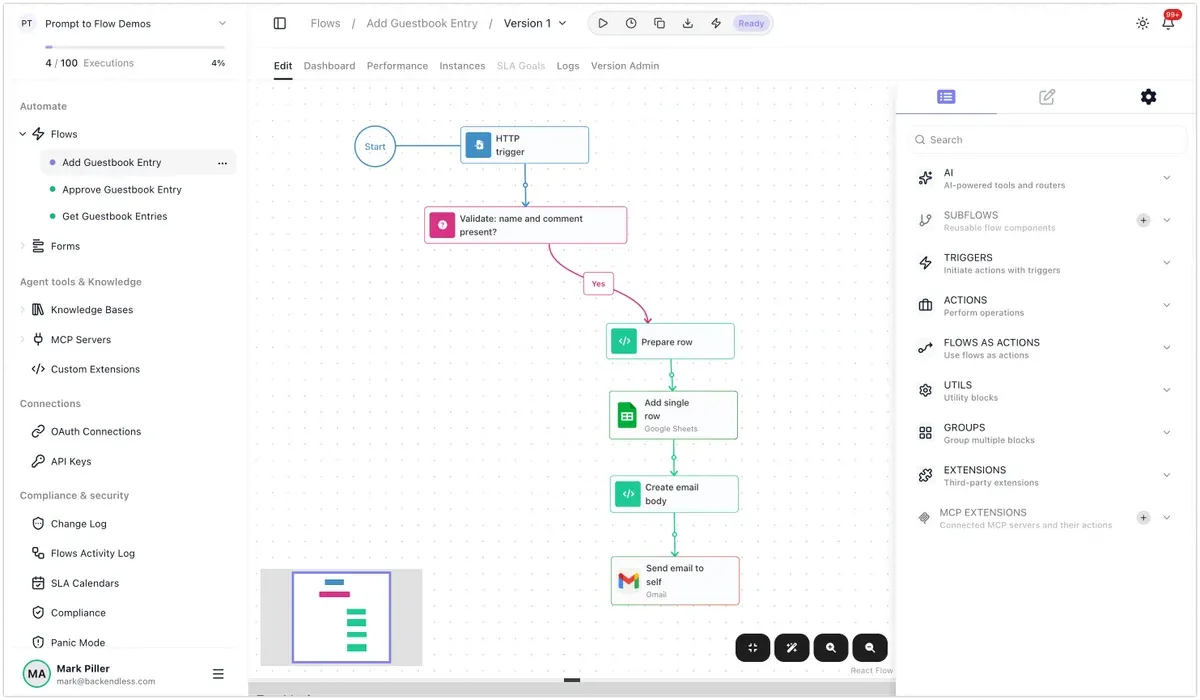
| Pipedream | FlowRunner |
|---|---|
| HTTP trigger | External Callback. The posted JSON body becomes the trigger data. |
validate code step, which ends the run with $.flow.exit | A Condition: name and comment both present. The No branch has nothing after it, so the run ends there. |
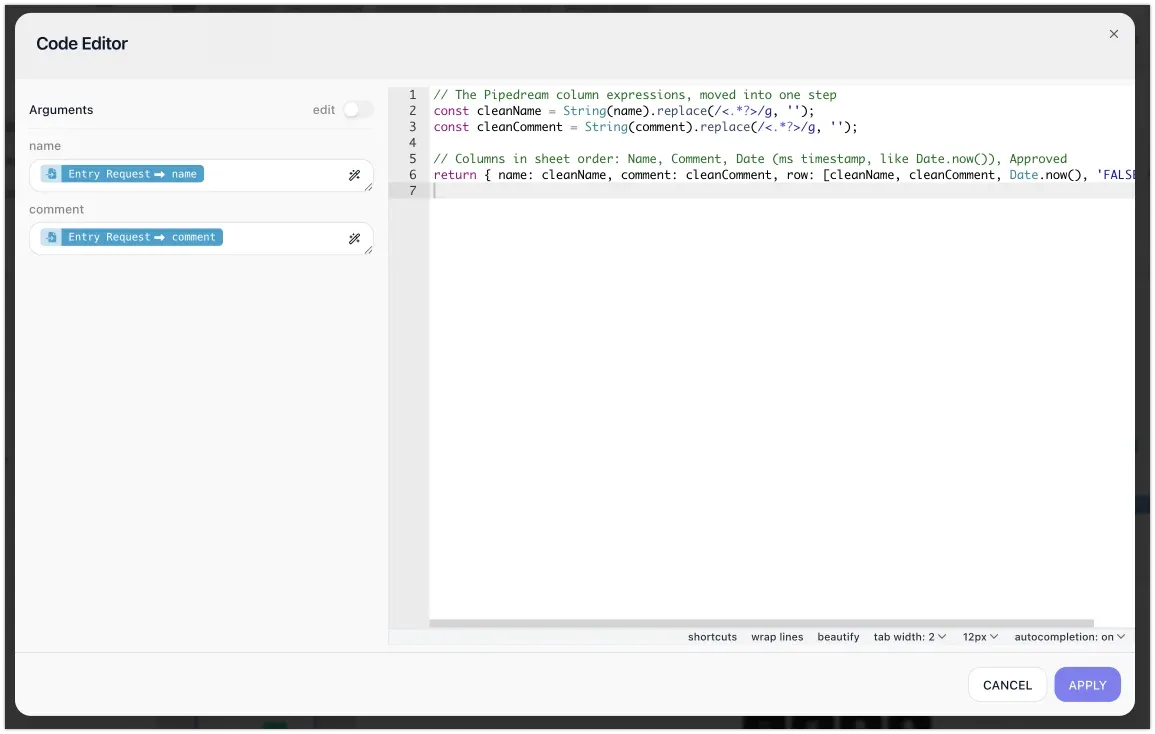
Code inside the column fields (strip HTML tags, Date.now()) | A small Custom Cloud Code step that prepares the row. FlowRunner fields take references to earlier results, not code. |
| Google Sheets, Add Single Row | Google Sheets, Add Row. It returns the range the row landed in, which the approve link needs. |
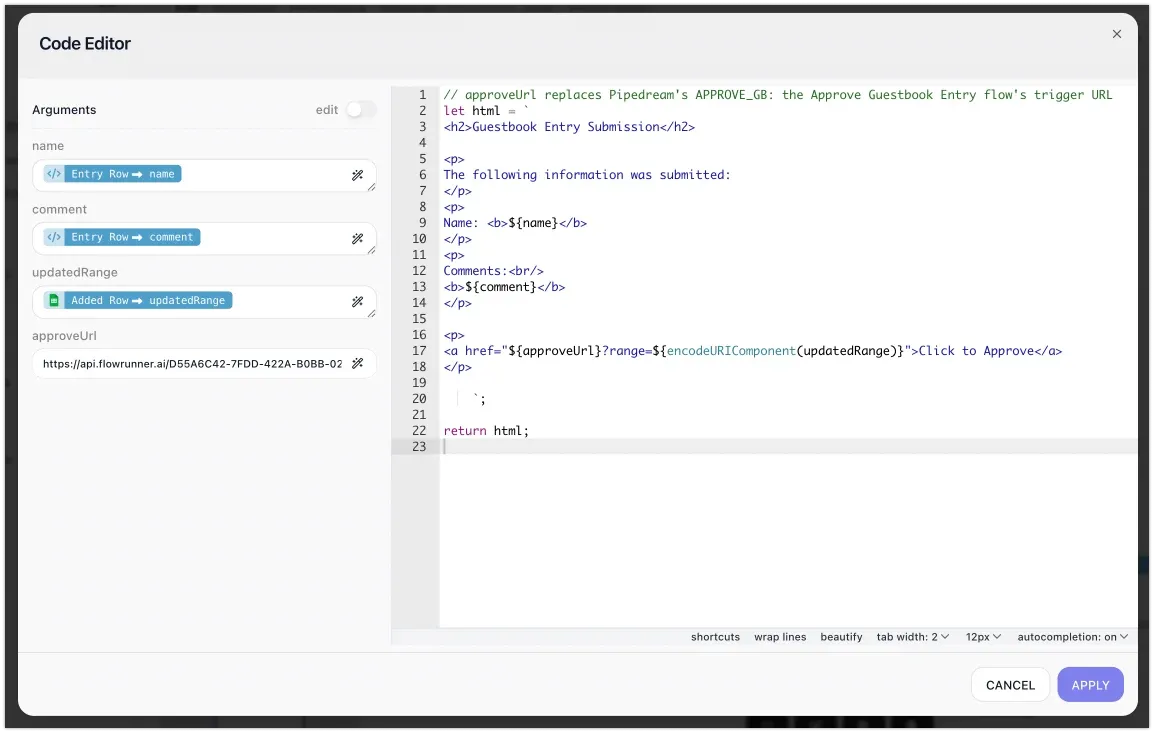
create_email_body code step | Custom Cloud Code, with Raymond’s HTML almost unchanged. |
The APPROVE_GB environment variable | The Approve flow’s address, written into the email code step. |
| Email, Send Email To Self | Gmail, Send Email, addressed to the owner. |
The two code steps carry Raymond’s logic over. The first holds what Pipedream ran inside the column fields: stripping HTML tags from the name and comment, and the Date.now() timestamp.
The second is Raymond’s email HTML, with the approve flow’s address passed in where his code read the APPROVE_GB variable, and the row’s range taken from the Add Row step.
Left to finish by hand: connect Google Sheets and Gmail, pick the spreadsheet, set the address the email goes to, and start the flow.
Tested: a test entry added the row, with Approved set to FALSE, and the email arrived with a working approve link.
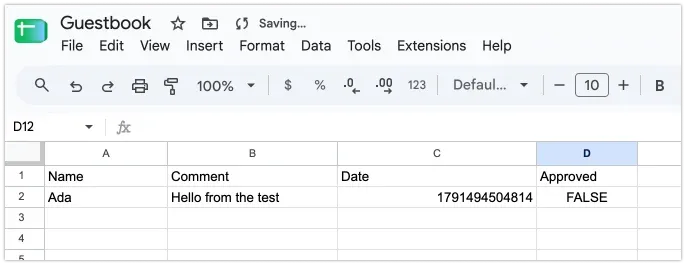
Notes: the builder replaced the validation code with a Condition block, which shows on the canvas instead of hiding in code. Pipedream’s Send Email To Self needed no setup; on FlowRunner the email goes through your own email account, so you connect one.
Approve Guestbook Entry
The approve link in the email opens this workflow with the new row’s range in the address. It sets that row’s Approved cell to TRUE, and the entry shows up on the site. (Original files)
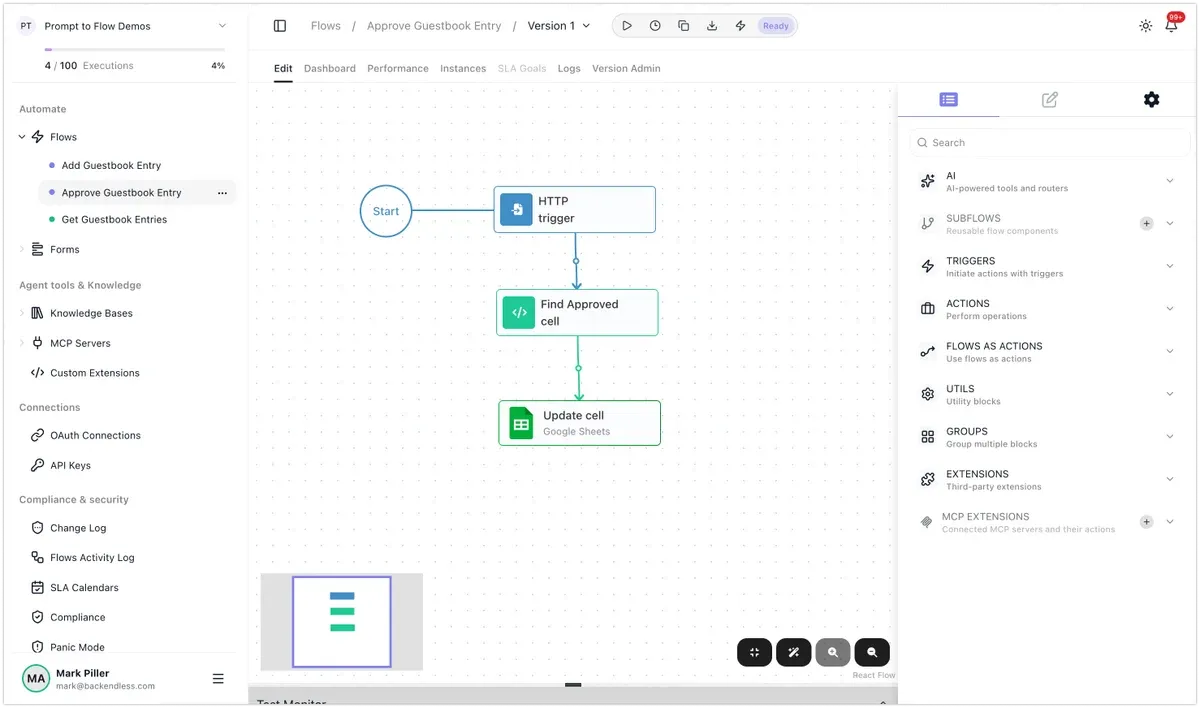
| Pipedream | FlowRunner |
|---|---|
| HTTP trigger | External Callback. The range in the link becomes the trigger data. |
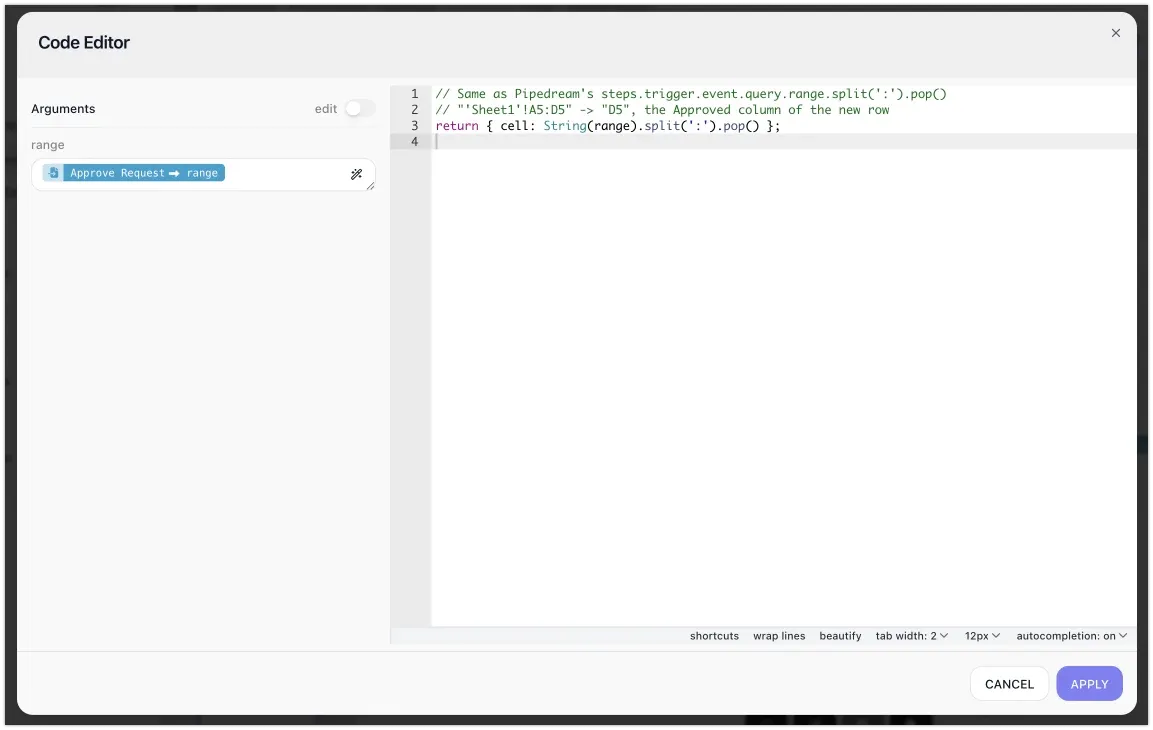
The cell expression range.split(':').pop() in the Update Cell step | A one-line Custom Cloud Code step that picks the Approved cell, for example D5. |
| Google Sheets, Update Cell | Google Sheets, Update Cell by A1, set to TRUE. |
| A code step that redirects the browser to the guestbook page | Not reproduced. See the notes. |
Raymond’s one-line cell expression became a one-line code step, and its result feeds the Google Sheets block’s cell address.
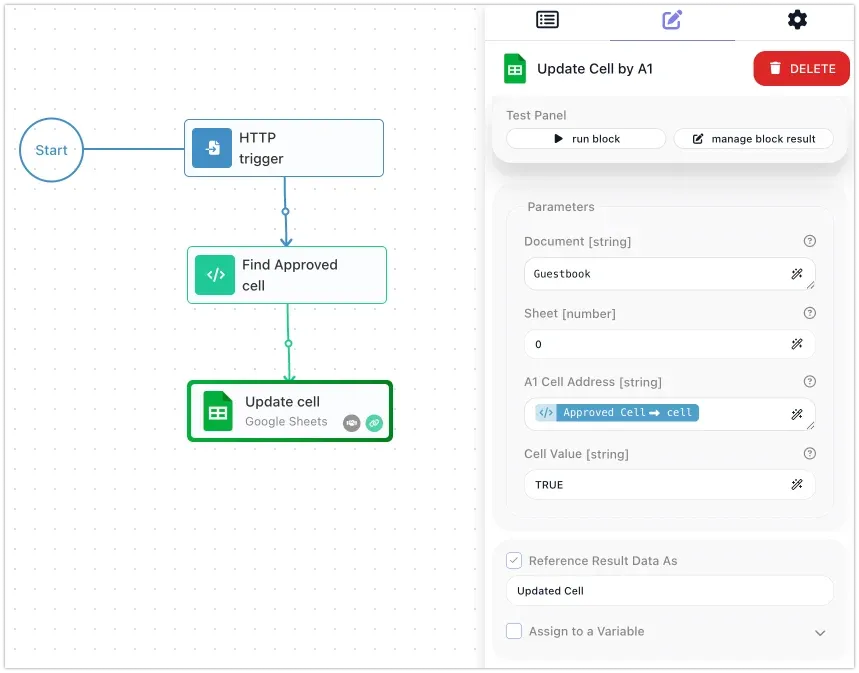
Left to finish by hand: connect Google Sheets and pick the spreadsheet, then start the flow.
Tested: clicking the approve link in the test email set that row’s Approved cell to TRUE.
Notes: Raymond’s last step sends the browser back to his guestbook page with a redirect. Our version doesn’t, so the browser shows FlowRunner’s run ID instead of the guestbook page.
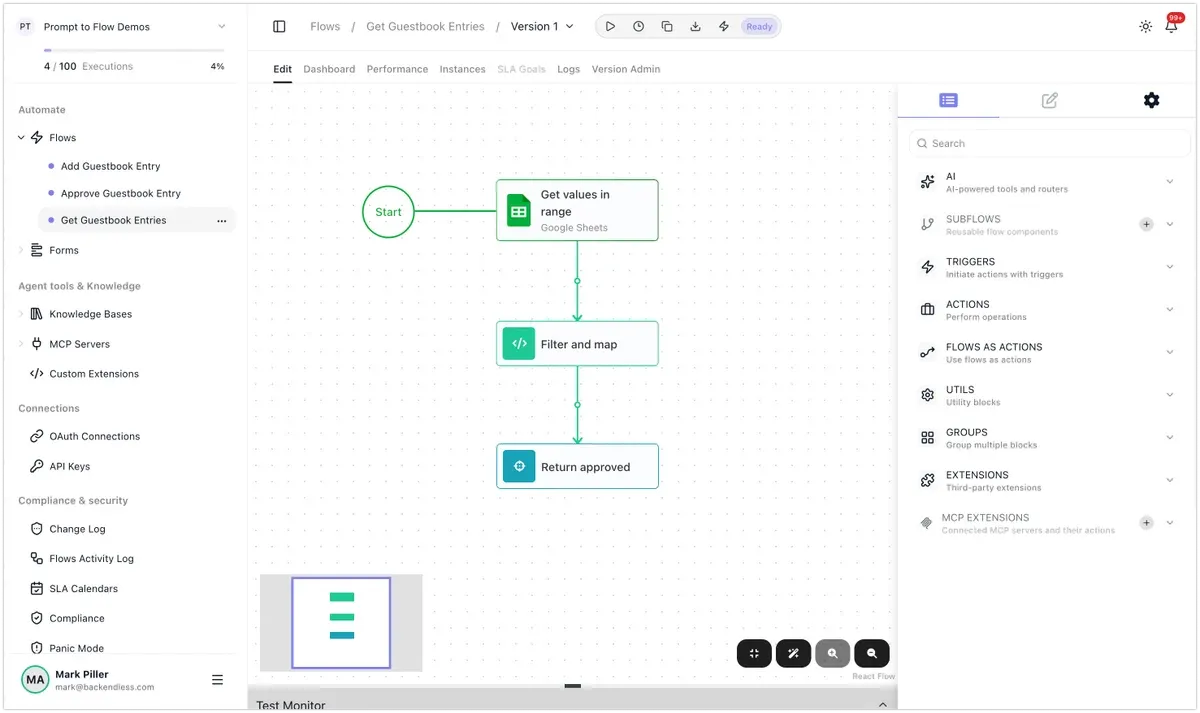
Get Guestbook Entries
The guestbook page calls this workflow to get the approved entries. It reads the sheet, keeps the approved rows, and answers with them as JSON. (Original files)
| Pipedream | FlowRunner |
|---|---|
HTTP trigger plus a $.respond step that answers the caller | A flow with no trigger block that ends in Return Result, called through the blocking Call Flow API, so the caller gets the answer in the same request. |
Google Sheets, Get Values in Range (A2:D10000) | Google Sheets, Get Rows. Rows come back keyed by the header names instead of by position, with no row cap. |
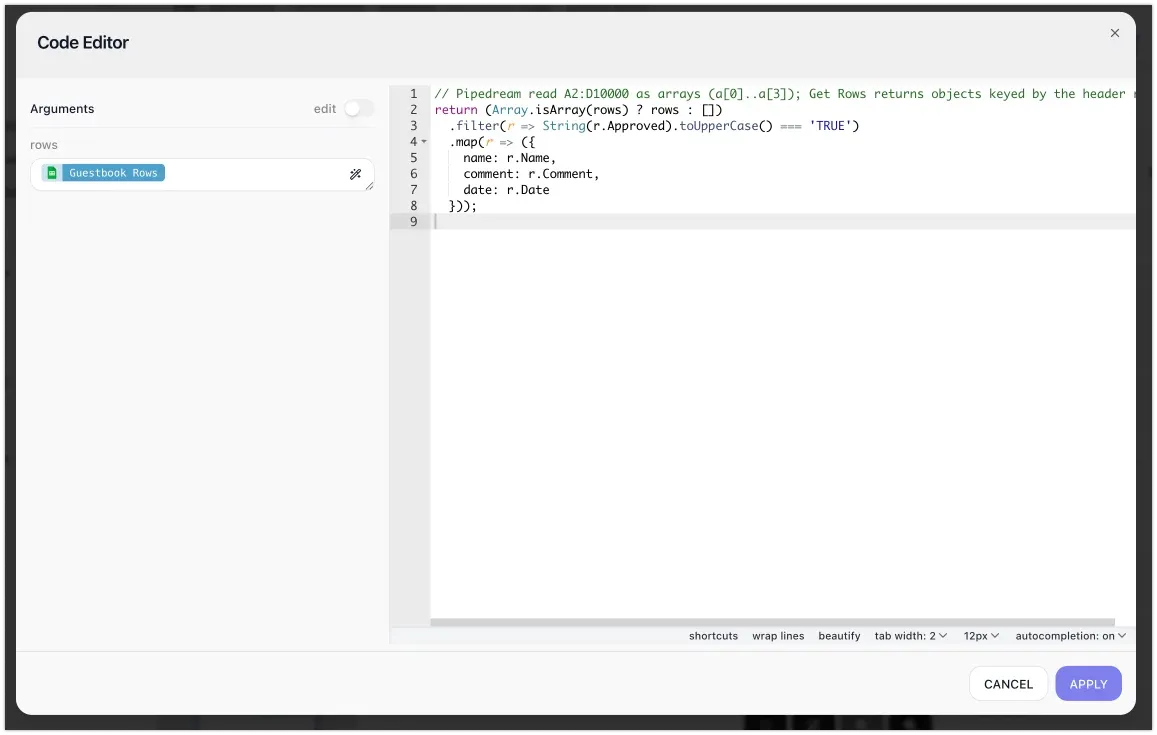
filter_and_map code step | Custom Cloud Code that reads the columns by name and returns name, comment, and date for each approved row. |
return_approved code step ($.respond with JSON) | Return Result, content type JSON. |
Because the rows now come back keyed by their headers, the filter reads r.Approved and r.Name where Raymond’s code read a[3] and a[0].
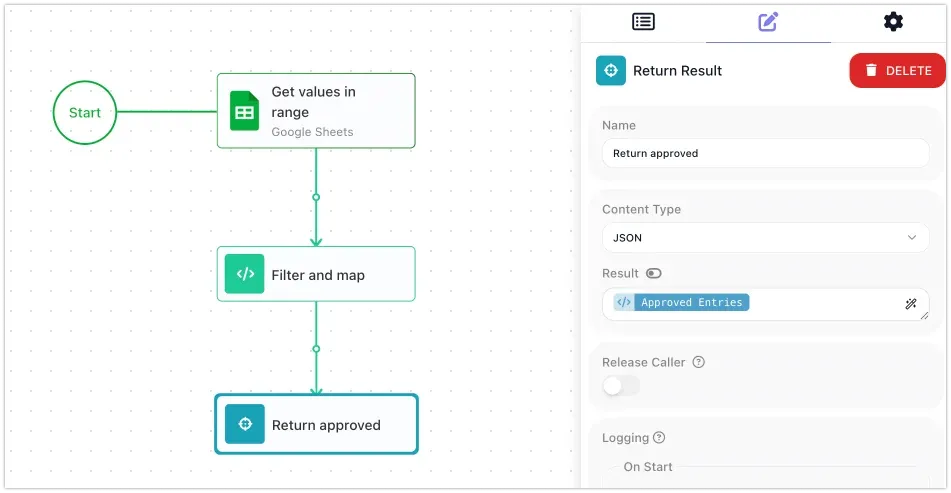
Left to finish by hand: connect Google Sheets and pick the spreadsheet, then start the flow.
Tested: the call returned exactly what Raymond’s workflow returns, the approved entries as a JSON array:
[{"name":"Ada","comment":"Hello from the test","date":"1791494504814"}]Notes: this is the one workflow whose trigger changed shape. A Pipedream HTTP trigger can answer its caller directly; on FlowRunner, a flow that answers its caller is called through the blocking API instead. The calling address includes your workspace key, so call it from a server and pass the key in a header rather than from the visitor’s browser.