How to Connect Calendly with Google Sheets (With or Without an AI Agent)
Connect Calendly to Google Sheets so every booking, cancellation, or no-show lands as a row automatically, then add an AI agent that reasons about the data and pauses for a human on the steps that carry real consequence.
How do you connect Calendly to Google Sheets?
You connect Calendly to Google Sheets by using the On Invitee Created trigger in FlowRunner, which fires the moment someone books a meeting, and then calling the Add Row action to write the booking details into your sheet. FlowRunner is a visual AI-agent orchestration platform where automations run autonomously and pause for human judgment on the steps that carry real consequence. The same connection can run as a full AI agent: the agent reads each booking, reasons about it, and invokes human oversight before logging records that need a decision.
The problem it solves
Right now, someone on your team opens Calendly, scans the new bookings, and manually copies name, email, event type, and timestamp into a spreadsheet. That person also checks for cancellations. They log no-shows. They update the status column when follow-up happens. Every one of those updates is a chance for a booking to fall through the cracks: a no-show that never gets logged, a cancellation that never triggers a recovery email, a high-value demo that gets the same treatment as a cold intro call.
The spreadsheet is your system of record, but it only reflects what someone remembered to enter. Ops leads running scheduling reports from that sheet are reporting on incomplete data. The gap between what Calendly knows and what your sheet shows is the gap between what actually happened and what your team thinks happened.
How it works: the connection
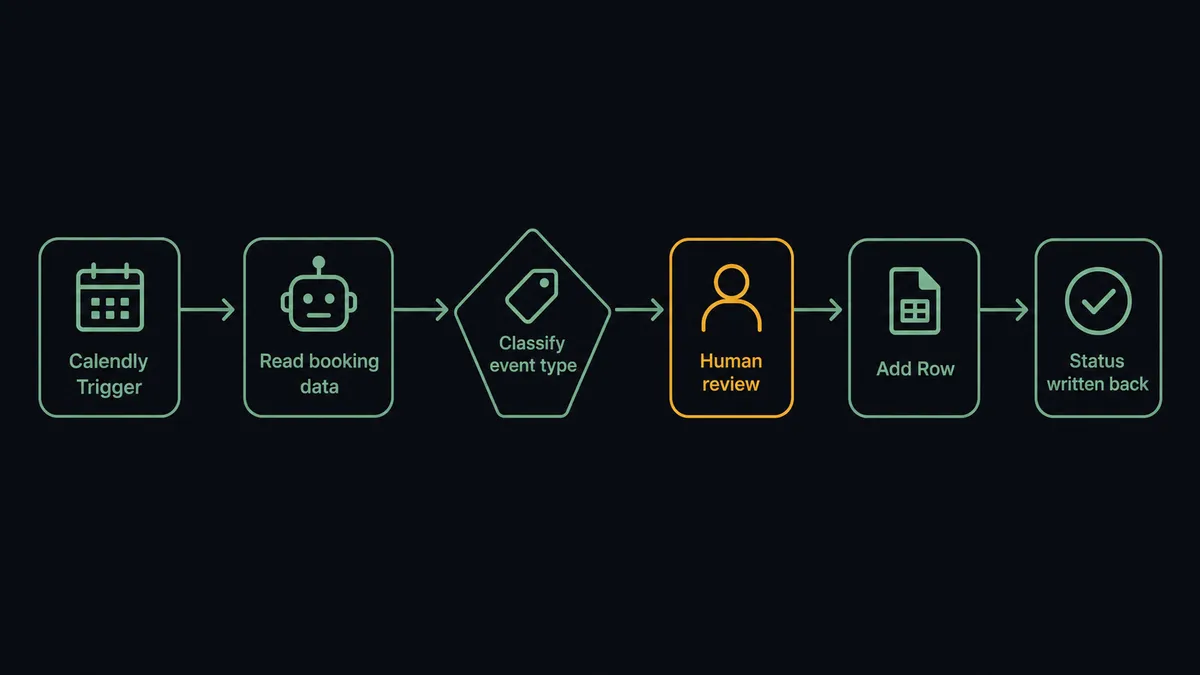
The On Invitee Created trigger fires the instant a prospect completes a Calendly booking. FlowRunner receives the event and passes the payload to the next step. A basic connection maps these fields directly into Google Sheets using Add Row: invitee name, invitee email, event type, start time, and any routing form answers. The row lands in your sheet within seconds. No one had to open Calendly.
Cancellations work the same way. On Invitee Canceled fires when a booked meeting is canceled. The agent finds the matching row in your sheet using Find Row, then calls Update Row to change the status to Canceled and log the cancellation timestamp. If you track no-shows separately, On Mark Invitee as No-Show fires when a host marks an attendee absent. The agent calls Update Row or Add Row depending on how your sheet is structured, and logs the no-show with a timestamp.
For recovery workflows, the agent uses Create Single-Use Scheduling Link to generate a unique Calendly link tied to that specific prospect, then embeds it in a follow-up email. The link is single-use: it cannot be forwarded or reused, which keeps your tracking clean.
Can an AI agent run it? (and why a human stays in the loop)
A direct trigger-to-Sheets connection moves data. An AI agent interprets it. When you insert an AI Agent node between the On Invitee Created trigger and the Add Row action, the agent reads the booking payload and makes decisions: Is this a high-value event type? Is the invitee someone already in your pipeline? Does anything about the booking look unusual enough to flag before it gets logged?
This is not a hardcoded threshold. The agent evaluates context. A booking from someone your team has been chasing for six months gets different treatment than a cold inbound booking. The agent knows the difference because you give it instructions, not rules.
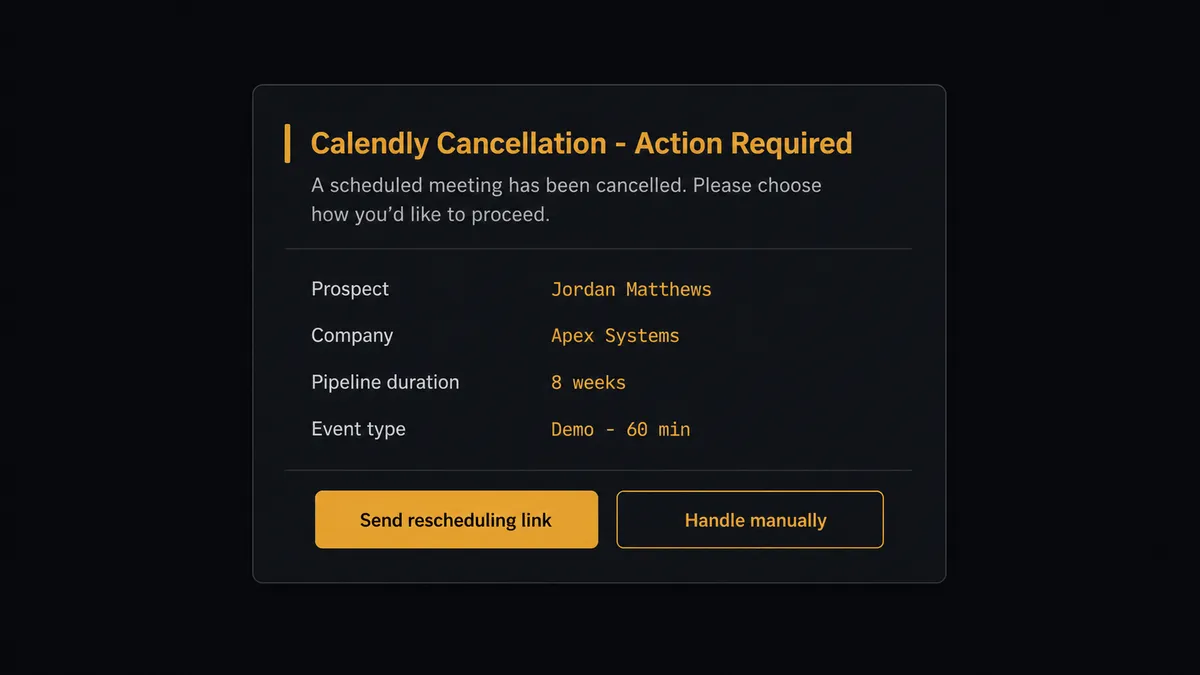
Here is where the human-in-loop matters. A high-value prospect cancels a demo two hours before it starts. The On Invitee Canceled trigger fires. The agent does not just update the status to Canceled and move on. It evaluates the cancellation: deal value, how long the relationship has been in motion, whether this person has rescheduled before. If the context warrants it, the agent invokes the human-in-loop flow as a callable tool. Execution pauses. The ops lead receives a Slack message:
“[Prospect Name] at [Company] canceled their demo scheduled for [time]. This account has been in the pipeline for 8 weeks. Do you want to personally reach out, or should I send the automated rescheduling link?”
The ops lead picks an option. The agent resumes with that decision as input. If the ops lead says send the automated link, the agent calls Create Single-Use Scheduling Link, generates the personalized URL, and triggers the recovery sequence. If the ops lead says handle it manually, the agent logs the exception in Google Sheets and stops. The decision, the decider’s identity, and the timestamp all go into the audit trail.
This is not a sync tool. The agent knows when to stop and ask.
FlowRunner vs Zapier
Zapier is the right comparison for most non-technical teams connecting Calendly to Google Sheets. It is fast to set up, has a reliable Calendly connector, and works well for straightforward trigger-to-action flows. If your use case is “every new booking lands as a row,” Zapier handles that without friction.
The real differences show up when the workflow needs to think.
| Feature | Zapier | FlowRunner |
|---|---|---|
| Basic trigger-to-row connection | Yes | Yes |
| AI agent that reasons about each booking | No | Yes |
| Human-in-loop as a callable agent tool | No (bolt-on approval steps only) | Yes (agent decides when to invoke it) |
| Unlimited users on every tier | No (user limits on lower tiers) | Yes |
| BYOK for AI provider | No | Yes |
| Self-hosted option | No | Yes (Community and Enterprise) |
| Transparent workflow-based pricing | Per-task execution pricing | Workflow execution tiers, no per-step charges |
Zapier’s pricing charges per task, and a single booking event touching multiple steps can consume multiple tasks. FlowRunner counts the workflow execution, not the steps inside it. For teams running thousands of bookings a month, that difference compounds.
Before and after
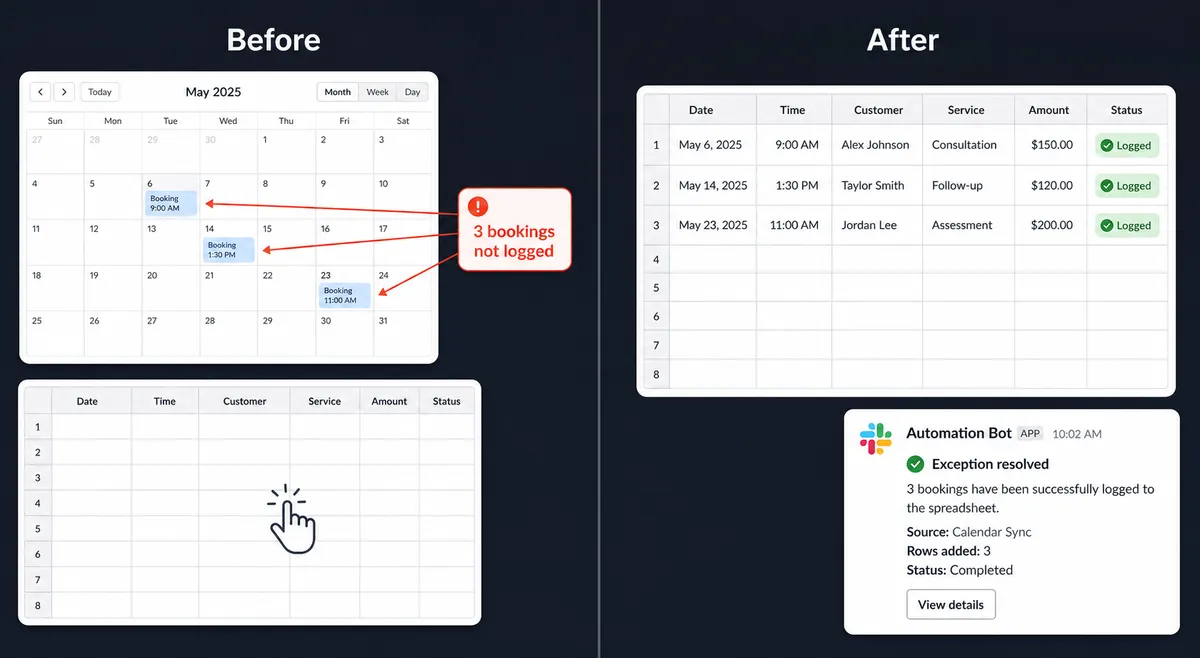
| Category | Before | After |
|---|---|---|
| Booking logging | Someone copies name, email, and event type from Calendly into the sheet by hand | On Invitee Created fires and Add Row writes the full booking record within seconds |
| Cancellation tracking | Cancellations are noticed only when someone checks Calendly | On Invitee Canceled fires and Update Row changes the status and logs the timestamp automatically |
| No-show logging | Reps forget to log no-shows or do so days later | On Mark Invitee as No-Show fires and the agent updates the row immediately |
| High-value exceptions | Every cancellation gets the same automated response | Agent evaluates context and routes high-value cancellations to a human before acting |
| Recovery links | Generic rescheduling links copied from a template | Agent calls Create Single-Use Scheduling Link and generates a unique link per prospect |
| Sheet accuracy | Sheet reflects what someone remembered to enter | Sheet reflects every Calendly event in real time |
What you can build
New booking to sheet row with enrichment. On Invitee Created fires. The agent reads the invitee email and calls Find Row to check whether the person is already tracked in your sheet. If they are, it calls Update Row to log the new booking against the existing record. If not, it calls Add Row to create a new record. Either way, the sheet stays accurate without duplication.
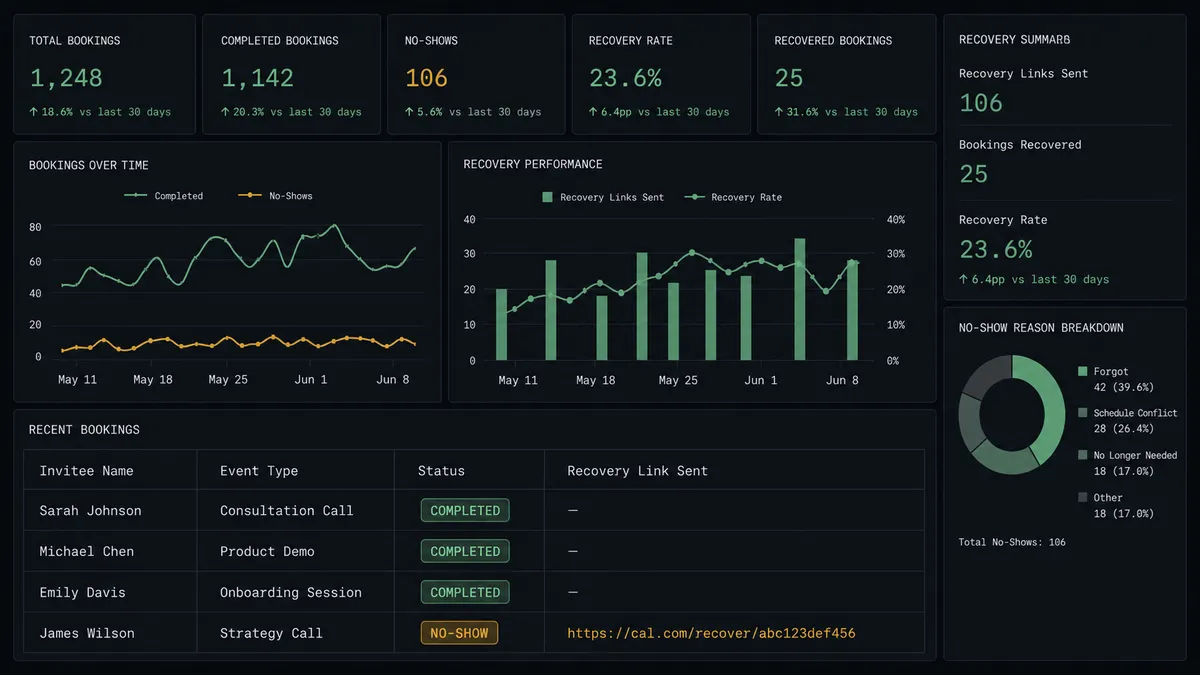
No-show recovery tracker. On Mark Invitee as No-Show fires. The agent calls Update Row to mark the row as No-Show in your sheet, then calls Create Single-Use Scheduling Link to generate a personalized rescheduling link and logs that link in the adjacent column. A follow-up email goes out automatically. Your sheet shows exactly which no-shows received a recovery link and when.
Routing form submission log. On New Routing Form Submitted fires when a prospect fills out a Calendly qualification form. The agent reads the answers, applies qualification logic, and calls Add Row to log the submission with a qualification score. High-score submissions also trigger a separate notification. Low-score submissions are logged and routed to a nurture sequence.
Cancellation pattern analysis prep. On Invitee Canceled fires. The agent calls Update Row to log the cancellation reason and timestamp. Over time, your sheet accumulates structured cancellation data: who canceled, when, what event type, and what reason. The agent calls Export Sheet on a weekly schedule and delivers the file to your inbox. Pattern analysis happens in the spreadsheet without anyone manually compiling the data.
Scheduled booking report. On a schedule, the agent calls Get Rows to pull all bookings from the current week, then calls Export Sheet to generate a CSV or Excel file and returns the URL. The file lands in an email or Slack message to your team every Monday morning. No one has to open the sheet or download anything.
Common questions
Is it free to connect Calendly and Google Sheets on FlowRunner? FlowRunner has a free plan with 100 executions a month, every integration included, and no credit card required, and new accounts get 14 days of Professional on top. Corporate email is required to start the trial.
Does the AI agent need my own OpenAI key? FlowRunner uses a BYOK (Bring Your Own Keys) model. You connect whichever AI provider you prefer. No keys are required for the basic trigger-and-action connection; BYOK is needed only if you want the agent reasoning layer.
Can I self-host FlowRunner? Yes. FlowRunner offers a free Community Edition for self-hosting on a single instance, and an Enterprise self-hosted option for multi-instance deployments with the full compliance suite.
What happens when the agent is not sure what to do with a booking? The agent invokes a human-in-loop flow as a callable tool. It pauses execution, packages the full booking context, and sends it to the right person via Slack, email, or WhatsApp. The agent resumes once the person responds.
Can I track no-shows in Google Sheets automatically? Yes. The On Mark Invitee as No-Show trigger fires when a host marks an attendee as a no-show. The agent can then call Add Row or Update Row to log the event in your sheet and start a recovery sequence.
How many users can access the FlowRunner workflows I build? All FlowRunner tiers include unlimited users and unlimited workflows. Your whole team can monitor, review, and collaborate on every flow from day one.
Getting started
FlowRunner has a free plan with 100 executions a month, every integration included, and no credit card required, and new accounts get 14 days of Professional on top. Corporate email required.
Connect both integrations from the FlowRunner integrations library: Calendly and Google Sheets. The basic trigger-to-row connection takes minutes. The AI agent layer with human-in-loop oversight takes a bit longer to configure, but the setup is visual and does not require code.
Start your free trial at flowrunner.ai or book an intro call at calendly.com/flowrunner/intro if you want to see the agent layer in action before you build.
Frequently asked questions
Is it free to connect Calendly and Google Sheets on FlowRunner?
FlowRunner has a free plan with 100 executions a month, every integration included, and no credit card required, and new accounts get 14 days of Professional on top. Corporate email is required to start the trial.
Does the AI agent need my own OpenAI key?
FlowRunner uses a BYOK (Bring Your Own Keys) model. You connect whichever AI provider you prefer. No keys are required for the basic trigger-and-action connection; BYOK is needed only if you want the agent reasoning layer.
Can I self-host FlowRunner?
Yes. FlowRunner offers a free Community Edition for self-hosting on a single instance, and an Enterprise self-hosted option for multi-instance deployments with the full compliance suite.
What happens when the agent is not sure what to do with a booking?
The agent invokes a human-in-loop flow as a callable tool. It pauses execution, packages the full booking context, and sends it to the right person via Slack, email, or WhatsApp. The agent resumes once the person responds.
Can I track no-shows in Google Sheets automatically?
Yes. The On Mark Invitee as No-Show trigger fires when a host marks an attendee as a no-show. The agent can then call Add Row or Update Row to log the event in your sheet and start a recovery sequence.
How many users can access the FlowRunner workflows I build?
All FlowRunner tiers include unlimited users and unlimited workflows. Your whole team can monitor, review, and collaborate on every flow from day one.