
How to move from Power Automate to FlowRunner
Export your cloud flows as a solution, have FlowRunner Prompt to Flow rebuild each one in your AI tool, then reconnect accounts, test, and switch over.
Power Automate exports each cloud flow as a JSON definition: its trigger, its actions in order, and the settings that connect them. That definition is enough for FlowRunner Prompt to Flow to rebuild the flow in your FlowRunner workspace. You paste it into the AI tool you already use, answer a few questions, and the AI builds the flow from the same blocks the flow editor uses.
You convert one flow at a time. What’s left for you is the part no export carries: connecting your accounts, filling in values, and testing before you switch.
1. Export your flows from Power Automate
Microsoft recommends solutions for moving flows, and that’s the export to use if your flows are in one.
- Flows in a solution: in Power Automate, open Solutions, select the solution, and choose Export. In the Before you export pane, choose Publish all changes, then Next. Pick Managed or Unmanaged (either works here), choose Export, and select Download on the banner when it’s ready. You get a
.zip. Unzip it, and each flow is a JSON file in theWorkflowsfolder. - Flows outside a solution: open My flows > Cloud flows, select the flow, open the arrow next to Export, and choose Package (.zip). Give it a name, then Export. This export still works, though Microsoft labels its import Legacy. Only the flow’s owner or a co-owner can export it.
If you can’t export, because you aren’t an owner or your admin has locked it down, open the flow in the designer and describe it in the chat instead, with a screenshot of each step.
Some things aren’t in the export:
- Connections. A solution carries connection references, which name the connector, but the sign-ins stay in Power Automate.
- Environment variable values. Microsoft advises removing them before export. Note what each one was set to.
- Run history. Past runs stay in Power Automate.
Before you leave, open each flow’s run history and copy two or three real trigger inputs. You’ll test the FlowRunner flow with them in step 5.
2. Connect FlowRunner Prompt to Flow to your AI tool
FlowRunner Prompt to Flow is an MCP server you add to the AI tool you already use. You connect it once and sign in with your FlowRunner account. The server URL is the same for every tool: https://app.flowrunner.ai/mcp.
- Claude (web and desktop): open Settings > Connectors, click + Add, then Add custom connector. Enter
FlowRunnerand the server URL, click Add, then Connect, and approve the FlowRunner sign-in. On a Team or Enterprise plan, an Owner adds it once under Organization settings > Connectors. - Claude Code: run these two commands in your project folder, and approve the sign-in page that opens:
claude mcp add --transport http flowrunner https://app.flowrunner.ai/mcp
claude mcp login flowrunner- ChatGPT (on the web): open ChatGPT Plugins, click Add, then Add custom MCP server. Enter
FlowRunner, put the server URL under Connection, choose OAuth, and approve the sign-in. In a chat, type@and pick FlowRunner. - Codex: add the server to
~/.codex/config.toml, then runcodex mcp login flowrunner:
[mcp_servers.flowrunner]
url = "https://app.flowrunner.ai/mcp"- Cursor: add the server to
~/.cursor/mcp.json, then open Customize > MCPs and follow the sign-in prompt:
{
  "mcpServers": {
    "flowrunner": { "url": "https://app.flowrunner.ai/mcp" }
  }
}
If you don't have a FlowRunner account yet, the Free plan needs no card, and every new account starts with 14 days of Professional. The setup guide in the docs has each tool step by step.
3. Convert one flow at a time
Start a new chat, paste this request, then paste one flow’s JSON after it:
Rebuild this Power Automate cloud flow as a FlowRunner flow. It’s the flow’s JSON from a Power Automate export: the trigger, the actions with their inputs, and the runAfter settings that order them, with values written in Power Automate’s expression language. Connections appear only as connection references, with no credentials, so I’ll connect each account myself. Keep the same behavior. Turn Scopes with Configure run after into FlowRunner error handling. Before you build, tell me anything you can’t map one to one, and ask me about anything the file doesn’t say.
If the flow has an approval, an AI Builder step, or a step that runs a desktop flow, add a second paragraph:
This flow has [a Start and wait for an approval action / an AI Builder step / a step that runs a desktop flow]. Build the approval as a step that reaches [who] on [email / Slack / WhatsApp / phone] with the details they need and waits for their answer. Run the AI step on my own [provider] key. For the desktop flow, tell me what it does and whether the app it drives has an API you can call instead.
Answer its questions, and it builds the flow in your workspace. One flow per chat keeps the questions specific.
Desktop flows don’t convert. FlowRunner automates through APIs and AI agents, not screens. For each desktop flow, one of two things happens:
- It stays in Power Automate. Keep the desktop flow and the small cloud flow that runs it, and have your FlowRunner flow start that cloud flow with the Power Automate integration’s Call Flow Trigger action. The rest of the process moves.
- It’s rebuilt against the app’s API. If the app the desktop flow clicks through has an API, the AI rebuilds that step with the app’s integration or an HTTP Request block.
4. Finish what the export can’t carry
Each conversion ends with a short list from the AI. Expect some of these:
- Connect your accounts. Each app is connected once in OAuth Connections and shared across your flows. Premium connectors in Power Automate are ordinary integrations here, on every plan.
- Fill in values. Give the AI the environment variable values you noted, and any keys an HTTP action used. It tells you which block each one goes in.
- Note the new address. A flow that started with When an HTTP request is received now starts from an External Callback with its own URL. That URL carries your workspace key, so give it only to the systems that call it. Whatever called the old URL needs the new one when you switch over in step 5.
- Check flows that answer their caller. If the flow ended with a Response action, the FlowRunner flow ends in a Return Result block and is called through the blocking Call Flow API, which waits up to 300 seconds for the answer. Make that call from a server.
- Check the schedule. A Recurrence trigger becomes the flow’s schedule. Confirm it matches, or set it in the editor toolbar.
- Decide who gets asked. For approvals, confirm the person and the channel. If the approval should be a form, or an AI agent should call a review flow as its tool, the AI tells you, and you add those in the flow editor. FlowRunner Prompt to Flow doesn’t set either one yet.
- Start the flow, if the AI left it stopped.
5. Test, then switch over
Run the FlowRunner flow with the real inputs you saved in step 1, and compare each step’s output with what Power Automate produced. Every run’s inputs and outputs are in the flow’s run history. When they match, point the callers or the trigger at FlowRunner, watch a few days of runs, and turn off the Power Automate flow.
How Power Automate maps to FlowRunner
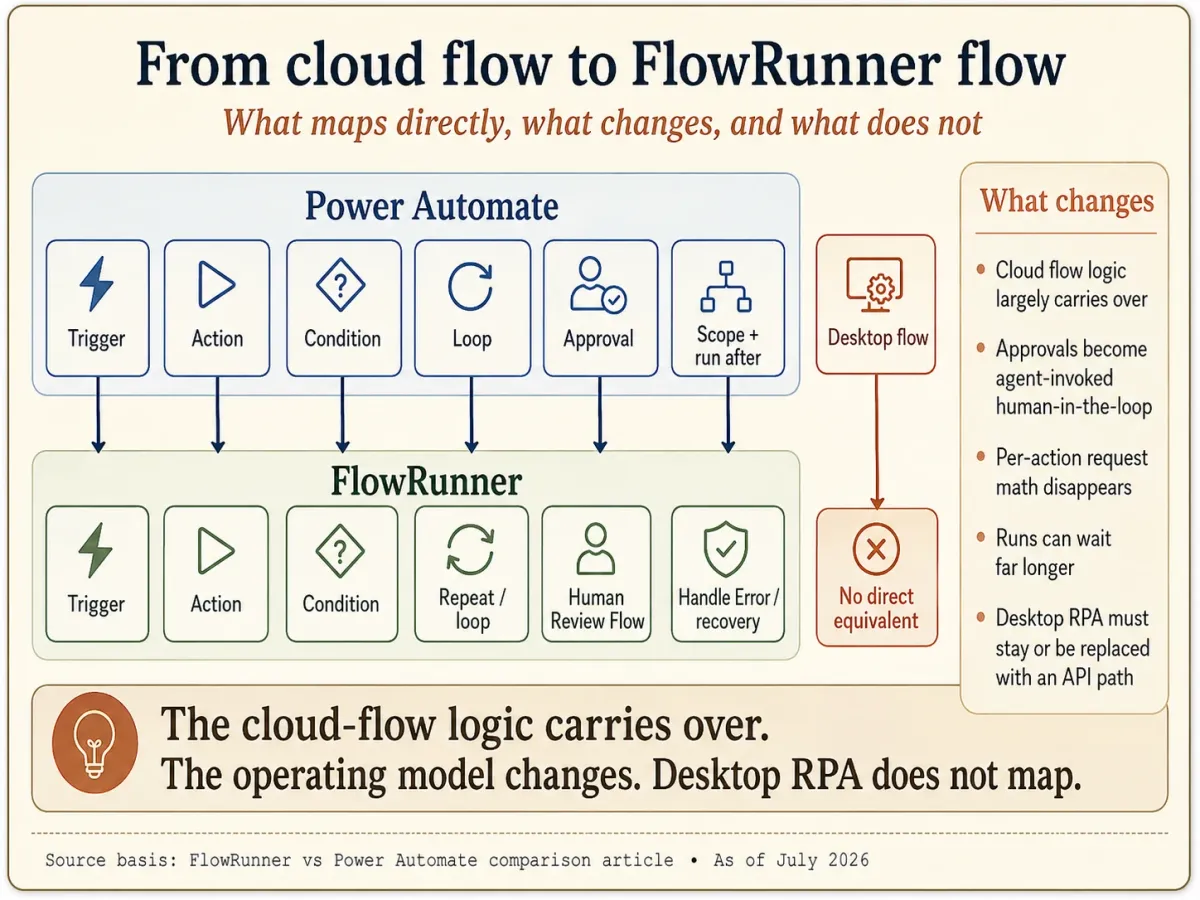
| Power Automate | FlowRunner | What changes |
|---|---|---|
| Automated trigger | Integration trigger | 2,100+ integrations, each connected once per workspace. |
| When an HTTP request is received | External Callback | A new URL. The same block can also resume a waiting run. |
| Response | Return Result | The caller uses the blocking Call Flow API. |
| Recurrence | Flow schedule | Set on the flow, not as a trigger. |
| Condition | Condition | AND and OR groups, shown on the canvas. |
| Switch | Value Router | Named paths for each value. |
| Apply to each | List Iterator | Runs the inner steps once per item. |
| Do until | Repeat | Up to 10,000 passes, with Break to stop early. |
| Scope with Configure run after | Handle Error | A failure path on the blocks it guards. |
| Run a Child Flow | Call Flow | Wait for the result, or let it run on its own. |
| Compose, Initialize variable | Set Variables, Transform Data | No request count for each step. |
| HTTP (premium) | HTTP Request | On every plan, with a Retry Policy built in. |
| Start and wait for an approval | A step that asks a person and waits (human-in-the-loop) | Email, Slack, WhatsApp, phone, or a Form. The agent can call it as a tool. |
| Desktop flow | No equivalent | Stays in Power Automate, or rebuilt against the app’s API. |
Quick wins on day one
- Every connector is included. HTTP, SQL Server, Salesforce, and ServiceNow are premium in Power Automate, at $15 per user per month. In FlowRunner they’re on every plan, Free included.
- Everyone gets an account. Unlimited users on every plan, with no per-user or per-bot license to count.
- One execution per run. A whole run counts once, however many steps, retries, or pages it takes, instead of each action counting against 40,000 requests per user per day on Premium.
- Approvals that wait. People answer on email, Slack, WhatsApp, phone, or a Form, and a run waits up to 30 days on Free, Starter, and Growth, and up to a year on Professional and above.
- Try it on Professional. Every new account starts with 14 days of Professional with no card, then stays on Free (100 executions a month) with nothing paused or deleted.
Want a hand with a bigger migration? Contact us.
Frequently asked questions
Does FlowRunner import Power Automate solutions directly?
There's no importer button. FlowRunner Prompt to Flow does the conversion: you paste one flow's JSON from the export into your AI tool with the request on this page, and the AI builds the flow in your FlowRunner workspace from the same blocks the flow editor uses. You review what it built, connect your accounts, and test.
Should I use a solution export or a package export?
Use a solution export if your flows are in a solution, which is what Microsoft recommends. Use Package (.zip) for a flow that isn't in a solution. Both give the AI the flow's definition. The difference only matters for importing back into Power Automate, where Microsoft labels the package import Legacy.
Do my Power Automate connections come across?
No. A solution carries connection references, which name the connector a flow uses, but not the stored sign-ins. You connect each app once in FlowRunner, and every flow in the workspace can use that connection.
What happens to my desktop flows?
They don't convert, because FlowRunner automates through APIs and AI agents, not screens. A desktop flow can stay in Power Automate, and FlowRunner can start the cloud flow that runs it through the Power Automate integration. Or, if the app the desktop flow drives has an API, the step is rebuilt against that API with the app's integration or an HTTP Request block.
What happens to my approvals?
A Start and wait for an approval action becomes a FlowRunner step that reaches the approver on email, Slack, WhatsApp, phone, or a Form and waits for the answer: up to 30 days on Free, Starter, and Growth, and up to a year on Professional and above. If you want an AI agent to decide when to ask, you attach the review flow to the agent as a tool in the flow editor.
Keep reading
Ready to try it?
Start on the Free plan. No card required, and every new account gets 14 days of Professional.